

Copying information between apps is one of the biggest productivity problems when working with an AI assistant. You paste an email conversation into Claude, upload a meeting summary, then share a spreadsheet export just to give the assistant enough context to complete a task. Before long, you’re spending more time preparing information than actually getting work done.
Claude connectors are designed to solve this problem. By connecting Claude directly to your favorite applications, you can search documents, retrieve emails, review conversations, manage projects, and automate workflows without constantly switching between services.
Anthropic’s connector directory now features more than 950 MCP servers, offering integrations for everything from Google Workspace and Microsoft 365 to project management, design, automation, and software development tools.
However, having hundreds of integrations available doesn’t mean you need hundreds of connections. The challenge is finding the connectors that genuinely improve your workflow, understanding which Claude subscription supports them, and knowing what each integration can actually do.
In this guide, we explore the 10 best Claude connectors in 2026, highlighting their most useful features, subscription requirements, real-world applications, and limitations you should know before connecting your accounts.
What Are Claude Connectors and How Do They Work?
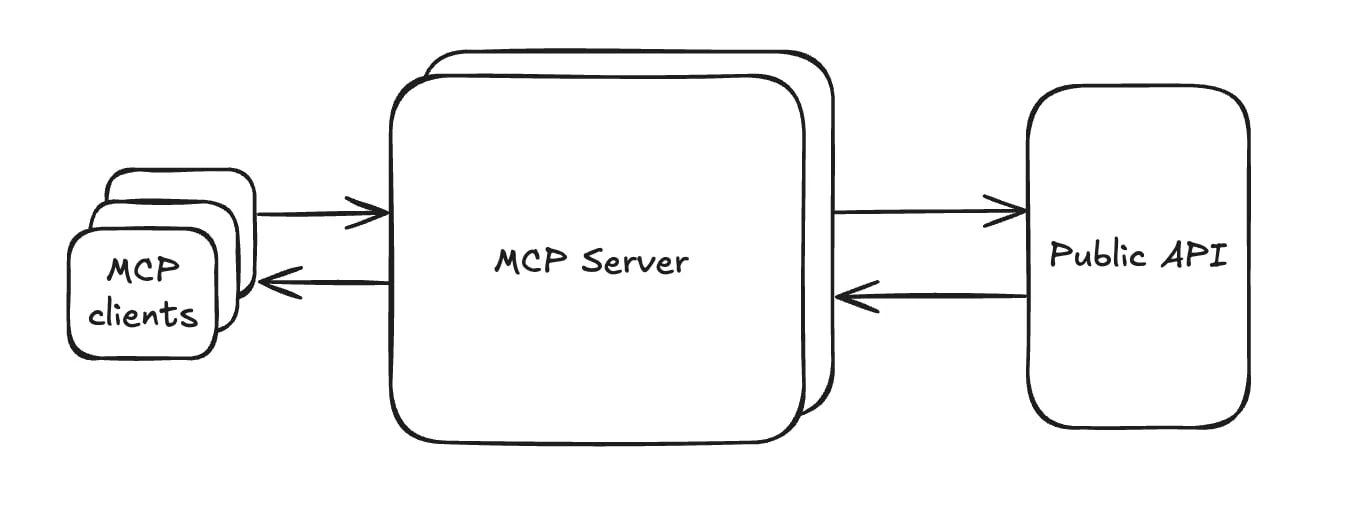
Claude connectors are integrations that allow Anthropic’s AI assistant to communicate with external applications and services through the Model Context Protocol (MCP).
Introduced by Anthropic in late 2024, MCP is an open standard that provides a consistent way for AI assistants to interact with external tools, data sources, and services.
Instead of manually uploading documents or copying information into a conversation, you can give Claude permission to access supported applications directly.
Depending on the connector and its available permissions, Claude can:
- Search emails, documents, and conversations.
- Retrieve information from connected applications.
- Create and update files, tasks, and calendar events.
- Manage project information and databases.
- Send messages and perform other actions with your approval.
- Generate diagrams, presentations, and other interactive content.
Importantly, Claude generally respects the permissions associated with your connected accounts. If your account cannot access a particular document, channel, or workspace, the connector should not give Claude access to it.
Types of Claude Connectors
There are three main types of connectors worth understanding.
Directory connectors: These are integrations listed in Anthropic’s connector directory. They have undergone Anthropic’s review process and can generally be installed through Customize > Connectors.
Custom connectors: These allow you to connect external MCP servers using their remote server URLs. They offer more flexibility but are not necessarily verified by Anthropic, so you should only connect services from trusted providers.
Interactive connectors: Some integrations support MCP Apps, which can display interactive interfaces directly inside Claude conversations. For example, instead of receiving only a text description, you might see an Asana project timeline or a FigJam diagram that you can interact with.
If you’ve previously used ChatGPT plugins or Google Gemini connected apps, the concept is similar. The main differences involve supported applications, permissions, available tools, and subscription requirements.
How We Selected the Best Claude Connectors
With hundreds of MCP integrations available, choosing the right ones can be difficult. We focused on connectors that provide practical benefits rather than simply offering an impressive number of tools.
Each recommendation meets three main criteria:
- Distinct functionality: Every connector handles a specific task or workflow that complements the other integrations in this list.
- Documented requirements: Subscription restrictions, permissions, and important limitations are publicly documented.
- Real productivity benefits: Each integration saves time compared with manually copying information between applications.
10 Best Claude Connectors to Use in 2026
1. Google Workspace: Best Free Connector for Everyday Productivity
- Best for: Gmail, Google Calendar, Drive, Docs, Sheets, and Slides users.
- Claude subscription: All plans, including Free.
- Example prompt: “Find 30 minutes next week when everyone involved in the budget discussion is available and draft a calendar invitation.”
Google Workspace is one of the most useful starting points for anyone using Claude regularly. It connects the assistant to Google’s productivity ecosystem, allowing it to work with emails, calendars, documents, and files without requiring manual uploads.
The Google Workspace connectors go beyond basic information retrieval. Depending on the connected service and enabled permissions, Claude can send, reply to, and forward Gmail messages, create and delete Calendar events, check availability, and organize or share Drive files.
Separate Google Docs, Sheets, and Slides connectors also allow Claude to edit supported files in a live panel alongside the conversation. This makes it easier to collaborate on documents while reviewing changes.
Another important development is that Google itself now provides the Gmail connector listed in Claude’s directory.
What to watch out for:
There are some limitations worth understanding before connecting your Google account.
- Gmail provides attachment metadata, but Claude does not automatically receive the full contents of email attachments through this integration.
- Google Drive extracts text from supported documents, meaning embedded images may be skipped.
- Google Slides editing does not support adding charts.
- Claude generally requests confirmation before sending messages, sharing files, or deleting content.
Despite these limitations, Google Workspace remains an excellent first connector, particularly for users who rely on Gmail and Google Drive every day.
2. Microsoft 365: Best for Business and Enterprise Workflows

- Best for: Businesses using Outlook, Microsoft Teams, OneDrive, and SharePoint.
- Claude subscription: All plans, including Free.
- Example prompt: “Summarize what my team decided in Microsoft Teams about the Q4 product launch.”
If your organization relies on Microsoft’s productivity ecosystem, the Microsoft 365 connector is one of the most valuable integrations available for Claude.
The Microsoft 365 connector brings together several services, including SharePoint, OneDrive, Outlook, and Microsoft Teams.
Claude can search documents stored across SharePoint sites, retrieve information from email conversations, access relevant calendar information, and summarize discussions from Teams.
For example, instead of manually reviewing dozens of messages, you can ask Claude to identify the main decisions from a particular project discussion and produce a concise summary.
Administrators can also enable write capabilities, allowing Claude to send emails, manage calendar events, and create files.
What to watch out for:
The Microsoft 365 connector is designed for organizational accounts rather than personal Microsoft accounts.
- Personal addresses such as @outlook.com and @hotmail.com are not supported.
- You need a work account associated with a Microsoft Entra tenant.
- Administrators cannot restrict access to individual SharePoint sites using Sites.Selected because this permission model is not supported.
For organizations already using Microsoft 365, this integration can significantly reduce the time spent searching for information across different services.
3. Slack: Best Claude Connector for Team Communication

- Best for: Teams that manage projects and discussions through Slack.
- Claude subscription: Pro, Max, Team, and Enterprise.
- Example prompt: “Summarize the discussions in #product from the last three days and draft a response to the outstanding question.”
Important project decisions often get buried in long Slack conversations. The Slack connector helps Claude retrieve that information without requiring you to manually search through multiple channels.
The Slack connector can search channels, direct messages, threads, and files. It can also prepare formatted message drafts that you can review before posting.
One particularly useful capability is its support for Slack canvases. Claude can create and update these collaborative documents, making it easier to transform scattered discussions into organized project notes.
With 11 available tools, the integration offers more than simple message searching.
What to watch out for:
Slack integration is not available on every Claude subscription.
- Free Claude users cannot access this connector.
- It initially launched for Team and Enterprise customers before expanding to Pro and Max on January 26, 2026.
- Your Slack workspace administrator may need to approve the Claude application before you can connect your account.
For teams that handle most internal communication through Slack, this connector can make project research and collaboration considerably easier.
4. Notion: Best for Knowledge Management and Documentation
- Best for: Personal knowledge bases, company wikis, and project documentation.
- Claude subscription: All plans.
- Example prompt: “Find our employee onboarding documentation in Notion and turn it into a one-page checklist.”
Notion is a popular workspace for organizing documents, project notes, databases, and internal knowledge. Its Claude integration makes that information easier to search, update, and reuse.
The Notion connector is an Anthropic-verified integration developed by Notion.
Claude can search existing pages, create new documents, update content, move or duplicate pages, build databases, and leave comments wherever your Notion account has the necessary permissions.
This is particularly useful for teams that maintain extensive documentation and want to turn existing information into new resources without repeatedly copying content into conversations.
What to watch out for:
Some advanced capabilities depend on your Notion subscription.
Searching connected external sources such as Slack or Jira through Notion requires Notion Business or Enterprise with Notion AI.
Write permissions also deserve attention. If your workspace contains sensitive documentation, configure write tools to require approval before allowing Claude to modify pages or databases.
For users who treat Notion as their central knowledge repository, this integration is an excellent way to make existing information more accessible.
5. Asana: Best for Turning Conversations Into Projects

- Best for: Project managers and teams coordinating tasks.
- Claude subscription: All plans.
- Example prompt: “Turn this discussion into an Asana project with tasks, assigned owners, and a timeline.”
Asana is designed to help teams organize projects, track progress, and coordinate responsibilities. Its Claude integration takes this further by allowing the assistant to turn natural-language instructions into structured project information.
The Asana connector supports more than 30 tools covering tasks, projects, goals, and status updates.
One of its most interesting features is interactive MCP support. Instead of simply describing a project in text, Claude can generate an interactive project board or timeline that you can review and adjust.
This makes it easier to transform brainstorming sessions, meeting notes, and planning discussions into actionable work.
What to watch out for:
Asana has moved to its V2 MCP server and deprecated its earlier beta endpoint, mcp.asana.com/sse.
If you previously connected Asana manually using the older endpoint, you should reconnect through Claude’s official connector directory to use the updated integration.
For teams that frequently convert discussions into assigned tasks and project plans, Asana is one of the most practical Claude connectors available.
6. Canva: Best for Creating Presentations and Visual Content
- Best for: Marketers, content creators, and users who need professional-looking visuals.
- Claude subscription: All plans.
- Example prompt: “Turn these meeting notes into a six-slide Canva presentation.”
Canva makes graphic design more accessible, even for users without professional design experience. Its Claude connector brings AI assistance directly into the design workflow.
The Canva connector allows Claude to generate designs, search existing projects, import designs from URLs, organize folders, add comments, and export completed files.
One of its most useful applications is presentation creation. You can provide Claude with meeting notes, research findings, or an outline and ask it to generate an editable Canva presentation.
This can save considerable time when preparing internal presentations, marketing materials, and visual reports.
What to watch out for:
Canva’s AI Connector is listed for Canva Pro, Teams, Business, and Nonprofit accounts. A free Canva account may therefore be insufficient.
There are also differences between the tools exposed through Claude’s directory connector and Canva’s full MCP server.
For example, certain brand template and autofill capabilities available through Canva’s own MCP documentation are not included in Claude’s listed 17 tools.
Design generation can also take time, so an occasional timeout does not necessarily mean the connection is broken.
7. Figma: Best for Diagrams and Product Design Workflows
- Best for: Product designers, developers, and teams creating visual workflows.
- Claude subscription: All plans.
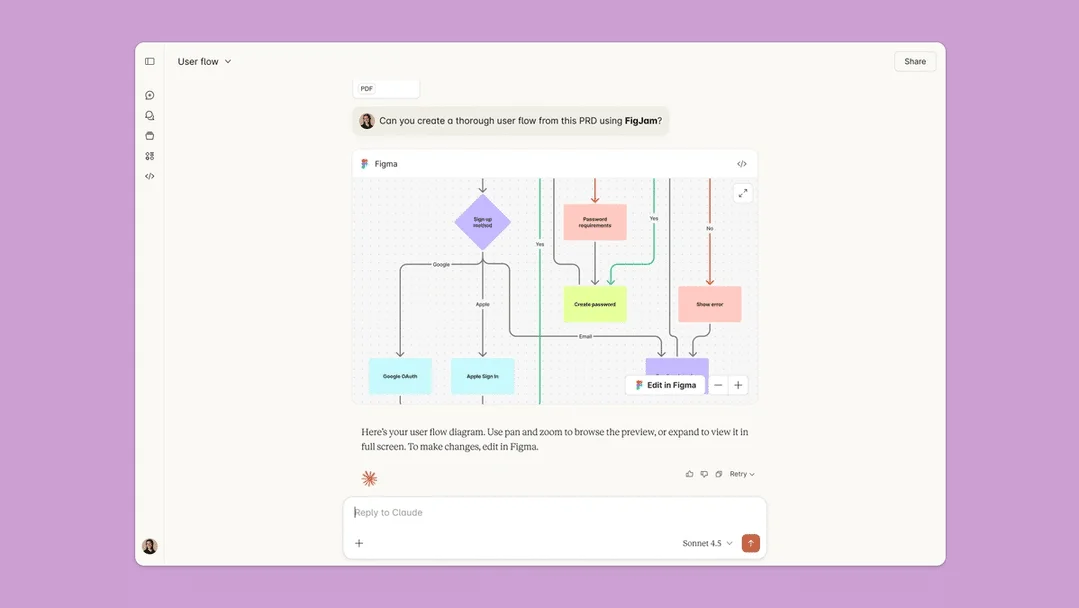
- Example prompt: “Turn this product requirements document into a user flow diagram in FigJam.”
Figma is widely used for interface design, prototyping, and visual collaboration. Its Claude connector makes it easier to turn written ideas and technical documentation into visual diagrams.
The Figma connector supports workflows involving FigJam, allowing Claude to transform text, PDFs, and screenshots into editable visual resources.
These can include:
- User flow diagrams.
- Gantt charts.
- Sequence diagrams.
- Product planning diagrams.
- Visual representations of technical workflows.
Developers can also provide a Figma frame link and ask Claude to analyze its layout, components, and design variables. This is useful when translating an existing design into code or understanding a complex interface.
What to watch out for:
Claude’s directory integration does not necessarily expose every capability available through Figma’s full MCP server.
For example, tools such as generate_figma_design appear in Figma’s documentation but are not included in the same way in Claude’s directory listing.
Usage limits may also depend on your Figma seat and account configuration.
For product teams that regularly work with diagrams, interface designs, and technical documentation, Figma provides a useful visual extension to Claude.
8. Zapier: Best for Connecting Thousands of Applications

- Best for: Connecting applications that do not have dedicated Claude integrations.
- Claude subscription: All plans, although using Cowork requires a paid Claude plan.
- Example prompt: “Add this new lead to my Airtable database and post a notification in Discord.”
Not every application has an official Claude connector. This is where Zapier becomes particularly valuable.
Zapier MCP acts as a bridge between Claude and more than 8,000 applications, allowing the assistant to perform actions across a large ecosystem of services.
For example, you can ask Claude to add a contact to Airtable, create a task in a project management application, or publish a notification in Discord.
Instead of configuring separate integrations for every service, you can use a single Zapier connection to access supported actions.
Zapier also supports Claude chat, Claude Desktop, and Cowork.
What to watch out for:
Zapier’s usage limits are particularly important.
Each successful MCP tool call consumes two Zapier tasks from the same monthly allowance used by your existing Zaps.
On the Free plan, which includes 100 monthly tasks, that means approximately 50 successful Claude tool calls if each consumes two tasks.
Another limitation is that Zapier MCP does not provide triggers. Claude cannot independently monitor an application and initiate actions when something happens. You must start the workflow through a conversation.
Despite these restrictions, Zapier is one of the most versatile integrations for users who work with multiple online services.
9. Granola: Best for Searching Meeting Notes
- Best for: Professionals who regularly attend meetings and need to retrieve past discussions.
- Claude subscription: All plans.
- Example prompt: “What did we decide about pricing during last week’s meeting?”
Meeting notes often contain important decisions, action items, and discussions that are difficult to remember later.
Granola helps solve this problem by organizing meeting information and making it searchable through AI-powered tools.
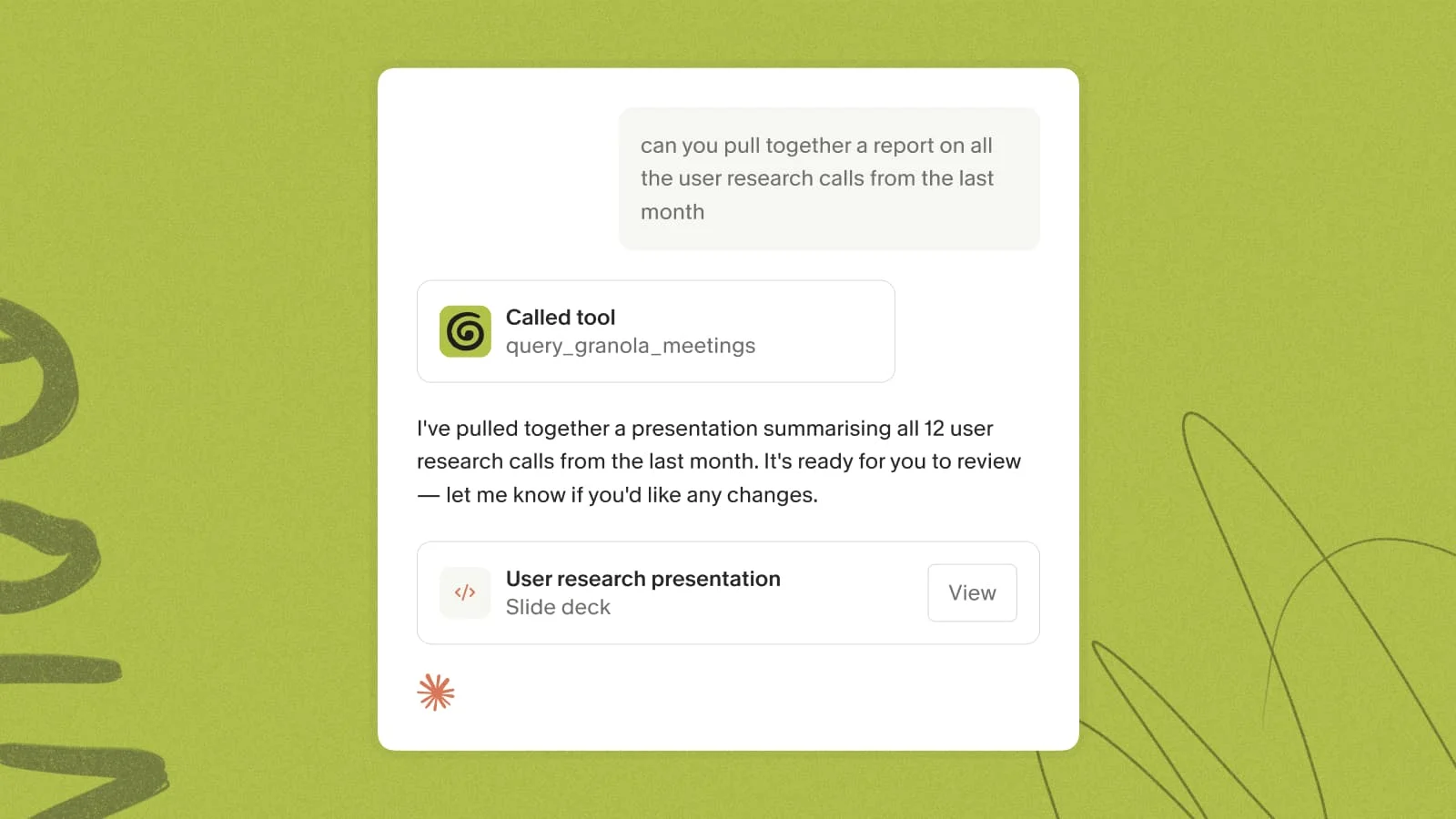
The Granola connector allows Claude to list, search, and read meeting notes, browse folders, and reference the meetings used to generate an answer.
This is particularly useful when you need to retrieve a specific decision without reviewing an entire meeting summary.
With Granola’s Snapshots feature enabled, Claude can also access visual information such as slides and charts shared during meetings.
What to watch out for:
Granola’s free Basic plan has several restrictions.
- Claude can access only the last 30 days of meeting notes.
- Full transcripts are not available.
- Usage limits are lower than those of paid plans.
- Full historical access, transcripts, and folder editing require Granola Business.
If you regularly attend meetings and need a convenient way to recover decisions or action items, Granola can be a valuable addition to your Claude workflow.
10. GitHub: Best Claude Connector for Developers

- Best for: Developers working with repositories and large codebases.
- Claude subscription: A Claude account; private repository access also requires the Claude GitHub App.
- Example prompt: “Explain how authentication works in this repository and identify where the session token is created.”
GitHub is an essential platform for software development teams, providing tools for source code management, collaboration, and version control.
Anthropic’s GitHub integration allows developers to connect repositories to Claude conversations and Projects.
Once connected, you can provide Claude with relevant repository context and ask questions about the codebase.
For example, Claude can help explain authentication logic, locate specific functions, understand how different components interact, and identify where particular variables or configuration values are defined.
This is particularly useful when working with unfamiliar repositories or trying to understand an existing application before making changes.
What to watch out for:
Organizations that enforce single sign-on (SSO) may require individual users to authorize the Claude application separately.
Simply reconnecting the integration will not resolve missing SSO authorization.
Another limitation is that Project repository synchronization does not automatically refresh in every situation.
If you want Claude to create GitHub issues or pull requests and perform additional repository actions, consider connecting GitHub’s official MCP server as a custom connector instead of relying exclusively on the basic repository integration.
Claude Connector Comparison: Which Integration Should You Choose?
With so many integrations available, choosing the right one depends on your applications, subscription, and daily workflow.
Here’s a quick comparison of the 10 recommended connectors.
| Connector | Claude plan | Main capabilities | Best use case |
|---|---|---|---|
| Google Workspace | All plans, including Free | Search, send, schedule, edit | Everyday productivity |
| Microsoft 365 | All plans, including Free | Search and optional write actions | Business workflows |
| Slack | Pro, Max, Team, Enterprise | Search, draft, manage canvases | Team communication |
| Notion | All plans | Search and manage pages and databases | Knowledge management |
| Asana | All plans | Create and manage projects and tasks | Project planning |
| Canva | All plans | Generate and manage designs | Visual content |
| Figma | All plans | Create diagrams and analyze designs | Product design |
| Zapier | All plans | Actions across 8,000+ apps | Workflow automation |
| Granola | All plans | Search and retrieve meeting notes | Meeting summaries |
| GitHub | Claude account | Repository access and code context | Software development |
Important: The Claude subscription requirements shown here do not necessarily include third-party service subscriptions, workspace administrator approval, or additional usage restrictions.
How to Connect an App to Claude
Connecting an application to Claude is generally straightforward. Most directory integrations can be configured in a few steps.
- Open Claude in your web browser or desktop application.
- Navigate to Customize > Connectors.
- Search for the application you want to connect.
- Select the integration and review its available tools and permissions.
- Click Connect and sign in to your account.
- Authorize the requested permissions.
- Start using the connector in your Claude conversations.
For integrations that support write operations, consider requiring approval before Claude sends messages, modifies documents, or deletes information.
Connecting Claude Connectors in Team and Enterprise Workspaces
Organization-managed Claude accounts may have additional restrictions.
On Team and Enterprise plans, an Owner may need to enable a connector for the organization before individual members can use it.
Administrators should review the requested permissions and decide which integrations are appropriate for their teams.
Custom connectors may also require additional configuration, depending on the MCP server and authentication method.
Final Thoughts: Which Claude Connectors Are Actually Worth Using?
Claude connectors can significantly improve productivity by eliminating the repetitive process of copying information between applications. However, the best setup is not necessarily the one with the most integrations.
If you use Google’s ecosystem, start with Google Workspace. Its Gmail, Calendar, and Drive capabilities make it an excellent everyday assistant, even on Claude’s Free plan.
For organizations using Microsoft applications, Microsoft 365 provides a convenient way to work with Outlook, Teams, SharePoint, and OneDrive. Meanwhile, Slack is particularly useful for retrieving decisions buried in team conversations.
If documentation and project management are your priorities, Notion and Asana are worth considering. Content creators can benefit from Canva and Figma, while Zapier provides access to thousands of additional applications.
Finally, Granola is an excellent option for retrieving information from past meetings, and GitHub is a valuable integration for developers working with complex codebases.
Our recommendation is simple: start with the two or three applications you use most frequently. Review their permissions, test their capabilities, and expand your setup only when another integration solves a genuine productivity problem.
The real advantage of Claude connectors isn’t having access to hundreds of tools. It’s being able to complete everyday tasks without constantly switching between applications.
Frequently Asked Questions About Claude Connectors
Are Claude connectors available on the Free plan?
Yes. Several official directory connectors, including Google Workspace, Microsoft 365, Notion, Asana, Canva, Figma, Zapier, and Granola, are available to Free users, subject to the individual service’s requirements.
However, Slack requires a paid Claude subscription, and some advanced features depend on third-party account plans.
Free users can also add only one custom connector.
Can Claude send emails using connected accounts?
Yes. With the Gmail connector, Claude can send, reply to, and forward emails, provided the necessary permissions are enabled.
By default, Claude requests confirmation before performing sensitive actions such as sending messages.
Microsoft 365 also supports email sending when an administrator enables the relevant write permissions.
Does Anthropic use connected application data to train its AI models?
Anthropic states that it does not train its models on Gmail, Google Drive, or Calendar connector data.
However, there is an important distinction between accessing information through a connector and manually copying that information into a Claude conversation.
On consumer plans where model training is enabled, content manually shared in conversations may be treated according to Anthropic’s applicable data usage settings and policies.
Review Anthropic’s current privacy documentation if you regularly connect accounts containing confidential information.
Are custom MCP connectors safe to use?
Custom connectors offer flexibility, but they require additional caution.
Unlike directory integrations reviewed by Anthropic, custom MCP servers are not necessarily verified. A malicious or poorly designed server could introduce security and privacy risks.
Before connecting one, make sure you trust its developer, understand the requested permissions, and disable write capabilities you do not need.
Can Claude automatically monitor connected applications?
Not necessarily. Most connectors allow Claude to retrieve information or perform actions when you initiate a request.
For example, Zapier MCP does not provide triggers that automatically start a workflow when a new email, message, or database entry appears.
If you need continuous monitoring or event-driven automation, you’ll generally need a separate automation workflow or service that supports triggers.
Add Tech2Geek as a preferred source on Google to see more of our latest tech articles.
Support Tech2Geek ❤️
Did this guide help you? If Tech2Geek saves you time or helps you solve a problem,
consider buying me a coffee. ☕
Your support helps keep Tech2Geek independent and free.
Comments