


Linux system administrators and power users live in the terminal. While graphical tools can help, real efficiency, automation, and troubleshooting power come from mastering the Linux command line.
To help you level up your skills, I’ve created a comprehensive five-part series covering 100+ essential Linux commands, each with explanations and links to in-depth guides. Whether you manage production servers, troubleshoot networking issues, automate backups, or fine-tune performance, this curated command list serves as a practical, real-world reference.
This guide organizes the most important Linux commands into logical categories—from system monitoring and networking to file management, process control, and user administration.
You can explore each section below and dive deeper into the full series.
Linux Commands – Part 1 (Core System & File Management)
These foundational commands are used daily by Linux sysadmins and DevOps engineers.
- ip – Modern networking utility from the Iproute2 suite for managing IP addresses, routes, and interfaces.
- ls – List directory contents.
- df – Display disk space usage by filesystem.
- du – Estimate file and directory size usage.
- free – View memory usage (RAM and swap).
- scp – Securely copy files over SSH.
- find – Search for files based on name, size, permissions, and more.
- ncdu – Interactive disk usage analyzer.
- pstree – Display running processes in a tree structure.
- last – Show login history.
- w – Display currently logged-in users and activity.
- grep – Search for text patterns in files.
These commands form the backbone of everyday Linux system administration.
Linux Commands – Part 2 (Monitoring & Performance Tools)
For diagnosing performance issues and monitoring system health, these tools are indispensable.
- uptime – Shows system uptime and load averages.
- top – Real-time system resource monitor.
- vmstat – Display memory, CPU, and process statistics.
- htop – Enhanced interactive process viewer.
- dstat – Combined monitoring for CPU, disk, memory, and network.
- iftop – Monitor network bandwidth usage per connection.
- nethogs – View network traffic per process.
- iotop – Monitor disk I/O usage by process.
- iostat – Detailed disk I/O statistics.
- netstat – Network statistics tool (legacy but still useful).
- ss – Modern replacement for netstat to inspect sockets.
- atop – Advanced performance monitoring for Linux servers.
- Glances / nmon – All-in-one system monitoring tools.
- ssh – Secure remote server access.
- sudo – Execute commands with elevated privileges.
- cd – Change directories.
- pwd – Print working directory.
- cp – Copy files and directories.
- mv – Move or rename files.
- rm – Remove files and directories.
- mkdir – Create directories.
- touch – Create files or update timestamps.
- man – Access manual pages.
- apropos – Search manual page descriptions.
Linux Commands – Part 3 (Networking, Automation & Compression)
These commands are critical for automation, data transfers, and network diagnostics.
- rsync – Efficient file synchronization and backups.
- tar – Archive files and directories.
- gzip – File compression utility.
- bzip2 – Alternative compression tool.
- zip – Create compressed archives.
- locate – Fast file search tool using indexed database.
- ps – Display running processes.
- bash scripts – Execute automation scripts (
./script.sh). - cron – Schedule recurring tasks.
- nmcli – Manage NetworkManager from the command line.
- ping – Test network connectivity.
- traceroute – Trace packet route to a host.
- mtr – Combined ping and traceroute diagnostic tool.
- nslookup – Query DNS servers.
- host – Perform DNS lookups.
- dig – Advanced DNS query tool.
Linux Commands – Part 4 (Storage, Filesystems & Permissions)
Disk management and system-level tasks require these powerful utilities.
- wget – Download files via HTTP, HTTPS, FTP.
- curl – Transfer data across multiple protocols.
- dd – Low-level disk copying and data conversion tool.
- fdisk – Disk partition management.
- parted – Advanced partition editor.
- blkid – Display block device attributes.
- mkfs – Create filesystems.
- fsck – Check and repair filesystem integrity.
- whois – Query domain registration details.
- nc – Netcat networking utility.
- umask – Set default file permission mask.
- chmod – Change file permissions.
- chown – Change file ownership.
- chroot – Run commands in isolated root environment.
- useradd – Create new users.
- userdel – Delete users.
- usermod – Modify user accounts.
Linux Commands – Part 5 (Text Processing & Process Management)
Power users rely heavily on these commands for managing text, logs, and processes.
- vi – Classic text editor.
- cat – Display file contents.
- tac – Reverse file output.
- more – Paginated file viewer.
- less – Improved file viewer.
- tail – Display last lines of files.
- dmesg – View kernel message buffer.
- journalctl – Query systemd logs.
- kill – Terminate processes.
- killall – Kill processes by name.
- sleep – Pause execution.
- wait – Wait for background processes.
- nohup – Run commands immune to hangups.
- screen – Persistent remote sessions.
- tmux – Terminal multiplexer.
- passwd – Change user passwords.
- chpasswd – Batch password updates.
- mount / umount – Attach or detach filesystems.
- systemctl – Manage systemd services.
- clear – Clear terminal screen.
- env – Run commands in modified environments.
Miscellaneous Linux Commands (Advanced & Productivity Tools)
- cheat – Interactive command cheat sheets.
- tldr – Simplified command examples.
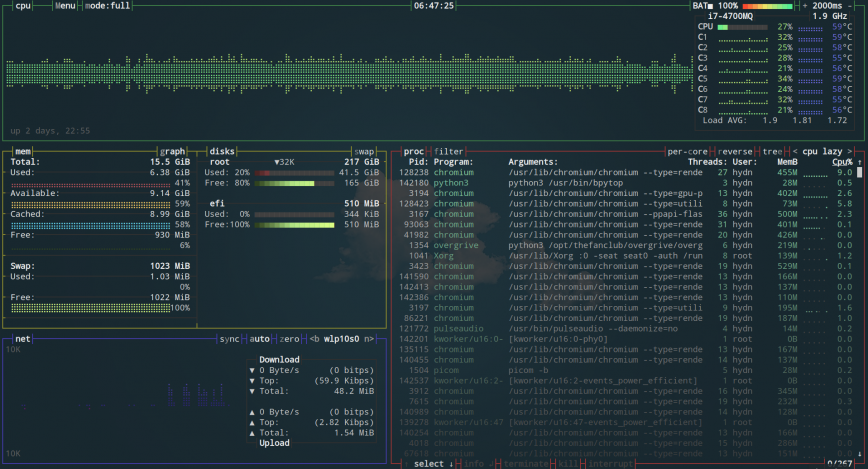
- btop – Modern resource monitor (successor to bashtop).
- nload – Monitor network traffic.
- history – View command history.
- sar – Collect and report system activity statistics.
- lsof – List open files and associated processes.
- awk – Pattern scanning and text processing language.
- sed – Stream editor for text transformation.
- watch – Run commands periodically.
- crontab – Manage scheduled cron jobs.
- alias – Create custom command shortcuts.
- lspci – List PCI devices.
- lsusb – List USB devices.
- ln – Create symbolic and hard links.
- diff – Compare files line by line.
Bonus: Download the 100+ Linux Commands PDF Cheat Sheet
To make learning easier, I’ve created a printable PDF cheat sheet featuring over 100 Linux commands with quick explanations and links to detailed guides.
Subscribe to our newsletter and get instant access to the download.
Why These Linux Commands Matter
These commands aren’t random—they represent the real tools used by:
- Linux system administrators
- DevOps engineers
- Cloud engineers
- Cybersecurity professionals
- Power users
From managing servers and analyzing logs to diagnosing performance bottlenecks and securing remote access, mastering these Linux commands dramatically improves efficiency and confidence in the terminal.
Final Thoughts
With more than 100 Linux commands organized across five in-depth sections, this series serves as a practical command-line reference for beginners and advanced users alike.
You’ll find everything from basic commands like ls, cd, and grep to advanced utilities like rsync, cron, awk, and journalctl. Whether you’re managing file systems, troubleshooting network connectivity, automating tasks, or analyzing performance metrics, these tools are essential.
This guide will continue to grow with additional command explanations and related tutorials. If you have suggestions for commands that should be included, join the discussion and share your ideas.
The Linux terminal is one of the most powerful productivity environments ever built. The more commands you master, the more control you gain.
And if you'd like to go a step further in supporting us, you can treat us to a virtual coffee ☕️. Thank you for your support ❤️!

We do not support or promote any form of piracy, copyright infringement, or illegal use of software, video content, or digital resources.
Any mention of third-party sites, tools, or platforms is purely for informational purposes. It is the responsibility of each reader to comply with the laws in their country, as well as the terms of use of the services mentioned.
We strongly encourage the use of legal, open-source, or official solutions in a responsible manner.
Comments