

One of the easiest ways to find your username is your login screen. Once you start your computer, you’ll see your username appear right at the beginning on top of the password box.
But, if you don’t want to restart your system just to find your username, then read along.
We’ve listed 7 other easy ways to find your username, regardless of the version you are using!
Use the Echo Command
In computing, the echo command is used to display its arguments on the standard output. We can use this feature to display our username.
1- Press Win + R to open the Run dialog box.
2- Type cmd in the box next to open, and press Enter.
3- Type echo %USERNAME% and press Enter.
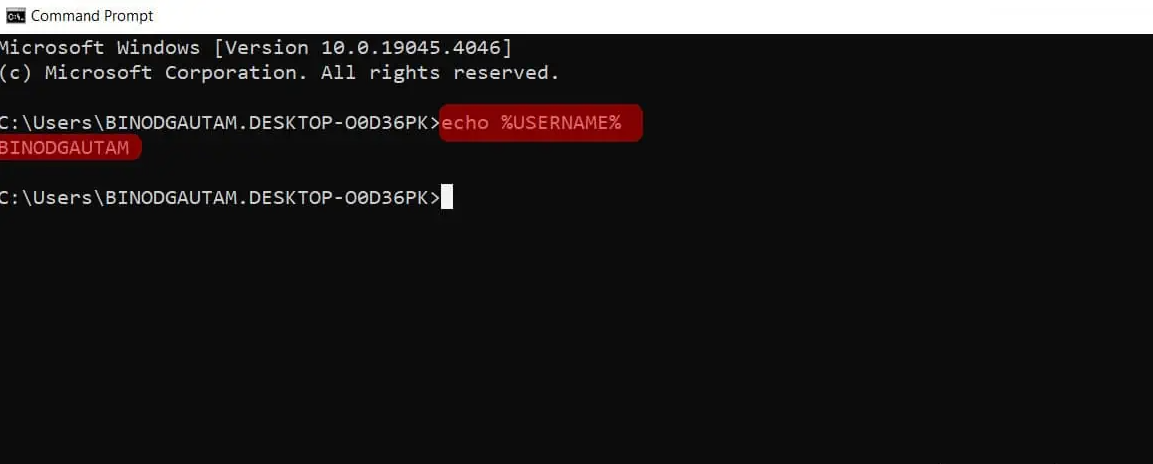
4- Your username will appear in the next line
Use the Whoami Command
There is also another way to find your username from the command prompt. You simply need to type out another set of instructions.
1- Press Win + R to open the run dialog box.
2- Type cmd in the box next to open, and press Enter.
3- Type whoami and press Enter.
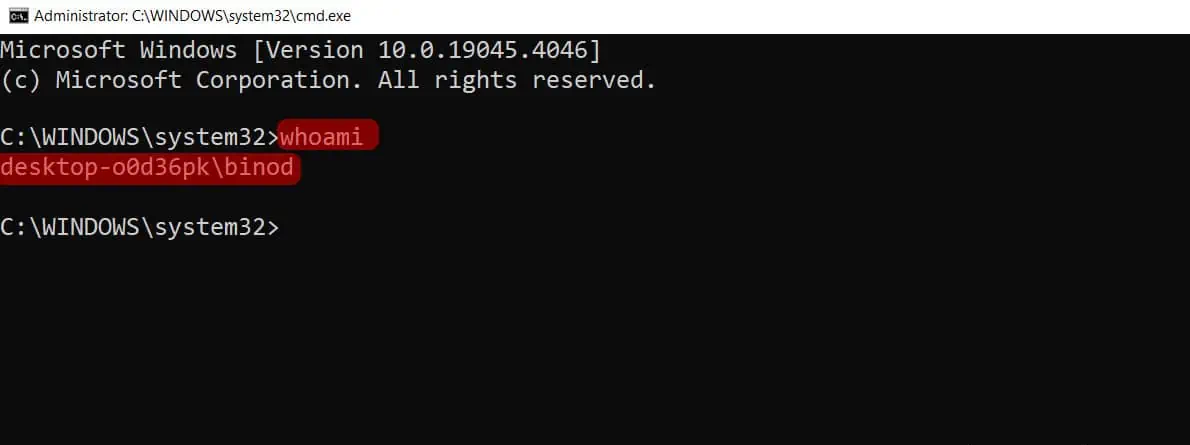
4- Your username will appear in the next line
Find Your Username from the Task Manager
In the Task Manager, there is a tab called Users from where you can find your username.
1- Press Ctrl + Shift + Esc to open Task manager.
2- If it appears in compact view, click on the arrow next to More details.
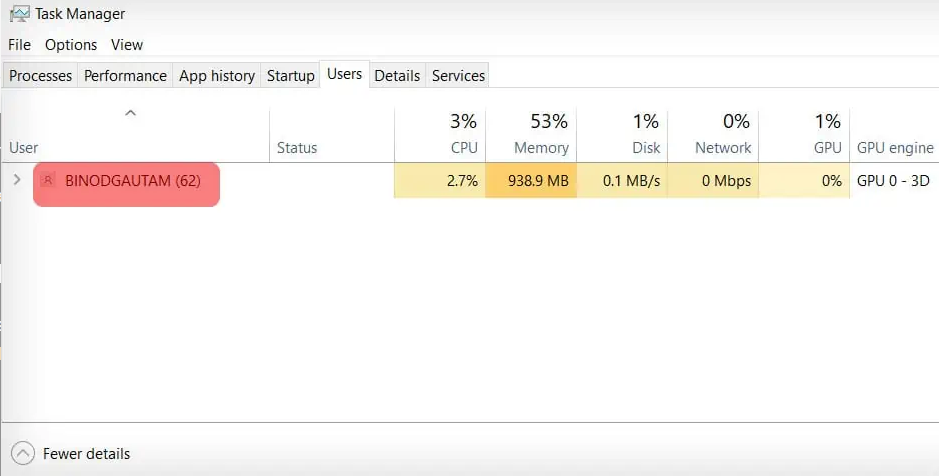
3- Go to the Users tab.
4- If you are a single user, only your username will be shown.
5- If there are multiple accounts, your username will be at the top.
Run the Netplwiz Command
The Netplwiz.exe is a part of the Microsoft Windows Operating System. It is like an advanced version of the user accounts control panel. You can use this to view and also change your username.
1- In the search bar, type Netplwiz.
2- From the dialog box that opens, click on Properties.
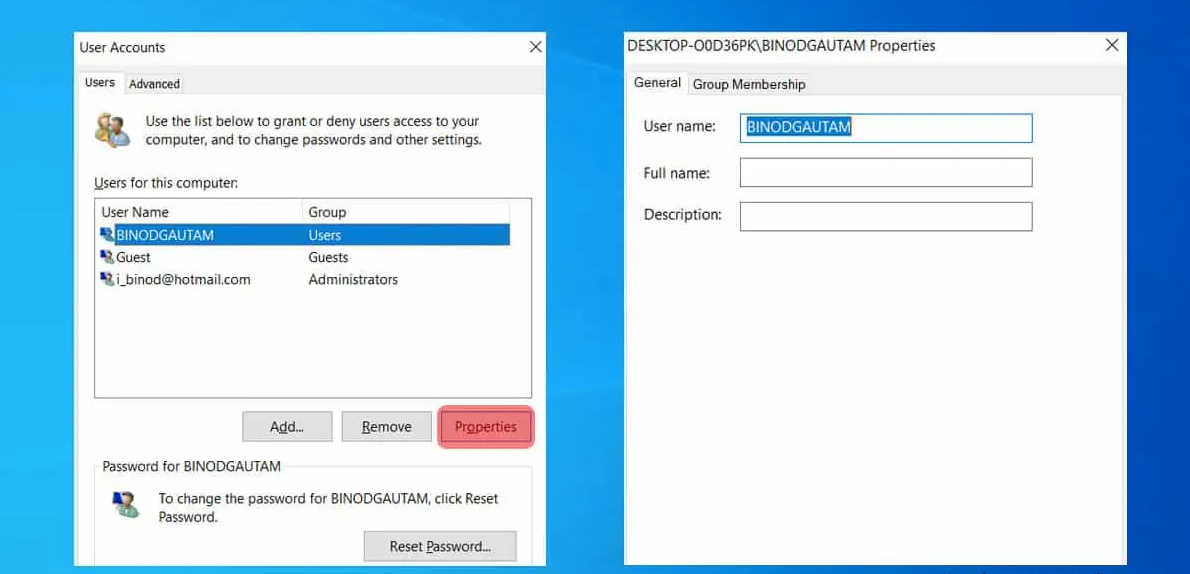
3- Your windows username will be displayed and highlighted.
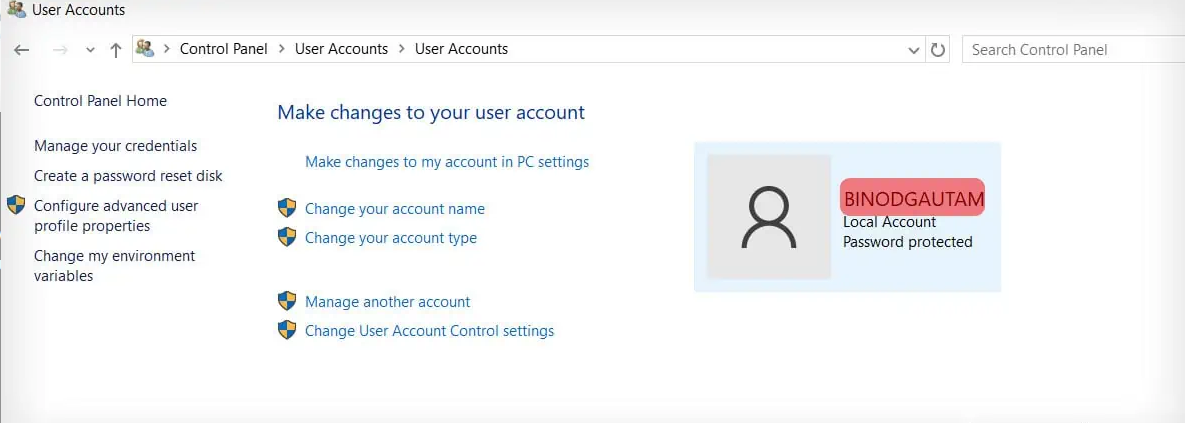
Open the Control Panel
You can also find your username from the Control Panel.
1- Press Windows + R to open the Run dialog box.
2- Type Control and press Enter.
3- Go to User Accounts.
4- Press on User Accounts again. Your username will appear right next to your display picture.
Go to the Account Information Center
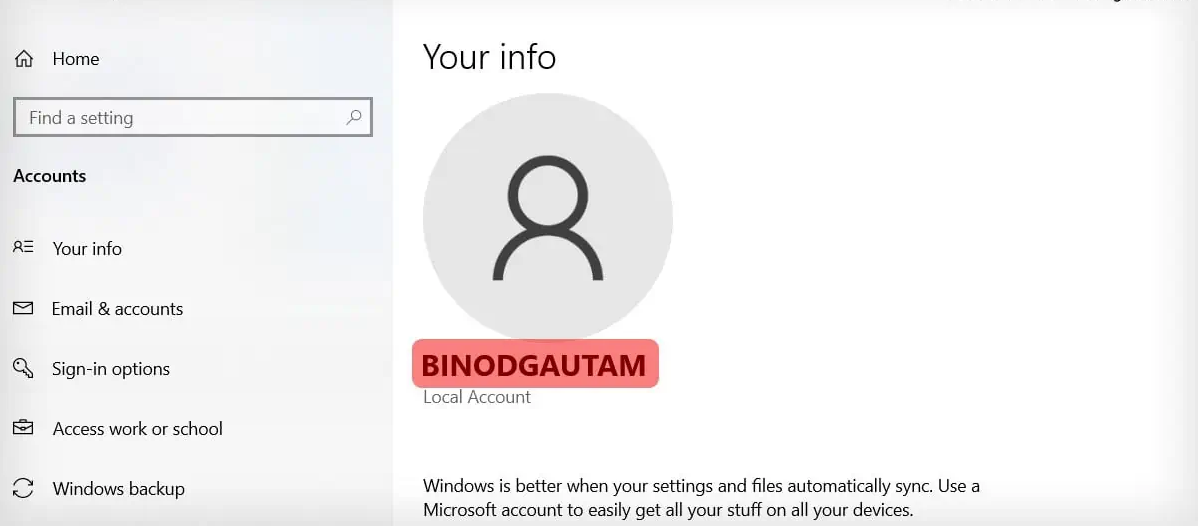
The account information center is where you can find all the details about your user account, from your display picture, password, and obviously, your username.
1- Press Ctrl + I to open Settings.
2- Go to Accounts.
3- Click on Your Info.
4- Your username will be displayed in bold below the profile picture.
View Your Username from the Start Window
You can see your username by clicking on the start icon of your screen. However, if your PC is updated to the latest version, you might have to add a couple more steps.
1- Click on the start button from your desktop.
2- Hover on the profile picture at the left panel.
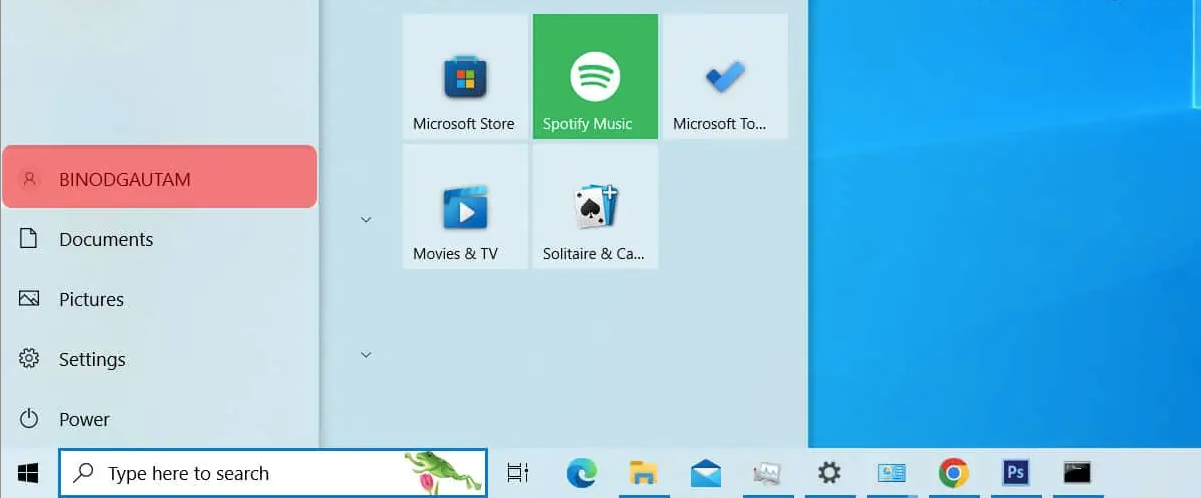
3- Your username will appear there.
And there you have it! We hope you were able to find what your username on Windows is.
And if you'd like to go a step further in supporting us, you can treat us to a virtual coffee ☕️. Thank you for your support ❤️!

We do not support or promote any form of piracy, copyright infringement, or illegal use of software, video content, or digital resources.
Any mention of third-party sites, tools, or platforms is purely for informational purposes. It is the responsibility of each reader to comply with the laws in their country, as well as the terms of use of the services mentioned.
We strongly encourage the use of legal, open-source, or official solutions in a responsible manner.
Comments