
![14 Best Linux System Monitoring Tools [GUI+CLI]](https://www.tech2geek.net/wp-content/uploads/2025/04/14-Best-Linux-System-Monitoring-Tools-GUICLI-950x500.webp)
Monitoring the performance of your Linux system isn’t solely the responsibility of system administrators; it’s a crucial practice for anyone seeking to optimize performance or gain insights into their system’s functionality. Whether you prefer using command line interfaces or graphical user interfaces, a variety of monitoring tools are available to suit your needs. From minimalistic terminal applications to comprehensive GUI solutions, we have curated a definitive list of the top 14 system monitoring tools to help you efficiently track CPU usage, memory consumption, disk performance, and network activity while enhancing your Linux experience.
Graphical User Interface (GUI) System Monitoring Tools
If you lean toward a GUI rather than a command line for your monitoring tasks, here are some of the best GUI tools available:
1. GNOME System Monitor
Kicking off our list is the GNOME System Monitor. This open-source tool comes pre-installed on Ubuntu and many other Linux distributions that utilize the GNOME Desktop. It provides a user-friendly interface to effectively monitor and manage system performance.

Key Features:
- Monitor, manage, and terminate running processes with ease.
- Minimal resource consumption ensuring your system runs smoothly.
- Sort and view individual process details effortlessly.
- Receive real-time alerts upon reaching specific resource thresholds.
- Visual representation of CPU allocation, memory, disk space, and network statistics through graphs and tables.
If GNOME System Monitor isn’t pre-installed on your system, you can easily install it using:
sudo apt install gnome-system-monitor  # For Debian, Ubuntu, and Mint
sudo yum install gnome-system-monitor  # For RHEL/CentOS/Fedora
sudo pacman -S gnome-system-monitor     # For Arch Linux
2. Resources
The Resources tool, often dubbed “Rust-based Resources,” stands out with its modern design and robust capabilities. This tool offers a graphical overview of CPU, memory, GPU, and disk usage, enabling users to manage and terminate running applications.

Key Features:
- Sortable and searchable lists of running processes and applications.
- Customizable interface for personalized use.
- Monitor system temperature and fan speed along with user-defined metrics.
- Requires installation via Flatpak:
flatpak install flathub net.nokyan.Resources
flatpak run net.nokyan.Resources
3. Stacer
Combining system monitoring with optimization features, Stacer boasts a modern interface perfect for users seeking to keep their Linux systems in peak condition. It provides real-time insights into CPU, memory, disk, and network usage through vivid graphs and charts.

Key Features:
- Monitor running processes and sort by Process IDs (PIDs).
- Optimize startup applications, manage services, and clean system junk.
To install Stacer, use:
sudo apt install stacer # For Debian, Ubuntu, and MintCommand Line Interface (CLI) System Monitoring Tools
For those who prefer the command line, here are some of the most effective CLI tools for monitoring your Linux system:
top
4. Htop
An interactive text-based viewer, Htop serves as an advanced alternative to the classic top command. It displays resource usage and running processes in a dynamic way.

Key Features:
- Allows sorting and filtering of processes.
- Real-time resource usage visualization.
- Supports both mouse and keyboard navigation for user interaction.
Install Htop with:
sudo apt install htop # For Debian, Ubuntu, and Mint5. Glances
Glances is a versatile monitoring tool that offers a comprehensive view of your system’s health. It can operate in various modes, including web server mode, allowing for remote monitoring.

Key Features:
- Web interface and customizable output.
- Monitors fan speeds and hardware temperatures.
- Exports stats in formats like CSV and JSON.
To install Glances, execute:
sudo apt install glances # For Debian, Ubuntu, and Mint6. BashTop
BashTop delivers an attractive, GUI-like output through the command line, making it visually appealing while providing substantial monitoring capabilities.

Key Features:
- Displays resource usage with an intuitive tree view of processes.
- Allows process management with ease.
To install BashTop:
sudo apt install bashtop # For Debian, Ubuntu, and Mint7. Gotop
Developed using Go, Gotop offers a stylish terminal-based graphical monitor to keep tabs on system usage. It’s intuitive and supports extensive customization.

To install Gotop:
sudo snap install gotop8. Atop
An ASCII-based tool, Atop provides detailed performance monitoring of Linux systems. It excels in tracking resource consumption over time, offering logging capabilities.

To install Atop:
sudo apt install atop # For Debian, Ubuntu, and Mint9. Nmon
Originally an IBM tool for AIX, Nmon has found its home in Linux as well, enabling users to easily monitor key system statistics in real-time or collect data for analysis.

To install Nmon:
sudo apt install nmon # For Debian, Ubuntu, and Mint10. Vtop
Vtop is designed for a modern experience, featuring Unicode graphs to visualize system usage. It’s primarily focused on CPU monitoring.

To install Vtop:
sudo npm install -g vtop11. Gtop
With a straightforward interface, Gtop allows users to monitor an array of system resources, providing a balanced blend of functionality and simplicity.

To install Gtop:
sudo npm install -g gtop12. Bpytop
A Python-based evolution of BashTop, Bpytop includes more features and enhancements aimed at improving performance and monitoring experience.

To install Bpytop:
sudo pip3 install bpytop13. Btop
Btop is a continued evolution of existing monitoring tools, merging features from previous installations to present a clean and modern UI.
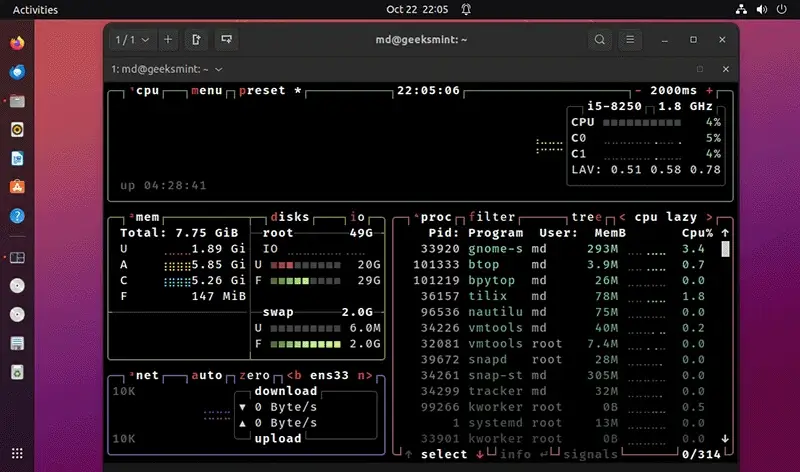
To install Btop:
sudo snap install btop14. Bottom
Bottom serves as a customizable terminal process visualizer and management tool that draws inspiration from a variety of source applications.

To install Bottom:
sudo snap install bottomConclusion
Monitoring your system is more than just a necessity; it’s an empowering practice. The appropriate tools can help you identify bottlenecks, optimize performance, and deepen your understanding of your machine. Whether you prefer CLI or GUI, there is a solution perfectly tailored to enhance your Linux experience, ensuring that you are always informed and ready to tackle system performance challenges with confidence.
And if you'd like to go a step further in supporting us, you can treat us to a virtual coffee ☕️. Thank you for your support ❤️!

We do not support or promote any form of piracy, copyright infringement, or illegal use of software, video content, or digital resources.
Any mention of third-party sites, tools, or platforms is purely for informational purposes. It is the responsibility of each reader to comply with the laws in their country, as well as the terms of use of the services mentioned.
We strongly encourage the use of legal, open-source, or official solutions in a responsible manner.
Comments