

Is your Windows 11 taskbar playing hide-and-seek? Perhaps it’s vanished entirely, frozen in place, or refusing to respond to your clicks. A missing or unresponsive taskbar can bring your workflow to a screeching halt, cutting off access to essential applications and system functions. But don’t panic! This guide will walk you through several proven solutions to restore your taskbar to its former glory and get you back on track. Let’s dive in and troubleshoot this common Windows 11 headache.
1. Rollback Problematic Windows Updates: Your First Line of Defense
Sometimes, the culprit behind a malfunctioning taskbar is a recent Windows update. These updates, while designed to improve your system, can occasionally introduce bugs. Fortunately, you can often resolve the issue by uninstalling the update that caused it. Here’s how:
1- Open Task Manager: Press Ctrl + Shift + Esc. If Task Manager doesn’t appear, try Ctrl + Alt + Delete and select it from the menu.
2- Run a New Task (Command Prompt): Click Run new task at the top of Task Manager.

3- Elevated Command Prompt: Type cmd, check the box for “Create this task with administrative privileges,” and click OK. This opens an elevated Command Prompt.

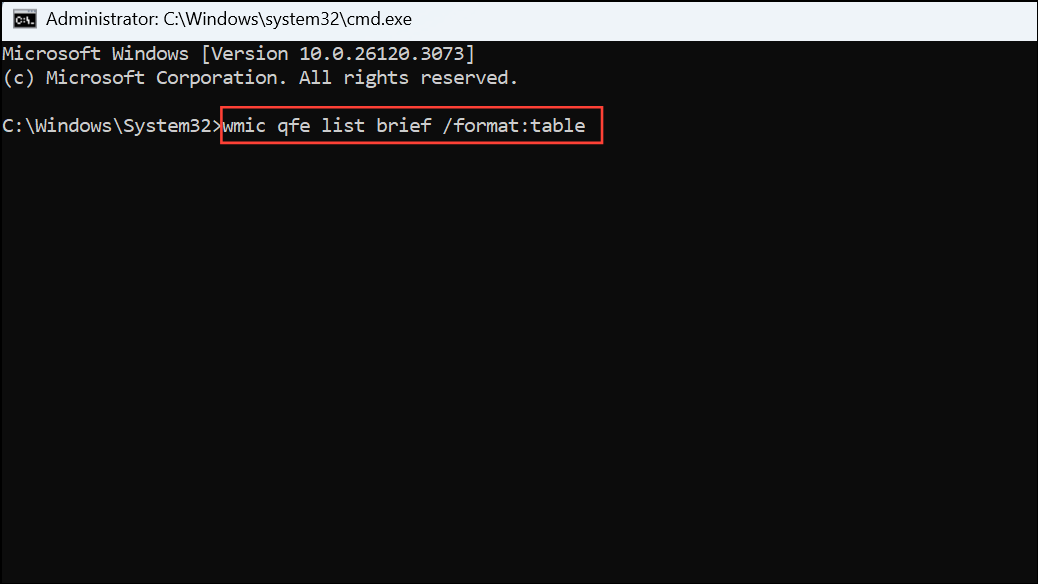
4- List Recent Updates: In the Command Prompt, type the following command and press Enter: wmic qfe list brief /format:table This command displays a table listing recently installed updates, including their KB numbers and installation dates.
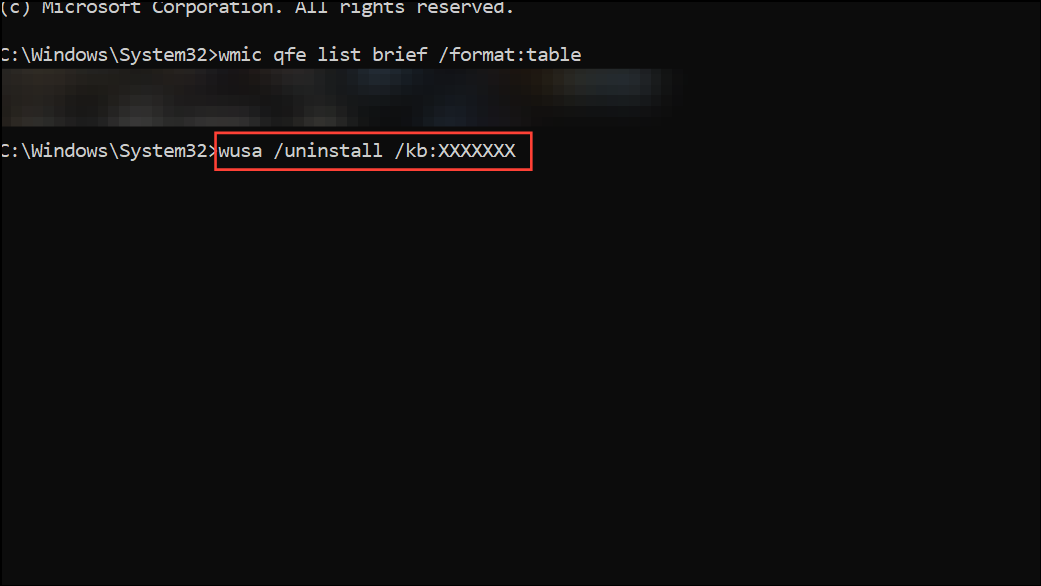
5- Identify and Uninstall the Culprit: Identify the update that coincided with the taskbar issue. Then, uninstall it using the following command, replacing XXXXXXX with the update’s KB number: wusa /uninstall /kb:XXXXXXX
6- Restart Your Computer: After the uninstall is complete, restart your computer. The taskbar should hopefully be back in action! Important Note: If you’re unable to access the Start menu or Settings, all the steps above can be performed entirely within Task Manager and Command Prompt. You may need to uninstall multiple recent updates if the problem persists.
2. Restart Windows Explorer: A Quick Fix
Restarting the Windows Explorer process is often a quick and easy fix for a frozen or unresponsive taskbar without the need for a full system reboot.
1- Open Task Manager: Press Ctrl + Shift + Esc.
2- Locate and Restart Windows Explorer: In the Processes tab, find Windows Explorer. Right-click it and select Restart. Your screen may flicker briefly as the interface reloads.

3- Alternative Method: If Windows Explorer isn’t in the Processes tab, switch to the Details tab and locate explorer.exe. Right-click it, select End task, and then in Task Manager, go to File > Run new task, type explorer.exe, and press Enter.
4- Batch File for Quick Restarts: For frequent occurrences, create a batch file to restart Explorer quickly:
- Open Notepad.
- Copy and paste the following commands:
1@echo off 2taskkill /f /im explorer.exe 3start explorer.exe - Save the file as
restart_explorer.bat(ensure the file type is.bat). - Double-click the
.batfile whenever the taskbar acts up.

3. Address Third-Party Software Conflicts: The Usual Suspects
Third-party applications, especially those that customize your system or interact with hardware, can sometimes clash with the taskbar. Consider these applications: Razer Synapse, ExplorerPatcher, TranslucentTaskbar, and certain graphics drivers.
- Identify Potential Conflicts: Think about any software you recently installed or updated around the time the taskbar issues started. Pay close attention to customization tools and device management utilities.
- Uninstall or Update: Try uninstalling or updating these potentially problematic applications. For example, Razer Synapse users have often found that removing an older version and installing the latest beta fixes taskbar problems.
- Restart Your Computer: After removing or updating the software, restart your computer and check if the taskbar is functioning correctly. Tip: If you can’t access the uninstaller through the Start menu, use Task Manager to run
appwiz.cpl(opens Programs and Features) or open a Command Prompt to remove the software manually.
4. Repair System Files and Windows Image: Digging Deeper
Corrupted system files or a damaged Windows image can also cause taskbar problems. Fortunately, Windows includes built-in repair tools to address these issues.
1- Open Command Prompt with Admin Privileges: Use Task Manager to open Command Prompt with administrator privileges (as described in Step 1).
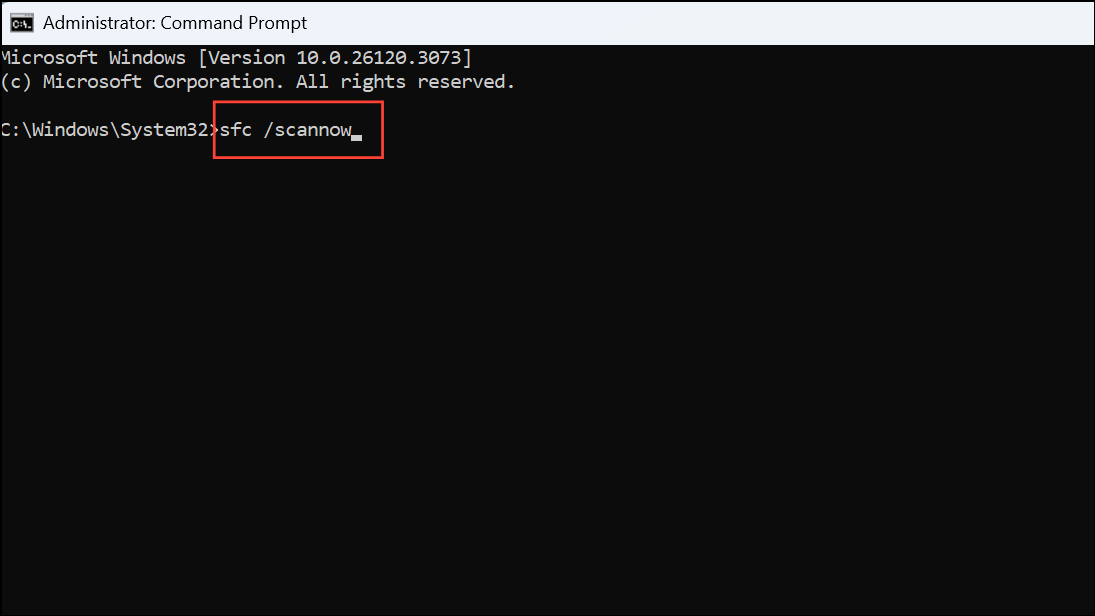
2- Run the System File Checker (SFC): In the Command Prompt window, run the following command: sfc /scannow This command scans for and repairs corrupted system files.
3- Restart Your Computer (if necessary): After the scan completes, restart your computer if any issues were found and repaired.
4- Run DISM if SFC Fails: If sfc /scannow can’t fix all the problems, use the Deployment Imaging Service and Management Tool (DISM): DISM.exe /Online /Cleanup-image /Restorehealth
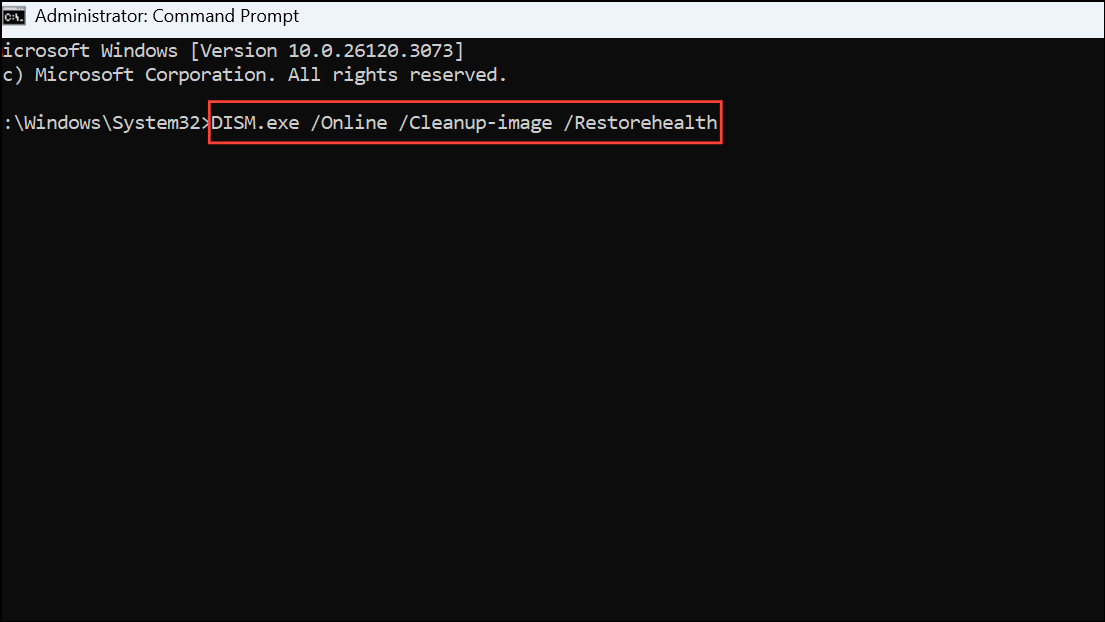
This command checks the Windows image for corruption and attempts to download and replace damaged files. After completion, run sfc /scannow again, then restart your PC.
5. Re-register Taskbar and UWP Components: A Fresh Start
Corrupted or missing Universal Windows Platform (UWP) components can also cause the taskbar to misbehave. Re-registering these components through PowerShell can sometimes resolve the issue.
1- Open PowerShell as Administrator: Open Task Manager and launch PowerShell as an administrator. Type powershell in the “Run new task” dialog and check the box for administrative privileges.

2- Run the Re-registration Command: Enter the following command and press Enter: 1Get-AppxPackage -AllUsers | foreach {Add-AppxPackage -DisableDevelopmentMode -Register "$($_.InstallLocation)\AppXManifest.xml"} This command re-registers all UWP apps on your system.
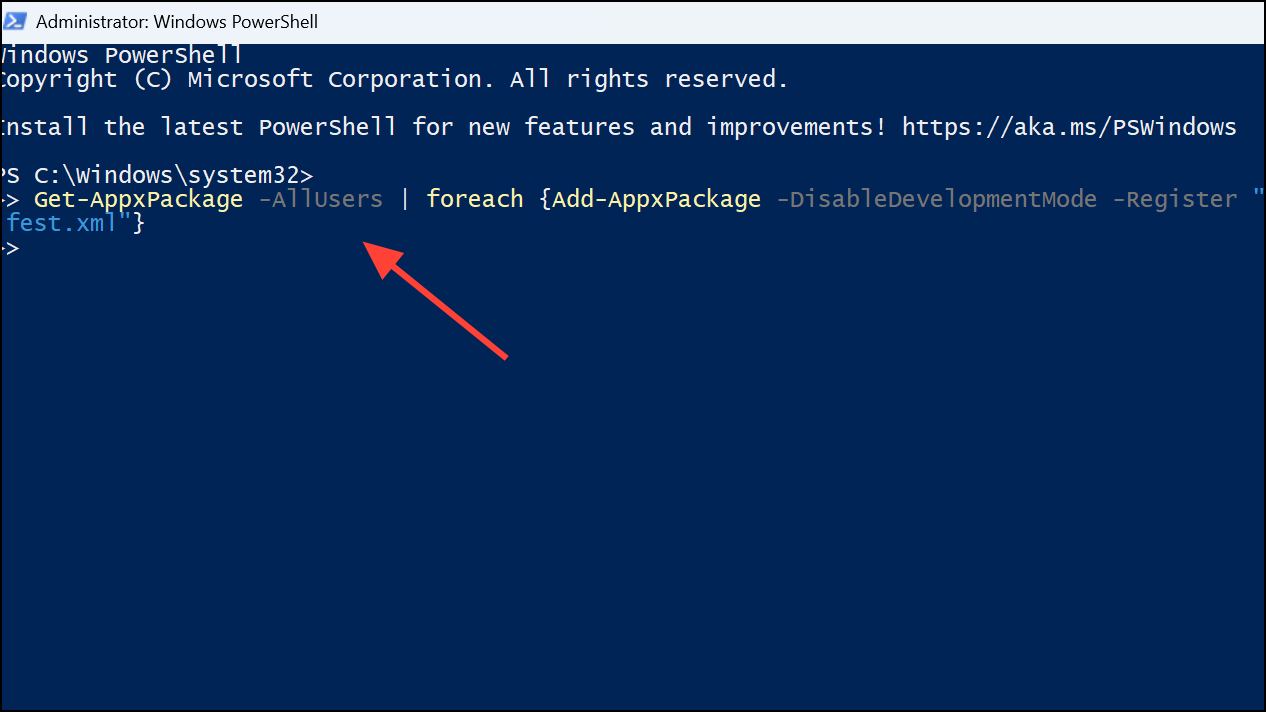
3- Restart Your PC: Wait for the process to finish, then restart your computer.
6. Additional Troubleshooting Steps and Prevention
If the above solutions don’t work, consider these additional approaches:
- Safe Mode Diagnosis: Booting into Safe Mode isolates third-party drivers and software, helping you determine if external programs are causing the issue.
- Clean Boot: Disabling all non-Microsoft services via
msconfigcan help pinpoint problematic background processes. - Check for Driver Conflicts: Outdated or incompatible display drivers can interfere with the taskbar. Use Device Manager to update, roll back, or reinstall your display drivers.
- Registry Tweaks: For advanced users, editing relevant registry keys (such as
EnableXamlStartMenu) can sometimes resolve stubborn taskbar issues. Always back up your registry before making changes. - System Restore or In-Place Upgrade: If all else fails, restore to a previous system state or perform an in-place Windows upgrade using the latest ISO. This can resolve persistent problems without deleting personal files.
Preventive Measures:
- Regularly update drivers from the manufacturer’s website.
- Avoid bulk installations of Windows updates.
- If using customization tools, always check for compatibility after major Windows updates.
Conclusion
Dealing with a missing or unresponsive taskbar can be frustrating, but as you’ve seen, several effective solutions are available. By methodically working through these steps, you should be able to restore your taskbar’s functionality and regain full control of your Windows 11 experience. Remember to back up your system before making significant changes, and don’t hesitate to consult additional resources if you need further assistance. With a little patience and the right troubleshooting techniques, you can conquer this common Windows 11 issue and get back to being productive.
And if you'd like to go a step further in supporting us, you can treat us to a virtual coffee ☕️. Thank you for your support ❤️!

We do not support or promote any form of piracy, copyright infringement, or illegal use of software, video content, or digital resources.
Any mention of third-party sites, tools, or platforms is purely for informational purposes. It is the responsibility of each reader to comply with the laws in their country, as well as the terms of use of the services mentioned.
We strongly encourage the use of legal, open-source, or official solutions in a responsible manner.
Comments