
Tired of late-night email drafts cluttering your recipient’s inbox at 2 AM? Wish you could send that crucial email right when your audience is most engaged? Gmail’s email scheduling feature is your secret weapon for smarter, more efficient communication. Whether you’re a busy professional, a savvy marketer, or just someone who likes to plan ahead, scheduling emails allows you to craft your messages at your convenience and deliver them at the perfect moment.
This guide will walk you through the simple steps of scheduling emails on both your PC and Android device, empowering you to take control of your inbox and boost your communication effectiveness.
Why Schedule Emails? The Benefits Explained
Email scheduling is more than just a convenience; it’s a strategic tool. Here’s why you should embrace this handy feature:
- Time Zone Optimization: Reach international contacts at the most appropriate times, regardless of your location.
- Enhanced Productivity: Draft emails when you’re inspired, and schedule them to send later, freeing up your immediate time.
- Improved Engagement: Deliver your messages when recipients are most likely to read them, increasing your chances of a response.
- Professionalism and Polished Communication: Maintain a consistent and thoughtful approach to your email communication.
- Work-Life Balance: Compose emails outside of work hours without disturbing recipients’ personal time.
How to Schedule Gmail Emails on Your PC
Scheduling emails from your computer is a breeze. Follow these straightforward steps:
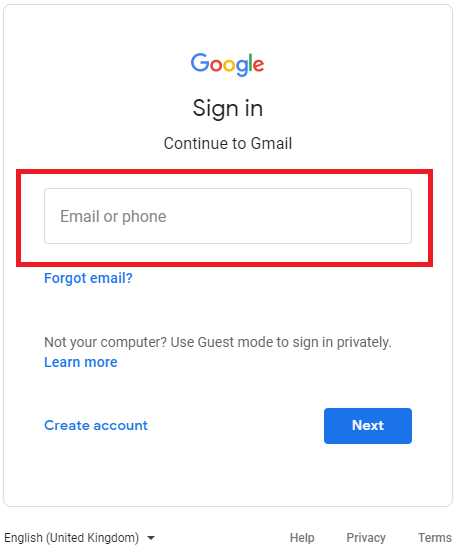
1- Access Your Gmail Account: Log in to your Gmail account using your email address and password.
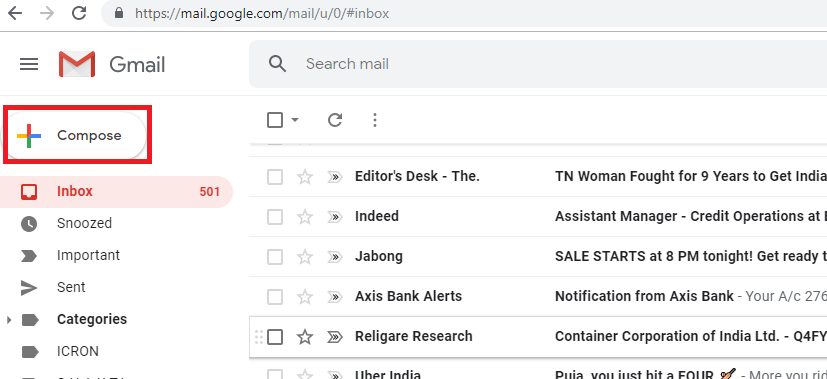
2- Compose Your Email: Click the “Compose” button in the top-left corner of your inbox. This will open a new message window.
3- Fill in the Details: In the new message box, enter the recipient’s email address in the “To” field, add a subject, and write your email content.
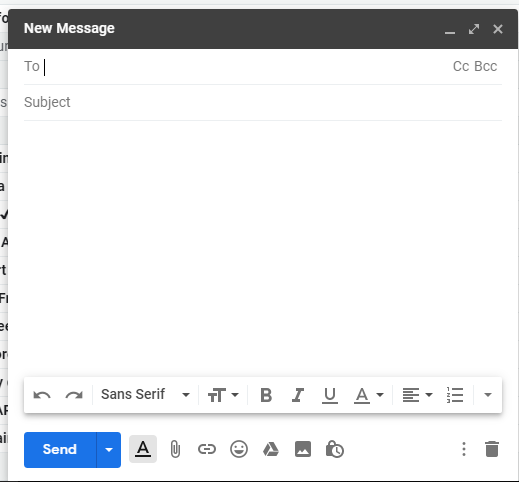
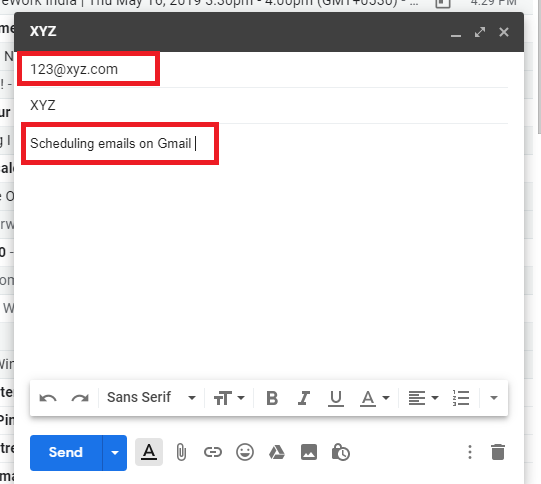
4- Don’t Hit Send Yet!: Instead of clicking the “Send” button, locate the small dropdown arrow next to it.
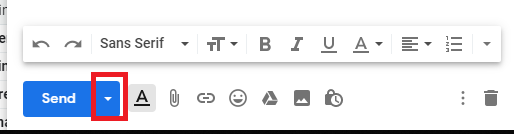
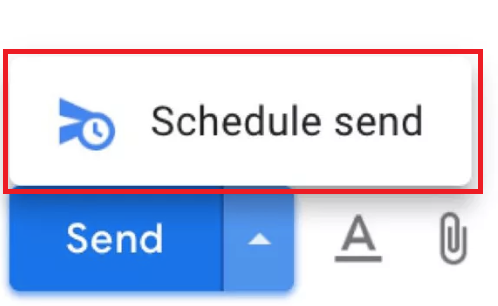
5- Access Scheduling Options: Click the dropdown arrow, and a menu will appear. Select the “Schedule send” option.
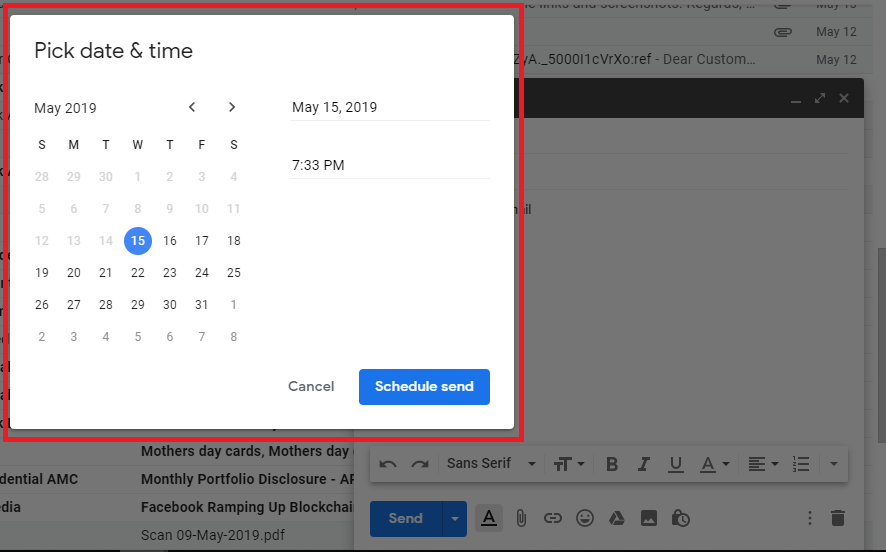
6- Choose Your Time: A “Schedule send” pop-up will appear. Gmail will offer a few suggested times, or you can choose “Pick date & time”.
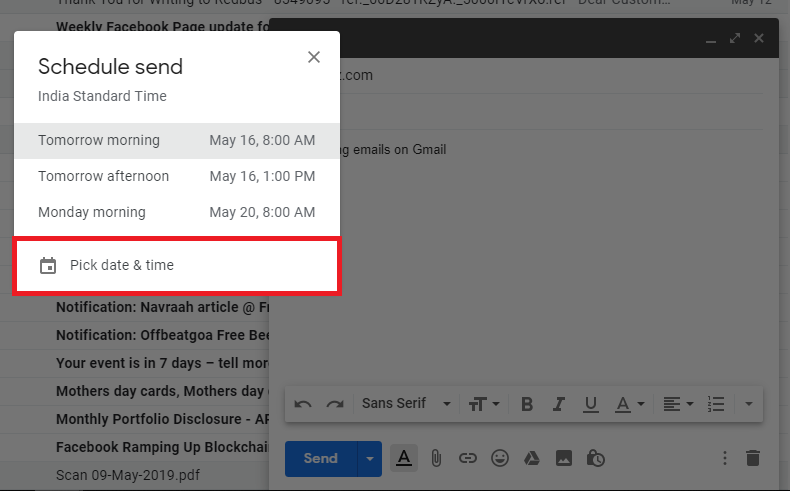
7- Select Date and Time: A calendar and time selection tool will appear. Choose your desired date and time, then click “Schedule send.”

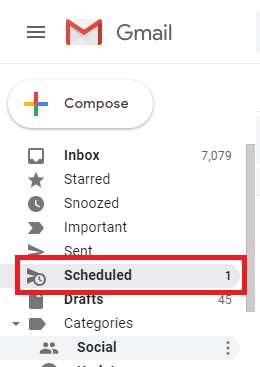
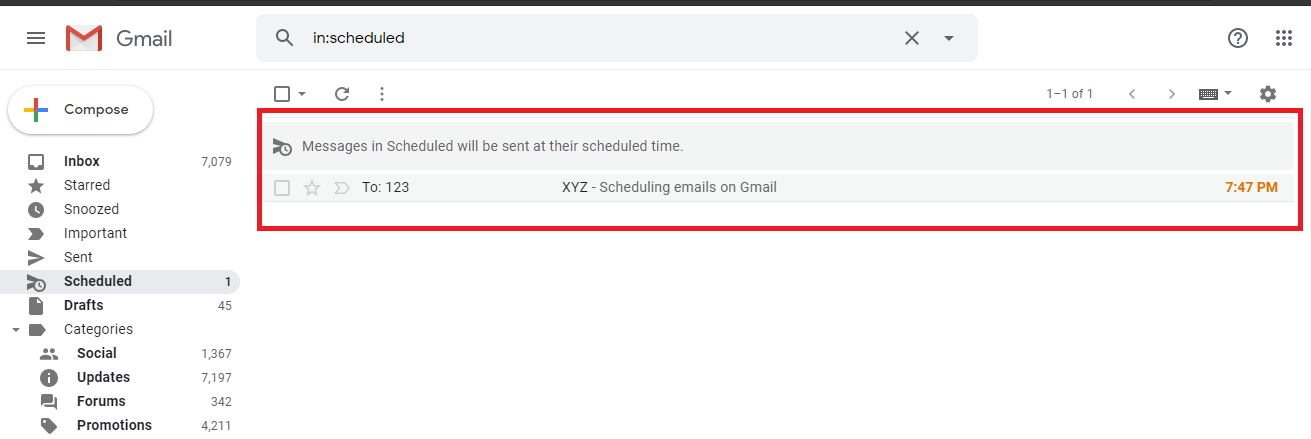
8- Confirmation and Review: You’ll see a confirmation message. To view, reschedule, or cancel your scheduled emails, check the “Scheduled” section located on the left panel of your Gmail window.
Scheduling Emails on Your Android Device
Managing your email schedule on the go is just as easy with the Gmail app on your Android device:
1- Open the Gmail App: Launch the Gmail app on your Android device.
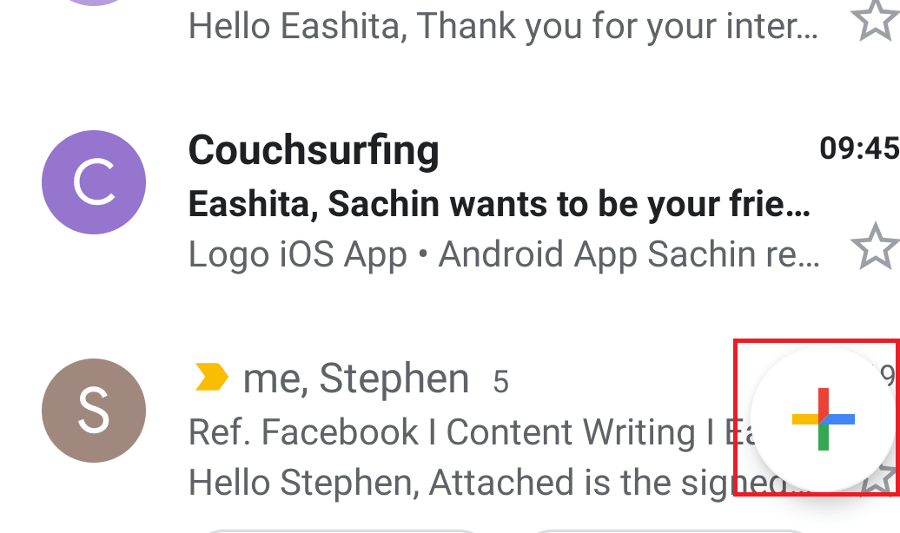
2- Start a New Email: Tap the “+” (compose) icon located at the bottom right of the screen.
3- Draft Your Email: Fill in the recipient’s email address, subject, and compose your message.
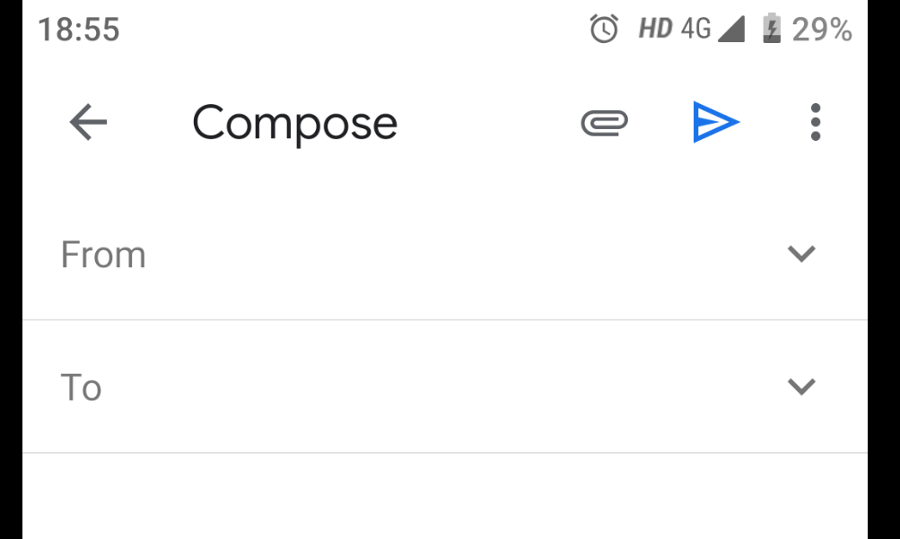
4- Access Scheduling: Tap the three dots (more options) in the upper right corner of the compose window.
5- Choose “Schedule send”: From the menu that appears, select the “Schedule send” option.
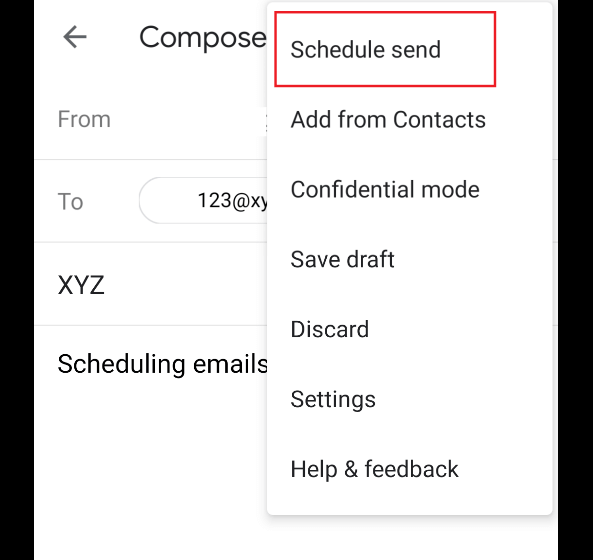
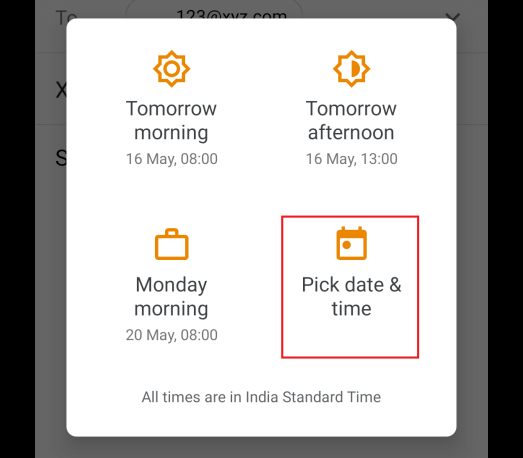
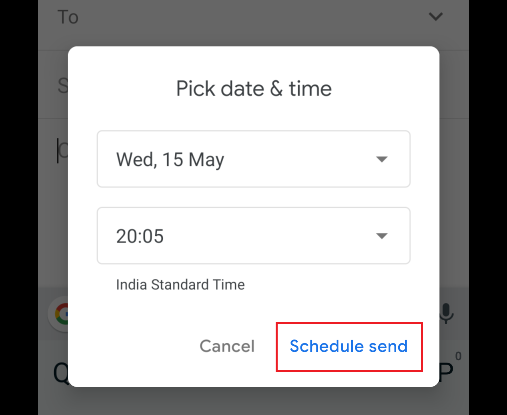
6- Select Your Time: Similar to the PC version, you will see suggested times or the option to choose your time. Tap “Pick date & time”.
7- Set Date and Time: A calendar and clock will appear. Choose your desired date and time.
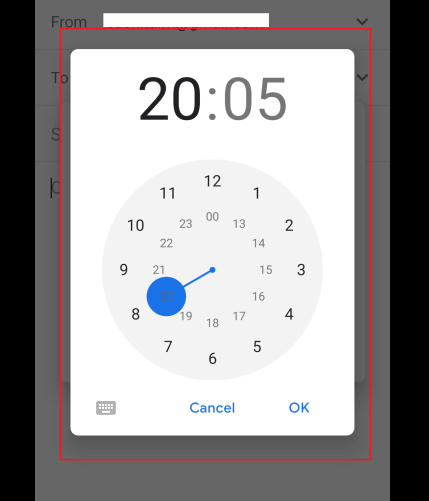
8- Schedule Your Email: Tap “Schedule send.”
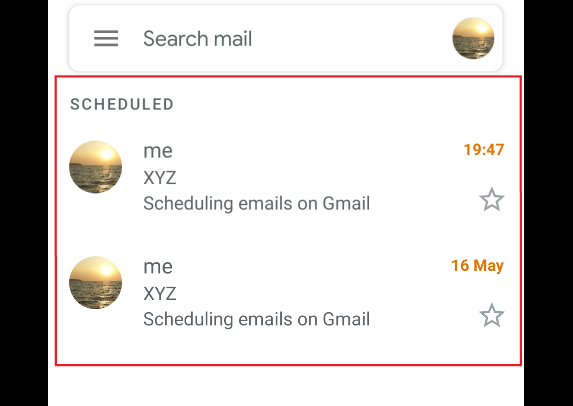
9- View Scheduled Emails: You can view, reschedule, or cancel scheduled emails by going to the “Scheduled” section within the Gmail app’s menu (usually accessed by tapping the three horizontal lines in the top left).
Conclusion:
Gmail’s scheduling feature is a simple yet incredibly powerful tool that transforms the way you manage your email communication. By scheduling your emails, you gain control over when your messages are sent, allowing for better time management, improved engagement, and a more professional approach to communication. Whether you’re on your PC or your Android device, the steps are easy to follow, making it simple to integrate this useful function into your daily workflow. So, start scheduling your emails today and experience the benefits of smarter, more efficient communication.
And if you'd like to go a step further in supporting us, you can treat us to a virtual coffee ☕️. Thank you for your support ❤️!

We do not support or promote any form of piracy, copyright infringement, or illegal use of software, video content, or digital resources.
Any mention of third-party sites, tools, or platforms is purely for informational purposes. It is the responsibility of each reader to comply with the laws in their country, as well as the terms of use of the services mentioned.
We strongly encourage the use of legal, open-source, or official solutions in a responsible manner.
Comments