

Frustrated with your cursor refusing to cooperate across your Windows 11 dual monitors? That jarring stop at the screen edge, disrupting workflow and productivity, is a common issue with a surprisingly simple fix. This guide will walk you through troubleshooting steps to seamlessly extend your cursor across multiple displays, regaining control and optimizing your multi-monitor setup. We’ll cover everything from simple display adjustments to more advanced registry tweaks, ensuring a smooth and efficient user experience.
1. Perfecting Your Display Alignment:
The foundation of a smoothly functioning multi-monitor setup lies in accurate display configuration. Incorrect alignment creates invisible barriers for your cursor.
- Identify and Arrange: Open Windows Settings (Win + I), navigate to System > Display, and click Identify.
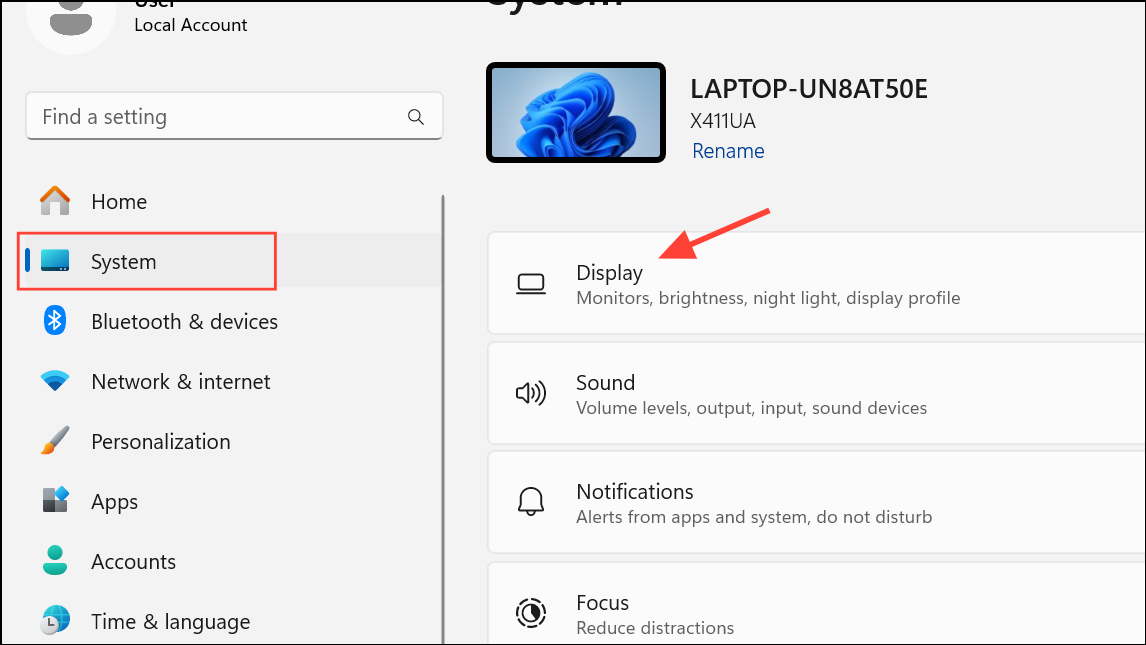
This labels your monitors, allowing you to verify their arrangement matches your physical setup. Drag and drop the monitor icons to perfectly mirror their physical positioning, eliminating any gaps—even a single pixel can cause problems! Click Apply to save changes.
- Extend Your Desktop: Press Win + P to access display projection settings and select Extend.

This ensures each monitor functions as an independent workspace, enabling free cursor movement. If you’re using Duplicate, your cursor might appear stuck or duplicated at the screen’s edge. Try toggling between Duplicate and Extend to refresh the configuration.
2. Resolution Harmony: A Key to Cursor Freedom:
Inconsistent resolutions between monitors can create invisible walls, particularly with differing sizes or aspect ratios.
- Resolution Check: Within Settings > System > Display, examine the resolution for each monitor. Ideally, both should match. If hardware limitations prevent identical resolutions, carefully align the top or bottom edges of your displays to minimize cursor transition issues. Remember to recheck display arrangement after adjusting resolutions.

3. Hardware Refresh: Reconnect and Reboot:
Loose or faulty connections can easily disrupt display functionality.
- Reconnect and Restart: Disconnect and reconnect your monitor cables (HDMI, DisplayPort, USB-C). Then, reboot your computer to allow Windows 11 to reinitialize display settings, resolving potential temporary glitches.
- Bypass Intermediaries: If using a docking station or USB display adapter, connect your monitor directly to your computer to rule out intermediary hardware issues.
4. Addressing Software Conflicts:
Sometimes, software glitches can interfere with cursor behavior.
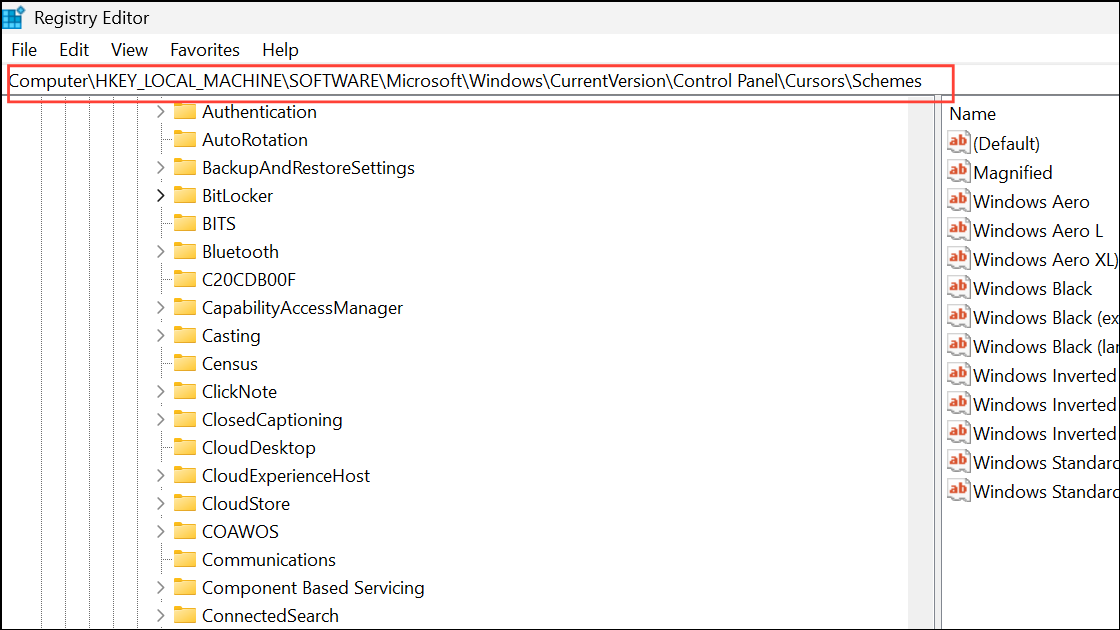
Registry Check (Advanced Users): If the problem persists, carefully navigate to HKEY_LOCAL_MACHINE\SOFTWARE\Microsoft\Windows\CurrentVersion\Control Panel\Cursors\Schemes in the registry editor (regedit). Remove any mouse schemes that appear corrupted. If the key is absent, create it and check for improvements. Proceed with caution when modifying the registry.
New User Profile: As a last resort, create a new local user account. Logging in with this new account might reveal if a corrupted user profile is the root of the problem.
Conclusion:
Navigating multiple monitors shouldn’t be a battle. By systematically working through these solutions, you can reclaim your cursor’s freedom and optimize your Windows 11 multi-monitor setup for peak productivity. Remember to test your cursor movement after each step to quickly identify the solution that works best for you. Enjoy the seamless workflow of a perfectly configured multi-monitor environment!
And if you'd like to go a step further in supporting us, you can treat us to a virtual coffee ☕️. Thank you for your support ❤️!

We do not support or promote any form of piracy, copyright infringement, or illegal use of software, video content, or digital resources.
Any mention of third-party sites, tools, or platforms is purely for informational purposes. It is the responsibility of each reader to comply with the laws in their country, as well as the terms of use of the services mentioned.
We strongly encourage the use of legal, open-source, or official solutions in a responsible manner.
Comments