
Are you noticing unexpected spikes in your internet data usage on your Windows 11 PC? One common culprit is Delivery Optimization, a Windows feature designed to speed up downloads by sharing update files with other computers. While it might help Microsoft distribute updates more efficiently, it can quietly consume a lot of bandwidth—especially on metered or limited data connections.
In this comprehensive guide, you’ll learn how to completely disable Delivery Optimization in Windows 11 using five reliable methods. Whether you’re a casual user or an IT administrator, this walkthrough ensures that your PC only downloads updates directly from Microsoft’s servers, giving you full control over your network usage.
What Is Delivery Optimization in Windows 11?
Delivery Optimization is a peer-to-peer (P2P) service in Windows 11 that allows your PC to both download and upload parts of Windows updates and Microsoft Store apps to and from other computers on your local network or even the internet. While this can reduce download times, it often leads to high background data usage.
Turning off Delivery Optimization ensures:
- Updates are downloaded only from Microsoft servers.
- No upload of data to other PCs.
- Reduced bandwidth consumption.
Method 1: Disable Delivery Optimization via Windows Settings
The most straightforward way to turn off this feature is through the Windows Settings panel.
Steps:
1- Press Windows + I to open the Settings menu.
2- Navigate to Windows Update on the left sidebar.
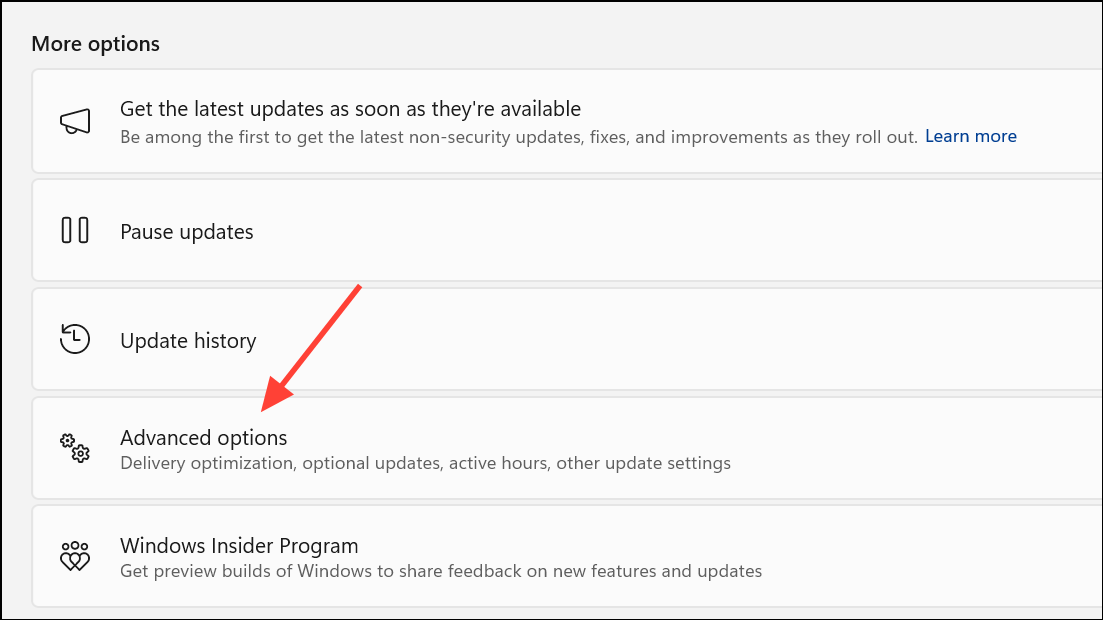
3- Click Advanced options.
4- Under Additional options, select Delivery Optimization.
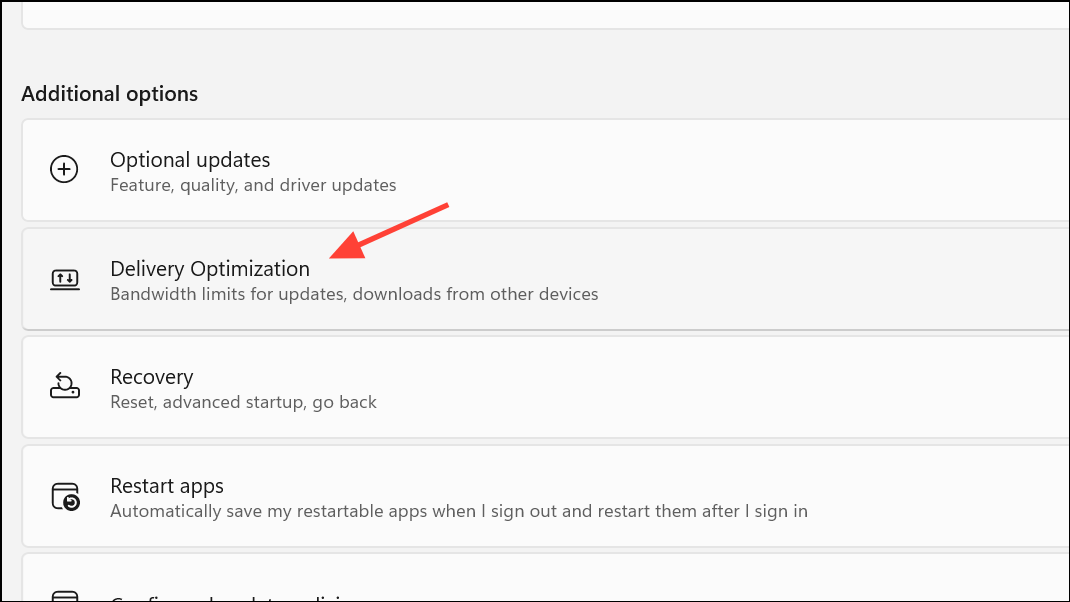
5- Toggle off Allow downloads from other PCs.

This stops your computer from sending or receiving update files from other devices, whether on your network or the internet.
Method 2: Turn Off Delivery Optimization Using Registry Editor
If the option is greyed out in your settings or you want to enforce the change, the Registry Editor offers a more advanced approach. Caution: Editing the registry can affect system stability. Always back up your system before proceeding.
Steps:
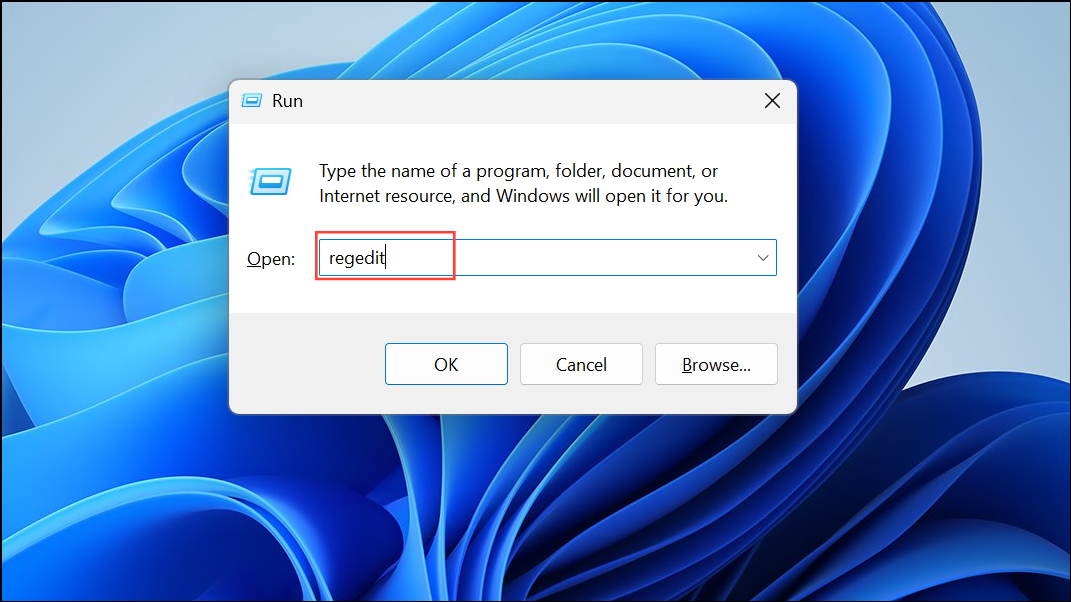
1- Press Windows + R, type regedit, and press Enter.
2- Go to the following path: sqlCopierModifierHKEY_LOCAL_MACHINE\SYSTEM\CurrentControlSet\Services\DoSvc
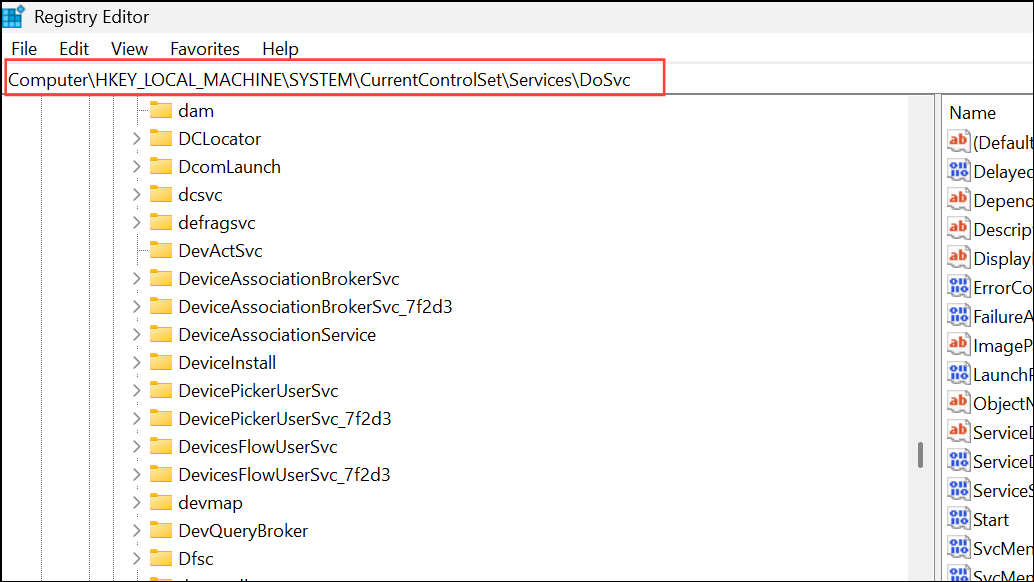
3- On the right pane, double-click on Start.
4- Change the Value data to 4 and click OK.
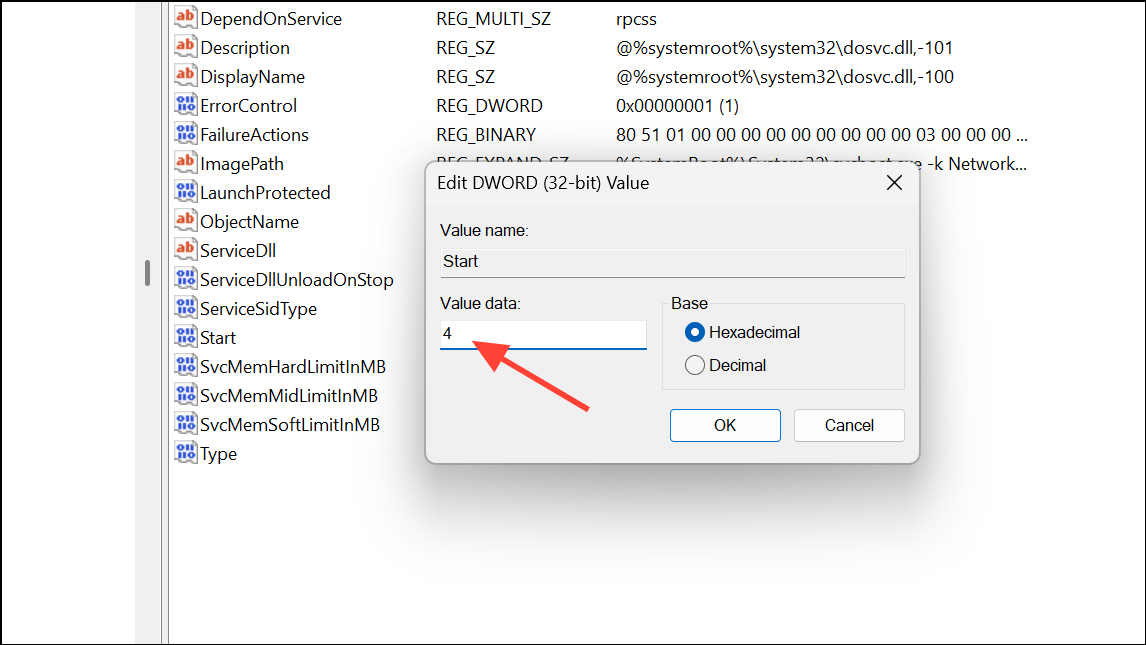
5- Close the Registry Editor and restart your PC.
This completely disables the Delivery Optimization service at the system level.
Method 3: Use Group Policy Editor (Windows 11 Pro, Enterprise, Education)
For system administrators or users with advanced needs, Group Policy Editor allows centralized control over Delivery Optimization settings.
Steps:
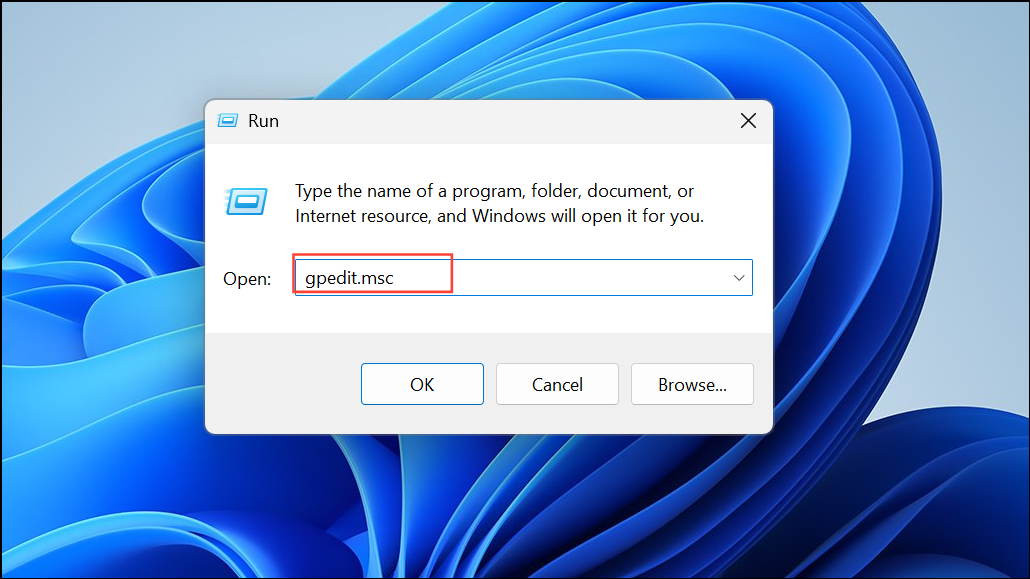
1- Press Windows + R, type gpedit.msc, and hit Enter.
2- Navigate to: nginxCopierModifierComputer Configuration > Administrative Templates > Windows Components > Delivery Optimization
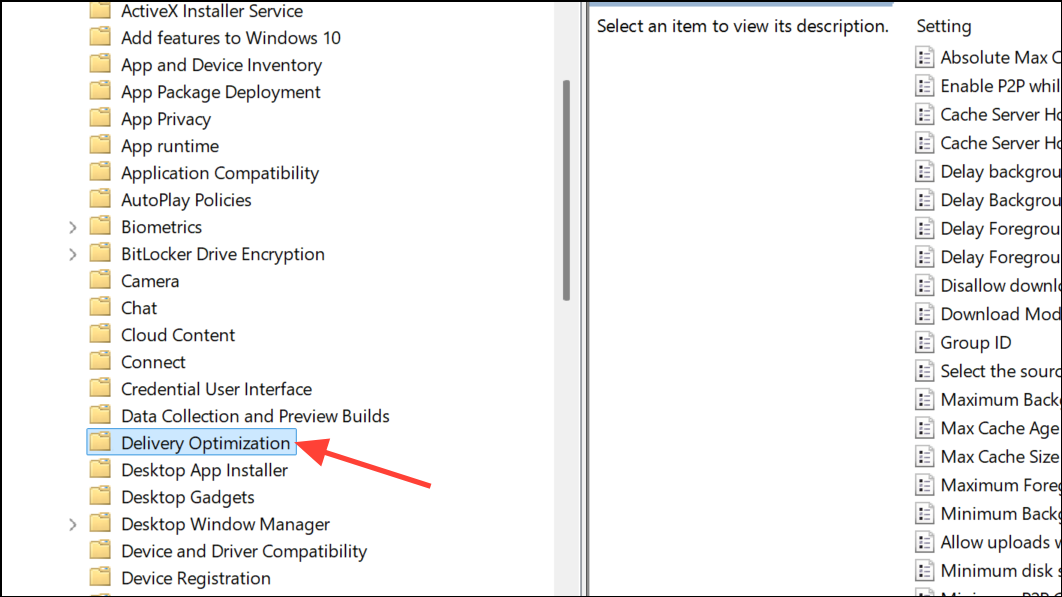
3- Double-click Download Mode in the right pane.

4- Set the policy to Enabled.

5- From the drop-down menu, choose Simple (99) or HTTP only (0).
6- Click Apply and OK.
7- To apply changes immediately, open Command Prompt as an administrator and type: bashCopierModifiergpupdate /force
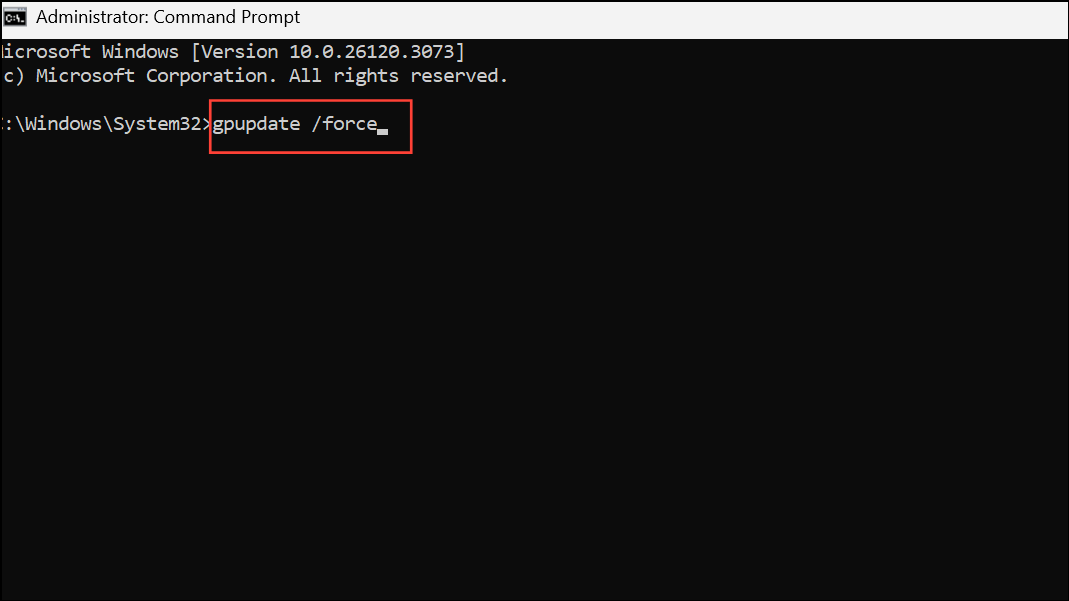
This disables peer-to-peer update sharing for all users on the device.
Method 4: Disable Delivery Optimization via Services
You can also stop Delivery Optimization through the Services utility in Windows.
Steps:
1- Open the Run dialog with Windows + R, type services.msc, and press Enter.
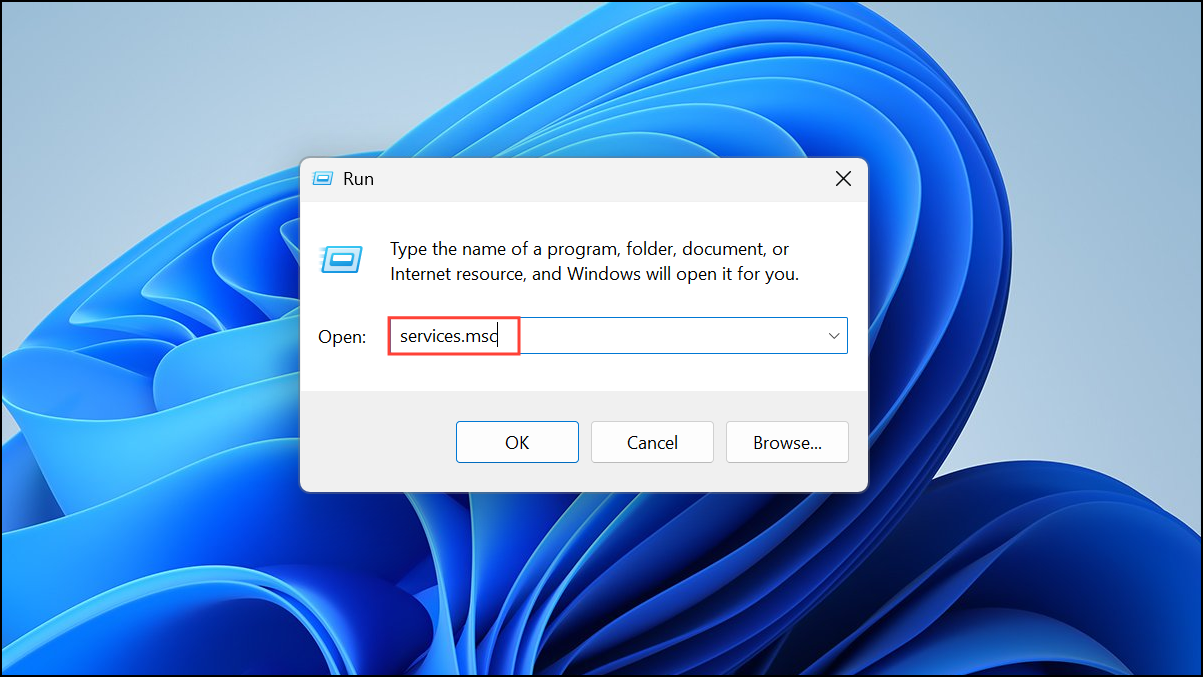
2- Find Delivery Optimization in the services list.
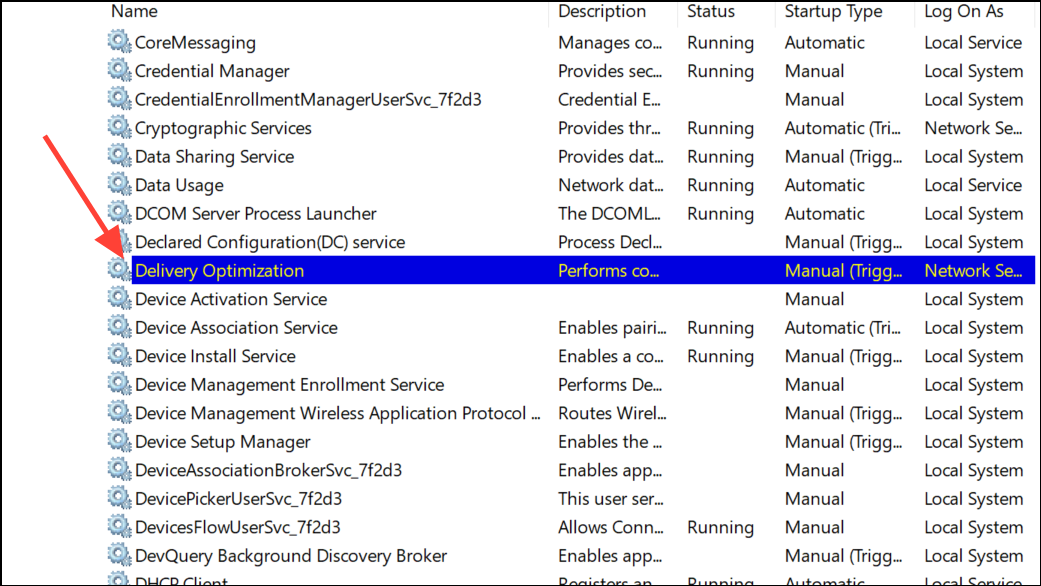
3- Double-click it to open its properties.
4- Set Startup type to Disabled.

5- Click Stop, then hit Apply and OK.
6- Restart your computer to finalize changes.
This prevents the service from running in the background.
Method 5: Minimize Data Usage with a Metered Connection
Another effective workaround is setting your network as a metered connection. This limits all background downloads, including Delivery Optimization.
Steps:
1- Press Windows + I to access Settings.
2- Go to Network & Internet.
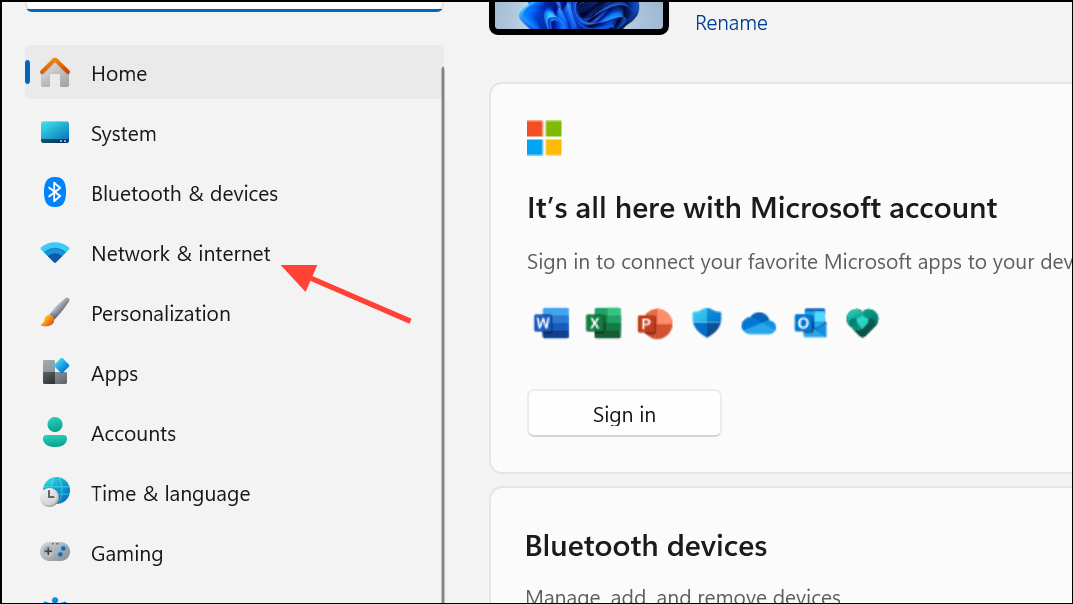
3- Select your active connection (Wi-Fi or Ethernet).
4- Scroll down and toggle on Metered connection.
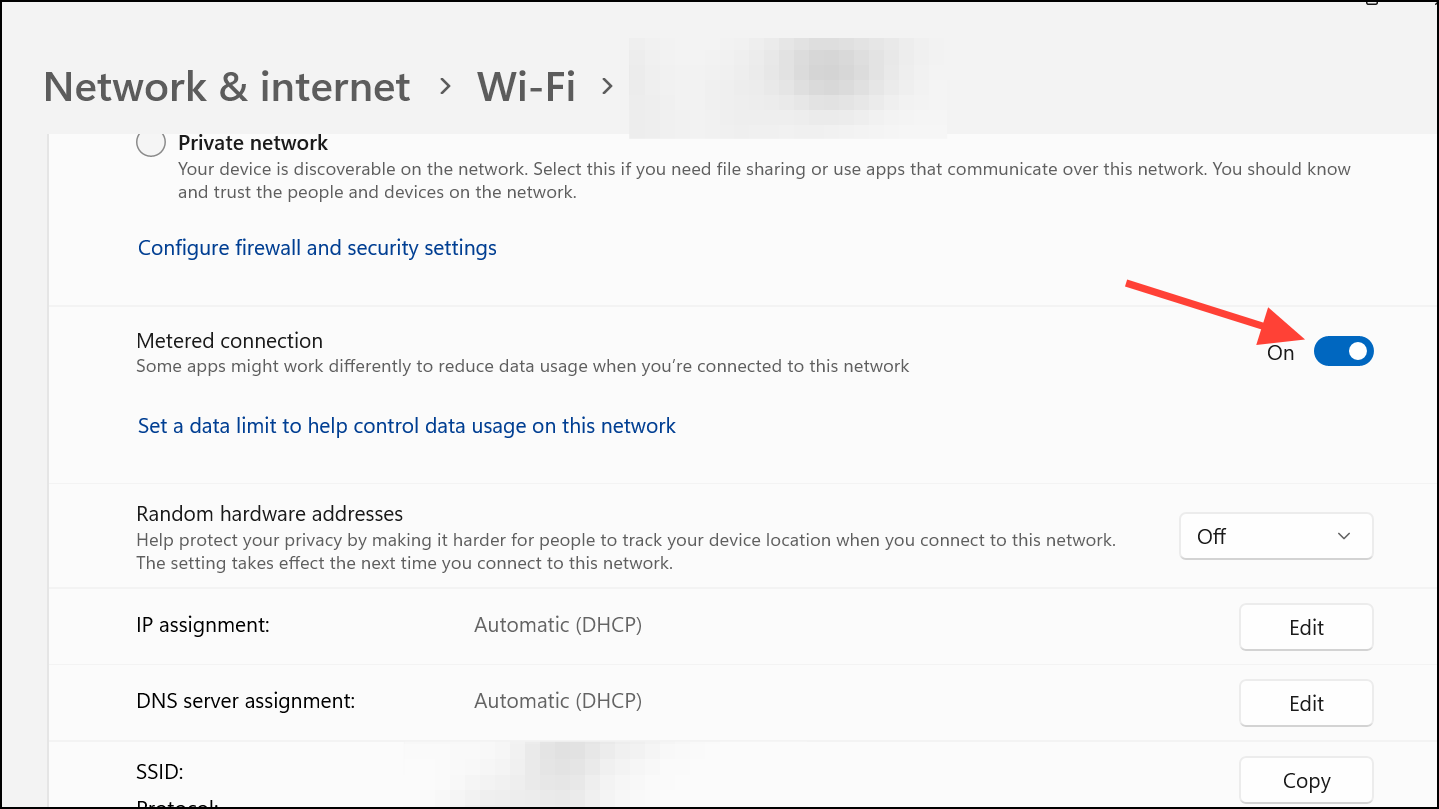
This is particularly useful on mobile data or limited broadband connections.
Final Thoughts:
Disabling Delivery Optimization in Windows 11 empowers you to manage how your device uses internet bandwidth. Whether you’re on a data cap, using mobile internet, or simply want tighter control over update behavior, applying one—or more—of these methods will ensure your system isn’t unknowingly consuming excessive data.
Just remember: after major Windows updates, some settings may revert to their defaults. It’s a good idea to periodically check your Delivery Optimization status to ensure it remains off.
And if you'd like to go a step further in supporting us, you can treat us to a virtual coffee ☕️. Thank you for your support ❤️!

We do not support or promote any form of piracy, copyright infringement, or illegal use of software, video content, or digital resources.
Any mention of third-party sites, tools, or platforms is purely for informational purposes. It is the responsibility of each reader to comply with the laws in their country, as well as the terms of use of the services mentioned.
We strongly encourage the use of legal, open-source, or official solutions in a responsible manner.
Comments