
Experiencing audio imbalance can be frustrating, especially when one earphone is quieter than the other. If your right earphone isn’t loud enough, adjusting audio balance settings on your device or using specialized audio software can quickly resolve the issue. Follow these straightforward steps to enjoy clear and balanced sound again.
Method 1: Adjust Audio Balance via Device Settings
Step 1: Access Audio Settings
- Windows: Right-click the speaker icon in your taskbar and select “Open Sound settings” or “Sounds.”
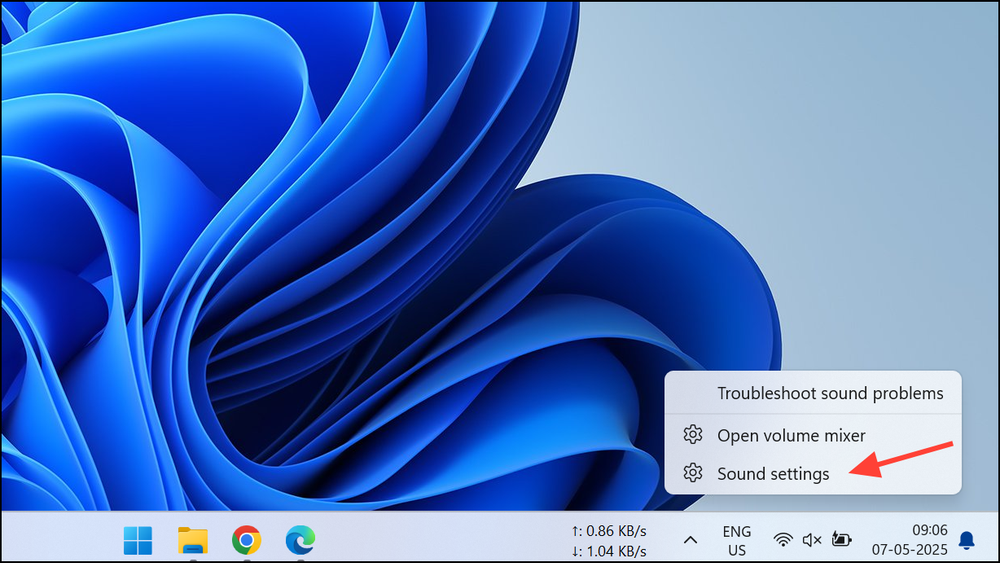
- macOS: Click on “System Settings” (or “System Preferences”), then navigate to “Sound.
Step 2: Find Balance Controls
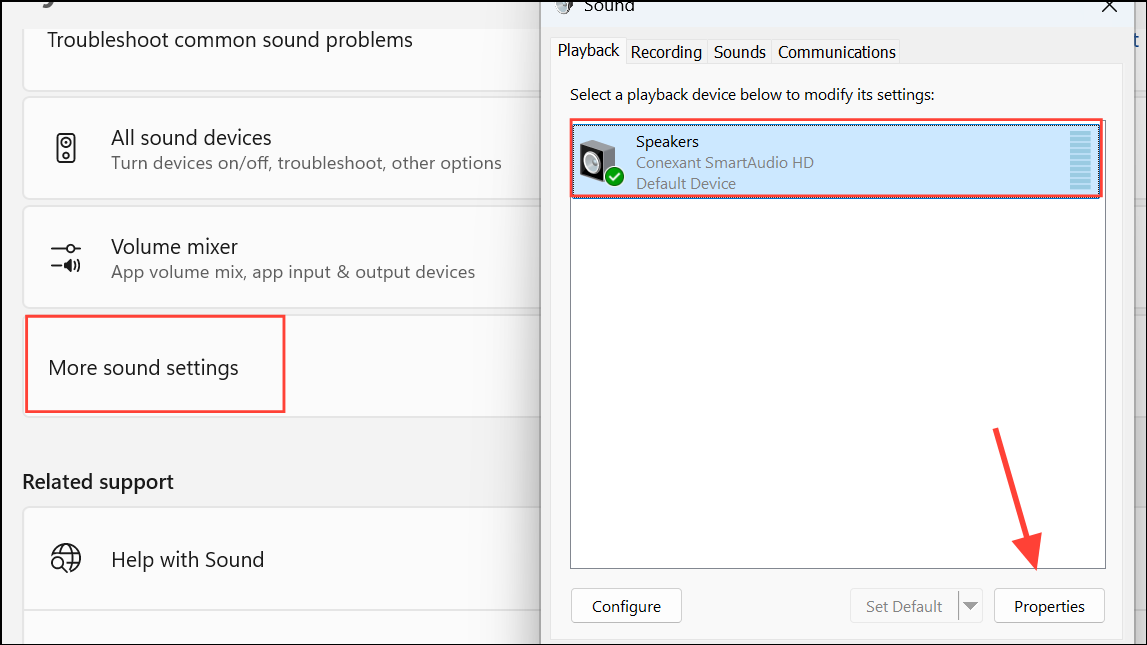
Windows: Select your output device (e.g., headphones), choose “Device Properties,” and navigate to the “Levels” tab (Windows 11 users may need to select “More sound settings” first).
macOS: Click on the “Output” tab and locate the “Balance” slider.
Step 3: Adjust the Balance Slider
Move the slider toward the right to increase the volume in the right earphone.
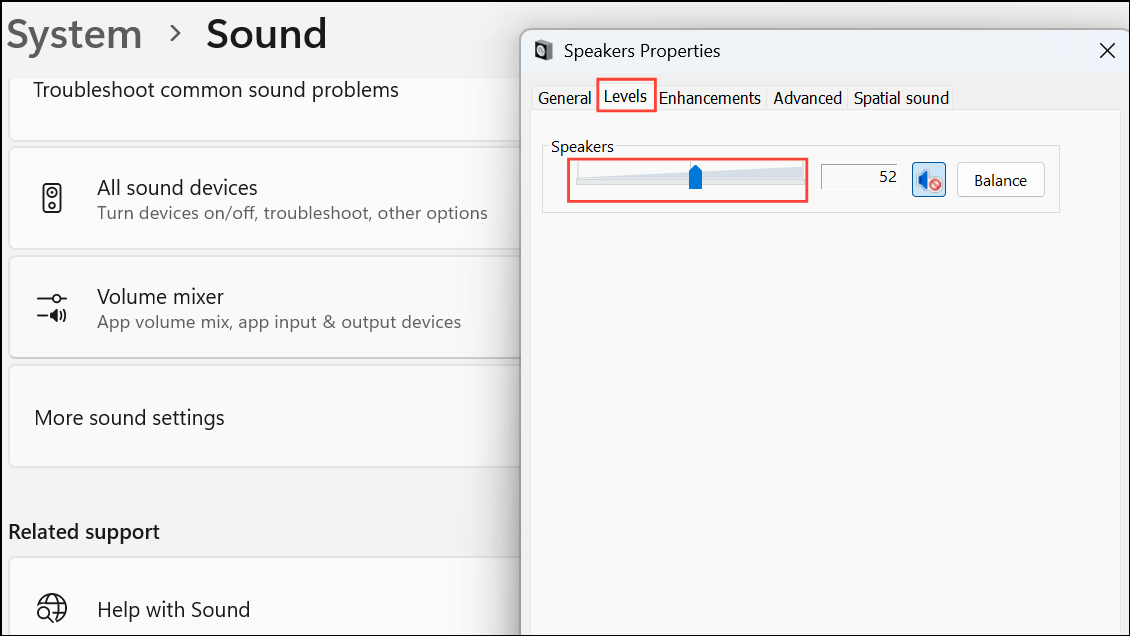
Gradually adjust and test with audio playback until satisfied.
Step 4: Apply Changes
- Confirm any prompts to save settings.
Step 5: Verify Audio
- Play audio to confirm that the right earphone is now louder. Fine-tune as necessary.
Method 2: Use Third-Party Audio Software
Step 1: Install Audio Control Software
- Windows: Use software such as Equalizer APO.
- macOS: Consider SoundSource for advanced audio adjustments.
Step 2: Configure Audio Balance
- Open the software and find the audio channel or pan controls.
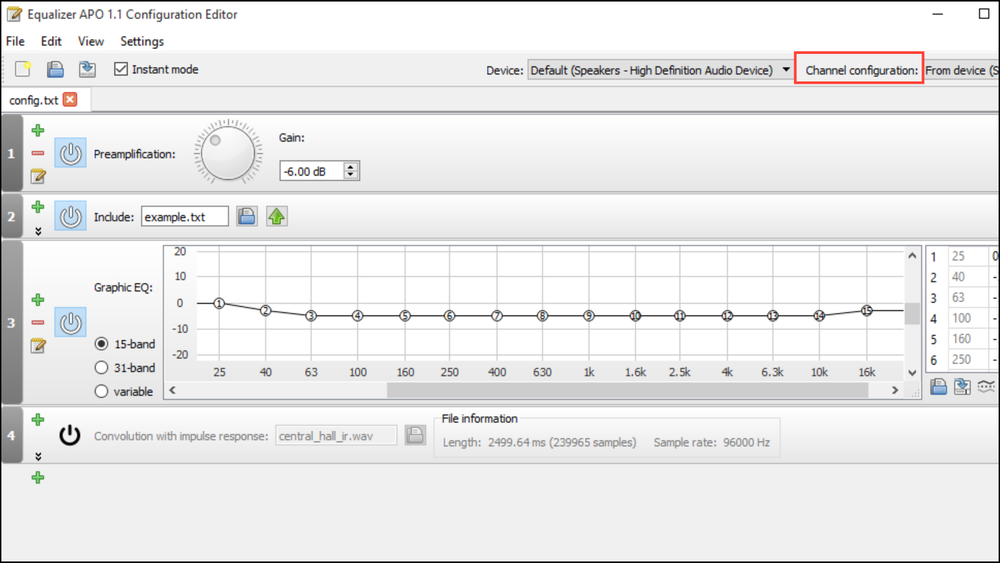
- Shift the control toward the right earphone. Software often allows precise percentage adjustments for each channel.
Step 3: Apply and Test
- Save your settings and play music or voice audio.
- Adjust further if necessary for optimal comfort.
Method 3: Inspect and Clean Your Earphones
Step 1: Examine Earphones
- Look for debris, wax, or blockage in the right earphone, as these issues can reduce volume significantly.
Step 2: Cleaning Procedure
- Gently clean the mesh using a soft, dry brush or cloth. Avoid moisture or liquid cleaners.
Step 3: Test Your Earphones
- Reconnect and test the audio. If the problem remains, consider software adjustments or potential hardware repair.
Method 4: Test on Another Device
Step 1: Device Check
- Connect your earphones to a different device like another computer, smartphone, or tablet to pinpoint the issue.
Step 2: Identify Issue Source
- If the right earphone remains quiet on all devices, the problem likely involves hardware. If isolated to one device, focus on troubleshooting that device.
Method 5: Replace or Repair Earphones
Step 1: Consider Replacement
- Persistent imbalance typically indicates internal faults or damaged drivers.
Step 2: Check Warranty Options
- If under warranty, contact your earphone manufacturer for repair or replacement support.
Conclusion
Audio imbalance, particularly a quieter right earphone, can usually be resolved through simple adjustments or maintenance. By leveraging device settings, third-party software, or thorough cleaning, you can swiftly restore optimal audio clarity and balance. However, persistent issues may require earphone repair or replacement for consistent, high-quality listening.
And if you'd like to go a step further in supporting us, you can treat us to a virtual coffee ☕️. Thank you for your support ❤️!

We do not support or promote any form of piracy, copyright infringement, or illegal use of software, video content, or digital resources.
Any mention of third-party sites, tools, or platforms is purely for informational purposes. It is the responsibility of each reader to comply with the laws in their country, as well as the terms of use of the services mentioned.
We strongly encourage the use of legal, open-source, or official solutions in a responsible manner.
Comments