

macOS has always been lauded for its security features, and with the release of macOS 26 Tahoe, Apple has taken another giant leap forward in empowering users to manage their privacy. This update brings significant improvements to app permission controls, giving you more granular control over what apps can access on your Mac, from your files and folders to your camera and microphone. This isn’t just a cosmetic upgrade; it’s a fundamental shift towards greater transparency and control, ensuring your data remains yours.
Navigating the New App Permissions Panel
The core of these improvements lies within the System Settings app. Here’s how to navigate and utilize the new features:
Step 1: Accessing Privacy & Security
- Open System Settings from your Dock or the Apple menu.
- Click on Privacy & Security. This section is now thoughtfully organized, grouping permissions by category for easy access. You’ll find options for managing:
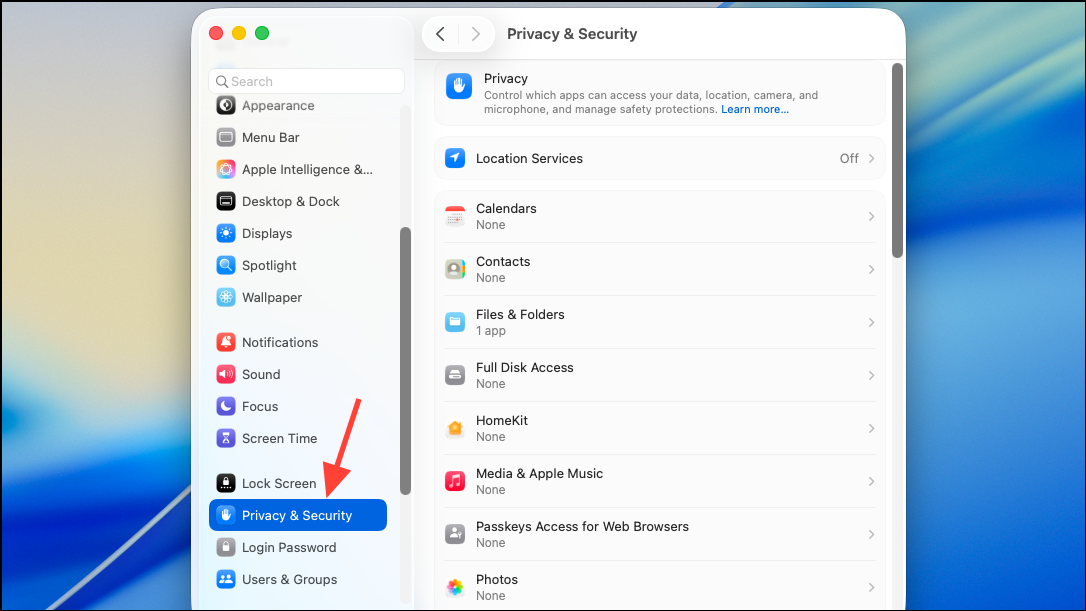
- Files and Folders
- Camera
- Microphone
- Full Disk Access
- Menu Bar Items (a notable addition!)
Step 2: Managing Specific Permissions
- Select the category you wish to manage (e.g., Files and Folders).
- You’ll see a list of apps that have requested access. Conveniently, most apps will appear automatically when they seek permission, eliminating the need for manual additions in many cases.
- Use the toggles to grant or revoke access for specific folders or resources. For instance, you can allow or deny an app access to your Downloads or Documents folder with a simple click.

Step 3: Adjusting App Access
- To modify an app’s access, simply toggle the switch next to its name.
- If you revoke access, the app will no longer be able to access that resource until you grant permission again.
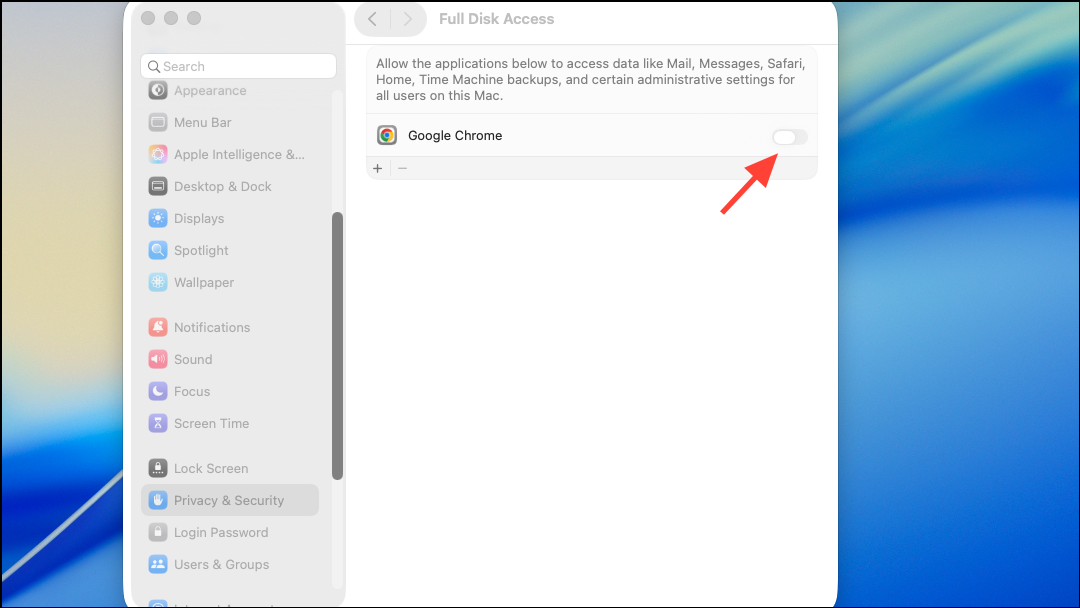
- For more sensitive categories like Full Disk Access, you may need to authenticate with your password or Touch ID.

- If an app doesn’t appear in the list, launch the app and attempt the action that requires permission. macOS will prompt you to approve or deny the request, and the app should then appear in the relevant permission pane.
Step 4: Mastering Menu Bar Items
- macOS 26 Tahoe introduces a dedicated section for controlling menu bar items.
- You can now easily manage which apps display icons in your menu bar, reducing clutter and enhancing your focus.
- Use the toggles to hide or display individual app icons. This is a welcome change that eliminates the need for third-party apps to manage menu bar space.
Understanding Special Permissions: Full Disk Access and More
Certain apps require broader access to function effectively.
- Full Disk Access: Located in the Privacy & Security section. Grant this with caution, only to trusted software like backup or security tools. You’ll need to unlock the settings to make changes.
- Adding Apps Manually: If an app is not listed, you can manually add it using the “+” button within the appropriate permission category.
- Restart or App Restart: For some changes, you might need to restart the app or your Mac to apply the new settings.
How macOS Determines When to Request Permissions
macOS 26 Tahoe continues to use “user intent” to determine when to request permissions.
- User Intent: Opening a file through the standard open dialog grants immediate access.
- Background Access: Apps attempting background access to protected folders (Documents, Downloads) will prompt you for approval. This minimizes interruptions while safeguarding your data.
Troubleshooting Common Permission Issues
Encountering difficulties? Try these troubleshooting steps:
- Restart Your Mac: A simple restart can resolve temporary glitches.
- Update the App: Ensure the app is updated to the latest version compatible with macOS 26 Tahoe.
- Trigger the Request: Open the app and try the function requiring permission to trigger a prompt.
- Manual Addition: If necessary, manually add the app in the relevant permission section.
- Scripted Apps: For apps launched via scripts, add the script interpreter (e.g.,
/usr/bin/python) to the permissions list. - Seek Support: If problems persist, consult the app developer or Apple Support.
Menu Bar Item Control: No More Third-Party Utilities?
The redesigned menu bar controls are a major enhancement, effectively replacing the need for third-party utilities like Bartender or Ice.
- Native Control: You can now directly show or hide individual app icons through System Settings.
- Compatibility: Third-party utilities may need updates to fully integrate with the new system. Developers have reported changes in menu bar item ownership.
- Advanced Features: For advanced features like icon grouping, monitor updates from your chosen utility and offer feedback to the developers.
The Privacy Dashboard: Real-Time Insights
A new Privacy Dashboard provides a consolidated view of app activity:
- Real-Time Monitoring: The Privacy Dashboard summarizes which apps have accessed sensitive resources (location, camera, microphone, files).
- Instant Control: You can quickly review and revoke permissions directly from the dashboard if you detect any unexpected activity.
- Regular Audits: Use the dashboard regularly to maintain complete control over your data.
Conclusion:
With the enhanced app permissions in macOS 26 Tahoe, Apple delivers on its commitment to user privacy. These improvements give you unprecedented control over your data, creating a more secure, organized, and user-friendly experience. By taking the time to understand and utilize these new features, you can ensure your Mac is a safe and private haven for all your digital activities. Take control, personalize your settings, and enjoy the peace of mind that comes with knowing your privacy is paramount.
And if you'd like to go a step further in supporting us, you can treat us to a virtual coffee ☕️. Thank you for your support ❤️!

We do not support or promote any form of piracy, copyright infringement, or illegal use of software, video content, or digital resources.
Any mention of third-party sites, tools, or platforms is purely for informational purposes. It is the responsibility of each reader to comply with the laws in their country, as well as the terms of use of the services mentioned.
We strongly encourage the use of legal, open-source, or official solutions in a responsible manner.
Comments