
macOS 15 introduces a captivating feature: dynamic wallpapers. These aren’t your static, run-of-the-mill backgrounds. Dynamic wallpapers change throughout the day, mirroring the time of day, adapting to lighting conditions, or even reflecting your geographic location. This can significantly enhance your user experience by reducing eye strain and keeping your desktop visually fresh. Let’s dive into how you can easily set up and customize dynamic wallpapers to breathe new life into your Mac!
Setting Up Built-in Dynamic Wallpapers in macOS 15
The simplest way to embrace dynamic wallpapers is by using the options Apple has provided. Here’s how:
1- Access Wallpaper Settings: Begin by clicking the Apple icon in the top-left corner of your screen. Select “System Settings” from the dropdown menu.
2- Navigate to Wallpaper: In the System Settings sidebar, choose “Wallpaper.” This section is your central hub for all things background-related.
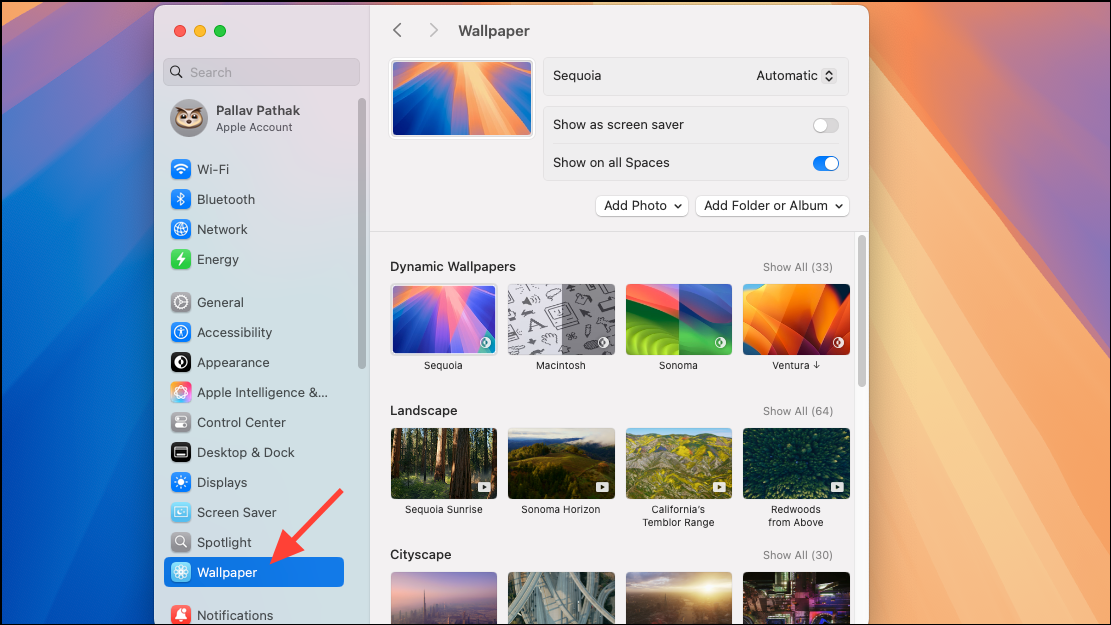
3- Explore Dynamic Options: Within the Wallpaper settings, look for the “Dynamic Wallpapers” section. Here, you’ll find a selection of pre-loaded dynamic wallpapers designed by Apple. Browse through the options and select one that captures your interest. If a chosen wallpaper hasn’t been downloaded yet, macOS will automatically download it from Apple’s servers.
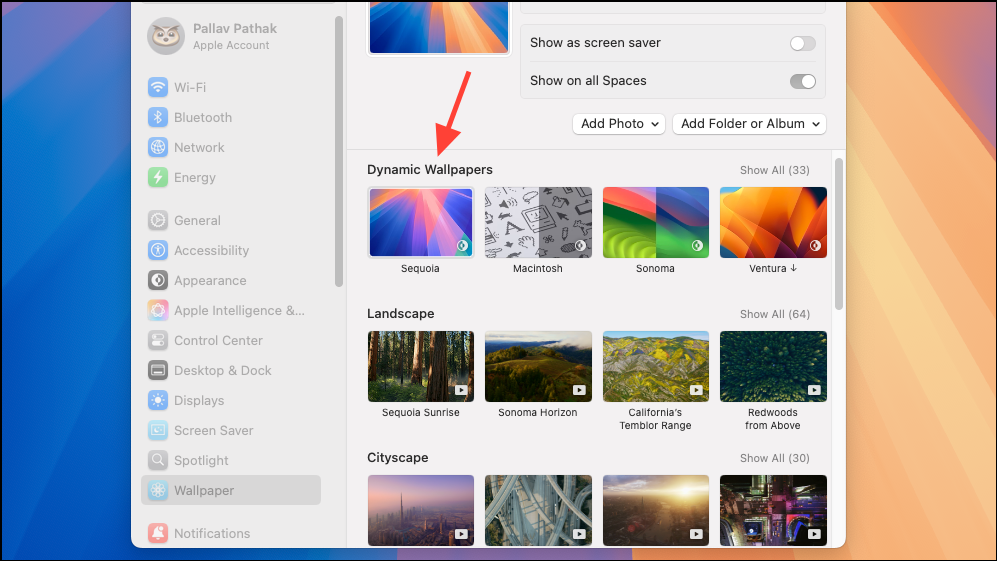
4- Choose Your Mode: After selecting your desired dynamic wallpaper, check the dropdown menu near the wallpaper’s name. Make sure it’s set to “Automatic” or “Dynamic.” Some wallpapers may offer additional settings like “Color” or “Light/Dark Mode.”
5- Enjoy the Transformation: Your chosen dynamic wallpaper will now automatically update based on your system’s clock. If you’ve enabled Location Services, the wallpaper will adjust based on the sun’s position in your area, creating a seamless transition from bright daytime scenes to darker nighttime visuals.
Customize with Third-Party Apps
While macOS provides built-in options, the ability to create your own multi-stage dynamic wallpapers isn’t native. Fortunately, third-party apps fill this gap, offering robust customization and scheduling features.
Dynaper: Easy Time-Based Wallpapers
Dynaper simplifies creating dynamic wallpapers. Here’s how:
- Download and Install: Download and install the Dynaper app from the Mac App Store.
- Choose a Mode: Dynaper offers modes for Light/Dark Mode wallpapers and time-based dynamic wallpapers. Select the time-based option to create a wallpaper that changes throughout the day.
- Import Your Images: Drag and drop your chosen images into the application window. Each image should represent a different time of day (e.g., morning, afternoon, evening, night). Ensure all images have the same dimensions for seamless transitions.
- Schedule Your Changes: Assign specific times for each image to appear. Dynaper allows precise scheduling, allowing you to match wallpaper changes with sunrise, sunset, or any interval.
- Export and Apply: Once your sequence is ready, click “Export” to generate a dynamic HEIC file. You can set the image as your wallpaper immediately or later.
- Apply the Wallpaper: Return to System Settings > Wallpaper, click “Add Photo,” and choose your exported HEIC file. The system will recognize it as a dynamic wallpaper and manage transitions according to your schedule.
Dynaper is free to use with watermarks; removing watermarks requires an in-app purchase.
Equinox: Advanced Control for Dynamic Wallpapers
Equinox provides more in-depth customization:
- Download and Open: Download Equinox from the Mac App Store and open the application.
- Select a Mode: Choose the mode for your dynamic wallpaper: “Solar” (based on sunrise/sunset), “Time” (custom schedule), or “Appearance” (switches between Light and Dark Mode).
- Import Images: Import your images by dragging them into the app or browsing manually. For “Solar” mode, you’ll need to enter altitude and azimuth data, which Equinox can help calculate based on your region and time of day. For “Time” mode, assign specific times for each image.
- Create and Apply: Click “Create.” Equinox compiles your images and metadata into a dynamic wallpaper file. Save the result or set it directly within the app.
Online Tools: Dynamic Wallpaper Club
The Dynamic Wallpaper Club website is an excellent option for community sharing and easy creation.
- Create an Account: Visit the Dynamic Wallpaper Club website and create a free account if you want to create your own wallpaper.
- Upload and Configure: Use the web interface to upload your images, set transition times or sun positions, and preview the dynamic sequence. The platform requires all images to be the same size.
- Export and Download: Once satisfied, export the wallpaper as a HEIC file and download it to your Mac.
- Set Your Wallpaper: Set the wallpaper in System Settings > Wallpaper by clicking “Add Photo” and choosing your downloaded HEIC file.
Automatically Change Wallpapers at Set Intervals
If dynamic wallpapers aren’t your preference, you can rotate through a folder of images.
1- Access Wallpaper Settings: Go to System Settings > Wallpaper.
2- Select a Folder or Album: Scroll down and click “Add Folder” or “Add Photo Album” to select a directory containing your desired images.
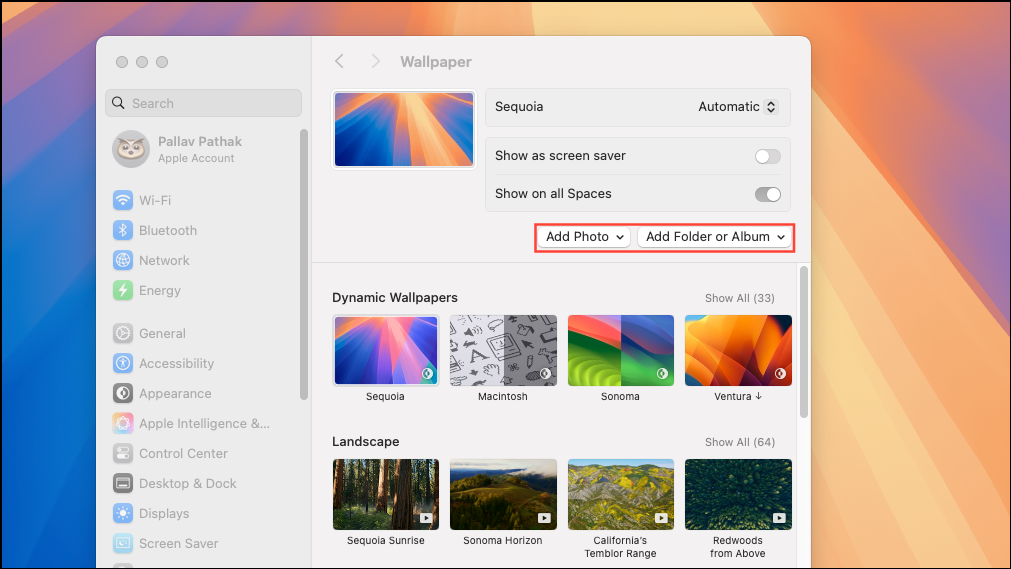
3- Enable Auto-Rotate: Once the folder appears, activate “Auto-Rotate.”
4- Set the Interval: Set the time interval for changes (e.g., every 5 minutes, 30 minutes, or hour).
5- Optional Random Order: Enable random order to shuffle the images.
Download High-Quality Dynamic Wallpapers
For ready-made options, check out these resources:
Conclusion:
Dynamic wallpapers in macOS 15 are a fantastic way to personalize your Mac. By incorporating time-based changes, you can transform your desktop into a visually dynamic experience, keeping your workspace fresh and aligned with your daily rhythm. Whether you leverage built-in options, experiment with third-party apps, or download pre-made sets, the world of dynamic wallpapers offers something for everyone. So, take the plunge and give your Mac a dynamic makeover today!
And if you'd like to go a step further in supporting us, you can treat us to a virtual coffee ☕️. Thank you for your support ❤️!

We do not support or promote any form of piracy, copyright infringement, or illegal use of software, video content, or digital resources.
Any mention of third-party sites, tools, or platforms is purely for informational purposes. It is the responsibility of each reader to comply with the laws in their country, as well as the terms of use of the services mentioned.
We strongly encourage the use of legal, open-source, or official solutions in a responsible manner.
Comments