

If your Windows 11 system refuses to boot properly after a restart—but works fine after a full shutdown—you’re not alone. Many users encounter black screens, non-responsive peripherals, or stuck boot sequences after restarting, particularly following a Windows update, hardware change, or BIOS configuration tweak.
This guide walks you through the most effective, step-by-step methods to fix boot issues triggered by restarts. From BIOS updates to recovery tools, you’ll find solutions tailored to different causes so you can restore normal startup behavior and avoid repeated forced shutdowns.
1. Update Your BIOS to Eliminate Restart Compatibility Bugs
Outdated BIOS firmware is a common cause of restart-related boot failures—especially on systems with DDR5 RAM, new CPUs, or modern motherboards.
How to Update BIOS:
- Identify Your BIOS Version and Motherboard Model
- Check during startup or inside your BIOS/UEFI settings.
- Download the Latest BIOS Firmware
- Visit your motherboard manufacturer’s support page.
- Match your exact model and look for boot-related fixes in the changelog.
- Prepare a FAT32 USB Flash Drive
- Format it and place the BIOS update file at the root.
- Access BIOS/UEFI Setup
- Reboot and press Del, F2, or the appropriate key.
- Use the Built-in Update Tool
- Look for “M-Flash,” “EZ Flash,” or “Q-Flash.”
- Follow instructions carefully and do not power off during the update.
- Reboot and Test
- Restart your PC from within Windows to confirm if the issue is resolved.
Symptoms like DRAM debug LEDs or a blank screen after restart often vanish after updating BIOS.
2. Disable Fast Startup (Windows) and Fast Boot (BIOS)
Fast Startup and Fast Boot can prevent hardware from initializing correctly after restarts.
Disable Fast Startup in Windows:
1- Open Control Panel > Hardware and Sound > Power Options
2- Click Choose what the power buttons do
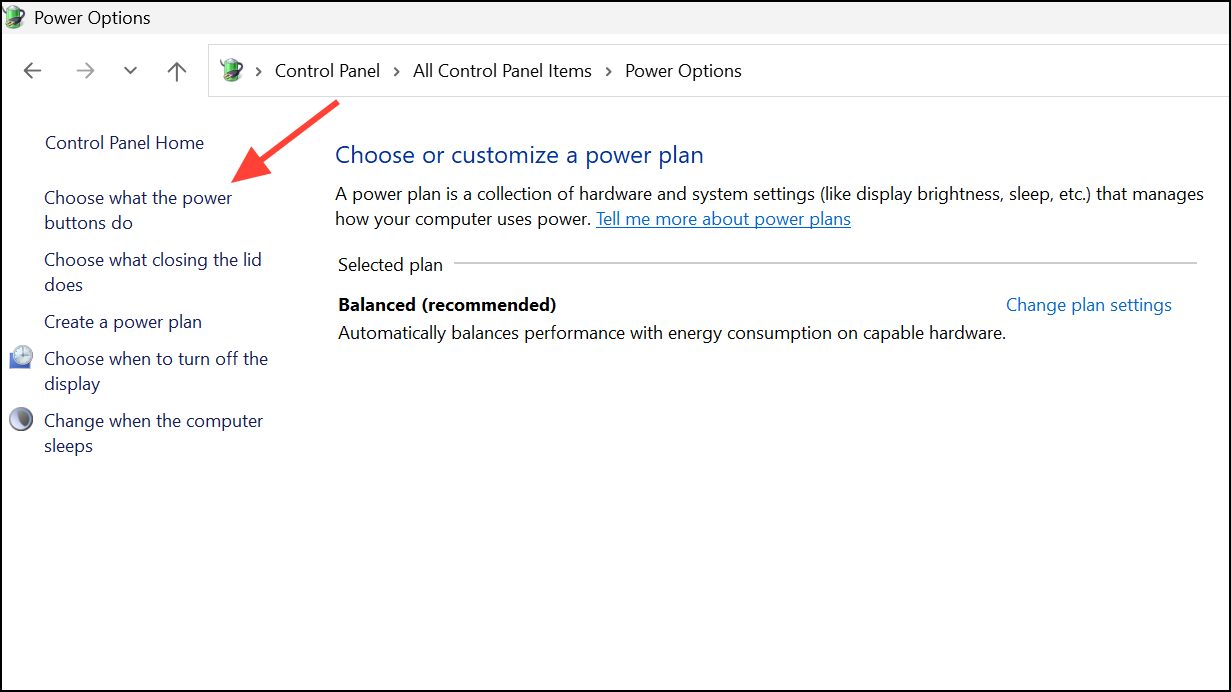
3- Click Change settings that are currently unavailable
4- Uncheck Turn on fast startup (recommended)
5- Click Save changes
Disable Fast Boot in BIOS:
- Enter BIOS/UEFI on startup
- Navigate to Boot or Advanced Settings
- Locate Fast Boot or Fast Startup and set to Disabled
- Save and Exit
Disabling both options forces complete hardware reinitialization, often resolving black screen issues.
3. Use Windows Recovery Environment (WinRE) to Repair Startup
Corrupted system files or a failed update may prevent Windows from restarting correctly.
Entering WinRE:
- Force shut down your PC 3 times in a row by holding the power button for 10 seconds.
- On the fourth boot, WinRE should launch automatically.
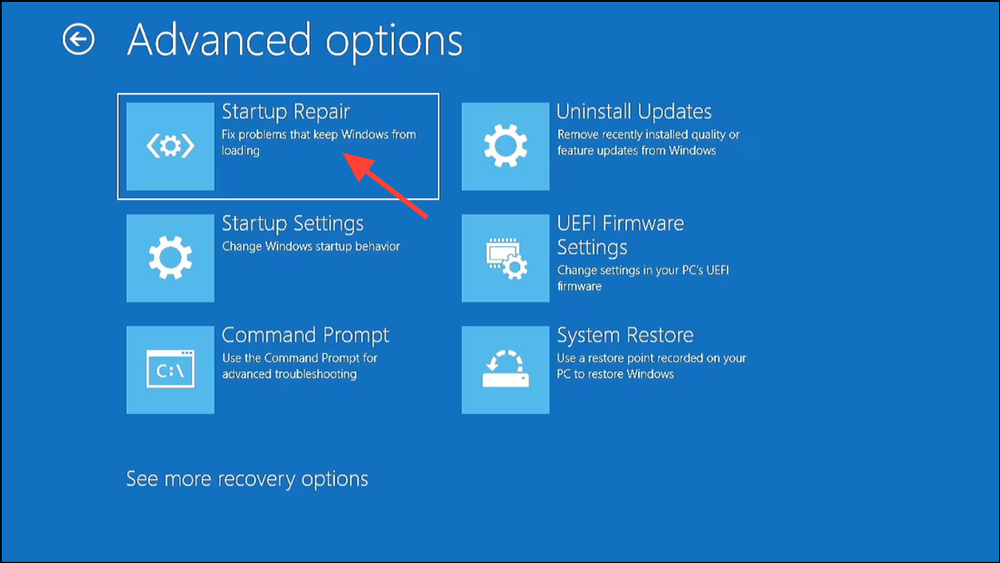
Run Startup Repair:
- Troubleshoot > Advanced options > Startup Repair
- Let Windows diagnose and attempt to fix boot issues.
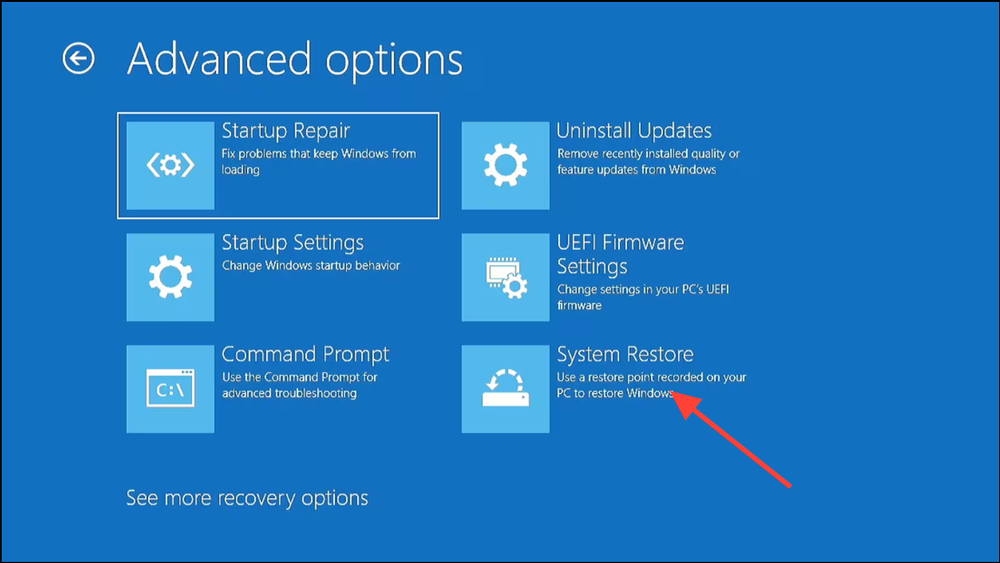
Perform System Restore:
- Troubleshoot > Advanced options > System Restore
- Choose a restore point before the problem started.
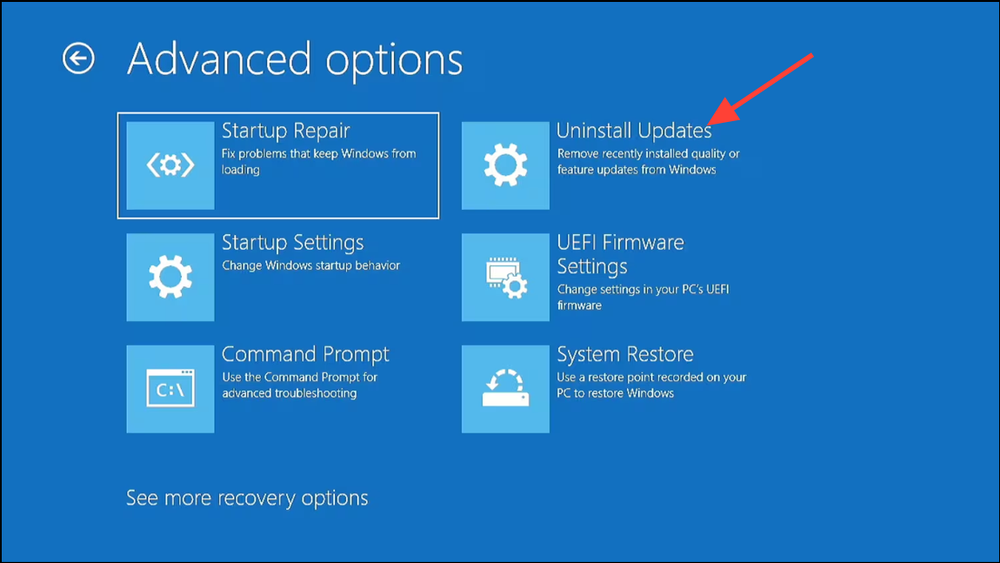
Uninstall Recent Updates:
- Go to Troubleshoot > Advanced options > Uninstall Updates
- Remove recent quality or feature updates.
4. Inspect and Re-seat Hardware Components
Hardware issues can trigger boot failures after restarts, especially with recent installations or upgrades.
Steps:
- Turn off your PC and unplug it
- Disconnect all external devices
- Open the case and:
- Reseat RAM modules
- Reseat or test GPU
- Double-check power/data cables
- Watch for debug LEDs or beep codes during boot
A DRAM or CPU debug light staying on may indicate memory training issues—try booting with one RAM stick or resetting CMOS.
5. Use Safe Mode and Command-Line Repairs
Booting into Safe Mode can help identify whether drivers or services are preventing restarts.
Launch Safe Mode:
1- From WinRE, choose Troubleshoot > Advanced options > Startup Settings
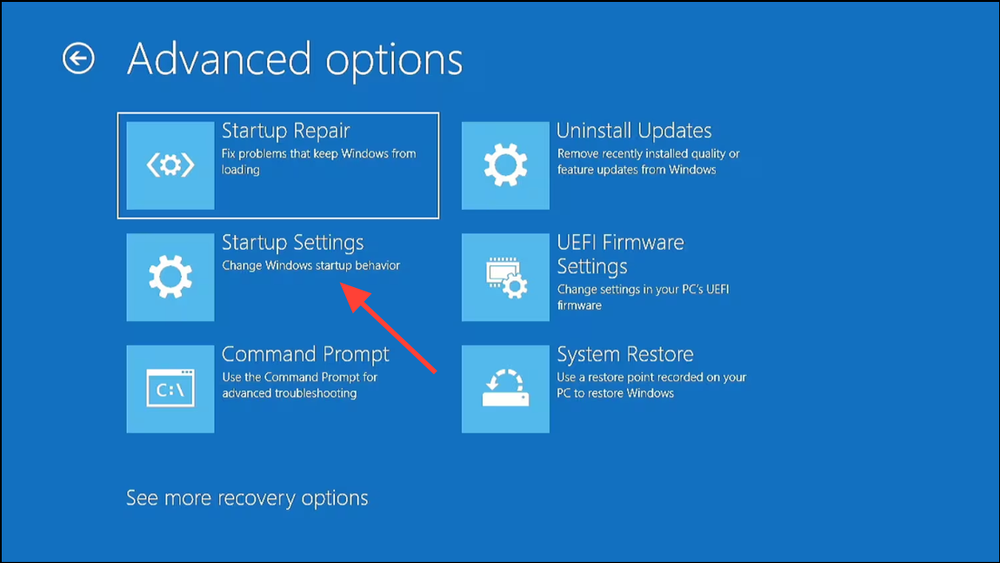
2- Click Restart
3- Press F5 for Safe Mode with Networking
Once in Safe Mode:
- Use Device Manager to update drivers (especially chipset, GPU, and storage)
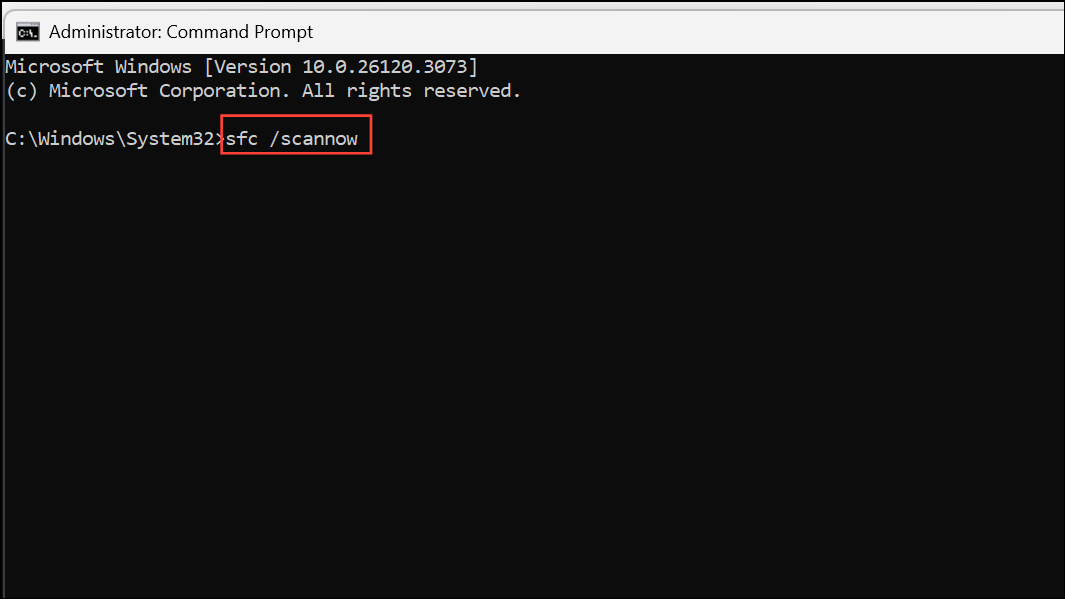
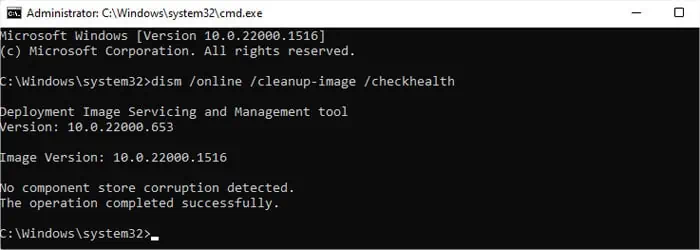
- Run system scans:
sfc /scannow
dism /online /cleanup-image /restorehealth
Repair Boot Records:
From WinRE Command Prompt, run:
bootrec /fixmbr
bootrec /fixboot
bootrec /rebuildbcd

6. Reset or Clean Install Windows 11 (Last Resort)
If all else fails, restoring or reinstalling Windows can eliminate deep system errors.
Option A: Reset This PC
- From WinRE: Troubleshoot > Reset this PC
- Choose to keep or remove personal files
- Follow on-screen instructions
Option B: Clean Install Using USB
- Use another computer to download the Windows 11 Media Creation Tool
- Create a bootable USB
- Boot from USB and choose Install now
- Perform a fresh install
⚠️ Backup your data before either method—these actions may erase apps and files.
Conclusion:
A black screen or failed restart in Windows 11 can be unsettling—but with the right strategy, it’s usually fixable. From updating your BIOS and disabling fast startup settings to running recovery tools and checking hardware, this guide provides a comprehensive path to recovery.
🔧 Most users resolve the issue with a BIOS update and disabling Fast Startup—start there before moving to deeper fixes like system restores or clean installs.
And if you'd like to go a step further in supporting us, you can treat us to a virtual coffee ☕️. Thank you for your support ❤️!

We do not support or promote any form of piracy, copyright infringement, or illegal use of software, video content, or digital resources.
Any mention of third-party sites, tools, or platforms is purely for informational purposes. It is the responsibility of each reader to comply with the laws in their country, as well as the terms of use of the services mentioned.
We strongly encourage the use of legal, open-source, or official solutions in a responsible manner.
Comments