

Do you find yourself constantly opening the same applications every time you sit down at your Windows 11 computer? Wasting precious minutes clicking through the Start Menu, or worse, individually launching each program? There’s a better way! While Windows 11 doesn’t natively offer a “launch multiple apps” feature, we’ll explore several smart, time-saving techniques to open multiple programs simultaneously, streamlining your workflow and boosting your productivity.
Method 1: Batch File Bliss – Your Custom App Launcher
This method uses a simple script to automate the launch of multiple applications. Here’s how:
1- Craft Your Script: Open Notepad (or any plain text editor).
2- The start Command: For each application you want to launch, type start "" "Path\To\Your\Application.exe". Replace "Path\To\Your\Application.exe" with the actual file path of each program’s executable (e.g., "C:\Program Files\Adobe\Photoshop.exe"). The "" after start ensures the window title remains blank.

3- Example Script: @echo off start "" "C:\Program Files\Google\Chrome\Application\chrome.exe" start "" "C:\Program Files\Microsoft Office\WINWORD.EXE" start "" "C:\Program Files\Adobe\Acrobat DC\Acrobat.exe" exit
4- Save as a Batch File: Save the file with a .bat extension (e.g., MyApps.bat). Choose a convenient location like your Desktop or Documents folder.

5- Create a Shortcut: Right-click the .bat file and select “Create shortcut.”
6- Place the Shortcut: Move the shortcut to your Start Menu for easy access. The simplest way is to navigate to C:\Users\YourUsername\AppData\Roaming\Microsoft\Windows\Start Menu\Programs (replace “YourUsername” with your actual user name) and paste the shortcut there. You can also right-click the shortcut and select “Pin to Start” for a tile on your Start Menu.
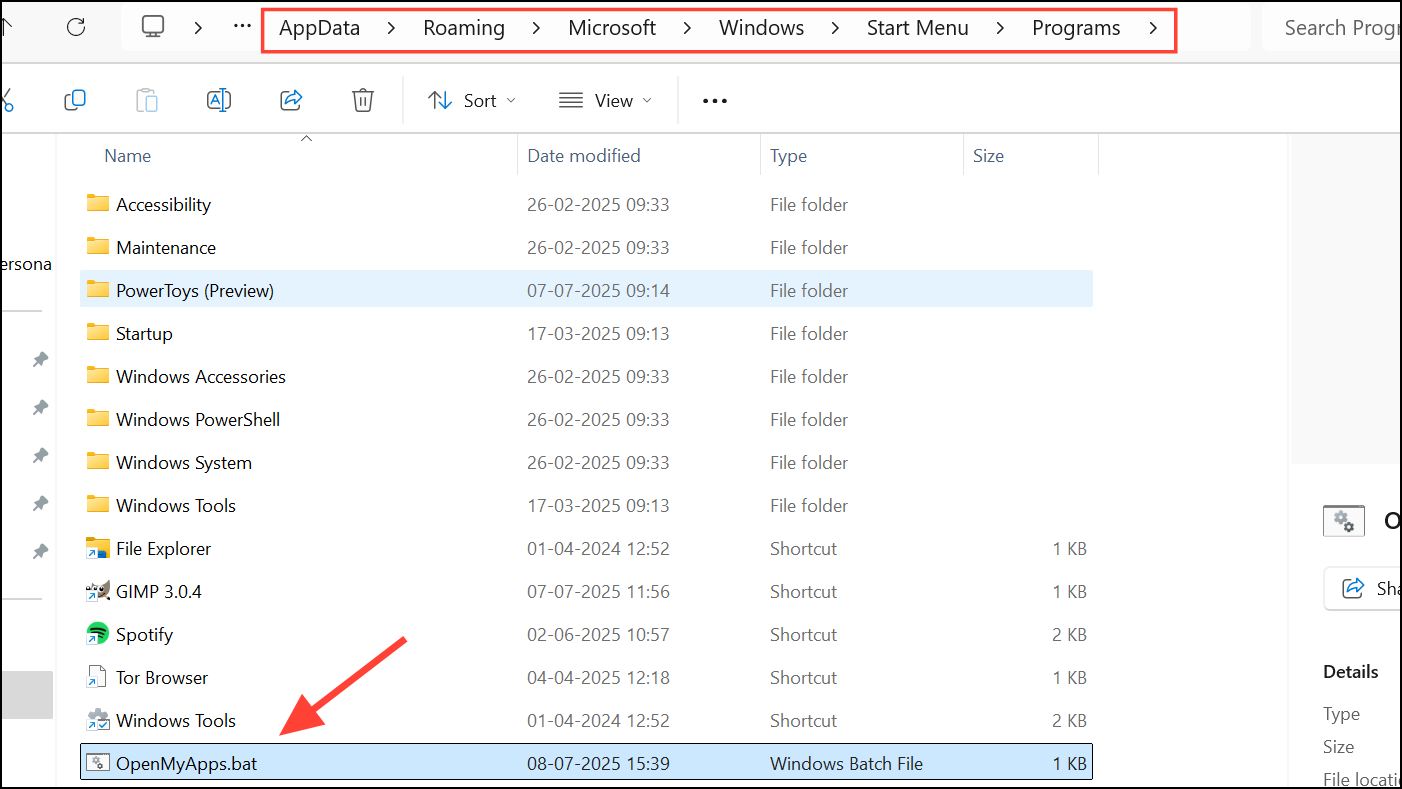
7- Launch with a Click: Clicking the shortcut will now instantly launch all the applications listed in your script.
Method 2: Embrace Third-Party App Launchers – Advanced Control
For those craving more features and customization, third-party app launchers offer a powerful solution. These tools let you group applications, create custom workflows, and even assign keyboard shortcuts.
- Choose Your Launcher: Popular options include SideSlide, but explore others to find the perfect fit for your needs.
- Install and Configure: Download and install your chosen launcher.
- Create Groups/Workspaces: Within the launcher, create groups or workspaces to organize your apps.
- Add Shortcuts: Add shortcuts for each application you want to launch together.
- Launch with Ease: Use the launcher’s features to open all the shortcuts in a group with a single click or keyboard shortcut.
Method 3: Master Multiple Instances – For Supported Apps
Did you know you can open multiple instances of the same application? This technique is great for applications like web browsers, file explorers, and Microsoft Office applications.
- Taskbar Magic: Hold
Shiftand click the application’s icon on the taskbar. - Keyboard Shortcut: Press
Ctrl + Nwithin the application (if supported) to open a new window. - Middle-Click: Middle-clicking the app’s taskbar icon often opens a new instance.
- Windows + Shift + Number: Press
Windows + Shift + [number](where the number corresponds to the app’s position on the taskbar) to launch a new instance quickly.
Method 4: Automate with Task Scheduler – Set It and Forget It
Windows Task Scheduler offers a powerful way to automate app launches, perfect for applications you need to run every time you log in or at a specific time.
1- Open Task Scheduler: Search for “Task Scheduler” in the Start Menu.

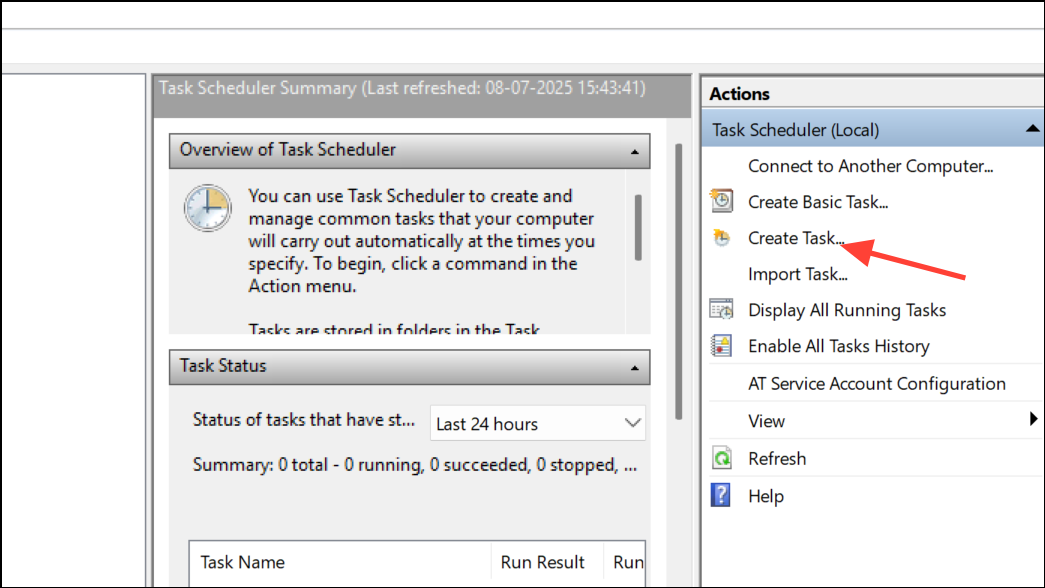
2- Create a New Task: Click “Create Task” on the right-hand side.
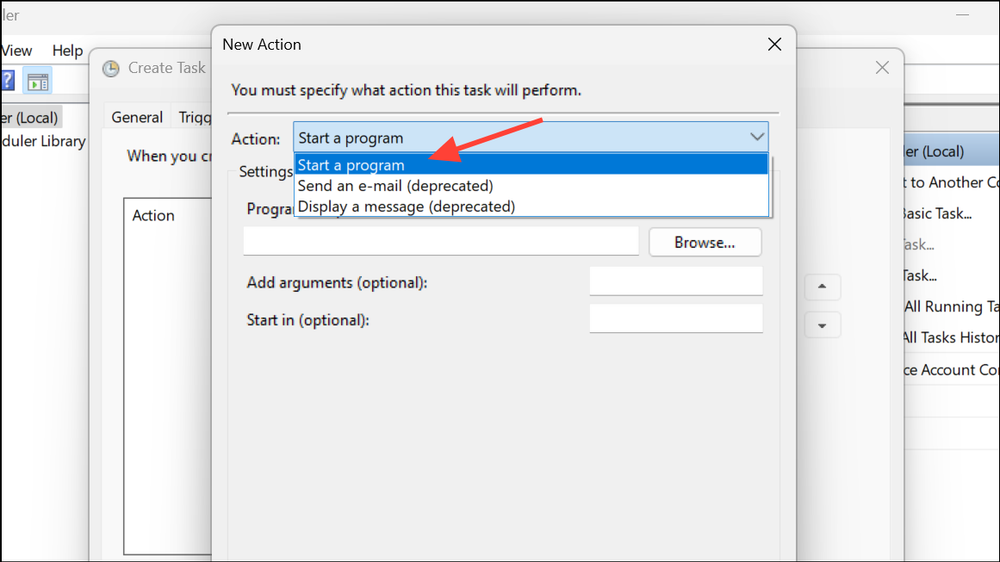
3- Actions Tab: In the “Actions” tab, click “New” and browse to the executable files of the apps you want to launch. Repeat this step for each application.
4- Triggers Tab: In the “Triggers” tab, specify when the task should run (e.g., “At log on” or “On a schedule”).

5- Save Your Task: Save the task. The specified apps will now launch automatically based on your trigger settings.
Conclusion:
By implementing these methods, you can ditch the tedious task of manually launching multiple programs and reclaim valuable time. Whether you prefer a simple batch file, the advanced features of a third-party launcher, or the automation of Task Scheduler, there’s a solution to fit your needs. Experiment with each technique, customize your approach, and watch your productivity soar. Embrace a smoother, more efficient Windows 11 experience!
And if you'd like to go a step further in supporting us, you can treat us to a virtual coffee ☕️. Thank you for your support ❤️!

We do not support or promote any form of piracy, copyright infringement, or illegal use of software, video content, or digital resources.
Any mention of third-party sites, tools, or platforms is purely for informational purposes. It is the responsibility of each reader to comply with the laws in their country, as well as the terms of use of the services mentioned.
We strongly encourage the use of legal, open-source, or official solutions in a responsible manner.
Comments