

That sinking feeling when your emails aren’t sending, your Teams calls aren’t connecting, or your OneDrive files are unreachable – it’s a common modern-day frustration. Before you frantically reboot your router, troubleshoot your internet connection, or declare war on your computer, take a moment. The problem might not be on your end at all.
Microsoft’s vast ecosystem of services, including Outlook, Teams, OneDrive, and Copilot, are incredibly robust, but even global giants can experience technical hiccups. These outages can range from localized glitches to widespread disruptions affecting millions of users. Fortunately, you don’t need to be an IT expert to diagnose the situation. This guide will equip you with five straightforward methods to determine if the issue lies with Microsoft’s servers, saving you time and unnecessary troubleshooting.
1. Consult the Official Microsoft 365 Service Health Dashboard
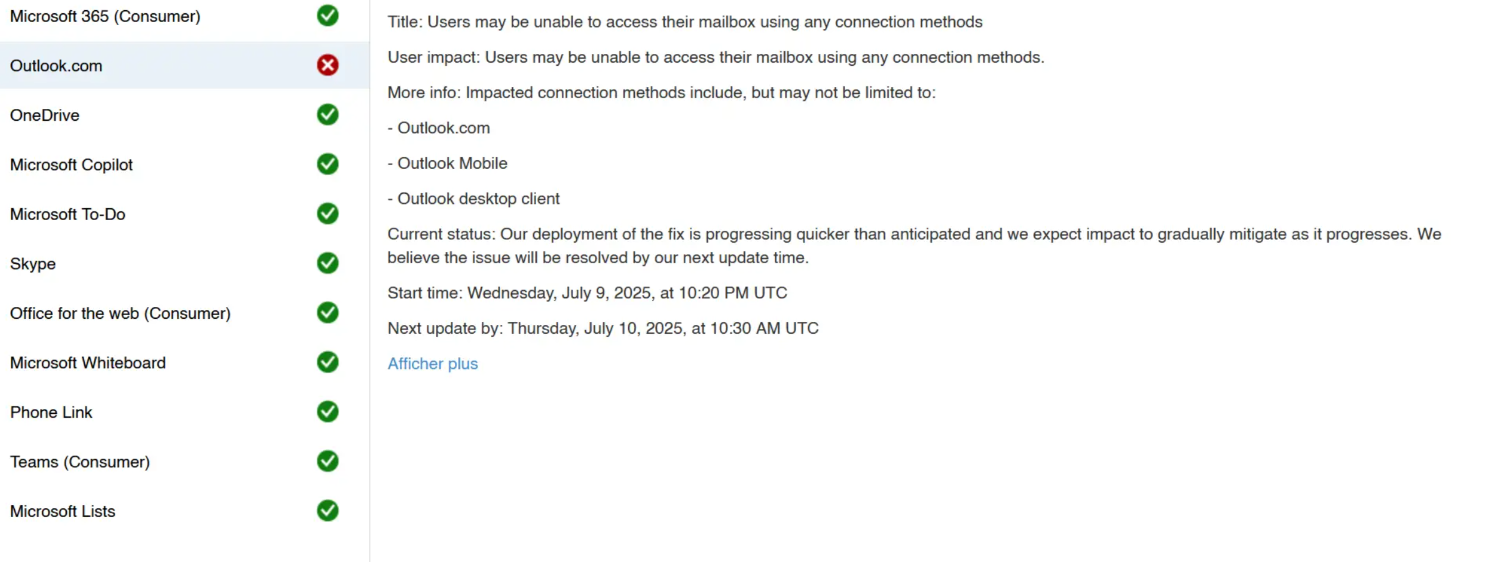
Your first and most reliable port of call should always be Microsoft’s dedicated Service Health page for Microsoft 365. This real-time dashboard provides the official word on the operational status of all core services.
Key URL: https://portal.office.com/servicestatus/
Upon visiting this page, you’ll find a clear, color-coded overview of services like Outlook, OneDrive, Teams, and more. A green checkmark (✅) signifies that everything is functioning optimally. Conversely, a red cross (❌) or a yellow triangle indicates an ongoing incident. Clicking on any listed service will reveal more granular details, including the nature of the problem, when it began, its current status, and when the next update from Microsoft is expected. This is the most authoritative source for confirming a system-wide issue.
2. Explore the Comprehensive Microsoft Cloud Status Page
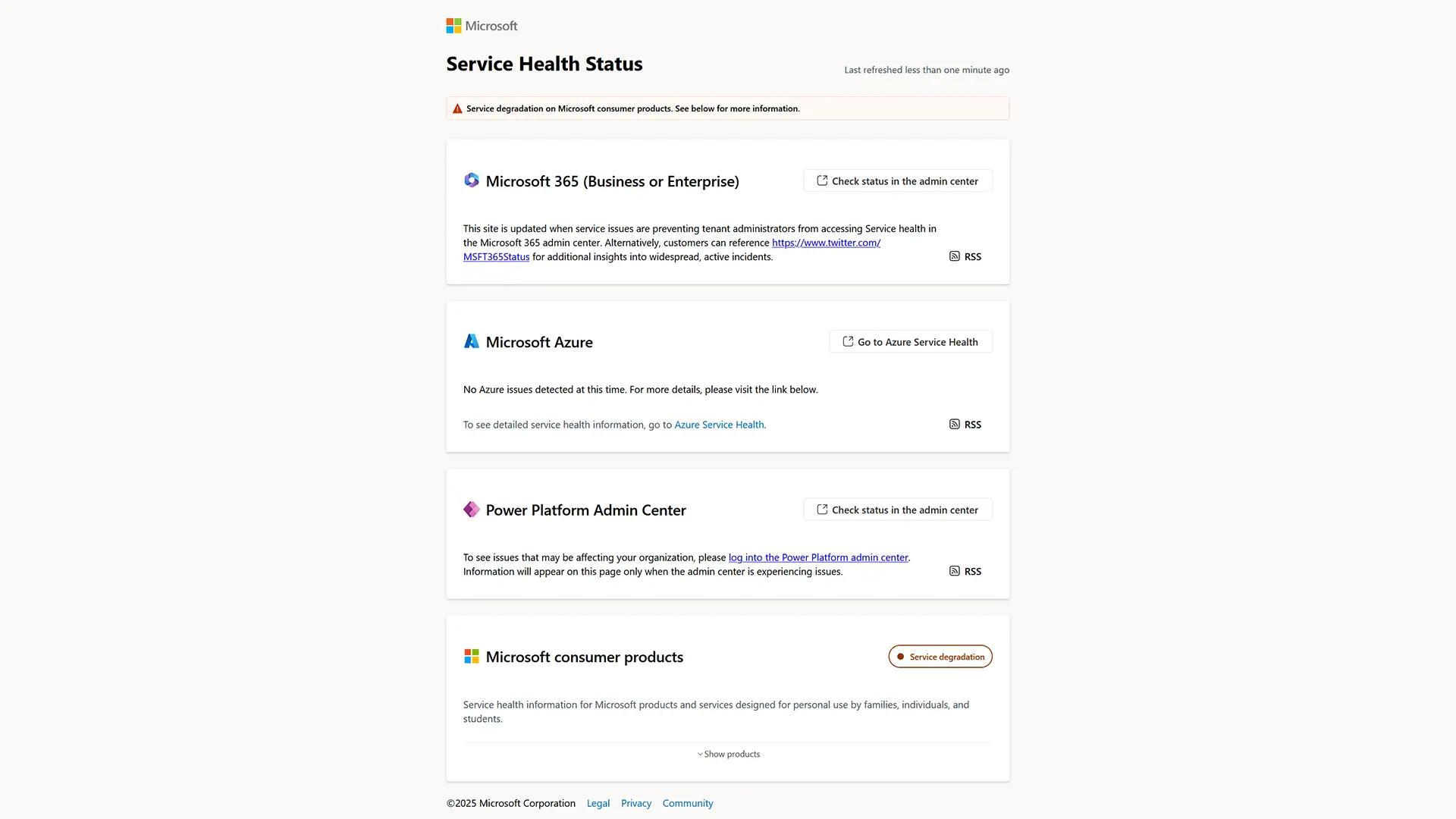
Beyond the specific Microsoft 365 health page, Microsoft offers an even broader status overview that covers its entire cloud infrastructure, including consumer and enterprise services.
Key URL: https://status.cloud.microsoft/m365/
This page provides a quick glance at the health of Microsoft 365 (both business and enterprise versions), Azure, Power Platform, and popular consumer products like Outlook.com, Teams, and OneDrive. If an outage is active, you’ll see a prominent message such as “Service degradation.” Clicking into the relevant sections will provide detailed reports on the affected components. This universal dashboard is publicly accessible, even without a Microsoft account, making it an excellent resource to swiftly ascertain if a large-scale outage is affecting a service you use.
3. Monitor the Official @MSFT365Status X (Twitter) Account
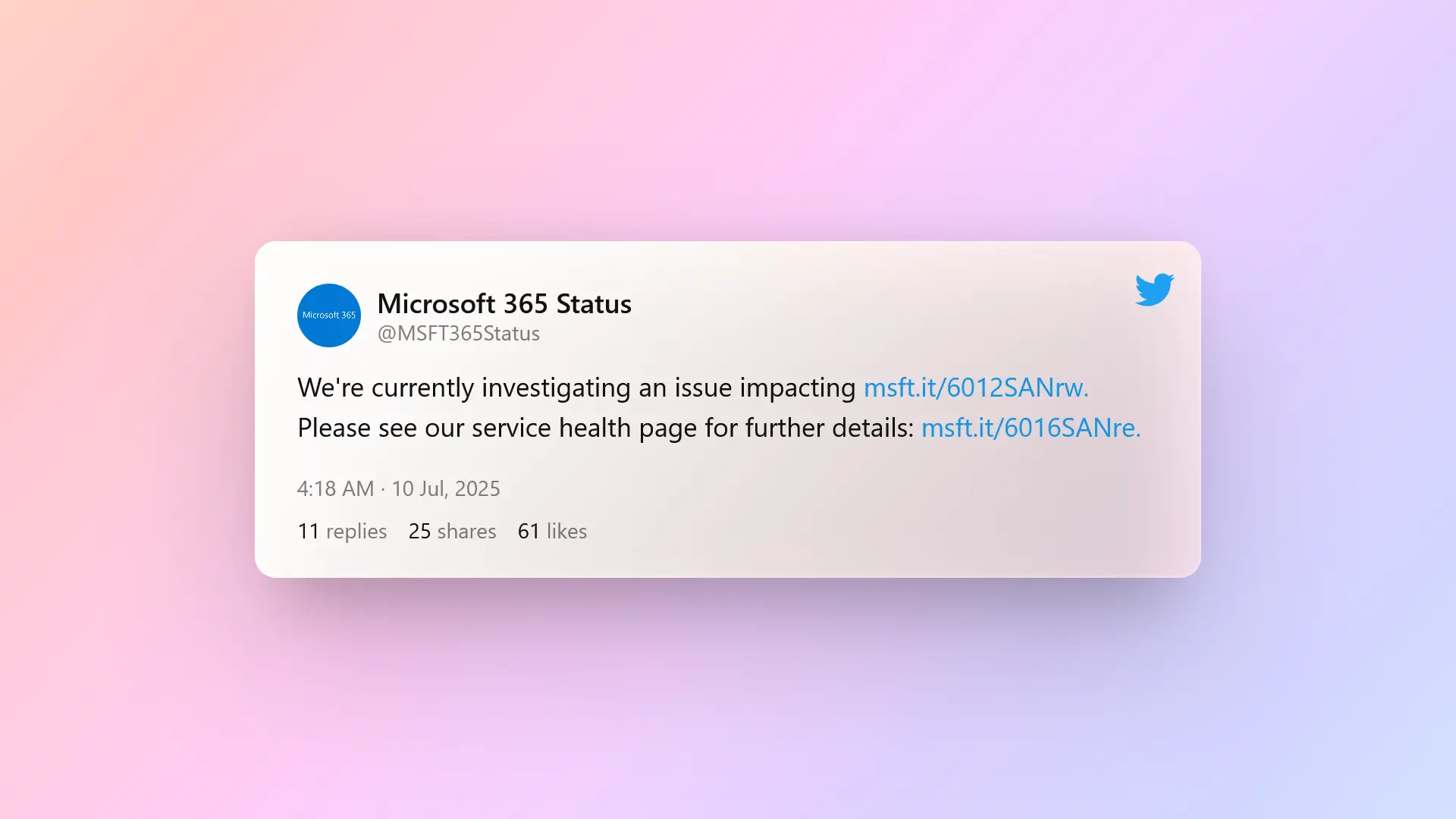
For rapid-fire, real-time updates and breaking news regarding service incidents, Microsoft’s official X (formerly Twitter) account is an invaluable resource.
Key URL: https://x.com/MSFT365Status
This account is often the first place Microsoft disseminates information about ongoing outages, planned maintenance, and resolutions. Each post typically outlines the affected service, the nature of the issue, observed symptoms, and the current investigative or resolution steps. It’s frequently updated faster than the web dashboards during evolving situations. Even if you don’t have an X account, you can still view the recent public tweets via your web browser.
4. Check Crowd-Sourced Reports on Downdetector
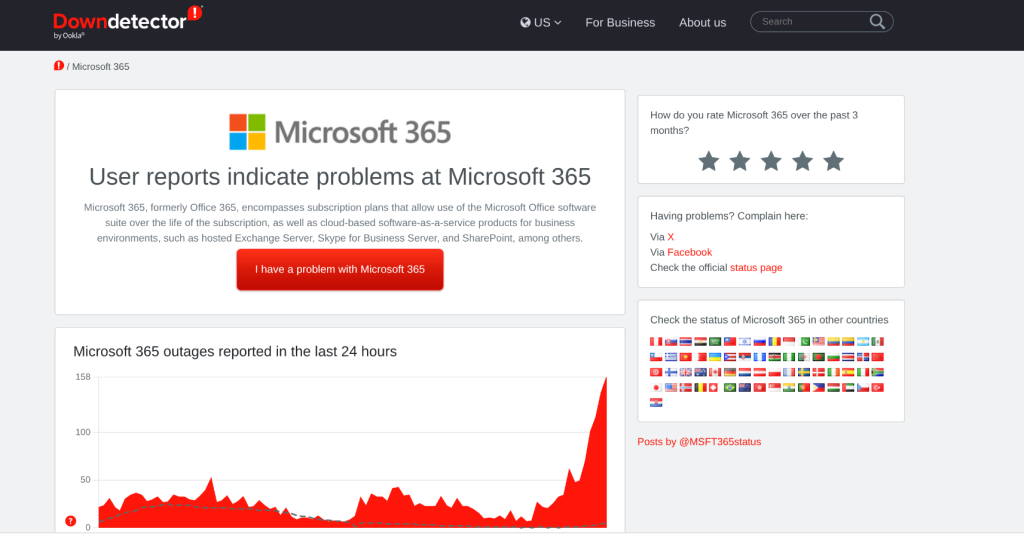
While not an official confirmation of an outage, Downdetector is an excellent third-party resource for quickly gauging if many other users are experiencing similar problems. It collects and visualizes user-submitted reports of service disruptions.
Key URL: https://downdetector.com/status/microsoft-365/
On the Downdetector page for Microsoft 365, you’ll see a graph illustrating the volume of problem reports over the past 24 hours. A sudden surge in reports indicates a widespread issue. The site also highlights the most frequently reported problems (e.g., login issues, email sending failures) and user comments, which can offer valuable context and real-world impact stories. Remember, Downdetector relies on user reports, so while it’s a great indicator of collective experience, it’s not an official statement from Microsoft.
5. Perform Localized Testing with a Different Device or Network
Before concluding that a Microsoft service is definitely down, it’s prudent to rule out issues specific to your setup. A quick localized test can save you a lot of headache.
Try accessing the affected service (Outlook, Teams, etc.) from:
- Another Device: Use your smartphone, tablet, or another computer.
- A Different Network: Switch from your home Wi-Fi to mobile data (4G/5G), a public Wi-Fi hotspot, or a friend’s internet connection.
If the service works perfectly on an alternative device or network, the problem likely stems from your local hardware, network configuration, or internet service provider. Additionally, try accessing the service in your web browser’s incognito or private browsing mode. This bypasses cached data and browser extensions that might be causing conflicts. If the service loads correctly in private mode, clearing your browser’s cache and disabling extensions might resolve your issue.
In Conclusion
The next time Outlook or any other Microsoft 365 service seems unresponsive, resist the urge to immediately hit the restart button on everything you own. By leveraging these five straightforward methods – checking official Microsoft status pages, monitoring their X account, consulting Downdetector, and performing quick localized tests – you can quickly and accurately pinpoint the source of the problem. This not only saves you time on unnecessary troubleshooting but also keeps you informed during widespread outages. If a Microsoft-side issue is confirmed, the best course of action is often patience while the technical teams work diligently to restore service. In the meantime, perhaps enjoy a forced digital detox!
And if you'd like to go a step further in supporting us, you can treat us to a virtual coffee ☕️. Thank you for your support ❤️!

We do not support or promote any form of piracy, copyright infringement, or illegal use of software, video content, or digital resources.
Any mention of third-party sites, tools, or platforms is purely for informational purposes. It is the responsibility of each reader to comply with the laws in their country, as well as the terms of use of the services mentioned.
We strongly encourage the use of legal, open-source, or official solutions in a responsible manner.
Comments