

As of October 14, 2025, Microsoft will cease all security and feature updates for Windows 10, leaving devices increasingly susceptible to malware and cyber threats if users do not take action. To facilitate a smoother transition to Windows 11, Microsoft is offering several ways to enroll in the Extended Security Updates (ESU) program—many of which are free for personal users. Here’s how you can ensure your Windows 10 PC remains protected beyond the official support deadline.
Method 1: Enroll in ESU Using Windows Backup (Free Option)
Utilizing Windows Backup and OneDrive is a simple, cost-free method to continue receiving security updates for an extra year after Windows 10 support concludes. This option is exclusively for individual users and requires a Microsoft account along with enough OneDrive storage.
Steps to Enroll Using Windows Backup:
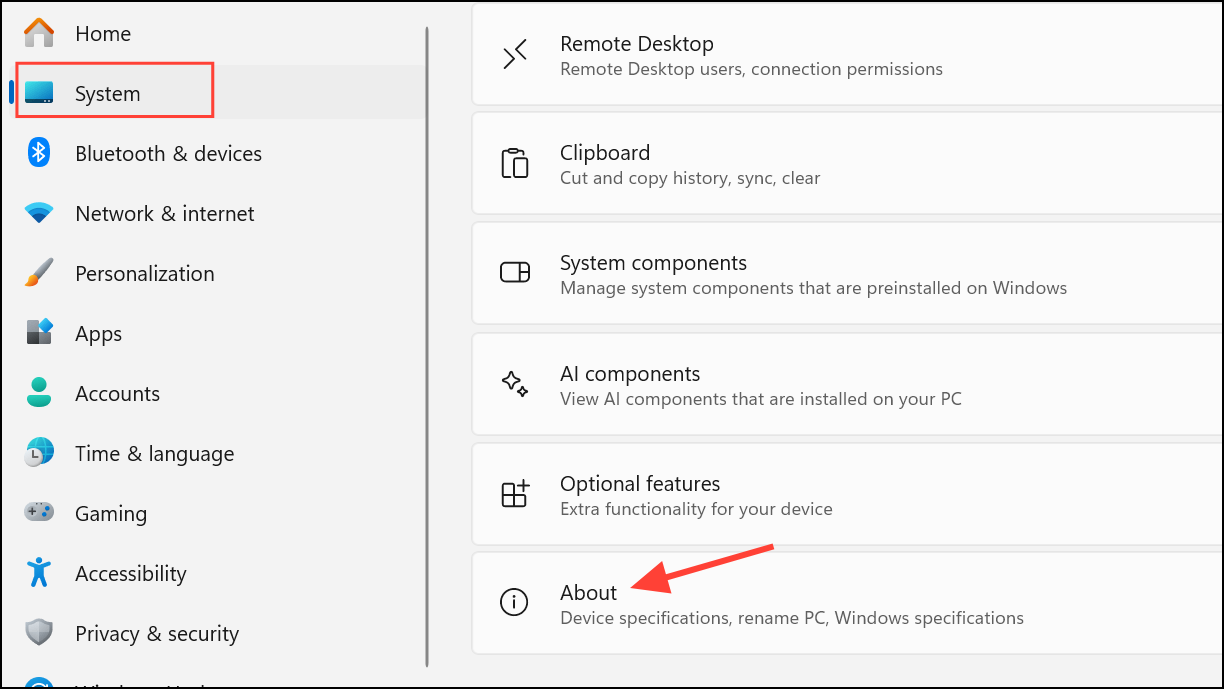
Step 1: Verify that your device is running Windows 10, version 22H2, as this is the only version eligible for ESU enrollment. Check this by navigating to Settings > System > About.
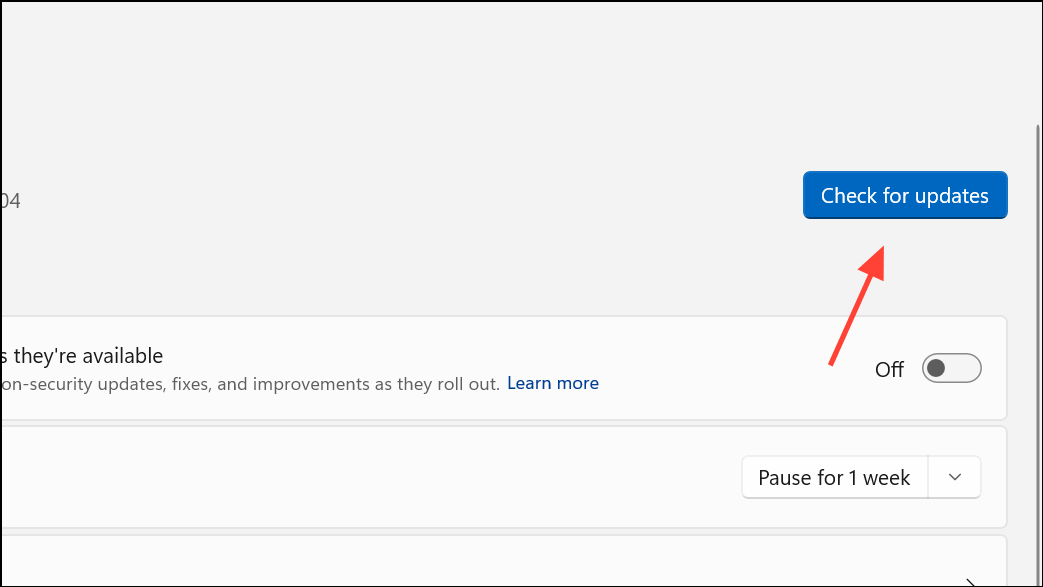
Step 2: Ensure your system has the latest updates. Go to Settings > Update & Security > Windows Update and click on Check for updates.
Step 3: Log in with a Microsoft account that has administrative privileges. If you’re using a local account, you’ll be prompted to sign in during the process. Note that child accounts are ineligible.
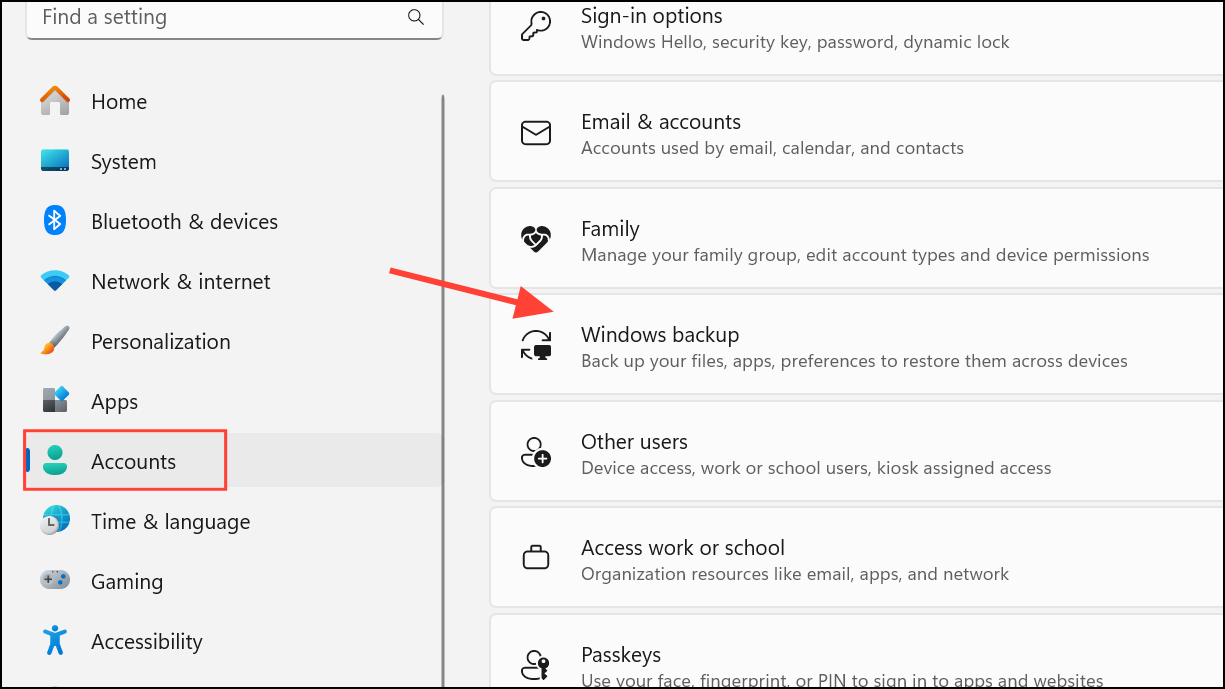
Step 4: Activate Windows Backup to sync your settings to OneDrive. Open Settings > Accounts > Windows backup and follow the prompts to back up your files and settings.
Step 5: After your device is eligible, navigate to Settings > Update & Security > Windows Update. You should see the option to Enroll now for Extended Security Updates. Click on it and follow the instructions.

Step 6: Once enrolled, your PC will receive monthly security updates through Windows Update until October 13, 2026. You can check your enrollment status in the same section.
Note: OneDrive’s free storage limit is 5GB. If your backup exceeds this limit, you may need to purchase additional storage, which starts at $2/month for 100GB.
Method 2: Redeem Microsoft Rewards Points for ESU (Free Option)
If you actively participate in Microsoft Rewards, you can redeem 1,000 points to receive an additional year of Extended Security Updates at no cost.
Steps to Redeem Microsoft Rewards Points:
Step 1: Confirm your device meets the prerequisites outlined in Method 1 (Windows 10 version 22H2, latest updates, administrator rights).
Step 2: Accumulate at least 1,000 Microsoft Rewards points through activities like using Bing, completing daily tasks, or participating in Microsoft promotions.
Step 3: Head to Settings > Update & Security > Windows Update and select Enroll now for ESU. When prompted, choose to redeem your Microsoft Rewards points.
Step 4: Follow the on-screen instructions to complete enrollment, which will then cover your security updates until October 13, 2026.
Note: Ensure you are logged into the same Microsoft account that was used to earn the points.
Method 3: Purchase an ESU Subscription (Paid Option)
For users who prefer not to use cloud services or don’t have enough Microsoft Rewards points, Microsoft offers a paid ESU option for personal Windows 10 PCs. The cost is $30 per year, allowing coverage for up to 10 devices linked to your Microsoft account.
Steps to Purchase an ESU Subscription:
Step 1: Confirm that your system is running Windows 10 version 22H2 with all latest updates installed.
Step 2: Navigate to Settings > Update & Security > Windows Update and click on Enroll now for ESU.
Step 3: When prompted, select the one-time purchase option and complete the payment process with your Microsoft account.
Step 4: Enrollment will activate security updates for your device until October 13, 2026. You can view your purchase confirmation in your Microsoft account order history.
Step 5: If you wish to cancel your ESU order, it can be done before October 14, 2025, for a full refund according to Microsoft’s digital purchase policies.
Method 4: ESU for Organizations and Commercial Devices
Organizations, educational institutions, and businesses can acquire ESU licenses through Microsoft’s Volume Licensing Program. These licenses are designed for managed environments and are priced higher.
- Year 1 Pricing: 61perdevicefororganizations;61perdevicefororganizations;1 per device for educational customers.
- Prices double in subsequent years, allowing coverage for a maximum of three years.
- Enrollment is managed by IT administrators using tools like Microsoft Intune or Windows Autopatch.
- The minimum purchase is one license, purchased annually, and licenses are cumulative.
- Cloud-connected devices using Windows 365 or Azure Virtual Desktop may qualify for ESU at no extra cost.
Important Notes: Technical support for ESU is limited to activation, installation, and update issues. Standard Windows 10 support is not included.
Alternative: Third-Party Security Patch Services
For users reluctant to use Microsoft’s ESU program, third-party providers like 0patch offer critical security patches after the end of official support. These services typically range from 25to25to36 per PC annually and provide “micropatches” for newly discovered vulnerabilities. Note that these are unofficial updates and may require manual installation.
Final Thoughts
Given the looming end of support for Windows 10, it’s crucial to take steps now to keep your PC secure through the available Extended Security Updates (ESU) options. Whether opting for a free enrollment method via Windows Backup, redeeming Microsoft Rewards points, or buying a subscription, there are solutions tailored for different needs and preferences. Be proactive in maintaining your Windows 10 security to safeguard your data and ensure ongoing productivity.
And if you'd like to go a step further in supporting us, you can treat us to a virtual coffee ☕️. Thank you for your support ❤️!

We do not support or promote any form of piracy, copyright infringement, or illegal use of software, video content, or digital resources.
Any mention of third-party sites, tools, or platforms is purely for informational purposes. It is the responsibility of each reader to comply with the laws in their country, as well as the terms of use of the services mentioned.
We strongly encourage the use of legal, open-source, or official solutions in a responsible manner.
Comments