

The cryptic “Cryptographic Services failed while processing the OnIdentity() call in the System Writer Object” error, frequently appearing in Windows event logs, often points to permission problems hindering the Volume Shadow Copy Service (VSS). While this error might not immediately disrupt backups, it indicates potential security vulnerabilities and system misconfigurations that warrant immediate attention. This guide provides a structured approach to resolving this issue, covering driver permissions, directory access rights, and system-wide checks.
Method 1: Update Permissions for the Microsoft Link-Layer Discovery Protocol (mslldp.sys) Driver
Incorrect permissions on the mslldp.sys driver are a common cause of this error. These steps require administrative privileges.
Steps:
1- Open Elevated Command Prompt: Open Windows Terminal or Command Prompt as administrator (Windows key + X).

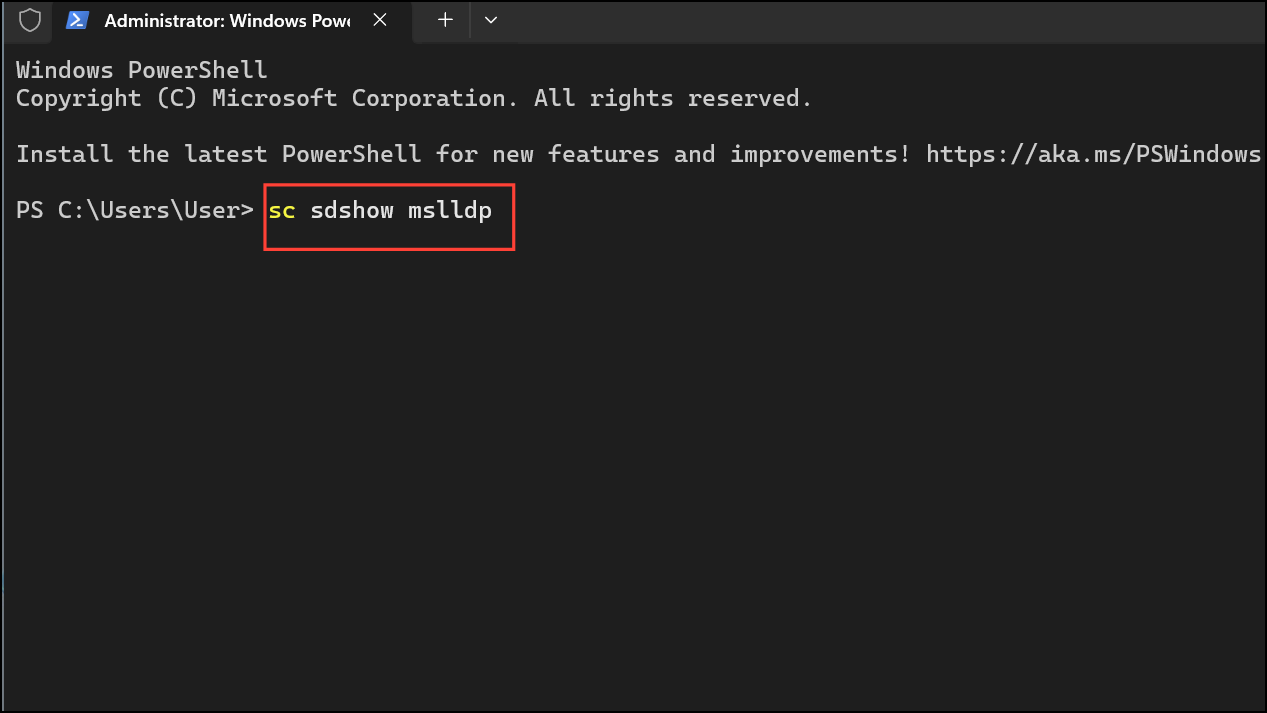
2- Show Current Security Descriptor: Run sc sdshow mslldp. Save the output to a text file for backup.
3- Modify Security Descriptor: Append (A;;CCLCSWLOCRRC;;;SU) to the end of the security descriptor string (before any S: section).
4- Apply Updated Descriptor: Run sc sdset mslldp [YourDescriptor], replacing [YourDescriptor] with your modified string.

5- Verify Permissions (using accesschk.exe): Download accesschk.exe from Microsoft Sysinternals and run accesschk.exe -c mslldp. Verify R NT AUTHORITY\SERVICE is listed.
Method 2: Correct Permissions on Critical System File Directories
The VSS System Writer needs appropriate access to specific system directories.
Steps:
1- Open Elevated Command Prompt: Open Windows Terminal or Command Prompt as administrator.

2- Take Ownership and Grant Permissions: Execute the following commands sequentially:
takeown /f %windir%\winsxs\temp\PendingRenames /a
icacls %windir%\winsxs\temp\PendingRenames /grant "NT AUTHORITY\SYSTEM:(RX)"
icacls %windir%\winsxs\temp\PendingRenames /grant "NT Service\trustedinstaller:(F)"
icacls %windir%\winsxs\temp\PendingRenames /grant BUILTIN\Users:(RX)"
takeown /f %windir%\winsxs\filemaps\* /a
icacls %windir%\winsxs\filemaps\*.* /grant "NT AUTHORITY\SYSTEM:(RX)"
icacls %windir%\winsxs\filemaps\*.* /grant "NT Service\trustedinstaller:(F)"
icacls %windir%\winsxs\filemaps\*.* /grant BUILTIN\Users:(RX)"
3- Restart Cryptographic Services: Run net stop cryptsvc and then net start cryptsvc.

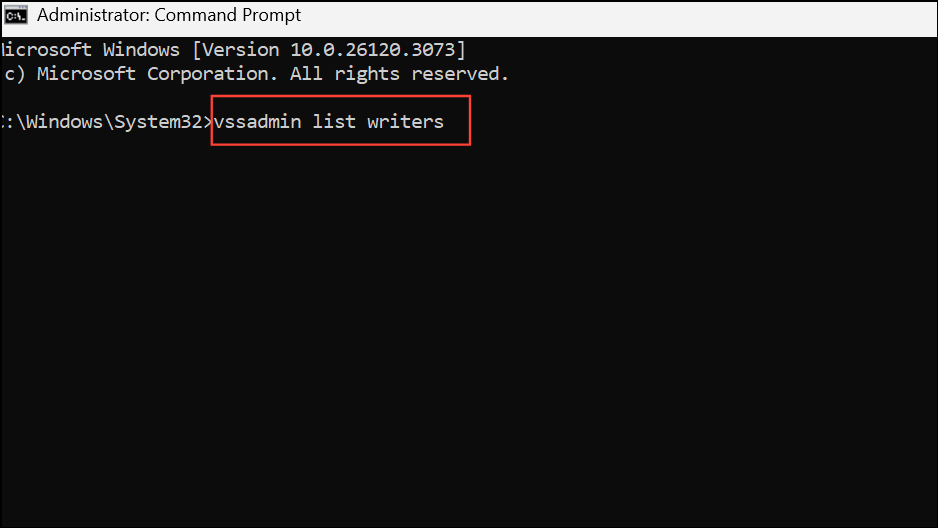
4- Verify VSS System Writer Status: Run vssadmin list writers. Check that the “System Writer” state is “[1] Stable.”
Method 3: Address Potential Conflicts with Group Policies, Security Software, and Windows Updates
Group policy restrictions or security software interference can also cause this error.
Steps:
- Review Group Policies: Check local and domain group policies for restrictions on SYSTEM or SERVICE account permissions.
- Check Security Software: Temporarily disable or adjust antivirus or endpoint protection settings to see if they’re interfering.
- Update Windows: Ensure your system is fully updated by checking for and installing pending updates (“Settings” > “Windows Update”).
Conclusion:
The “Cryptographic Services failed” error often indicates underlying permission issues that, while not immediately catastrophic, compromise system stability and security. By systematically addressing driver permissions, directory access rights, and potential conflicts with group policies and security software, you can effectively resolve this error and ensure the reliable functioning of crucial system services like VSS. Keeping your Windows installation up-to-date is also crucial for preventing such errors.
And if you'd like to go a step further in supporting us, you can treat us to a virtual coffee ☕️. Thank you for your support ❤️!

We do not support or promote any form of piracy, copyright infringement, or illegal use of software, video content, or digital resources.
Any mention of third-party sites, tools, or platforms is purely for informational purposes. It is the responsibility of each reader to comply with the laws in their country, as well as the terms of use of the services mentioned.
We strongly encourage the use of legal, open-source, or official solutions in a responsible manner.
Comments