
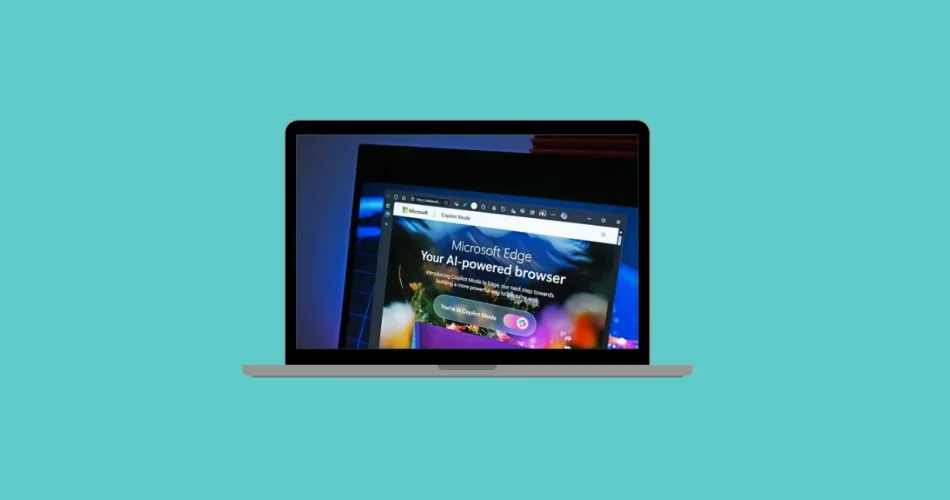
Microsoft Edge’s Copilot Mode represents a paradigm shift in web browsing, integrating AI directly into the user experience. This innovative feature transforms Edge from a passive tool into an active assistant, interpreting user intent, streamlining research, automating tasks, and enhancing overall productivity. This guide provides a comprehensive overview of Copilot Mode’s capabilities, privacy features, and activation instructions.
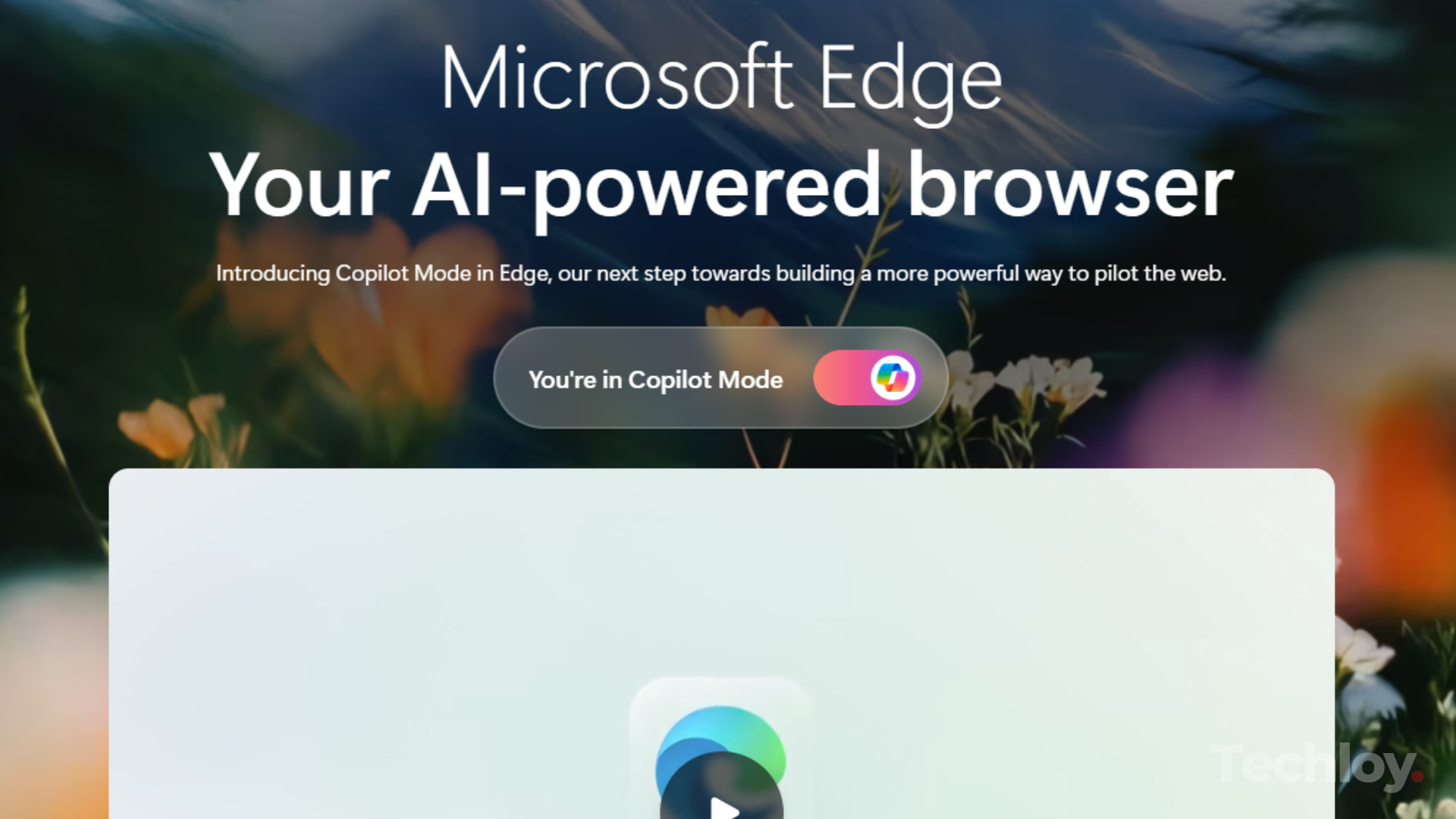
Copilot Mode: A Unified Interface for Seamless Web Interaction
Copilot Mode introduces a new tab interface centered around a single input box. Users can input queries or commands using either text or voice, allowing for natural language interaction. Copilot analyzes the context of open tabs (with user permission) to provide comprehensive answers, summarize information, and reduce the need for manual tab switching.
AI-Powered Features:
- Multi-tab Analysis: Copilot can analyze information across multiple open tabs, synthesizing insights and presenting relevant information.
- Voice Navigation: Issue voice commands to search, navigate, or compare information.
- Automated Actions: (Future feature) Allow Copilot to access browsing history and credentials (with explicit consent) to autonomously complete tasks like booking reservations or online purchases.
- Contextual Assistance: Access AI assistance directly within a webpage’s context (e.g., converting measurements, translating text, summarizing documents).
- Topic-Based Journeys: (Future feature) Organize browsing sessions into topic-based journeys, simplifying research and project management.
Privacy, Security, and User Control:
Data privacy is central to Copilot Mode’s design.
- Explicit Consent: Access to browsing data or sensitive information requires explicit user permission.
- Transparency: Clear visual cues indicate Copilot’s activity and data access.
- User Control: Copilot Mode can be disabled at any time via Edge settings.
Enabling Copilot Mode in Microsoft Edge (Windows 11)
Steps:
- Update Microsoft Edge: Ensure you have the latest version of Microsoft Edge.
- Access Copilot Mode: Go to
aka.ms/copilot-modeor find the Copilot Mode section in Edge settings. - Activate Copilot Mode: Opt in and activate the feature.
- Configure Privacy Settings: Adjust privacy settings in “Settings” > “Copilot” to control data access.
- Provide Feedback: Provide feedback or report issues through the Copilot interface or the Edge Copilot Discord community.
Conclusion:
Microsoft Edge’s Copilot Mode marks a significant step towards AI-integrated browsing. Its ability to interpret user intent, automate tasks, and enhance organization promises to revolutionize how we interact with the web. While still under development, Copilot Mode’s focus on user control and privacy makes it a compelling and innovative approach to AI-powered web browsing. The continuous development and refinement of these features suggest an even more seamless and intuitive browsing experience in the future.
And if you'd like to go a step further in supporting us, you can treat us to a virtual coffee ☕️. Thank you for your support ❤️!

We do not support or promote any form of piracy, copyright infringement, or illegal use of software, video content, or digital resources.
Any mention of third-party sites, tools, or platforms is purely for informational purposes. It is the responsibility of each reader to comply with the laws in their country, as well as the terms of use of the services mentioned.
We strongly encourage the use of legal, open-source, or official solutions in a responsible manner.
Comments