
Valorant Error Code 1, typically appearing during game startup, can be caused by server issues, corrupted game files, or connection problems. This guide provides a systematic approach to resolving this error, from simple restarts to more advanced troubleshooting steps.
Method 1: Restarting the Riot Client
This often resolves temporary glitches.
- Step 1: Close Riot Client: Right-click the Riot Client icon in the system tray and select “Exit.” Wait a few seconds.
- Step 2: Relaunch Valorant: Reopen the Riot Client and launch Valorant.
Method 2: Running Valorant as Administrator
Elevated permissions can bypass access restrictions.
Step 1: Run as Administrator: Right-click the Valorant shortcut and select “Run as administrator.”
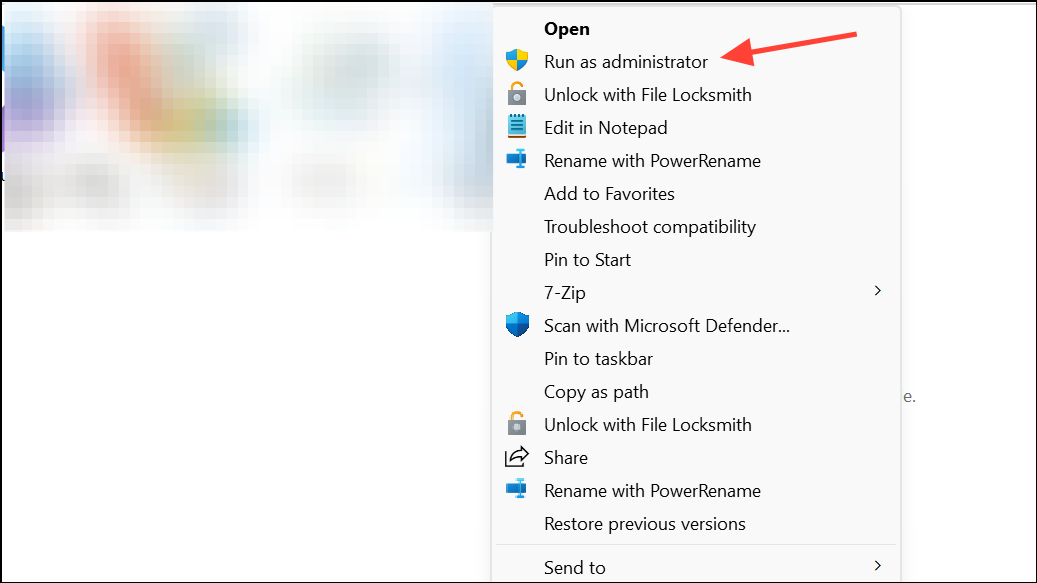
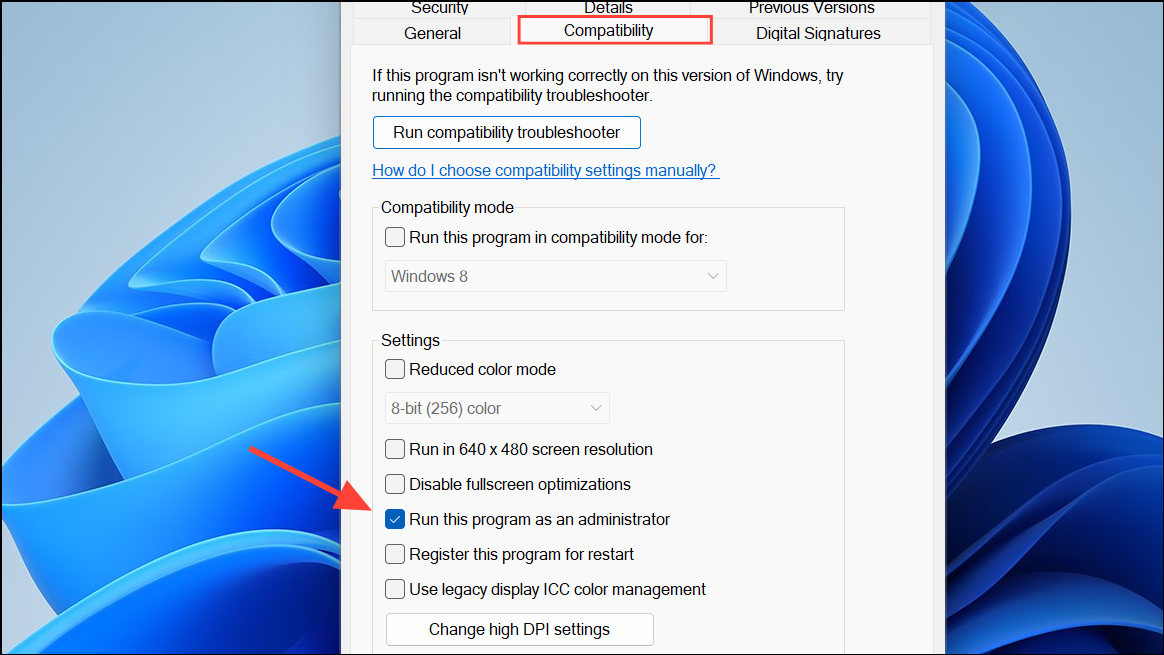
Step 2: Set it as Default (Optional): To always run as administrator, right-click the shortcut, go to “Properties > Compatibility,” check “Run this program as an administrator,” and click “Apply.”
Method 3: Updating Graphics Drivers
Outdated or corrupted graphics drivers are a common cause.
Step 1: Check for Updates: Use GeForce Experience (Nvidia) or AMD Software (AMD) to check for driver updates. Alternatively, use Device Manager (Device Manager > Display adapters > Update driver).
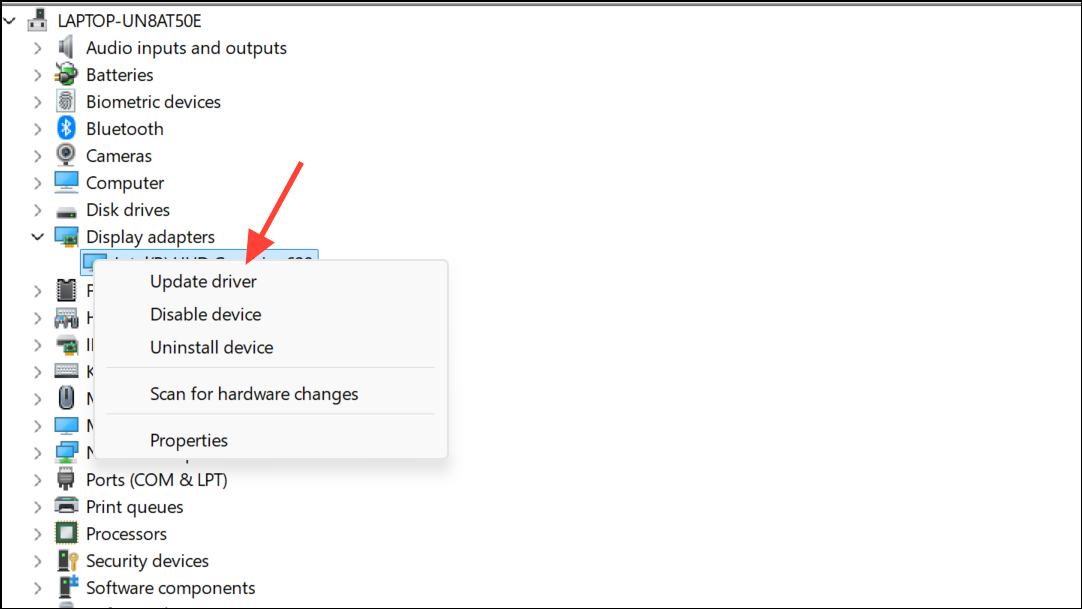
Step 2: Install Updates: Download and install any available updates.
Method 4: Reinstalling Valorant and Riot Vanguard
A clean reinstall often resolves corrupted game files.
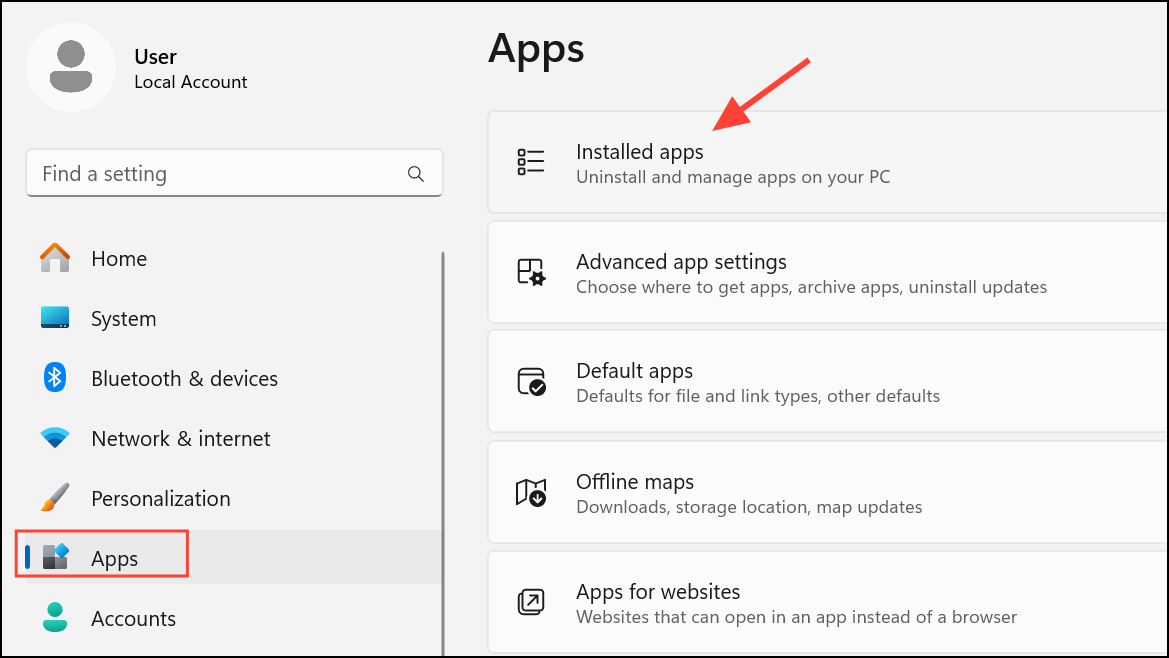
Step 1: Uninstall: Uninstall Riot Vanguard and Valorant through Windows Settings (Settings > Apps > Installed apps).
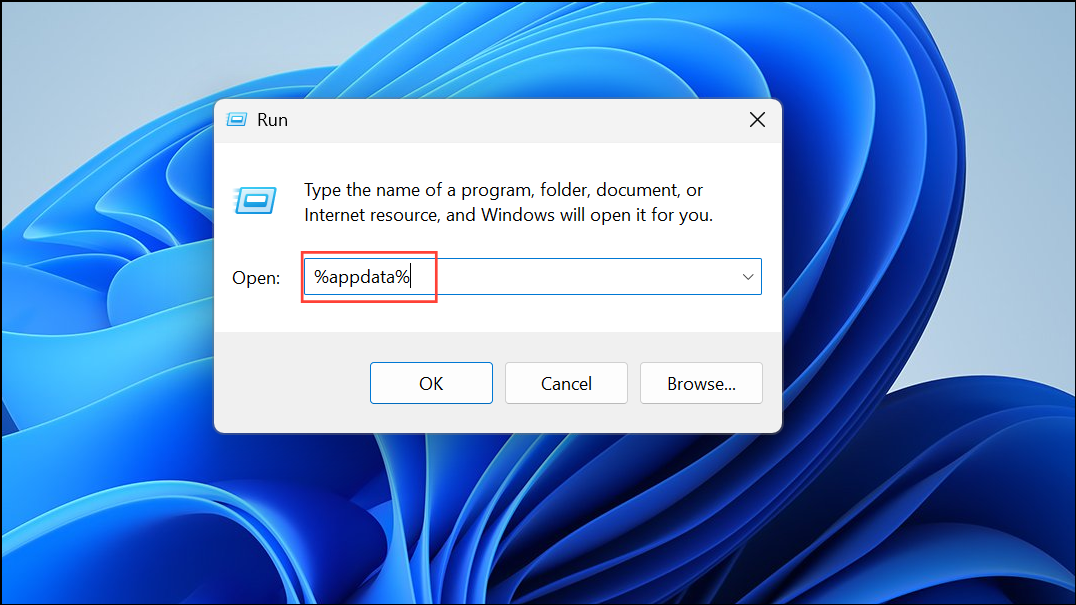
Step 2: Delete Riot Games Folders: Delete the Riot Games folders in %appdata%, %LocalAppData%, and %ProgramData%.
Step 3: Reinstall: Download the latest Valorant installer from Riot’s website and reinstall.
Method 5: Checking Network and System Conflicts
Network issues or conflicting software can interfere with Valorant.
- Step 1: Disable VPNs and Proxies: Temporarily disable VPNs, proxies, or bandwidth-intensive background applications.
- Step 2: Add Valorant to Exceptions: Add Valorant and Riot Vanguard to your antivirus and firewall exception lists, or temporarily disable these programs for testing. Consider using a VPN like Cloudflare WARP if local ISP issues are suspected.
Method 6: Reinstalling Windows (Advanced)
If all else fails, a non-destructive Windows reinstall can refresh system files without losing your data.
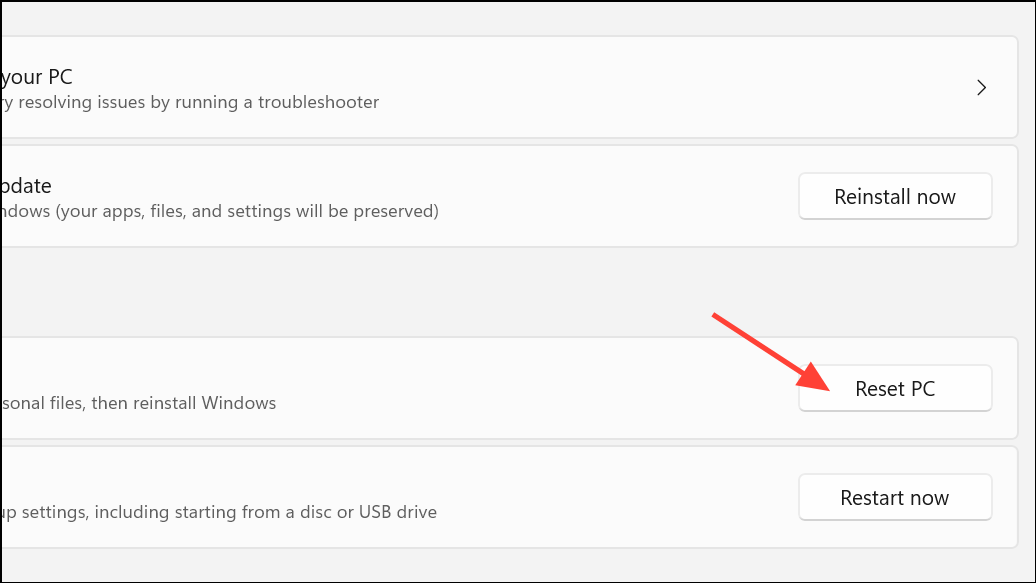
Step 1: Reset this PC: Search for “Reset this PC” in Windows settings, select “Reset PC,” choose “Keep my files,” and follow the instructions.
Step 2: Reinstall Valorant: Reinstall Valorant and Riot Vanguard after the reset.
Method 7: Contacting Riot Games Support
If the problem persists, contact Riot Games support through their official website. Provide details about your troubleshooting steps and system configuration.
Conclusion: Resolving Valorant Error Code 1 requires a systematic approach. Start with the simpler methods (restarting the client, running as administrator) and progress to more involved solutions (reinstalling the game, checking network settings) only if necessary. A clean Windows reinstall is a last resort. Always back up your data before attempting significant system changes.
And if you'd like to go a step further in supporting us, you can treat us to a virtual coffee ☕️. Thank you for your support ❤️!

We do not support or promote any form of piracy, copyright infringement, or illegal use of software, video content, or digital resources.
Any mention of third-party sites, tools, or platforms is purely for informational purposes. It is the responsibility of each reader to comply with the laws in their country, as well as the terms of use of the services mentioned.
We strongly encourage the use of legal, open-source, or official solutions in a responsible manner.
Comments