

Free disk cloning software for Windows isn’t rare. But free disk cloning software built by a company trusted by digital forensic labs and law enforcement agencies? That’s a different story.
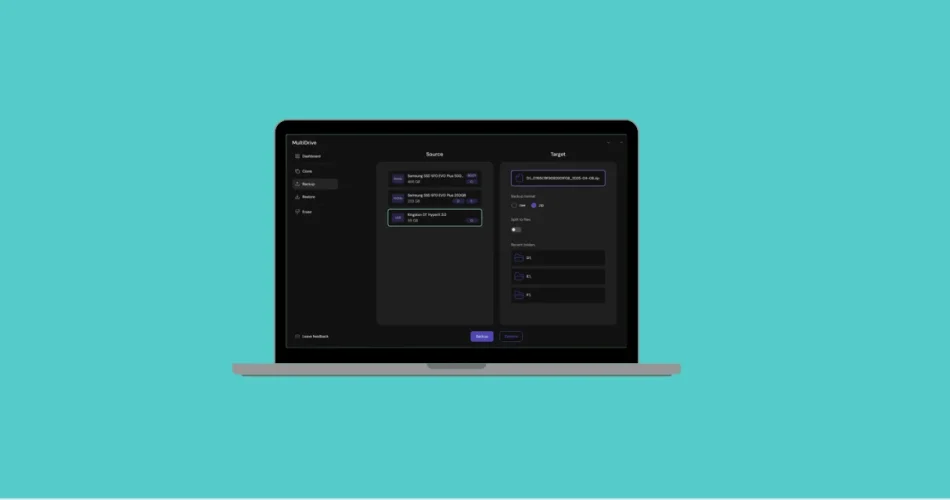
Meet MultiDrive, a powerful yet free Windows utility for disk cloning, backup, and secure wiping—developed by Atola Technology.
If you’ve worked in digital forensics or data recovery, you probably know Atola. With over 20 years in the industry, clients ranging from investigation labs to law enforcement, and headquarters in Canada with engineering teams in Ukraine, Atola has serious credibility when it comes to hard drives and storage systems.
So when they release a free tool for everyday Windows users and IT admins, it’s worth paying attention.
What Is MultiDrive?
MultiDrive is a Windows-native disk management tool designed for:
- Disk-to-disk cloning
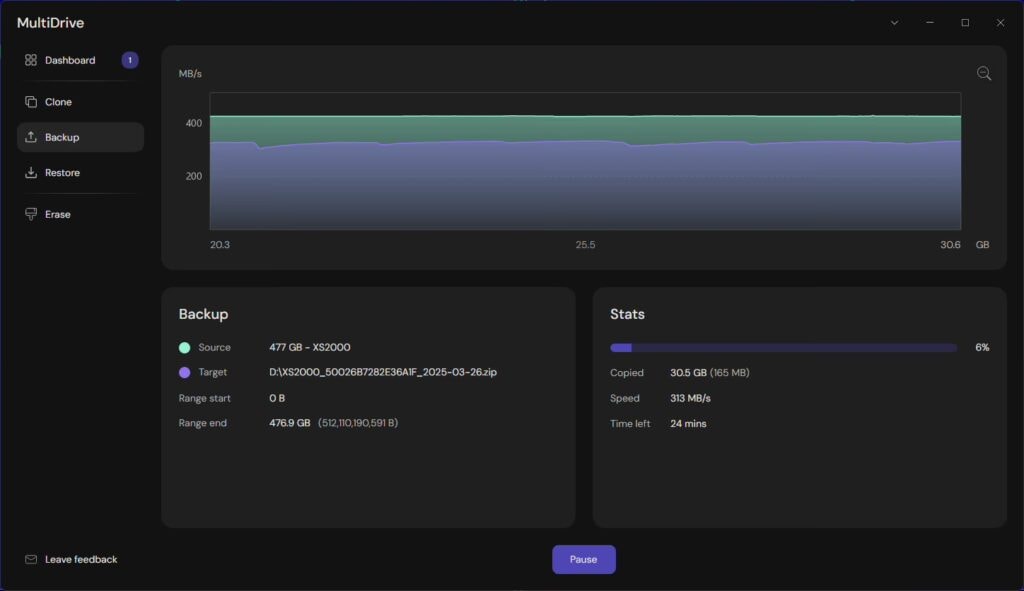
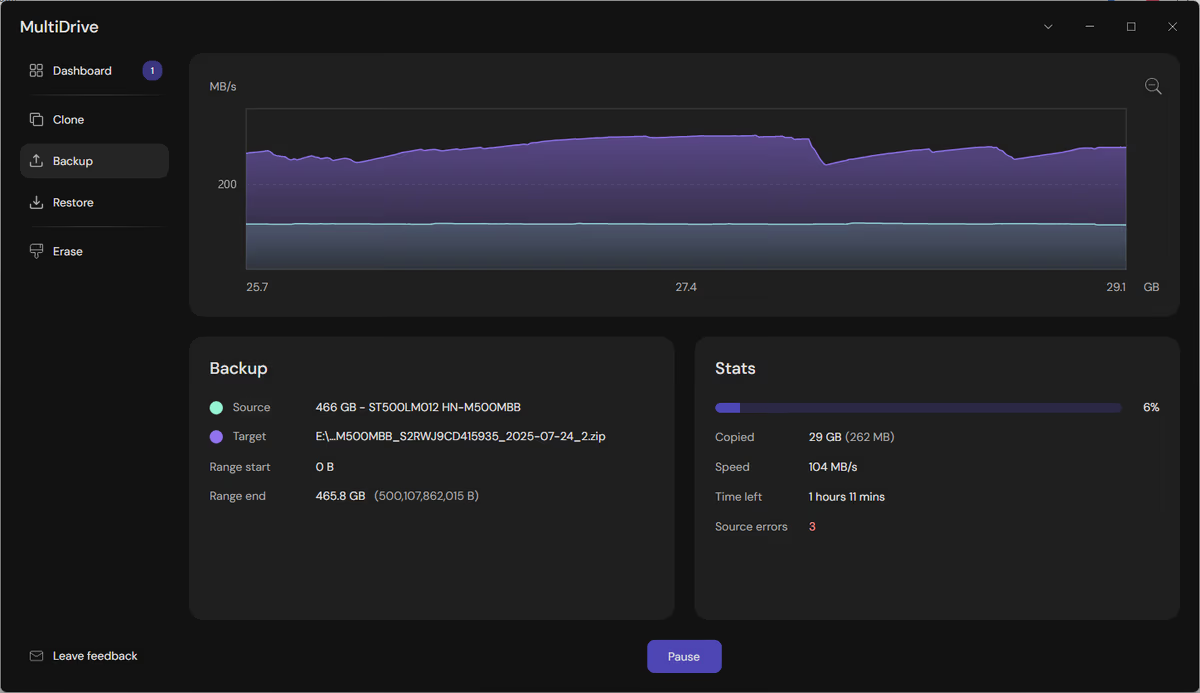
- Full disk backups (ZIP or RAW)
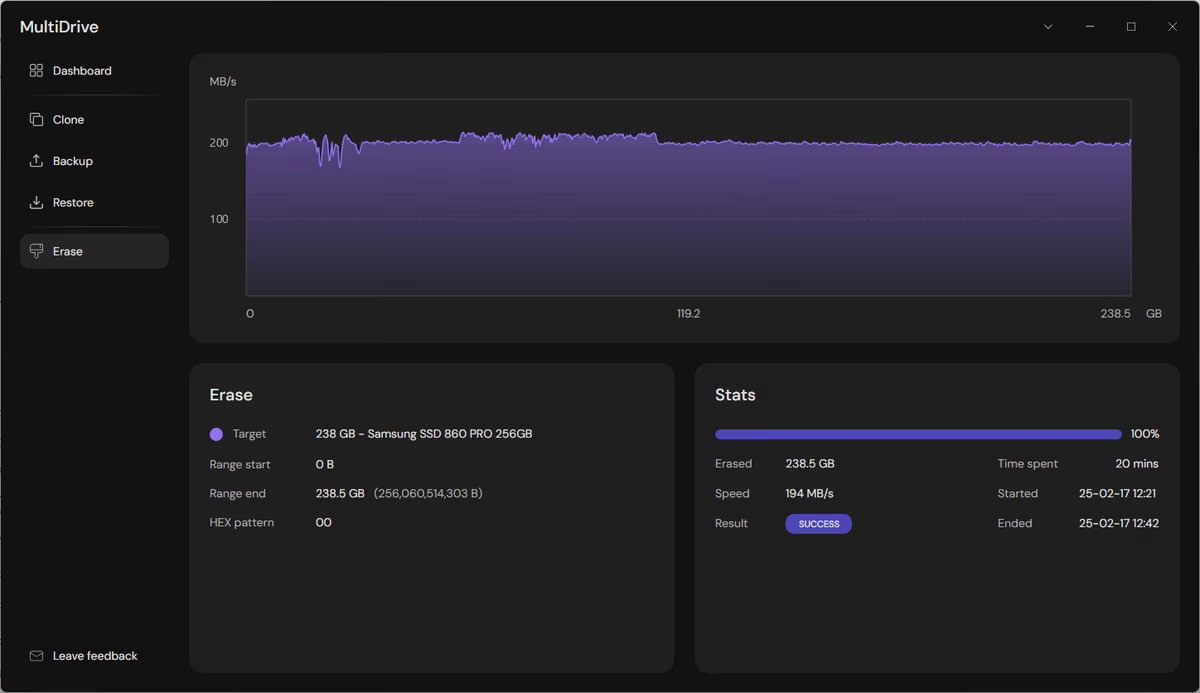
- Secure disk erasure
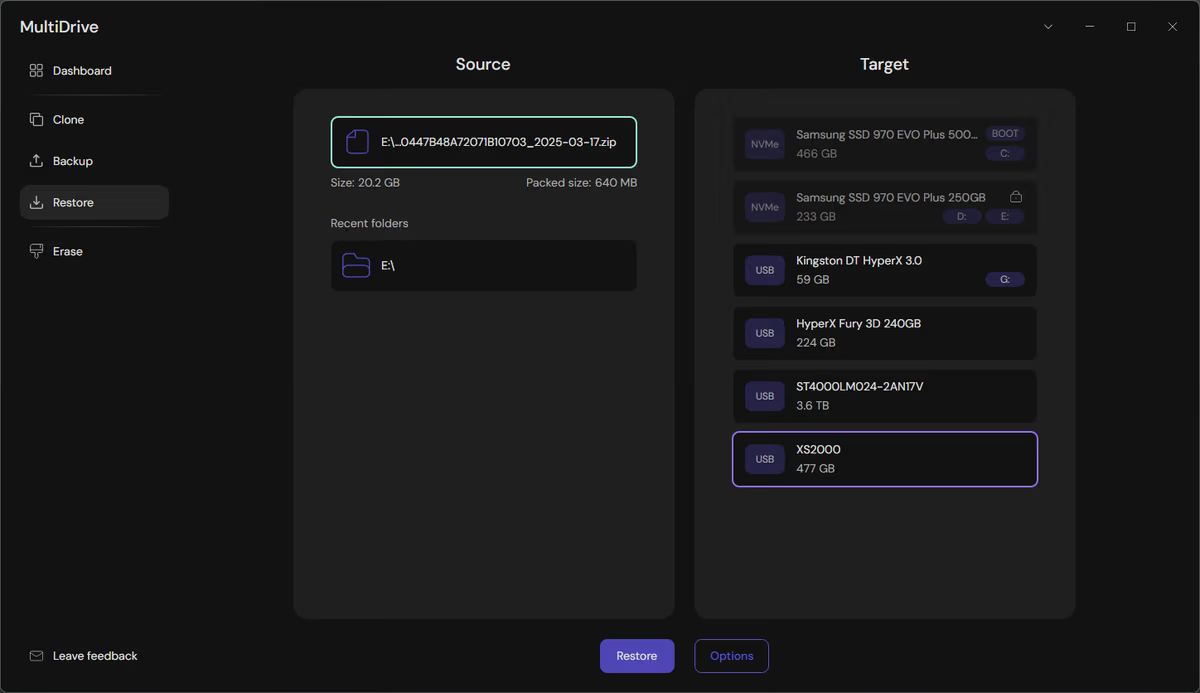
- Disk restoration
- Checksum verification
Unlike many cloning tools that require a bootable USB environment, MultiDrive runs directly inside Windows—no external media needed.
For home users, that means easier Windows migration.
For sysadmins, that means automation and scripting possibilities.
Core Features: Cloning, Backup, and Secure Erase
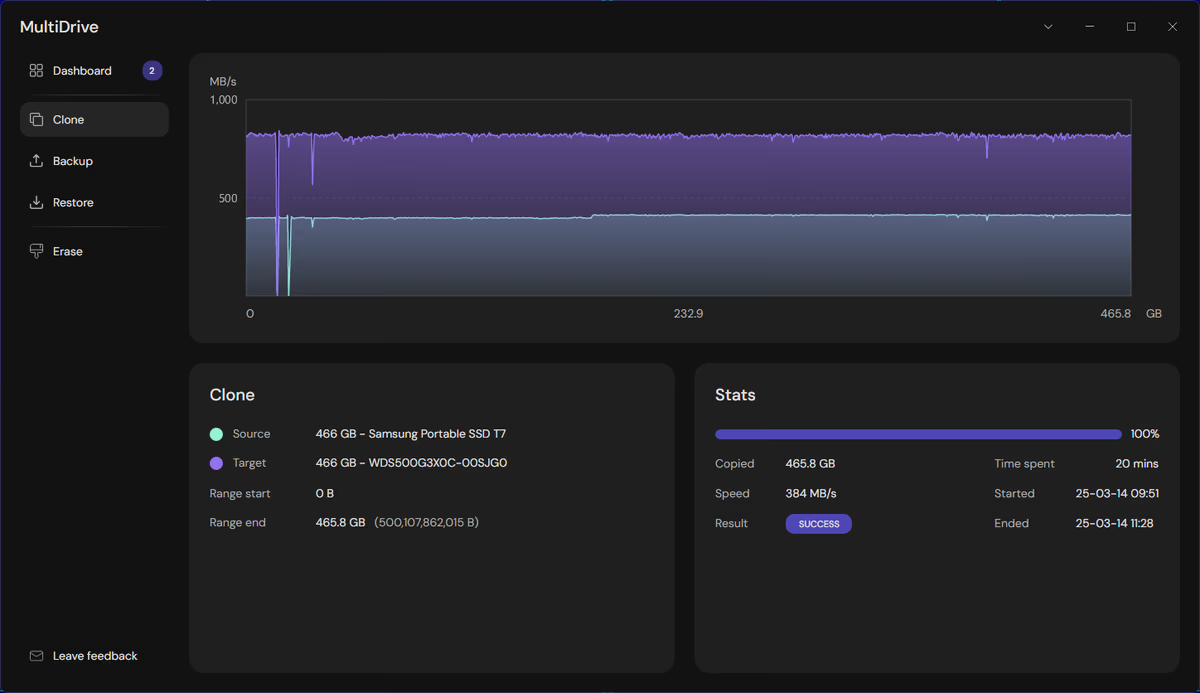
1️⃣ Disk-to-Disk Cloning (Including Boot Drives)
Need to migrate from HDD to SSD? MultiDrive supports direct disk-to-disk cloning, including bootable system drives.
That makes it ideal for:
- Windows OS migration to SSD
- Replacing failing drives
- Deploying identical workstation setups
You can clone HDD → SSD, SSD → SSD, or virtually any supported drive combination.
2️⃣ Full Disk Backup (ZIP or RAW)
MultiDrive allows complete disk backups in:
- Compressed ZIP format
- Raw disk image format
This flexibility is useful depending on whether you prioritize:
- Storage efficiency (ZIP)
- Bit-level forensic integrity (RAW)
3️⃣ Secure Disk Wipe with HEX Patterns
If you need to securely erase a disk before resale, disposal, or reuse, MultiDrive includes secure wipe options with:
- Custom HEX patterns
- Integrity verification
For professionals, it also supports hash validation using:
- MD5
- SHA256
- SHA512
That level of checksum support is often found in forensic-grade tools—not typical consumer utilities.

CLI Mode: The Hidden Power Feature
Here’s where MultiDrive becomes especially interesting for IT admins and power users.
It includes a command-line interface called:
mdcli
This allows you to automate backups, cloning, and wiping operations through scripts.
Example Commands:
# List connected disks
mdcli list# Backup a boot disk in compressed ZIP format
mdcli backup d1 E:\myfolder\backup.zip# Clone disk with SHA1 checksum verification
mdcli clone d3 d4 -q SHA1# Securely erase disk with custom HEX pattern
mdcli erase d2 -p BADA# Restore disk from ZIP backup
mdcli restore E:\folder\backup.zip d3
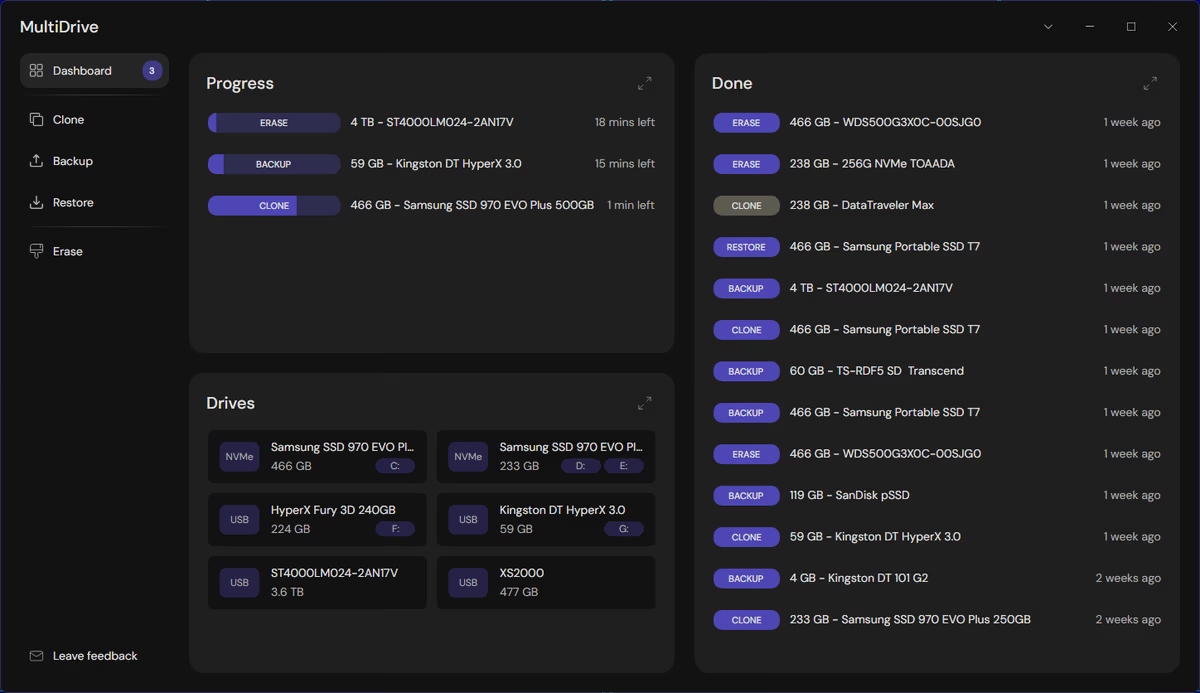
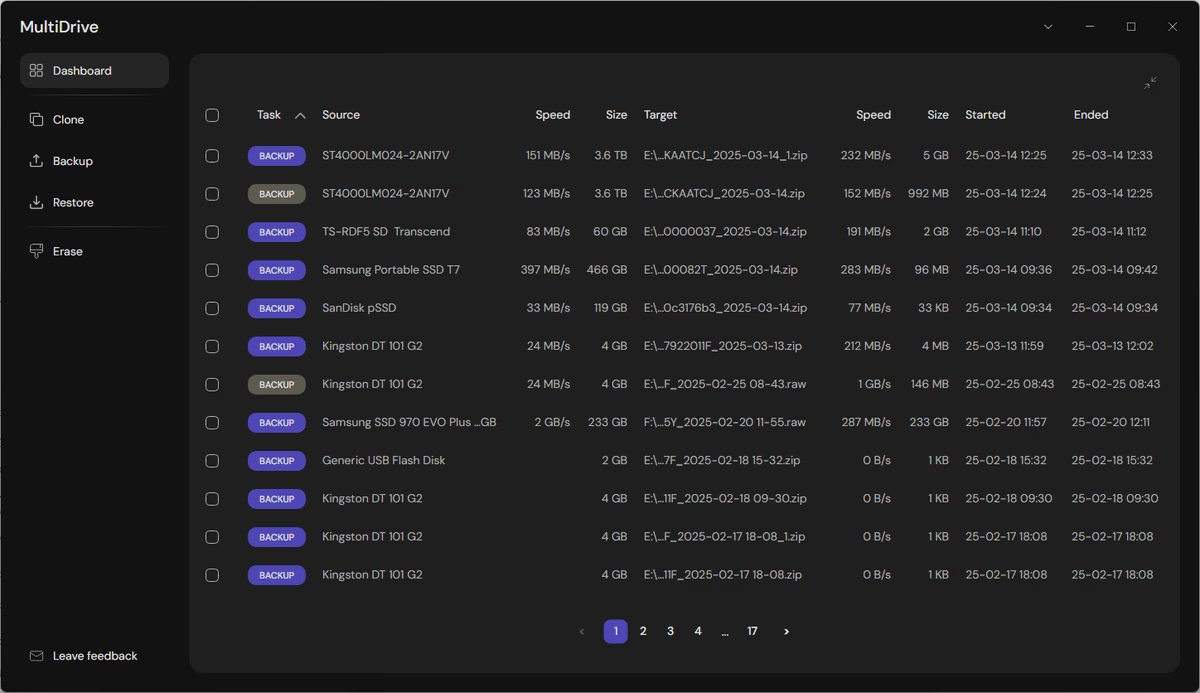
You can even run multiple operations in parallel. Each task includes its own pause/resume control, making it practical in lab or IT deployment environments.
For administrators managing multiple systems, this automation capability alone makes MultiDrive worth testing.
Handles Bad Sectors Without Crashing
One standout feature: MultiDrive doesn’t choke on failing drives.
If a disk has bad sectors, the tool continues reading and cloning while managing errors intelligently. That behavior aligns with Atola’s forensic background, where damaged drives are common.
This makes it particularly useful for:
- Recovering aging HDDs
- Migrating data from partially failing drives
- Creating salvageable backups before total failure
A Rescuezilla Alternative — But Native to Windows
If you’re familiar with Rescuezilla, MultiDrive follows a similar philosophy: reliable disk imaging and cloning without unnecessary complexity.
The difference?
MultiDrive runs natively in Windows.
No bootable USB stick required.
No Linux environment needed.
For many users, that’s a major convenience upgrade.
Is MultiDrive Really Free?
Yes—100% free, including professional use.
That said, it is closed-source software. Some users may prefer open-source alternatives for transparency reasons. However, Atola publicly states that MultiDrive will remain free, and its license terms are available on their website for review.
Given the company’s long-standing presence in the forensic and data recovery space, there’s a reasonable level of trust—though, as always, evaluate according to your own security policies.
Documentation & Tutorials
Another strong point: documentation.
Atola provides detailed step-by-step tutorials for:
- Backing up to external drives
- Migrating Windows to SSD
- Cloning SSD to SSD
- Securely wiping USB drives
- Restoring disk images
The guides are practical and clearly structured, which lowers the learning curve for less technical users.
How to Download MultiDrive
You can download MultiDrive directly from Atola’s official site or install it via Windows Package Manager:
winget install multidrive
Installation is quick, and no complex setup is required beyond selecting the target disks.
Final Verdict: Should You Use MultiDrive?
If you’re looking for:
- Free disk cloning software for Windows
- Boot drive migration to SSD
- Secure disk wiping with checksum verification
- CLI-based automation for backups
MultiDrive is absolutely worth trying.
It combines consumer-friendly usability with forensic-grade reliability—a rare combination in free tools.
The only trade-off? It’s closed-source. But given the pedigree of Atola Technology, that may not be a dealbreaker for most users.
For IT admins, repair shops, and power users, MultiDrive feels less like a basic cloning utility—and more like a professional tool generously released to the public.
And that’s not something you see every day.
And if you'd like to go a step further in supporting us, you can treat us to a virtual coffee ☕️. Thank you for your support ❤️!

We do not support or promote any form of piracy, copyright infringement, or illegal use of software, video content, or digital resources.
Any mention of third-party sites, tools, or platforms is purely for informational purposes. It is the responsibility of each reader to comply with the laws in their country, as well as the terms of use of the services mentioned.
We strongly encourage the use of legal, open-source, or official solutions in a responsible manner.
Comments