
MacBooks have a reputation for being reliable, fast, and beautifully engineered. Whether you’re using a MacBook Air for school or a MacBook Pro for professional work, Apple’s laptops are designed to “just work.”
But even the most polished machines aren’t immune to everyday issues.
From slow performance and battery drain to Wi-Fi glitches and startup errors, many common MacBook problems can be fixed at home—without panic, guesswork, or an immediate trip to the repair shop.
This guide walks you through 10 frequent MacBook issues and explains exactly how to troubleshoot them step by step.

1. Slow MacBook Performance
One of the most common MacBook problems is sluggish performance. Apps take longer to launch, the spinning beachball appears frequently, and even simple tasks feel delayed.
Why It Happens
- Storage is nearly full
- Too many apps open at startup
- The system hasn’t been restarted in a long time
- Background processes are consuming RAM
How to Fix It
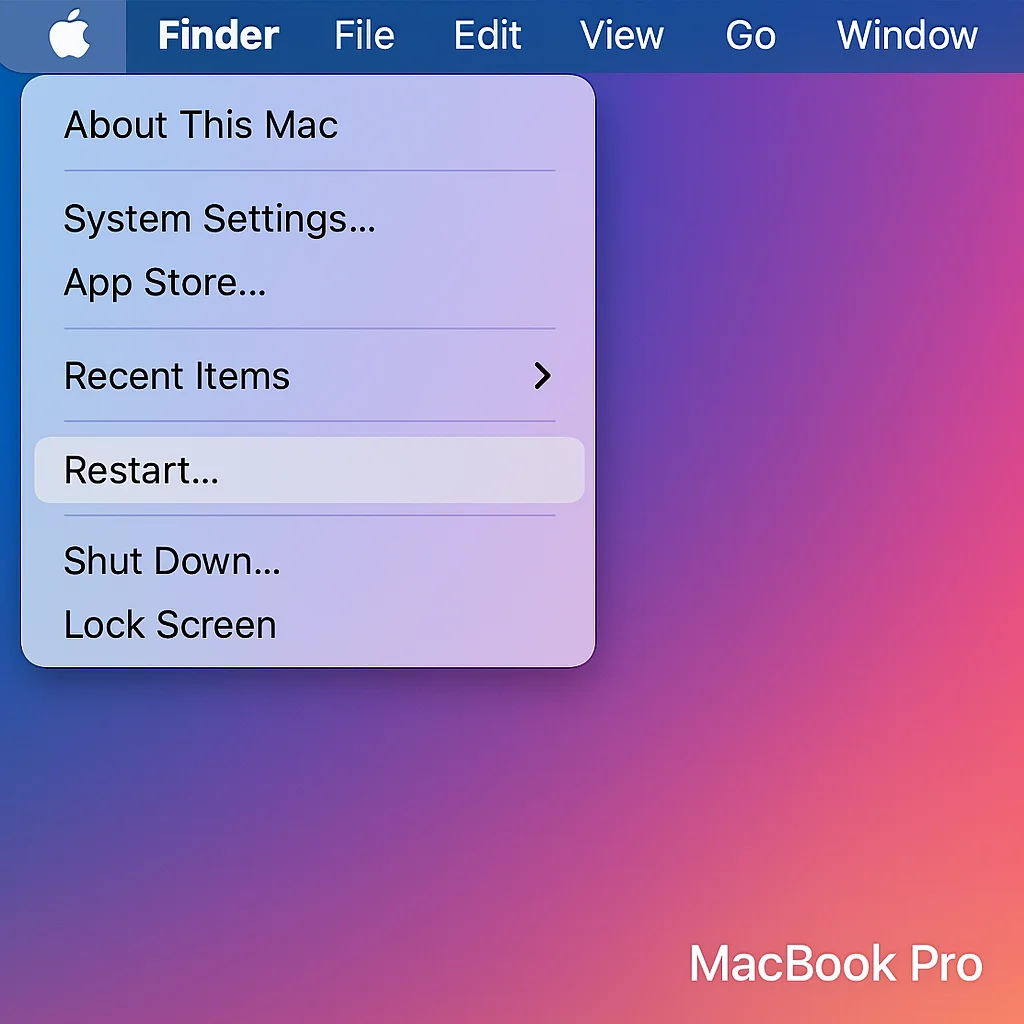
1- Start with a restart
Restarting clears temporary files and resets background processes, often improving speed instantly.
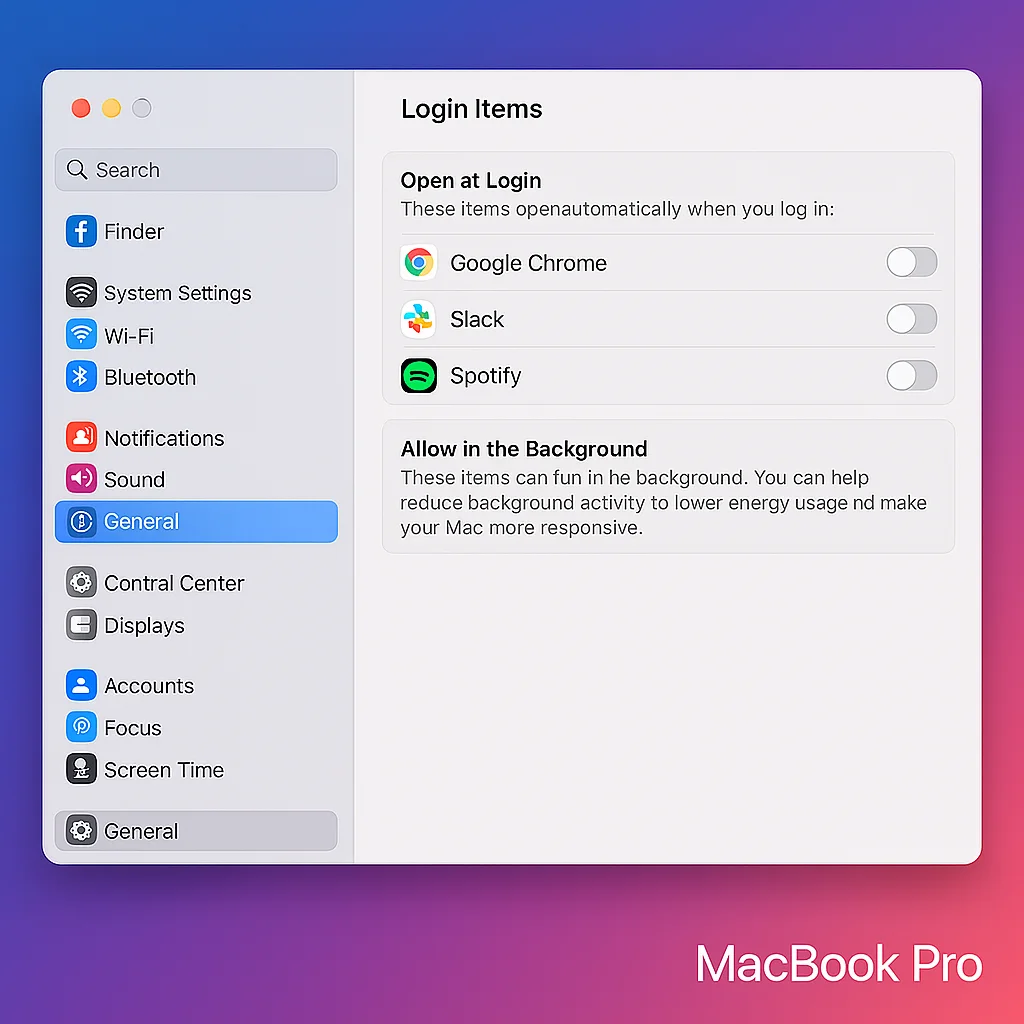
2- Check Login Items
Go to System Settings → General → Login Items and disable apps that don’t need to launch at startup.
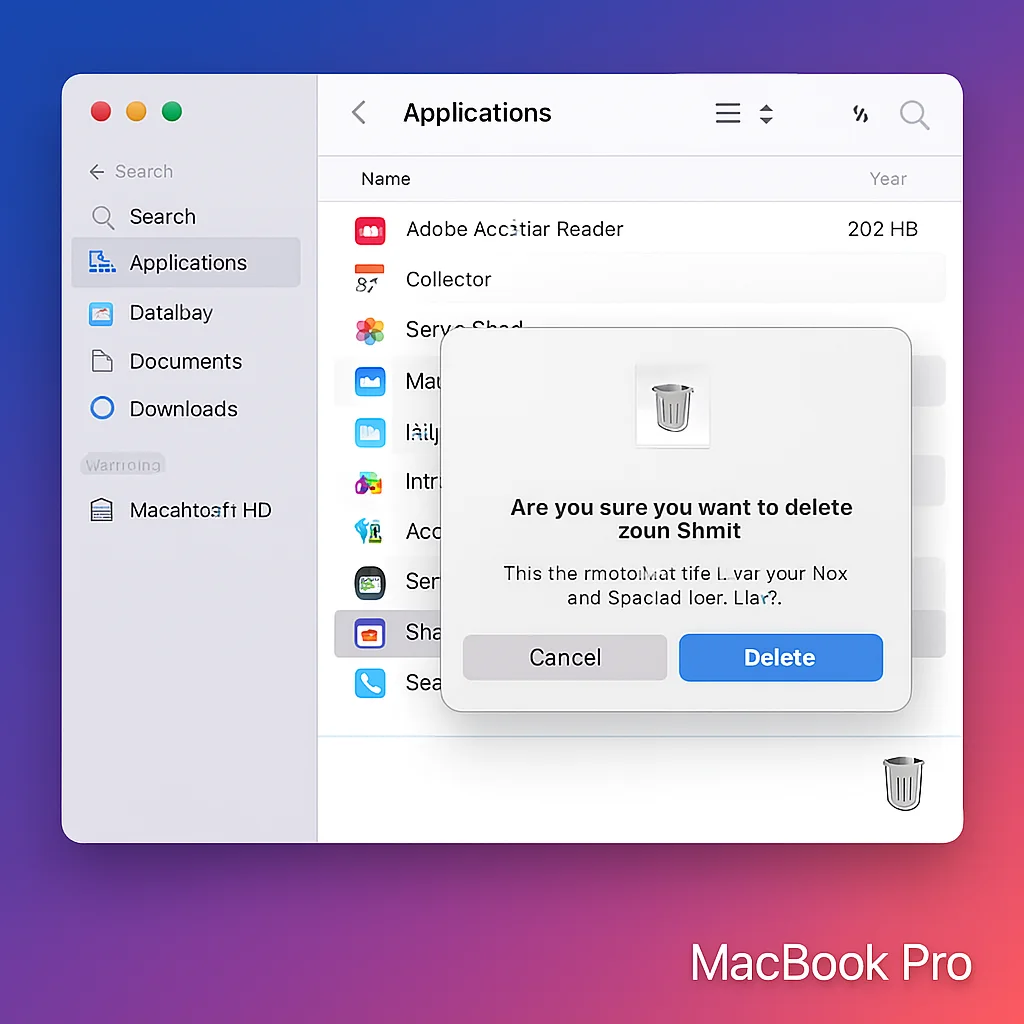
3- Free up storage
Delete unused apps, move large files to external storage or cloud services, and empty the Trash.
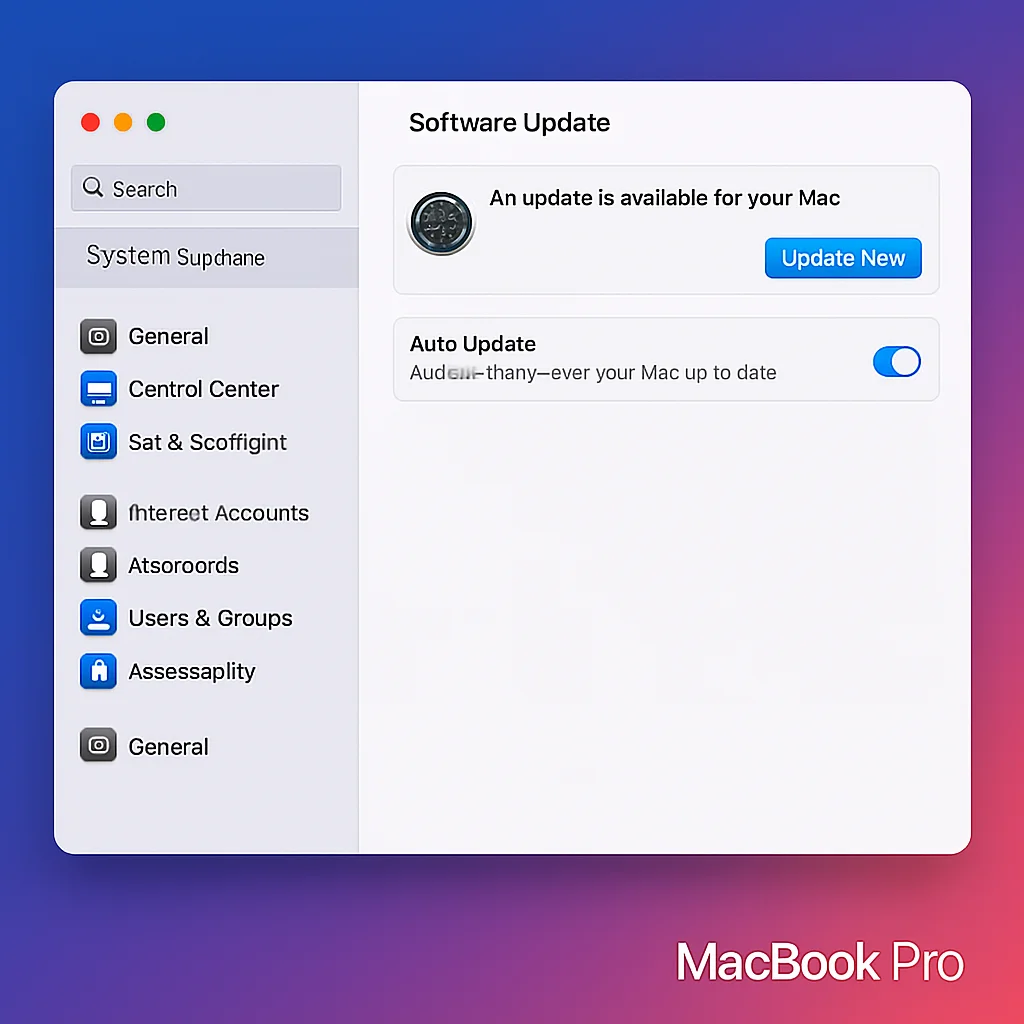
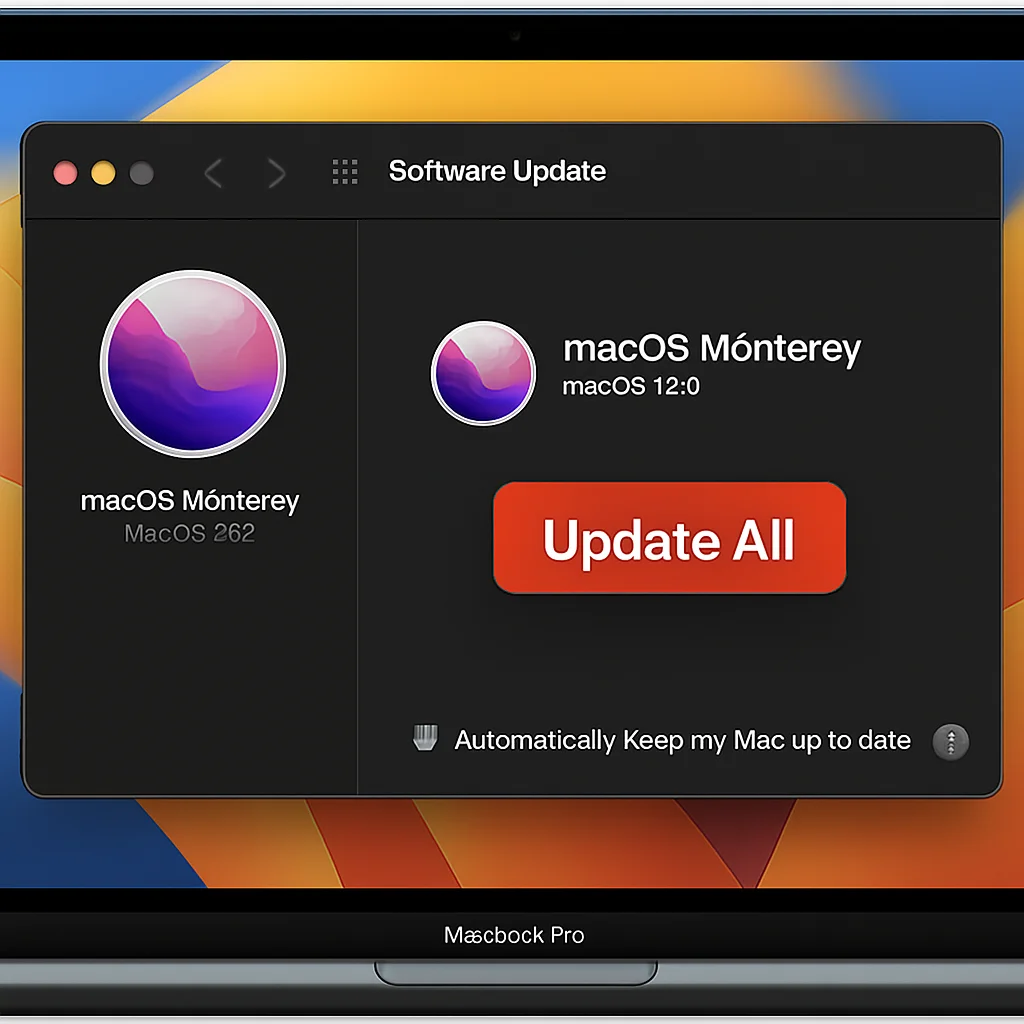
4- Update macOS
Installing updates can fix performance bugs and improve system optimization.
Keeping at least 15–20% of your storage free helps macOS run smoothly.
2. MacBook Overheating and Loud Fan Noise
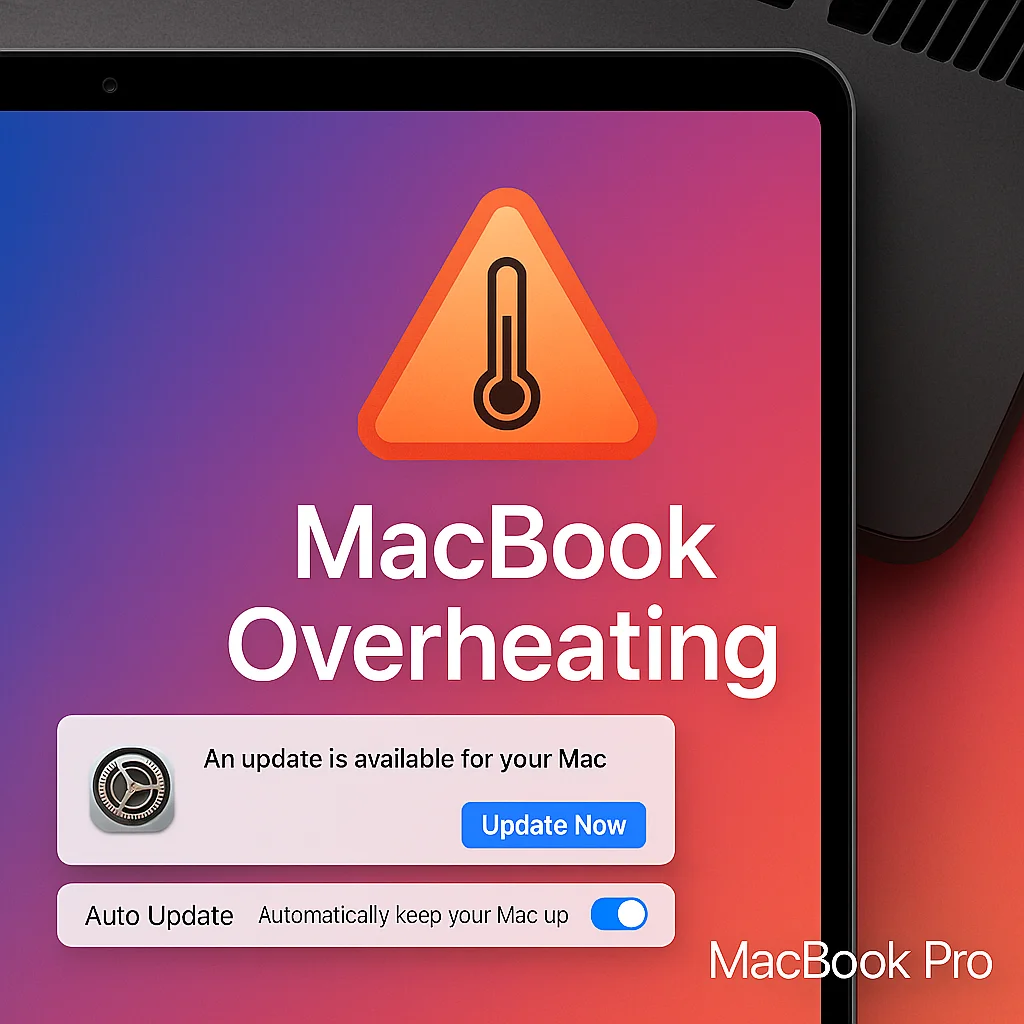
If your MacBook feels hot underneath or the fans are running loudly (especially on Intel-based models), overheating may be the issue.
Common Causes
- CPU-heavy apps (video editing, gaming, large exports)
- Poor ventilation
- Dust buildup
- Using the laptop on soft surfaces
How to Fix It
- Use the MacBook on a hard, flat surface.
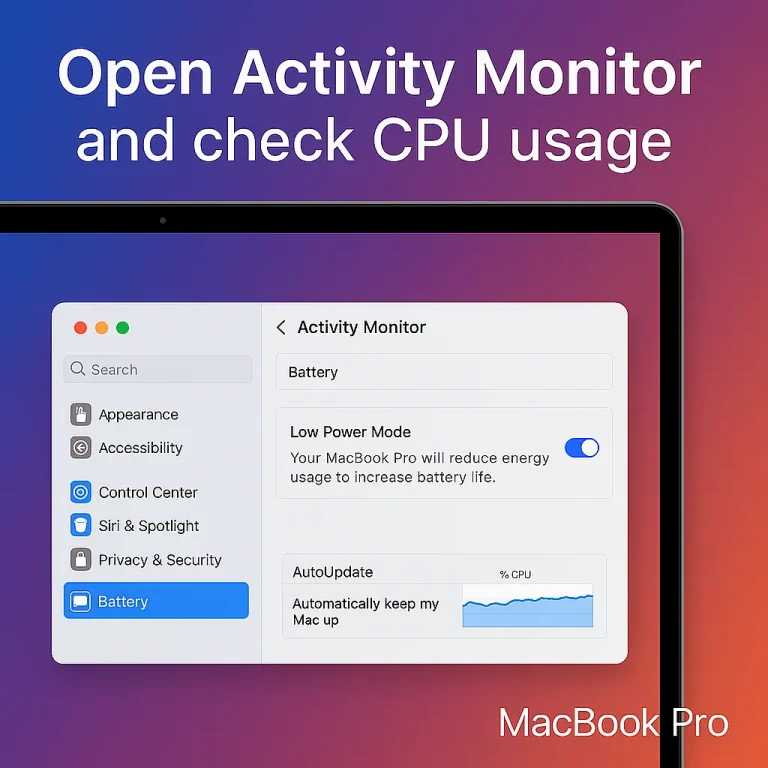
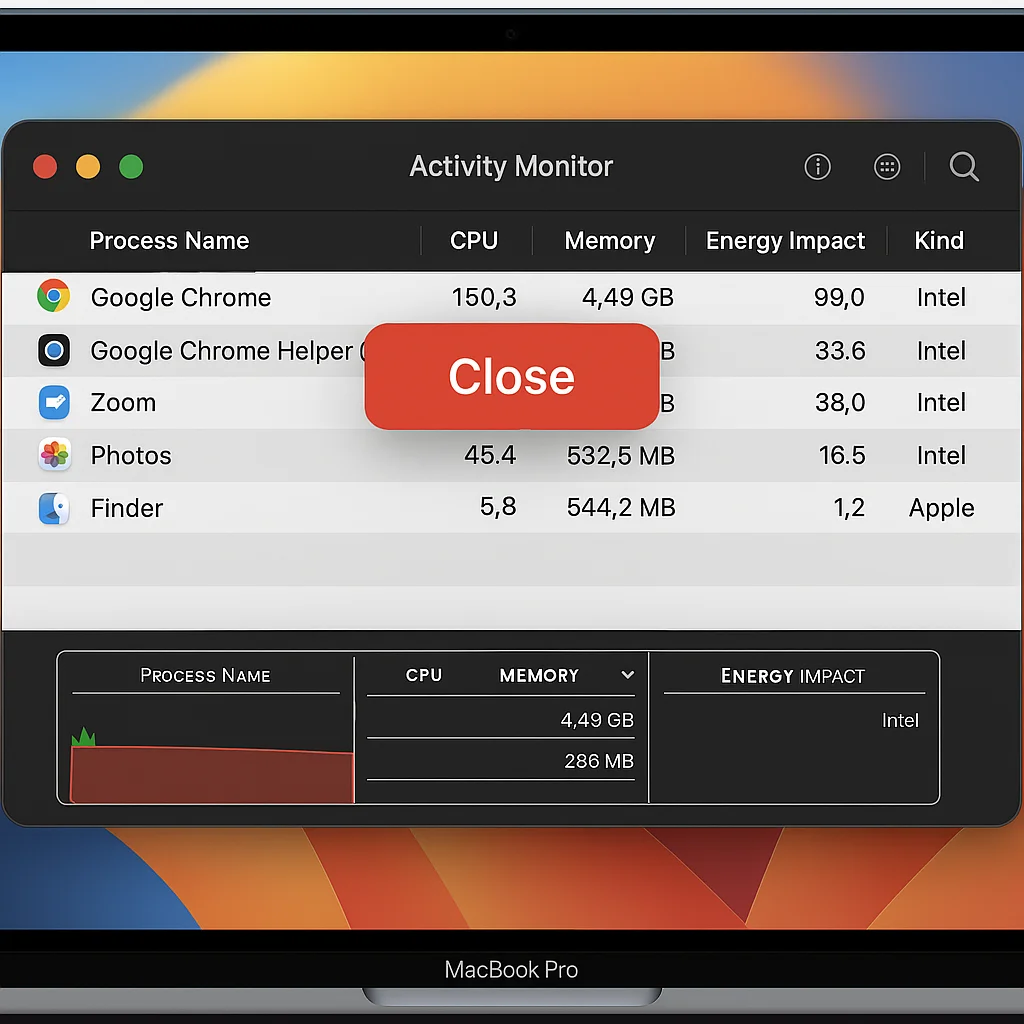
- Open Activity Monitor and check CPU usage.
- Close apps consuming excessive resources.
- Clean vents gently using compressed air.
- Keep macOS and apps updated to prevent runaway processes.
On Intel Macs, resetting the SMC (System Management Controller) can also improve fan behavior.

3. Battery Draining Too Fast
Fast battery drain is one of the most frustrating MacBook problems—especially if you rely on all-day battery life.
What Causes It?
- High display brightness
- Background apps
- Cloud syncing
- Streaming tabs
- Aging battery

How to Fix It
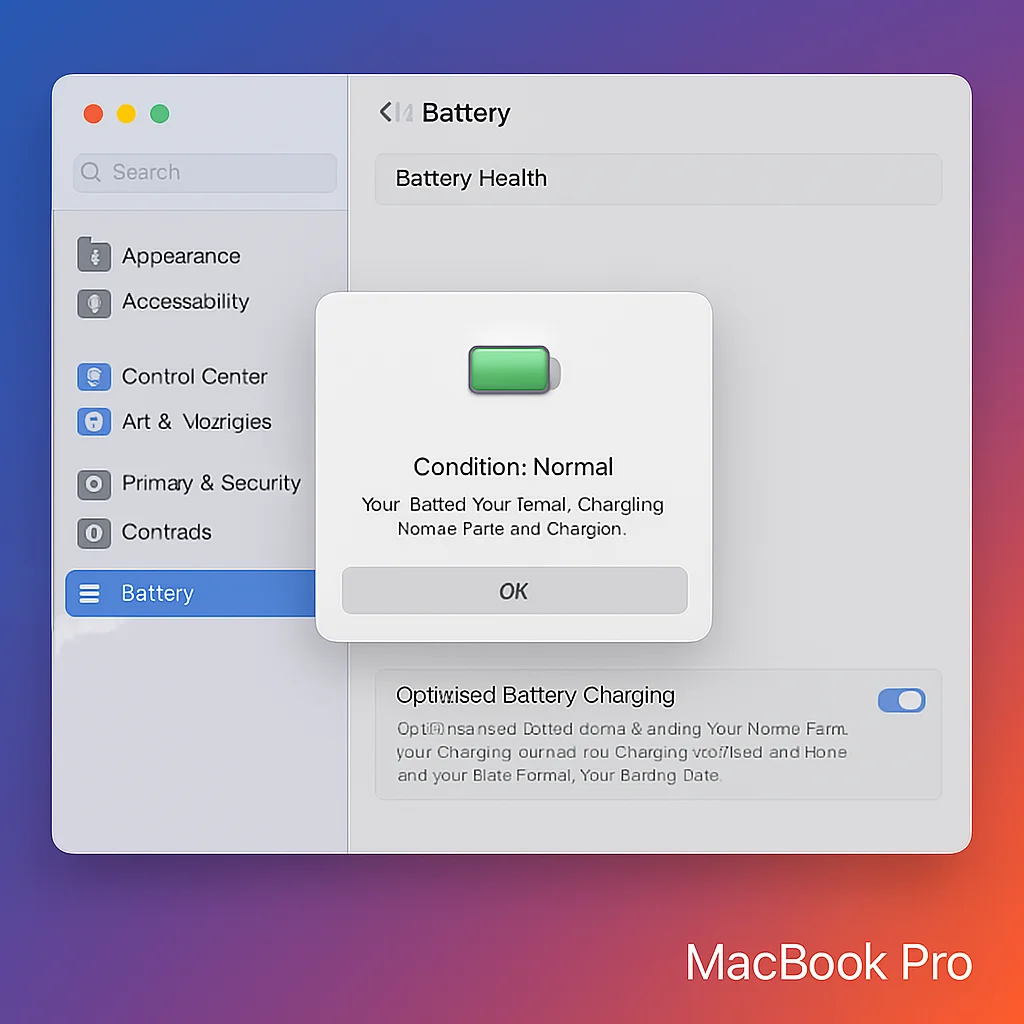
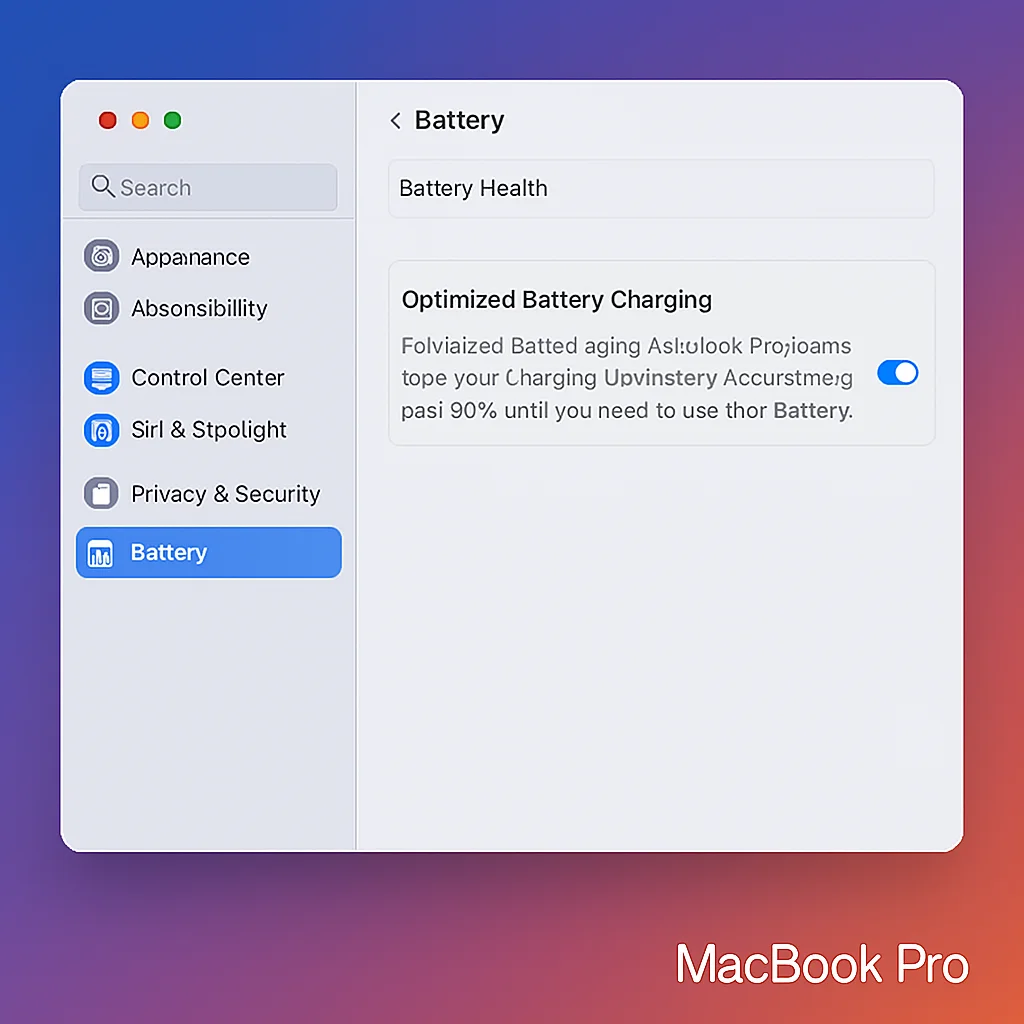
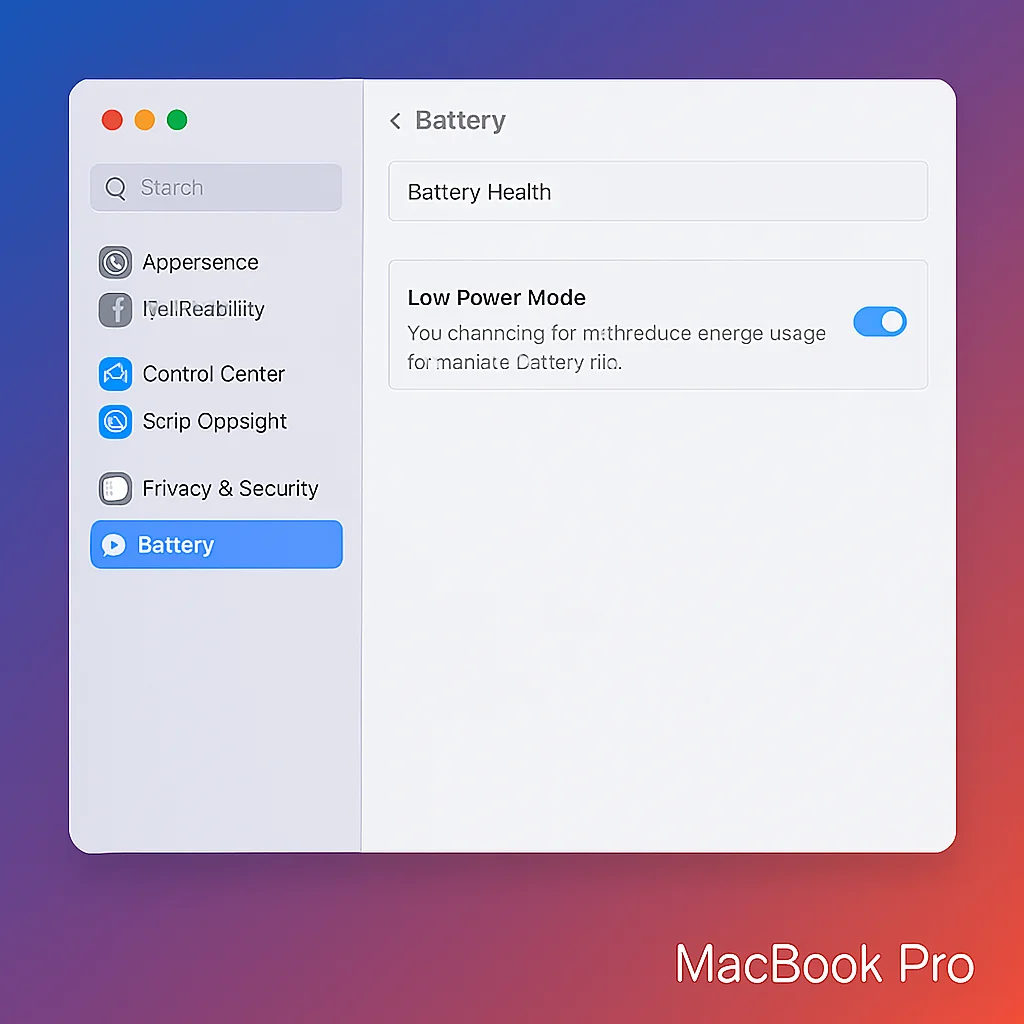
Go to System Settings → Battery:
- Check battery health.
- Enable Optimized Battery Charging.
- Use Low Power Mode (on supported models).
Lower screen brightness and disable Bluetooth when not needed. Close browser tabs playing video or audio in the background.
If battery health drops below 80%, replacing the battery may be the best long-term solution.
4. MacBook Not Charging Properly
If your MacBook won’t charge—or charges inconsistently—it can feel alarming.
First Things to Check
- Inspect the cable and adapter for damage.
- Try a different wall outlet.
- Test another compatible cable if possible.
- Check the charging port for debris.
Clean the port gently if dust is visible.
On Intel models, resetting the SMC can resolve charging irregularities.
If the MacBook shows no charging indicator at all, professional service may be necessary.
5. Wi-Fi and Internet Connectivity Issues
Wi-Fi problems are among the most common Mac issues. Symptoms include:
- Frequent disconnections
- Slow speeds
- Failure to detect certain networks
Troubleshooting Steps
- Restart the MacBook.
- Restart the router.
- Forget the Wi-Fi network and reconnect.
- Create a new network “Location” in System Settings.
- Renew the DHCP lease.
If other devices work fine but your MacBook struggles, test it on another network to isolate the problem.
macOS updates can also fix Wi-Fi driver issues
6. Apps Freezing, Crashing, or Not Responding
Frequent crashes interrupt work and can lead to data loss.
Why It Happens
- Outdated apps
- Corrupted preferences
- Low RAM
- Low storage
How to Fix It
- Use Force Quit from the Apple menu.
- Update the app via the App Store or developer website.
- Reinstall the app if problems persist.
- Remove corrupted preference files.
- Monitor Activity Monitor for excessive memory usage.
If only one app crashes repeatedly, the issue is usually app-specific—not system-wide.
7. MacBook Stuck on Apple Logo or Startup Issues
Startup problems can include:
- Stuck on Apple logo
- Blank screen
- Spinning globe
- Endless loading
Structured Mac Troubleshooting
Boot into Safe Mode.
Safe Mode loads only essential components and disables third-party startup items.
If Safe Mode works:
- Remove suspicious login items.
- Check disk health.
Use macOS Recovery.
Restart and enter Recovery Mode to access Disk Utility. Run First Aid to repair disk errors.
If necessary, reinstall macOS without erasing your data.
If startup failures continue—especially with unusual sounds—hardware service may be required.
8. Display Problems: Flickering, Black Screen, or Lines
Display issues can look serious but are not always hardware-related.
Possible Causes
- Software bugs
- Incorrect display settings
- Faulty cables (external monitors)
- Physical damage
What to Do
- Adjust resolution and refresh rate.
- Update macOS.
- Reset NVRAM/PRAM and SMC.
- Test with another monitor if using an external display.
- Use certified USB-C or Thunderbolt cables.
If lines or artifacts appear during startup, it may indicate a hardware issue requiring professional inspection.
9. Keyboard and Trackpad Not Working Properly
Input issues can include:
- Keys not registering
- Repeating keystrokes
- Trackpad not clicking
- Erratic cursor movement
Troubleshooting Steps
- Clean keyboard with compressed air carefully.
- Check Keyboard and Trackpad settings in System Settings.
- Disable unusual accessibility options.
- Reset the SMC.
- Boot into Safe Mode to rule out third-party software.
If specific keys never work—even before macOS fully loads—hardware repair may be needed.
10. “Your Disk Is Almost Full” Warning
Running out of storage is a predictable yet common MacBook problem.
What Causes It?
- Large video files
- Photo libraries
- Old backups
- Downloads folder clutter
- App caches
How to Fix It
Go to System Settings → Storage to see a usage breakdown.
- Delete unused apps.
- Remove old downloads.
- Empty the Trash.
- Move large files to external drives or cloud storage.
- Delete outdated iPhone or iPad backups.
- Clear browser caches.
Maintaining several gigabytes of free space prevents slowdowns and update failures.
Frequently Asked Questions
Can a MacBook function normally if battery health is below 80%?
Yes, but battery life will be noticeably shorter. Below 80% is typically when replacement becomes worthwhile.
How often should you restart a MacBook?
For most users, restarting every few days is sufficient. Heavy users may benefit from daily restarts.
Are third-party Mac cleaning apps safe?
Built-in macOS tools are usually safer. Some third-party apps remove important files or run constantly, causing new problems.
When should you reinstall macOS?
If Safe Mode, disk repair, and updates don’t fix serious system-wide issues, reinstalling macOS is often the next logical step.
Final Thoughts
MacBooks are built for reliability—but no computer is perfect. The good news is that many common MacBook problems don’t require advanced technical skills or expensive repairs.
By following a structured Mac troubleshooting approach—checking storage, monitoring battery health, managing startup apps, updating software, and controlling heat—you can solve most everyday issues quickly and confidently.
Smart maintenance isn’t just about fixing problems. It’s about keeping your MacBook running fast, stable, and dependable for years to come.
And if you'd like to go a step further in supporting us, you can treat us to a virtual coffee ☕️. Thank you for your support ❤️!

We do not support or promote any form of piracy, copyright infringement, or illegal use of software, video content, or digital resources.
Any mention of third-party sites, tools, or platforms is purely for informational purposes. It is the responsibility of each reader to comply with the laws in their country, as well as the terms of use of the services mentioned.
We strongly encourage the use of legal, open-source, or official solutions in a responsible manner.
Comments