

Headsets are essential for gaming, video calls, streaming, and online meetings. However, many users run into a frustrating issue on PCs with a single 3.5mm audio jack: the headphones work, but the microphone refuses to function.
This problem is especially common when using headsets with separate audio and microphone connectors or when Windows fails to detect the headset properly. With the release of Windows 11 25H2, Microsoft has improved the audio settings interface, making it easier to configure input devices and troubleshoot microphone issues.
In this guide, you’ll learn how to fix headset microphone problems on Windows 11 25H2, whether your headset uses dual connectors or a single combo jack.
Use an Audio Splitter for Dual-Connector Headsets
Some headsets come with two separate 3.5mm connectors:
- One plug for headphones (audio output)
- One plug for microphone (audio input)
Modern laptops and many desktops only include one combined TRRS audio jack. Because of this, you cannot plug both connectors directly into the PC.
The solution: a TRRS audio splitter
An audio splitter (TRRS adapter) allows both connectors to work through a single port.
How it works
- Plug the headphone connector into the headphone port on the splitter.
- Plug the microphone connector into the mic port on the splitter.
- Insert the single TRRS plug of the splitter into your PC’s audio jack.
Once connected, Windows should recognize both the headphones and microphone.
What If You Don’t Have an Audio Splitter?
You can still use the headset, but only one function at a time.
Option 1: Use the microphone only
- Plug the mic connector into the audio jack.
- Your voice will work, but sound will come through your PC speakers.
Option 2: Use headphones only
- Plug the headphone connector into the jack.
- You’ll hear audio in the headset, but the microphone will be disabled.
This workaround is temporary and not ideal for gaming or calls, but it can help if you’re in a hurry.
Set Your Headset as the Default Microphone in Windows 11 25H2
If your headset has a single combo connector and the microphone isn’t working, Windows may simply be using the wrong input device.
Step 1 — Open Settings
- Click the Start menu
- Open Settings

Step 2 — Go to Sound Settings
1- Click System

2- Select Sound
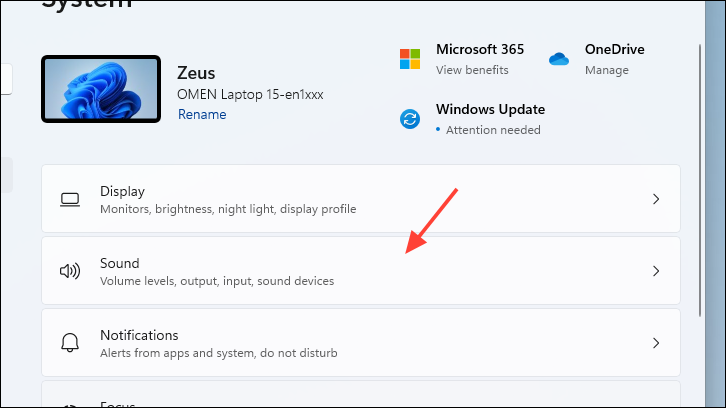
Step 3 — Choose the Correct Input Device
- Scroll to the Input section
- Select Headset Microphone or your headset model from the list
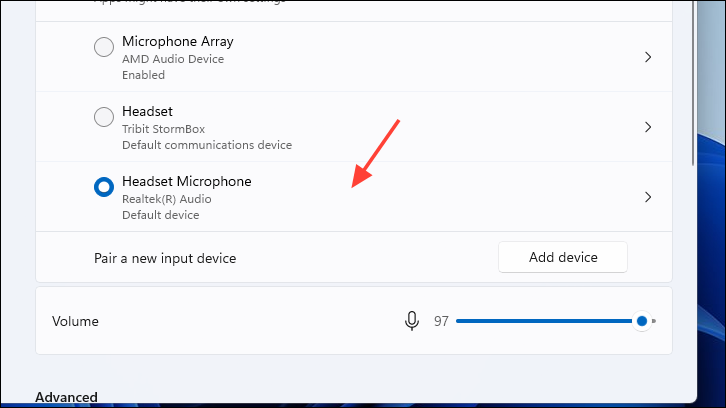
Windows will now use your headset as the default microphone device.
Test Your Microphone in Windows 11
Windows 11 25H2 includes a built-in microphone test tool.
How to test your mic
- Open Settings
- Go to System → Sound
- Under Input, click your microphone device
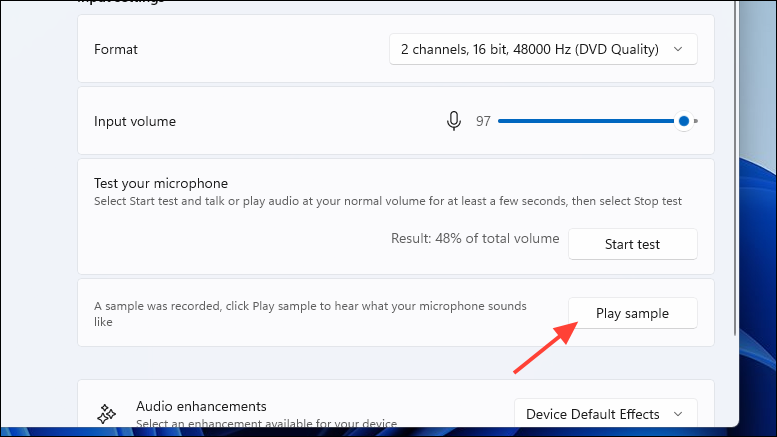
- Scroll to Input settings
- Click Start test
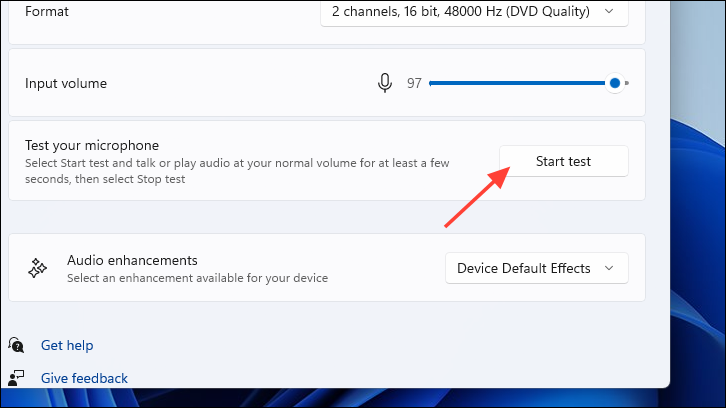
Speak normally into the microphone
- Click Stop test
Windows will show a percentage of detected sound.
- High percentage → microphone works properly
- Low percentage → microphone volume may be too low or misconfigured
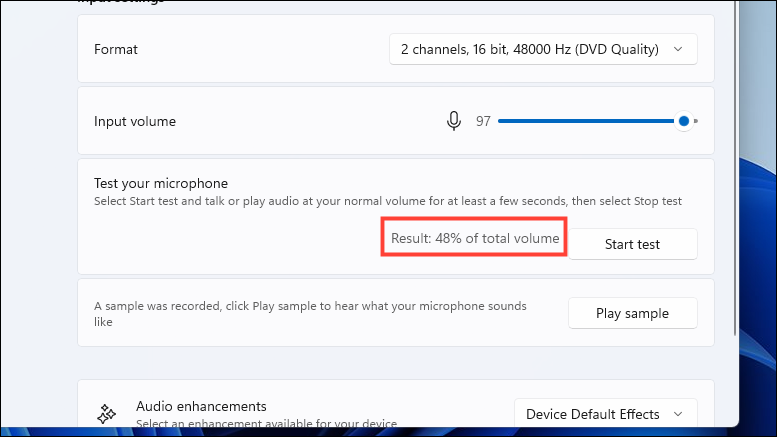
- You can also play back the recorded sample to verify audio quality.
Check Microphone Permissions (Important in Windows 11)
If the microphone still doesn’t work, Windows may be blocking microphone access.
Enable microphone permissions
- Open Settings
- Go to Privacy & Security
- Click Microphone
- Enable:
- Microphone access
- Let apps access your microphone
Also check that the apps you use (Discord, Zoom, browsers, etc.) have permission.
Update or Reinstall Audio Drivers
Sometimes the issue is related to outdated or corrupted drivers, especially after upgrading to Windows 11 25H2.
Update audio drivers
- Right-click the Start button
- Select Device Manager

- Expand Sound, video and game controllers
- Right-click your audio device

- Click Update driver
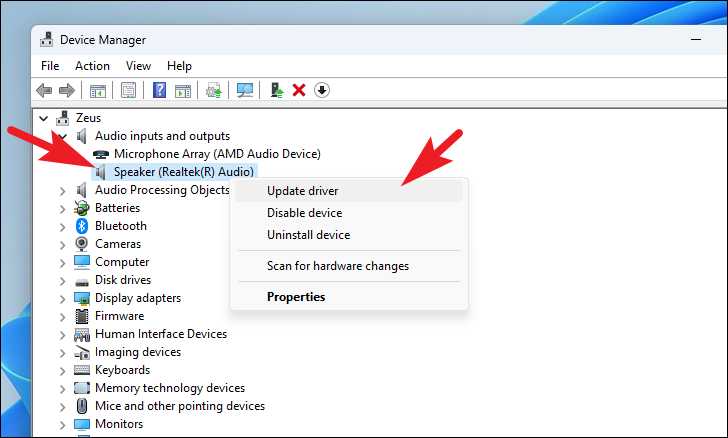
If the issue continues, try Uninstall device and restart your PC to reinstall the driver automatically.
Final Thoughts
Using a headset with a single audio jack PC can be confusing, especially when dealing with dual-connector headsets or incorrect Windows audio settings. Fortunately, Windows 11 25H2 makes troubleshooting easier with improved sound settings and built-in testing tools.
By using an audio splitter, selecting the correct input device, checking microphone permissions, and updating audio drivers, you can quickly restore full functionality and enjoy clear voice communication for gaming, meetings, or streaming.
And if you'd like to go a step further in supporting us, you can treat us to a virtual coffee ☕️. Thank you for your support ❤️!

We do not support or promote any form of piracy, copyright infringement, or illegal use of software, video content, or digital resources.
Any mention of third-party sites, tools, or platforms is purely for informational purposes. It is the responsibility of each reader to comply with the laws in their country, as well as the terms of use of the services mentioned.
We strongly encourage the use of legal, open-source, or official solutions in a responsible manner.
Comments