

Microsoft Teams is one of the most widely used collaboration platforms for workplaces, schools, and remote teams.
Over time, your chat list can fill up with outdated or irrelevant conversations, making it harder to focus on active discussions.
If you’re using Windows 11 version 25H2, managing and cleaning up your Teams chat list is simple. Whether you want to remove an old conversation or delete individual messages, this step-by-step guide will show you how.
Below, you’ll learn how to delete chats in Microsoft Teams as well as specific messages from a conversation.
Delete Chats in Microsoft Teams on Windows 11
Removing chats from your Teams chat list keeps your workspace organized and easier to navigate. Follow these steps:
Step 1: Open Microsoft Teams
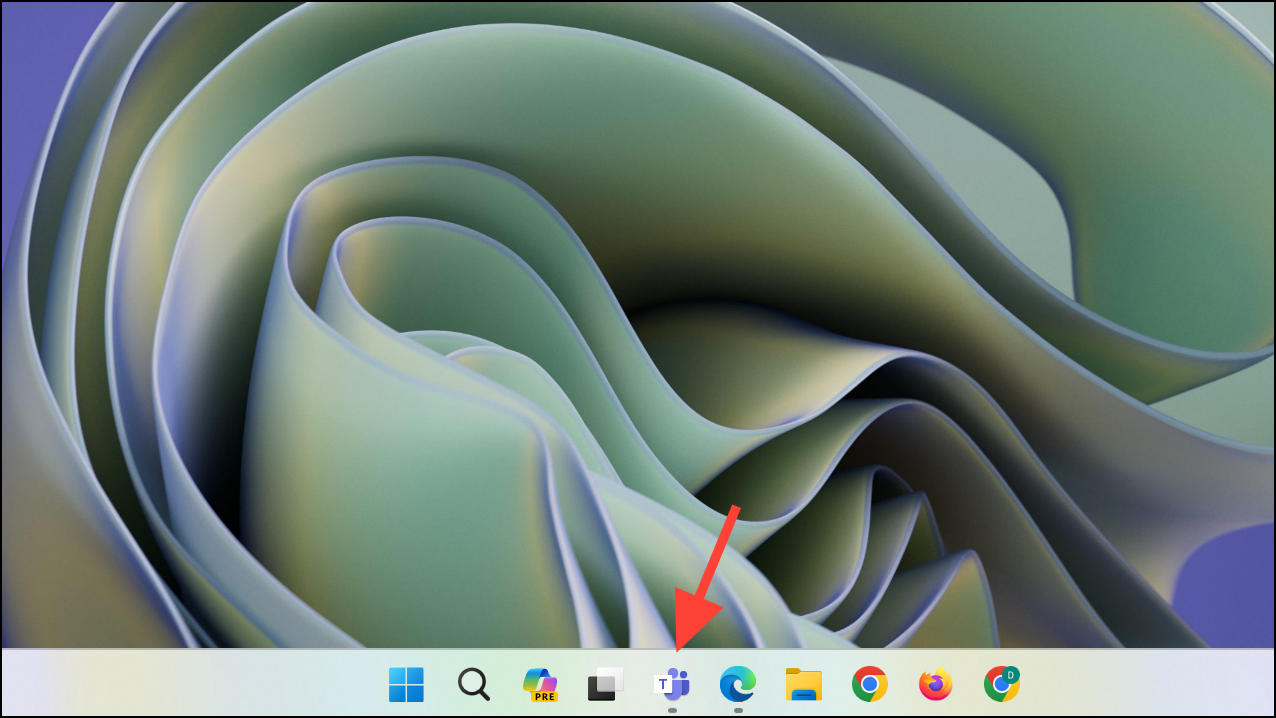
Launch Microsoft Teams on your Windows 11 PC via the Taskbar, Start menu, or Windows Search.
Step 2: Go to the Chat Section
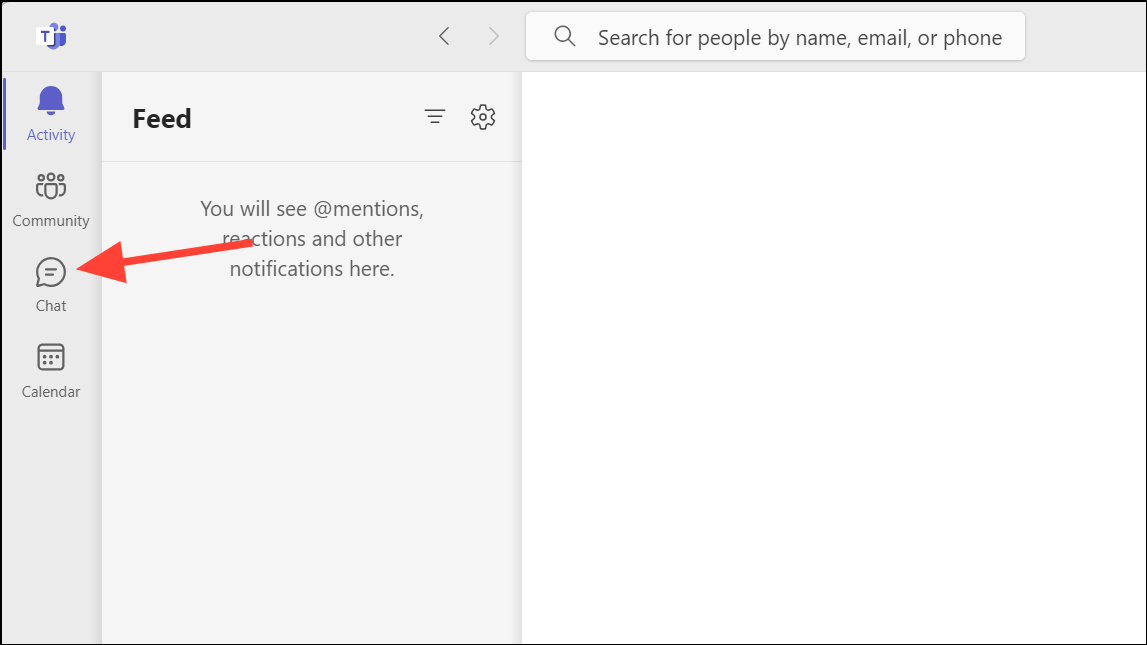
Click the Chat tab in the left navigation panel to view all recent conversations.
Step 3: Find the Conversation
Scroll through your chat list to locate the conversation you want to delete. Older chats may appear further down the list.
Step 4: Open Chat Options
Hover over the chat to reveal the More options icon (three dots) and click it, or right-click the conversation.

Step 5: Select Delete
From the menu, click Delete to remove the conversation from your list.

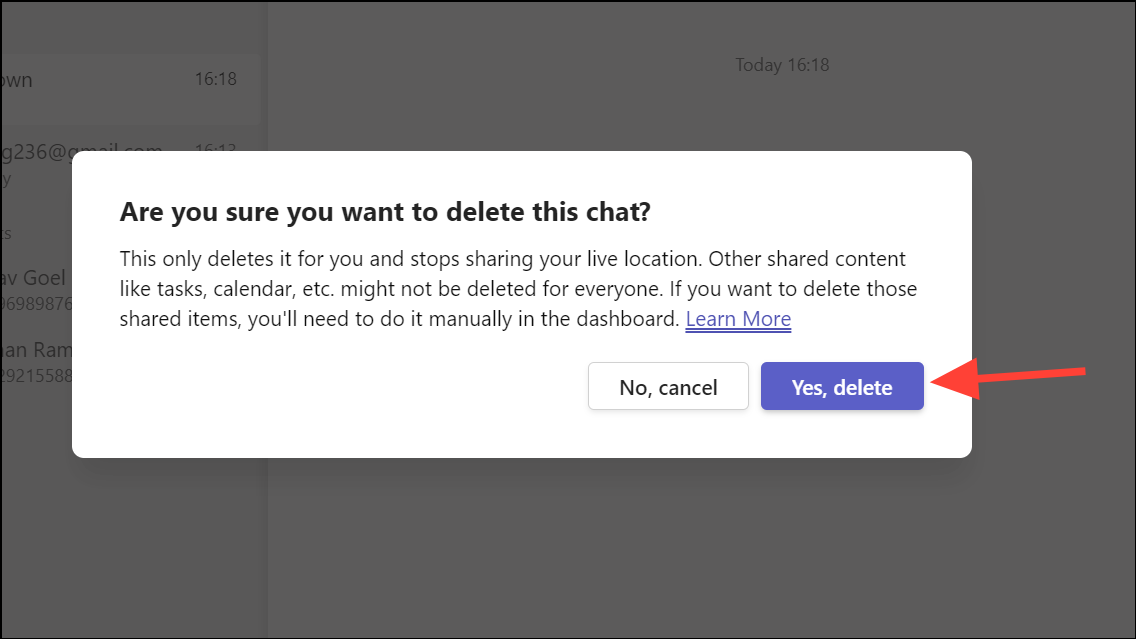
Step 6: Confirm Deletion
Microsoft Teams will ask for confirmation. Once confirmed, the chat will be removed.
- The chat is only removed from your chat list.
- Other participants still have access.
- Shared files or tasks remain unless deleted separately.
- Deleting a group chat will remove you from the group automatically.
Step 7: Check Organization Policies
Some organizations may restrict chat deletion. If Delete does not appear, it may be blocked by company settings.
How to Delete Individual Messages
If you don’t want to remove a full conversation, you can delete specific messages:
Step 1: Open the Conversation
Navigate to the chat containing the message you want to remove.
Step 2: Open Message Options
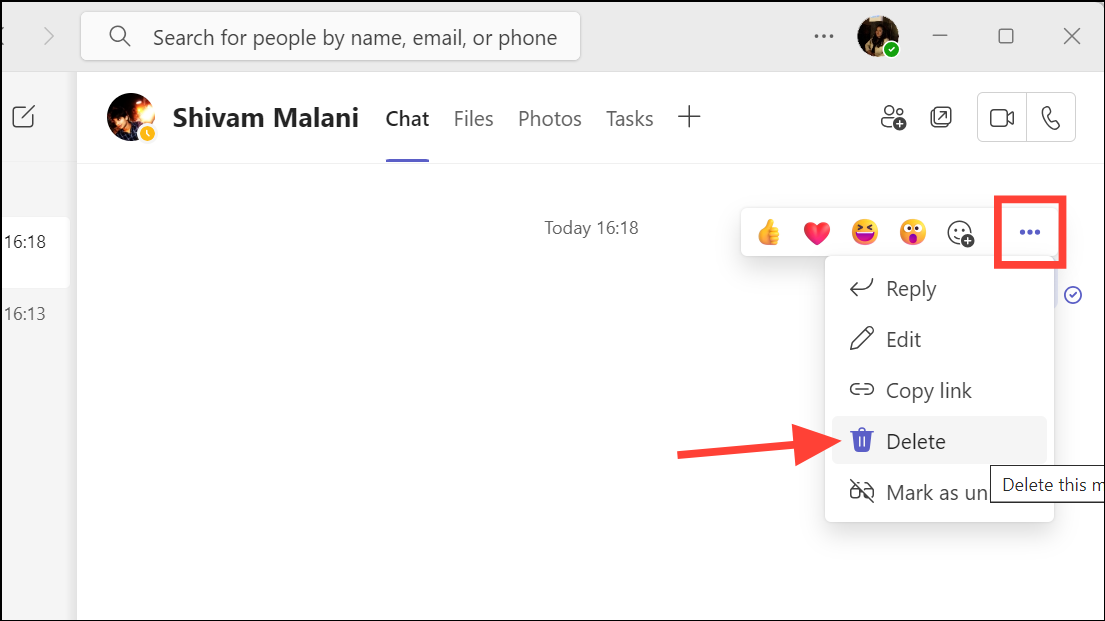
Hover over your message and click the More options (three dots) icon.
Step 3: Delete the Message
Select Delete. The message disappears immediately for all participants.
- Only messages you sent can be deleted.
- Organizational policies may restrict message deletion.
Final Thoughts
Keeping your Teams chat list organized improves productivity and reduces distractions. Deleting old chats or unnecessary messages allows you to focus on what matters.
With Windows 11 25H2, Microsoft Teams provides simple tools to manage your conversations efficiently. Regular cleanup maintains a clear, organized workspace, making daily communication smoother and more efficient.
And if you'd like to go a step further in supporting us, you can treat us to a virtual coffee ☕️. Thank you for your support ❤️!

We do not support or promote any form of piracy, copyright infringement, or illegal use of software, video content, or digital resources.
Any mention of third-party sites, tools, or platforms is purely for informational purposes. It is the responsibility of each reader to comply with the laws in their country, as well as the terms of use of the services mentioned.
We strongly encourage the use of legal, open-source, or official solutions in a responsible manner.
Comments