
Windows 11 offers several customization options to help users tailor their device experience. One of these options is the ability to change the scroll direction of your touchpad or mouse.
Some users prefer the traditional scrolling style used in older desktop systems, while others prefer “natural scrolling” similar to smartphones and tablets.
In this guide, you’ll learn how to change the scrolling direction for both touchpads and mice in Windows 11 version 25H2.
How to Change Touchpad Scroll Direction in Windows 11
Changing the scroll direction on a touchpad is straightforward thanks to built-in settings.
1- Open Settings by pressing Windows + I, or right-click the Start menu and select Settings.
2- In the Settings window, select Bluetooth & devices from the left sidebar.

3- Click Touchpad in the right panel.
4- Scroll to the Gestures & interaction section and expand Scroll & zoom.

5- Locate the Scrolling direction dropdown menu.
You’ll see two options:
- Down motion scrolls up – Traditional scrolling (moving two fingers upward scrolls down the page).
- Down motion scrolls down – Natural scrolling, similar to smartphones and tablets.

Select your preferred option.
The change applies immediately, so you can test it right away.
How to Change Mouse Scroll Direction in Windows 11
Unlike touchpads, Windows 11 still does not provide a direct option to reverse mouse scrolling in the Settings app.
To change the mouse scroll direction, you must modify a value in the Windows Registry.
⚠️ Editing the registry can affect system behavior. Consider backing it up before making changes.
Step 1: Find Your Mouse Device ID
- Open Device Manager by searching for it in the Start menu.
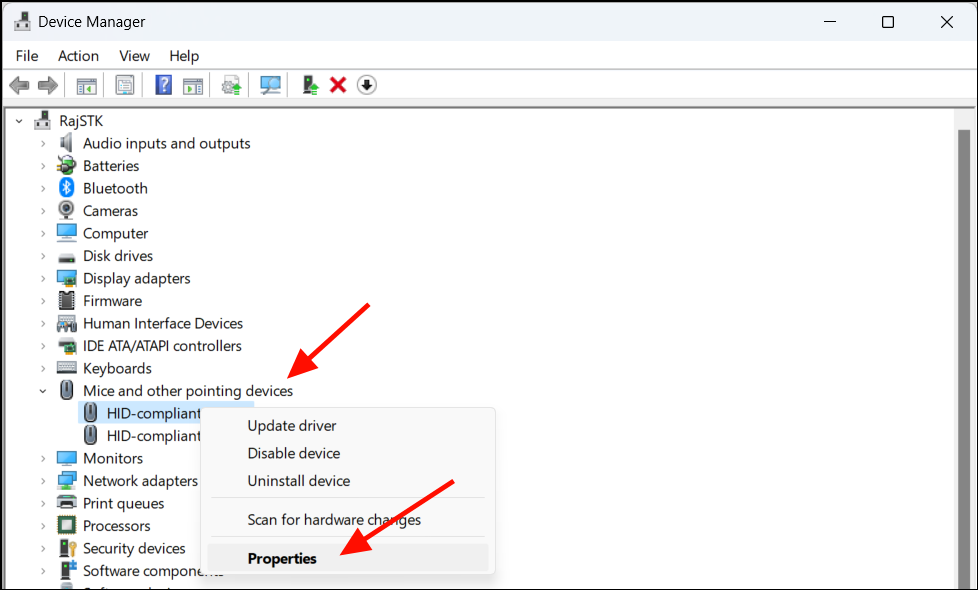
- Expand Mice and other pointing devices.
- Right-click your mouse (usually listed as HID-compliant mouse) and select Properties.
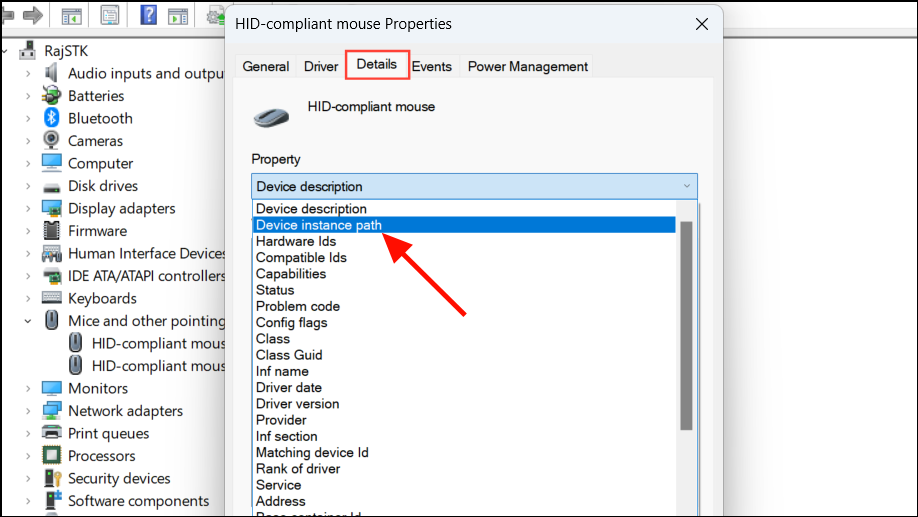
- Go to the Details tab.
- From the Property dropdown menu, select Device instance path.
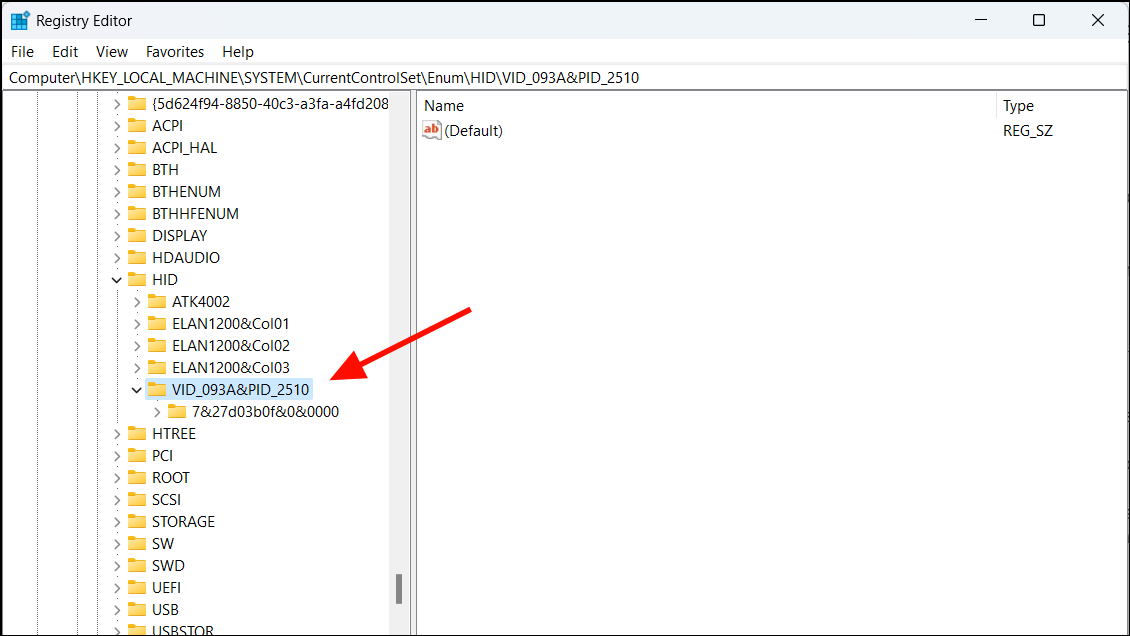
- Note the VID and PID code shown in the value field (for example:
VID_093A&PID_2510).
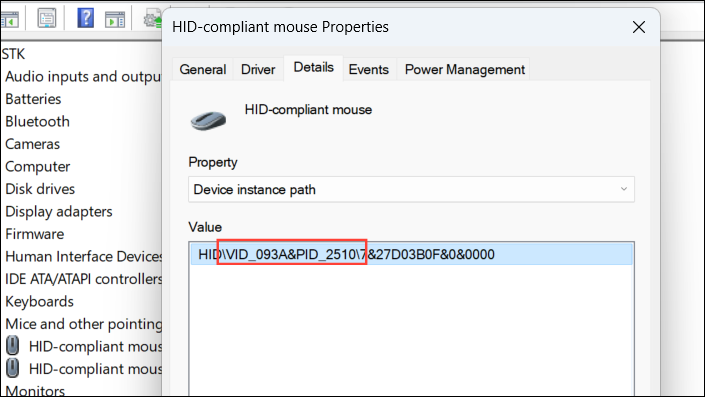
- Close the window once you’ve recorded the code.
Step 2: Edit the Registry to Reverse Scroll Direction
Now you can modify the scroll behavior.
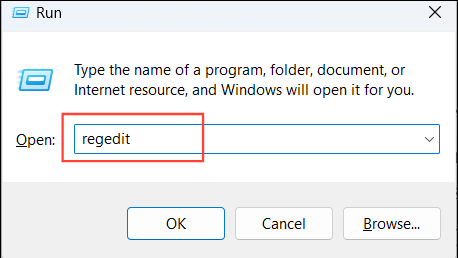
1- Press Windows + R, type regedit, and press Enter to open the Registry Editor.
2- Navigate to:
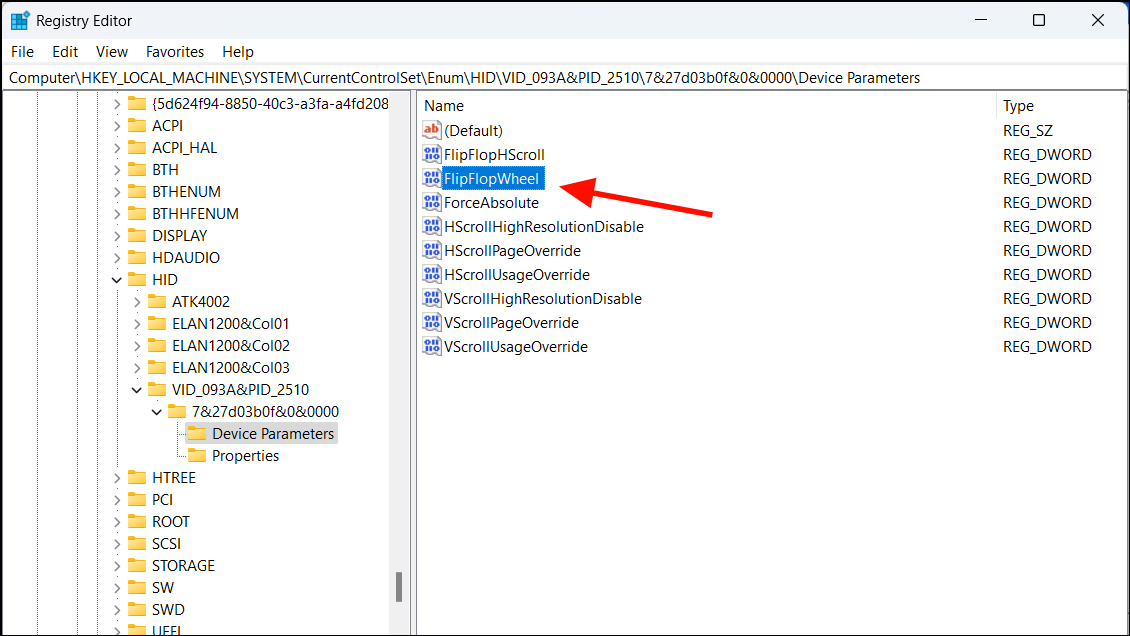
HKEY_LOCAL_MACHINE\SYSTEM\CurrentControlSet\Enum\HID
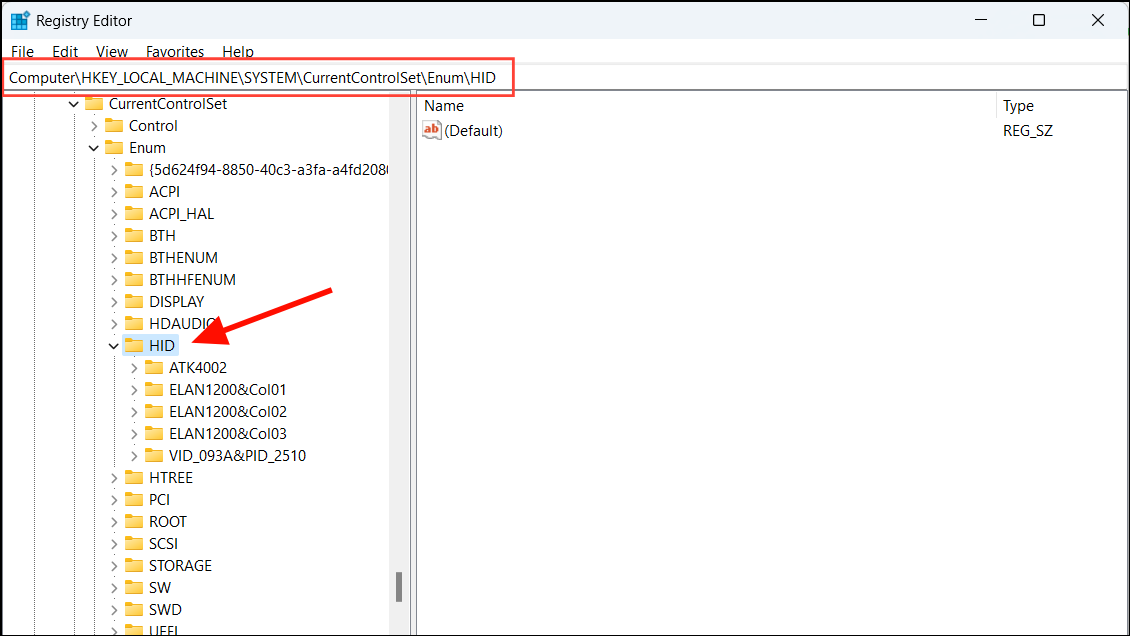
3- Find the folder that matches the VID/PID code you recorded earlier.
4- Open its subfolders until you locate Device Parameters.
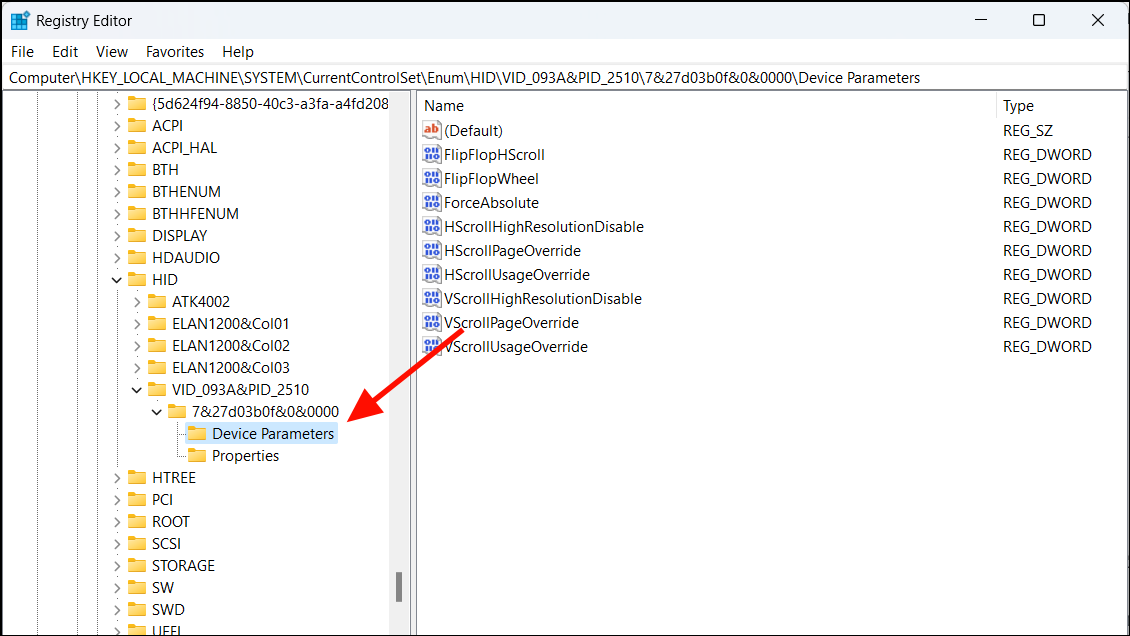
5- In the right panel, find the value called:
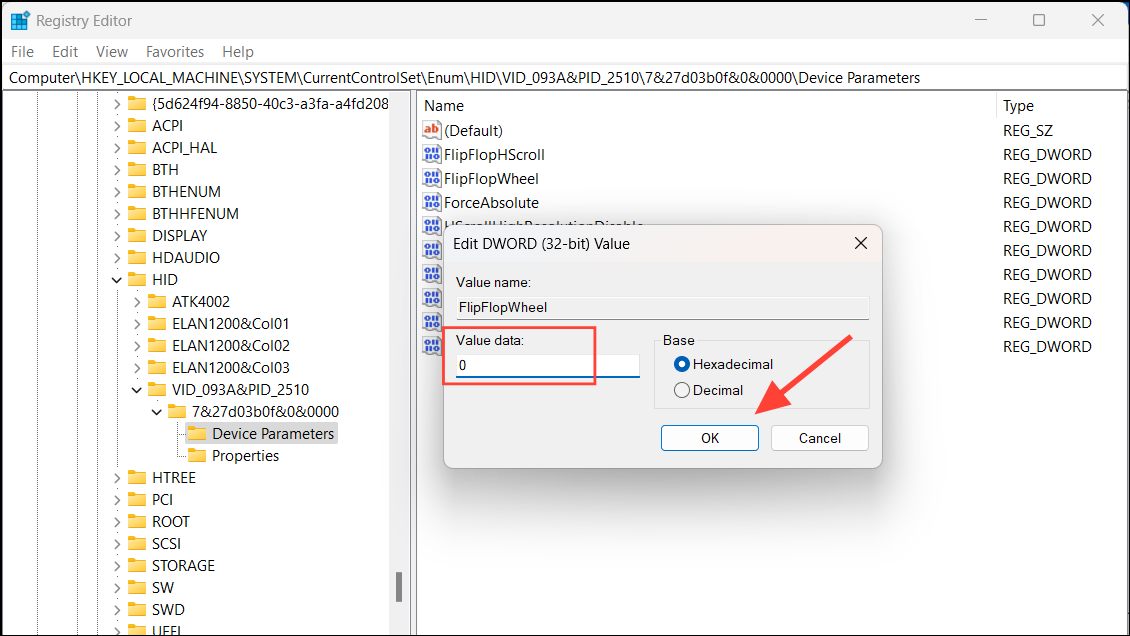
FlipFlopWheel
6- Double-click it and change the value:
- 0 → Traditional scrolling
- 1 → Reverse scrolling (natural scrolling)
7- Click OK to save the change.
8- Restart your computer to apply the new setting.
Your mouse should now scroll according to the selected direction.
Alternative: Use Mouse Software or Third-Party Tools
If editing the registry feels too technical, you can use software provided by mouse manufacturers or third-party utilities.
Some common options include:
- Logitech Options for Logitech mice
- Razer Synapse for Razer devices
- X-Mouse Button Control for advanced mouse customization
- WizMouse for additional scrolling features
These tools often provide simple toggles for reversing scroll direction.
Why Change Scroll Direction?
Users often change scroll direction depending on their workflow:
Natural scrolling advantages
- Feels like scrolling on a smartphone or tablet
- More intuitive for touchscreen users
Traditional scrolling advantages
- Familiar for long-time desktop users
- Matches older Windows behavior
Ultimately, the best choice depends on your personal preference.
Final Thoughts
Customizing the scroll direction in Windows 11 25H2 is a simple way to make your device feel more natural to use. While touchpads can be adjusted easily through the Settings app, mice may require a registry tweak or dedicated software.
Once configured, scrolling through webpages, documents, and applications will feel much more comfortable.
And if you'd like to go a step further in supporting us, you can treat us to a virtual coffee ☕️. Thank you for your support ❤️!

We do not support or promote any form of piracy, copyright infringement, or illegal use of software, video content, or digital resources.
Any mention of third-party sites, tools, or platforms is purely for informational purposes. It is the responsibility of each reader to comply with the laws in their country, as well as the terms of use of the services mentioned.
We strongly encourage the use of legal, open-source, or official solutions in a responsible manner.
Comments