

Have you ever glanced at the top of your Android screen and spotted a tiny key, an unfamiliar battery symbol, or an icon you have never seen before? Perhaps your phone has suddenly stopped ringing, a VPN symbol has appeared, or a notification icon has vanished without explanation.
Android status bar icons provide important information about your phone’s current state, but their meanings are not always obvious. Some indicate your battery level or mobile network connection, while others alert you to active privacy features, incoming notifications, or background activities.
The good news is that you do not need to memorize every symbol to understand what your phone is doing.
This guide explains the most common Android status bar icons and symbols, including Wi-Fi, 5G, VPN, battery, Do Not Disturb, location, and notification indicators. You will also learn why certain icons appear or disappear and how to identify unfamiliar symbols on Samsung Galaxy, Google Pixel, OnePlus, Xiaomi, and other Android phones.
Where Is the Status Bar on Android?
The Android status bar is the narrow strip at the top of your screen, usually above the app you are currently using. It displays small icons that provide information about connectivity, battery power, notifications, and active system features.
Although the layout varies between devices, the status bar generally contains two main groups of icons.
- Right side: Usually displays system indicators such as battery level, Wi-Fi, mobile signal, network type, and active connectivity features.
- Left side: Usually displays notification icons from apps such as Gmail, WhatsApp, Telegram, and other messaging or social media services.
When you swipe down from the top of your screen, Android opens the notification shade or Quick Settings panel. This provides more information about notifications and gives you shortcuts for controlling features such as Wi-Fi, Bluetooth, Airplane mode, and Do Not Disturb.
Keep in mind that icon placement and appearance can vary depending on your Android version, phone manufacturer, carrier, and region. Google Pixel phones running Android 16, for example, may display certain indicators differently from Samsung Galaxy phones running One UI.
Android Connectivity Icons Explained
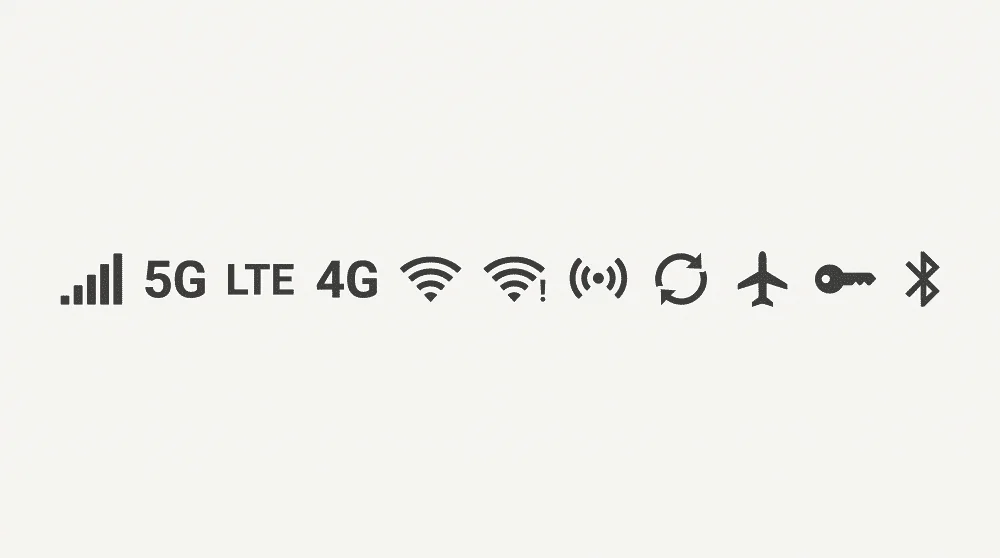
Connectivity indicators help you understand how your phone connects to the internet and other devices. Most appear on the right side of the status bar.
| Icon or symbol | What it means |
|---|---|
| Cellular signal bars | Shows the strength of your connection to your mobile carrier. More filled bars generally indicate a stronger signal. |
| 5G | Your phone is connected to a 5G mobile network. Actual speeds depend on coverage, congestion, and your carrier. |
| 4G or LTE | Indicates a connection to a 4G LTE network. |
| Wi-Fi | Shows that your phone is connected to a wireless network. The number of filled segments can indicate signal strength. |
| Wi-Fi with an exclamation mark | May indicate that the Wi-Fi connection has no internet access or requires additional action. |
| Airplane symbol | Airplane mode is enabled. Cellular connections are generally disabled, although Wi-Fi and Bluetooth can often be enabled separately. |
| Key symbol | Commonly indicates an active VPN connection. |
| Hotspot indicator | Shows that your phone is sharing its internet connection with other devices. |
| Data Saver | Indicates that Android’s Data Saver feature is restricting background mobile data usage. |
| Bluetooth | Depending on the manufacturer, this may indicate that Bluetooth is enabled or that a Bluetooth device is connected. |
What Do 5G UC, 5G UW, and 5G+ Mean?
If you use a US mobile carrier, you may notice additional letters next to the 5G symbol.
- 5G UC: T-Mobile’s Ultra Capacity 5G branding.
- 5G UW: Verizon’s Ultra Wideband 5G branding.
- 5G+: AT&T’s branding for certain enhanced 5G connections.
These indicators identify carrier-specific network services. Seeing one does not guarantee a particular download speed because performance depends on signal strength, network congestion, and other conditions.
What Does the Key Icon Mean on Android?
A small key-shaped symbol in the status bar usually means a VPN is active.
A virtual private network routes your internet traffic through a VPN service, which can help protect traffic on untrusted networks and change the public IP address websites see.
If the key icon appears unexpectedly, check your VPN settings:
- Open Settings.
- Select Network & internet > VPN on compatible Android versions.
- Review the connected VPN and the apps or services associated with it.
- Disconnect the VPN if you do not want to use it.
Samsung and other manufacturers may place VPN settings under different menu names.
Some security apps, work profiles, and always-on VPN configurations can activate a connection automatically. If the icon keeps returning, check the VPN app’s settings rather than repeatedly dismissing the indicator.
Android Battery Icons and Their Meanings
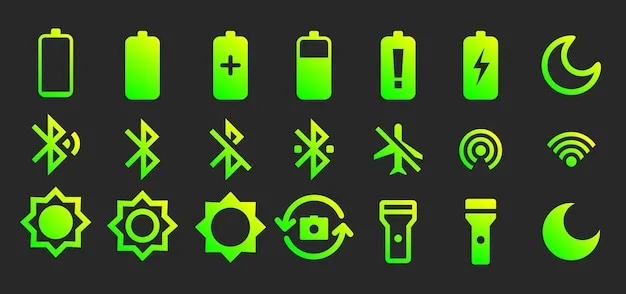
Battery indicators tell you how much power remains and whether your phone is charging or using a power-saving feature.
| Icon or symbol | What it means |
|---|---|
| Battery outline | Displays the approximate remaining battery charge. |
| Battery percentage | Shows the remaining charge as a percentage, when enabled or supported. |
| Battery with lightning bolt | Indicates that the phone is charging. |
| Battery Saver indicator | Shows that a power-saving mode is active. Its appearance varies by device. |
| Low-battery warning | Indicates that the remaining charge is low and the phone may need charging soon. |
| Battery with a plus sign | On some devices or interfaces, may indicate a power-related or battery-saving feature. The exact meaning depends on the icon design and manufacturer. |
If you cannot see the exact battery percentage, open Settings > Battery and look for an option such as Battery percentage.
On some phones, Battery Saver activates automatically when the charge falls below a configured threshold. This can reduce background activity, limit certain features, and extend battery life.
A battery icon that looks different from the examples above does not necessarily indicate a problem. Manufacturers regularly change the appearance of battery indicators, particularly when introducing new interface designs.
Android Sound Icons: Do Not Disturb, Silent Mode, and Vibrate
Sound-related icons can explain why your phone is not ringing or why notifications are arriving without an audible alert.
| Icon or symbol | What it means |
|---|---|
| Circle with a horizontal line | Commonly indicates Do Not Disturb mode. |
| Crossed-out bell or speaker | Usually indicates that sounds are muted or silent mode is active. |
| Vibration symbol | Indicates that vibration alerts are enabled or that the phone is using a vibration-related sound mode. |
| Alarm clock | May indicate that an alarm is scheduled, depending on the Android version and device. |
| Headphones | May appear when wired or certain supported audio accessories are connected. |
Why Is My Android Phone Not Ringing?
If your phone suddenly stops ringing, check these settings before assuming that the speaker is broken.
- Press a volume button and open the full volume controls.
- Make sure the ringtone volume is not set to zero.
- Check whether Silent or Vibrate mode is enabled.
- Open Quick Settings and look for Do Not Disturb.
- Review any scheduled Do Not Disturb rules and allowed contacts.
Do Not Disturb does not necessarily block every call. Depending on your configuration, calls from favorite contacts, repeat callers, or selected apps may still be allowed.
This is why checking the relevant settings is more useful than relying on the status bar icon alone.
Call, Location, Microphone, and Camera Icons
Some Android indicators appear only while a particular feature is in use. These symbols can help you identify active functions and understand when apps are accessing sensitive permissions.
Location icon
A location pin or similar indicator may appear when an app accesses your location.
Navigation apps, weather services, ride-hailing apps, and other location-aware applications can trigger this indicator.
To investigate unexpected location activity:
- Open Settings > Location.
- Review which apps have permission to access your location.
- Check the Privacy Dashboard, if available, to review recent location access.
The exact location indicator and its visibility depend on your Android version and manufacturer.
Microphone and camera indicators
On supported Android versions, a green privacy indicator or another visual warning may appear when an app accesses the microphone or camera.
If you notice an indicator when you are not using a feature that should require it, swipe down from the top of the screen and investigate the privacy notification or open the Privacy Dashboard.
You can also review camera and microphone permissions under Settings > Security and privacy or the equivalent menu on your device.
Active call indicator
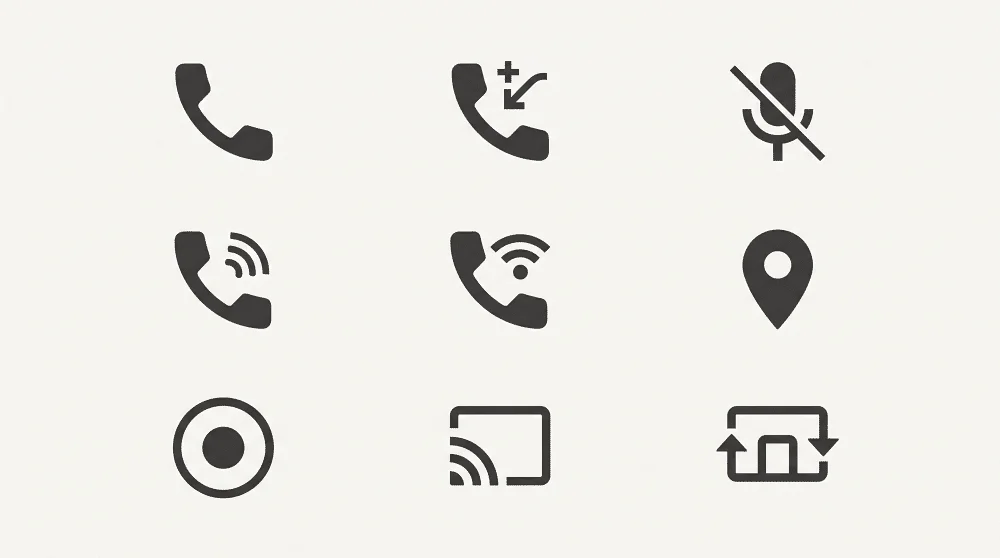
During a phone call, you may see a phone-related indicator or a persistent call notification. Depending on your device and calling app, the interface may also show controls for speakerphone, microphone mute, or switching back to the call screen.
Missed calls typically appear as notification icons rather than permanent system indicators.
Screen recording and casting
A screen recording indicator appears while Android records your display. A casting or screen-sharing indicator may appear when you send your screen or media to a compatible television or another device.
If either indicator appears unexpectedly, open the notification shade to identify the active service and stop the session if necessary.
What Do Android Notification Icons Mean?
The icons on the left side of the status bar generally come from apps rather than Android’s core system functions.
For example:
- Gmail may display an icon when you receive a new email.
- WhatsApp may display an indicator for a new message or another notification.
- Telegram may show a notification for a conversation or group.
- A phone app may display an icon for a missed call.
- A browser may show a download-related notification.
- Banking and authentication apps may display icons when they require your attention.
These small symbols are shortcuts to information, not complete descriptions of the underlying notification.
To find out what an unfamiliar notification icon means, swipe down from the top of your screen. Android will normally show the app name and notification details.
Why Do Notification Icons Disappear?
A notification icon can disappear when you open or dismiss the notification, clear it from the notification shade, or when the app removes it automatically.
Some Android manufacturers also limit how many notification icons can appear at once. Depending on your phone, additional notifications may be represented by a small dot or another condensed indicator.
If notifications disappear too quickly, check Settings > Notifications and review the relevant app’s notification permissions and behavior.
For app-specific symbol explanations, see our guides to Instagram icons and symbols and Telegram icons and symbols.
Less Common Android Status Bar Symbols
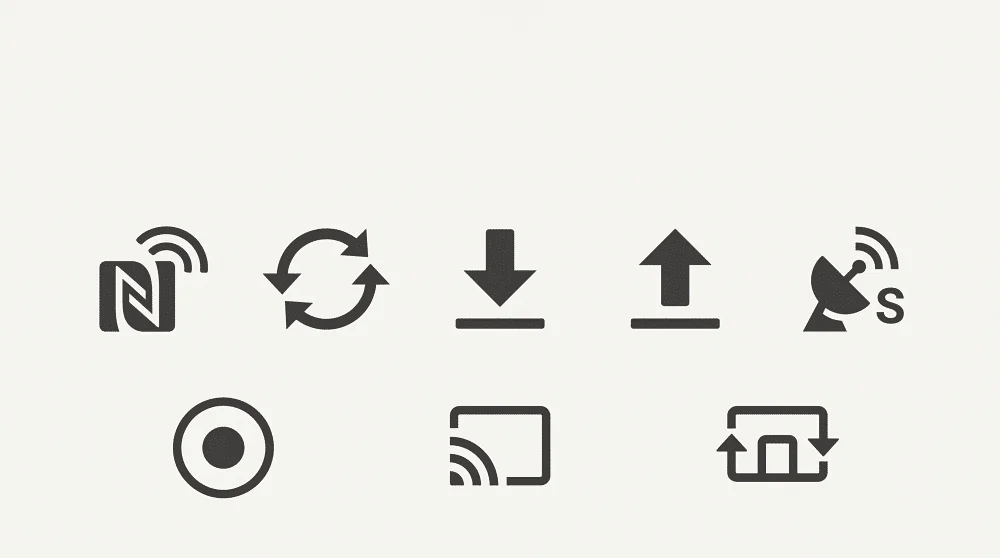
Not every status bar icon appears frequently. Some indicate background operations or specialized connectivity features.
| Icon or symbol | Possible meaning |
|---|---|
| NFC | Indicates NFC activity or availability on some devices. Many phones do not display a persistent NFC icon. |
| Circular arrows | May represent account synchronization, data synchronization, or an app-specific background operation. |
| Download arrow | May indicate a download or file transfer in progress. |
| Upload arrow | May indicate an upload or another ongoing data transfer. |
| Satellite symbol | May indicate satellite connectivity or a satellite-related communication feature on supported devices. |
| Small dot | May represent additional notifications when the status bar cannot display every icon. |
What Does the NFC Icon Mean?
NFC stands for Near Field Communication. It allows compatible devices to exchange information over a very short distance.
Android phones use NFC for features such as contactless payments, compatible device interactions, and certain accessory-pairing processes.
Some devices show an NFC indicator, while others keep NFC active without displaying a permanent icon.
What Does the Circular Arrows Icon Mean?
Circular arrows often suggest that something is being synchronized, but the precise meaning depends on the app or system component.
For example, your phone may synchronize account information, update files, or refresh data in the background.
If the icon persists for an unusually long time and you notice battery or data usage problems, review the relevant app’s synchronization settings and network activity.
What Does the Satellite Icon Mean?
Some newer Android devices support satellite-related communication features. When available, the phone may display an indicator during satellite connectivity or while using a supported emergency communication feature.
Availability depends on the device, carrier, software, country, and supported service. Not every Android phone includes satellite communication capabilities.
Why Do Android Status Bar Icons Look Different on Samsung, Pixel, and Other Phones?
Android does not use one identical set of icons across every device.
Google provides the underlying Android platform, but manufacturers customize the interface through their own software. Samsung uses One UI, OnePlus uses OxygenOS on supported devices, and Xiaomi uses HyperOS on many of its phones.
These interfaces can change the shape, color, placement, and visibility of status bar icons.
For example, the battery indicator on a Samsung Galaxy phone may look different from the equivalent symbol on a Google Pixel. A VPN or connectivity indicator may also appear in a different position depending on the device.
Android versions can introduce further changes. Google has continued to evolve its interface and notification design, including Material 3 Expressive elements on supported devices.
If you cannot find an icon in a general Android guide, try the following:
- Swipe down to open the notification shade or Quick Settings.
- Check whether an expanded notification identifies the app or service.
- Open Settings and search for a related term, such as VPN, hotspot, location, or battery.
- Consult your phone manufacturer’s support documentation if the symbol remains unclear.
This approach is often more reliable than comparing your screen with a screenshot from a different Android model.
Frequently Asked Questions
How can I identify an unknown icon on my Android phone?
Start by swiping down from the top of the screen. If the icon represents an app notification, the notification shade may identify its source. For system icons, check Quick Settings or search your phone’s Settings app for the relevant feature.
What does a key symbol at the top of my Android screen mean?
A key-shaped icon commonly indicates that a VPN connection is active. Open your network settings and review your VPN configuration to identify the connected service.
What does the circle with a line through it mean?
On many Android devices, this symbol represents Do Not Disturb. It means calls and notifications may be silenced according to your configured exceptions.
Why is there a dot instead of a notification icon?
Some Android interfaces use a dot to indicate that additional notifications exist but cannot all fit in the status bar. Swipe down to see the full list.
Can I remove unwanted icons from the Android status bar?
It depends on the icon and your phone manufacturer. Some devices let you hide selected system indicators, while others do not offer that control. You can usually manage app notification icons by changing notification settings, but disabling a notification may also prevent you from seeing important alerts.
Do Android status bar icons mean the same thing on every phone?
Not always. Google Pixel, Samsung Galaxy, OnePlus, Xiaomi, and other manufacturers can use different designs for similar features. The meaning is often comparable, but the exact appearance and behavior may vary.
Final Thoughts
Android status bar icons provide a quick overview of what your phone is doing, from connecting to a 5G network to charging its battery or receiving a new message.
The easiest way to understand them is to separate system indicators from app notifications. The right side of the status bar generally shows connectivity, battery, and active system features, while the left side usually shows notifications from your apps.
When an unfamiliar icon appears, check the notification shade, open Quick Settings, or search your phone’s Settings app. If the symbol relates to privacy, connectivity, or sound, reviewing the corresponding settings can also help you understand why it appeared.
Although Android manufacturers use different icon designs, learning these common symbols makes it easier to troubleshoot problems, recognize active features, and keep track of your phone’s status at a glance.
Add Tech2Geek as a preferred source on Google to see more of our latest tech articles.
Support Tech2Geek ❤️
Did this guide help you? If Tech2Geek saves you time or helps you solve a problem,
consider buying me a coffee. ☕
Your support helps keep Tech2Geek independent and free.
Comments