

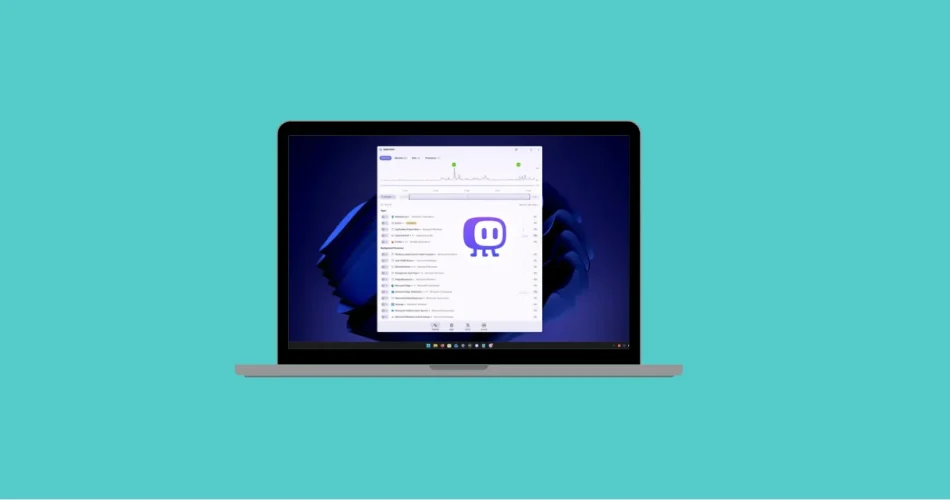
The built-in Task Manager in Windows is great for monitoring real-time performance and force-quitting frozen apps. But the moment you want to look back in time, it falls short.
What caused your PC to slow down three hours ago?
Which process triggered yesterday’s CPU temperature spike?
Did any app access your webcam or microphone while you were away?
Windows doesn’t give you answers to those questions.
That’s where AppControl comes in — a free, advanced Task Manager alternative that adds historical tracking, deeper process control, and real-time behavioral alerts.
Here’s everything you need to know.
What Is AppControl?
AppControl is a free Windows task manager alternative developed by Jon Hundley and his team. It can be downloaded directly from the official website (appcontrol.com).
Unlike the default Windows Task Manager, which only shows what’s happening right now, AppControl keeps a rolling 3-day system activity history.
Its interface features:
- Timeline-based performance graphs
- Clear separation between foreground apps and background processes
- Advanced process controls
- Built-in alert monitoring
- Detailed app descriptions and metadata
Think of it as a hybrid between Task Manager, performance monitoring software, and a lightweight security dashboard.
A 3-Day System History (The Standout Feature)
The biggest difference between AppControl and the default Windows Task Manager is historical visibility.
AppControl continuously records:
- CPU usage
- RAM usage
- Disk activity (read/write speeds)
- CPU temperature
- GPU temperature
- Process count
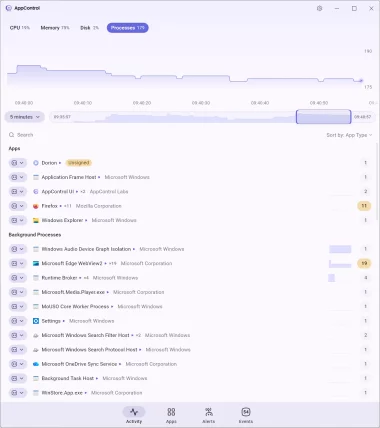

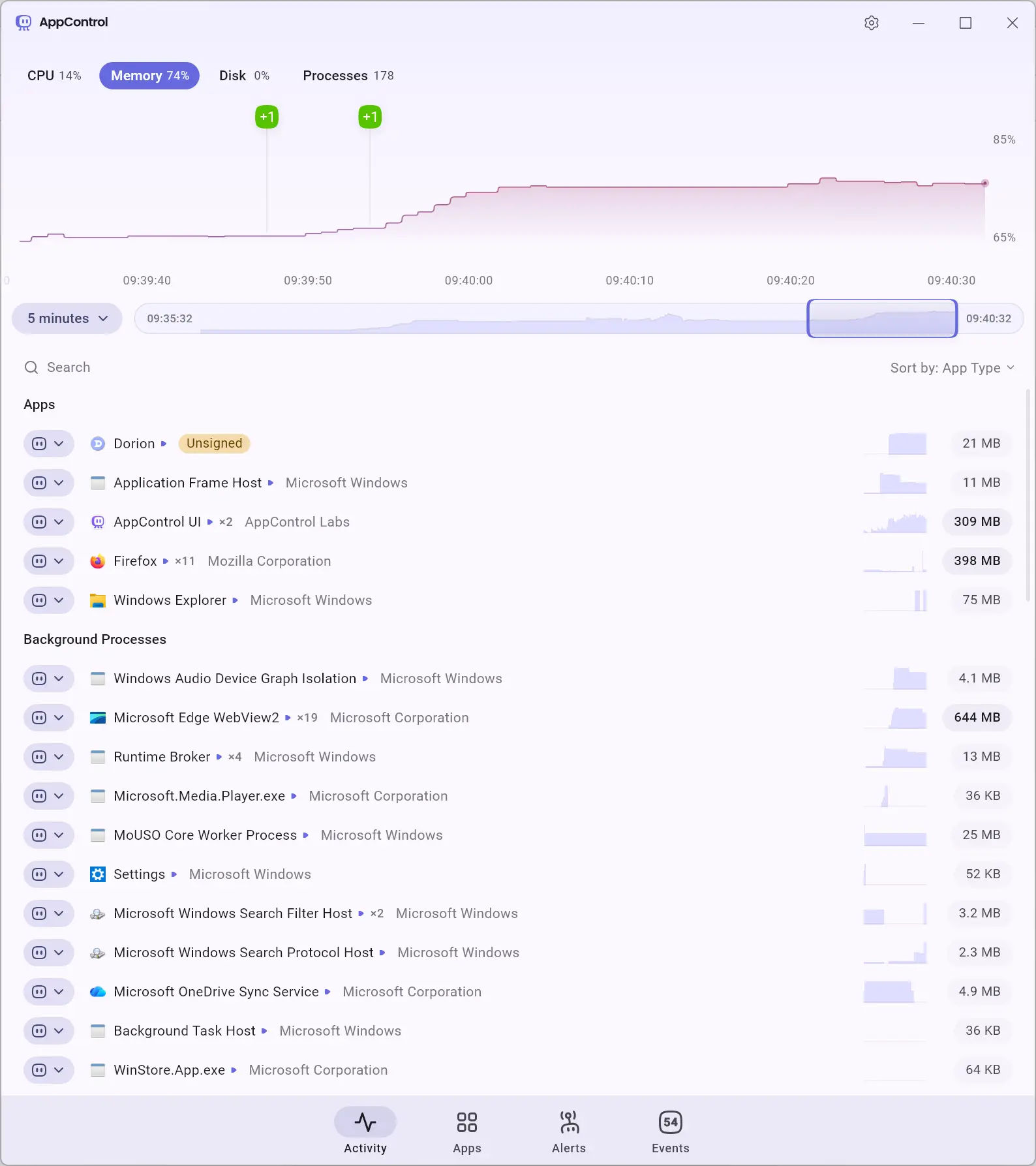
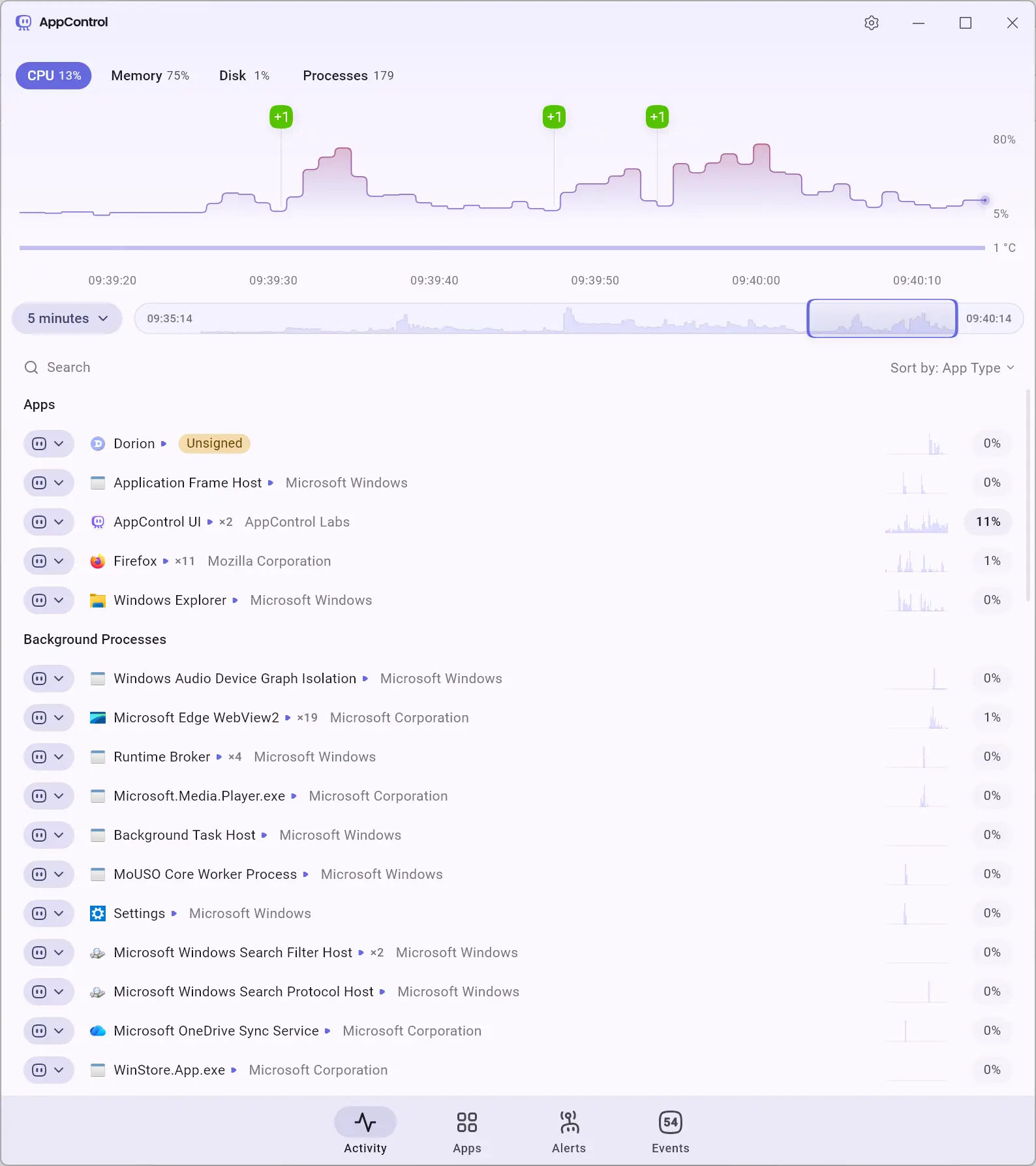
You can switch between multiple time ranges:
- Last 5 minutes
- Last 3 hours
- Last 24 hours
- Last 3 days
This makes it possible to rewind and pinpoint exactly when a performance issue occurred.
For example:
If your PC overheated yesterday at 2:15 PM, you can jump directly to that time and identify which process caused the spike.
The interface includes visual markers for notable events, and you can switch between CPU, memory, disk, GPU, and process graphs to correlate data.
This kind of historical insight simply doesn’t exist in Windows Task Manager.
Advanced Process Controls
AppControl gives you more granular control over running applications.
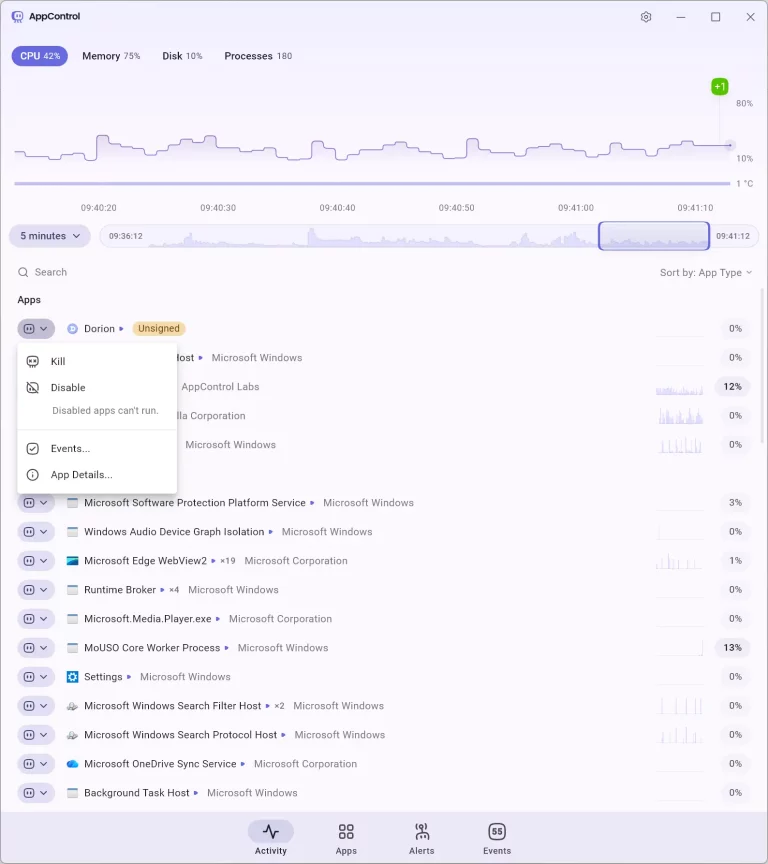
Each app includes a dropdown menu with options such as:
- Kill – Force terminate the process
- Disable – Prevent the app from relaunching
- Events – View its activity history
- App Details – Open a full technical breakdown
The “Disable” option is particularly useful if you’re troubleshooting software that keeps restarting automatically.
Customizable Real-Time Alerts
AppControl can monitor system behaviors and notify you instantly when something suspicious happens.
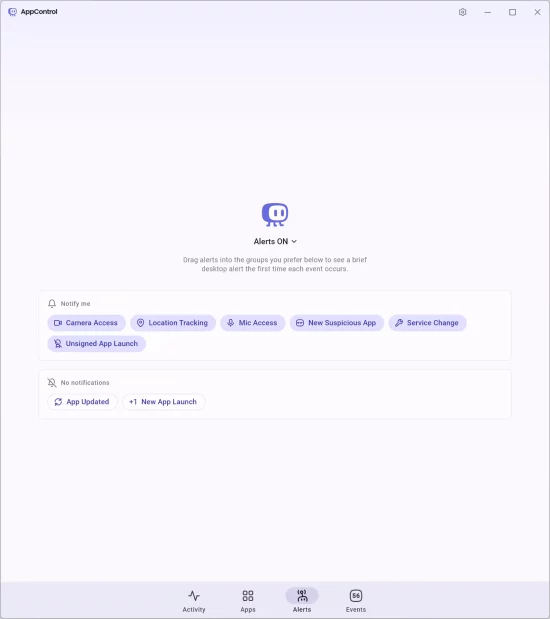
Inside the Alerts tab, events are divided into two categories:
- Notify Me – Critical events
- No Notifications – Lower-priority events
You can drag and drop alerts between categories.
Examples of monitored events include:
- Camera access
- Microphone access
- Location usage
- Unsigned applications launching
- Service changes
- Suspicious app activity
- Application updates
- New app launches
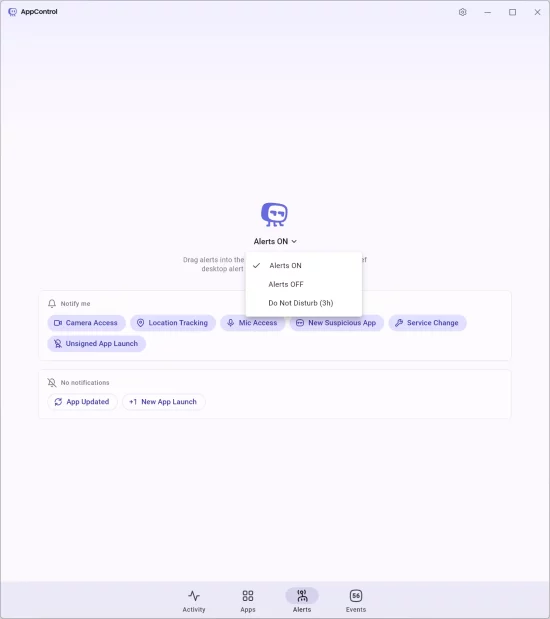
There’s also a Do Not Disturb mode (3 hours by default) to temporarily silence notifications.
For privacy-conscious users, this adds a real layer of transparency that Windows itself doesn’t provide by default.
Clear, Human-Readable Process Descriptions
Instead of Googling cryptic executable names, AppControl provides built-in explanations.
When you click on an application, a side panel shows:
- Real-time hardware usage
- A plain-English description of what the software does
- Version number
- File creation and modification dates
- Publisher information
- Country of origin
- Full file path
- Security hash
- Child processes launched by the app
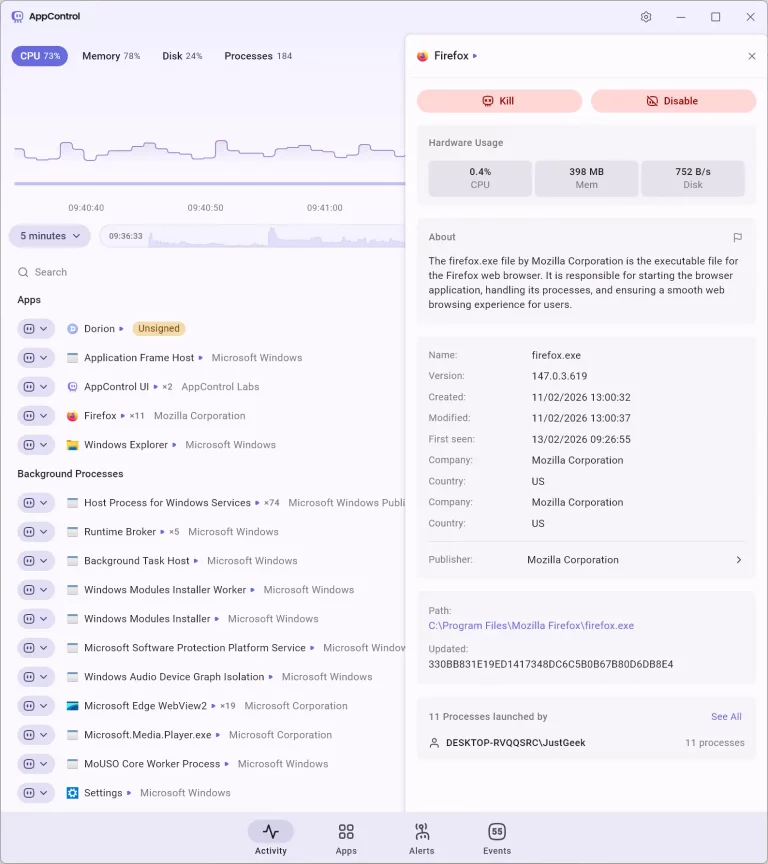
This is especially useful when investigating unfamiliar background processes.
Organize Processes by Publisher
The Apps tab groups processes by publisher, such as:
- Microsoft Corporation
- Mozilla Corporation
- Broadcom Inc.
- AppControl Labs
This layout makes it easier to:
- Identify all software from a specific developer
- Spot unsigned applications
- Detect unfamiliar vendors quickly
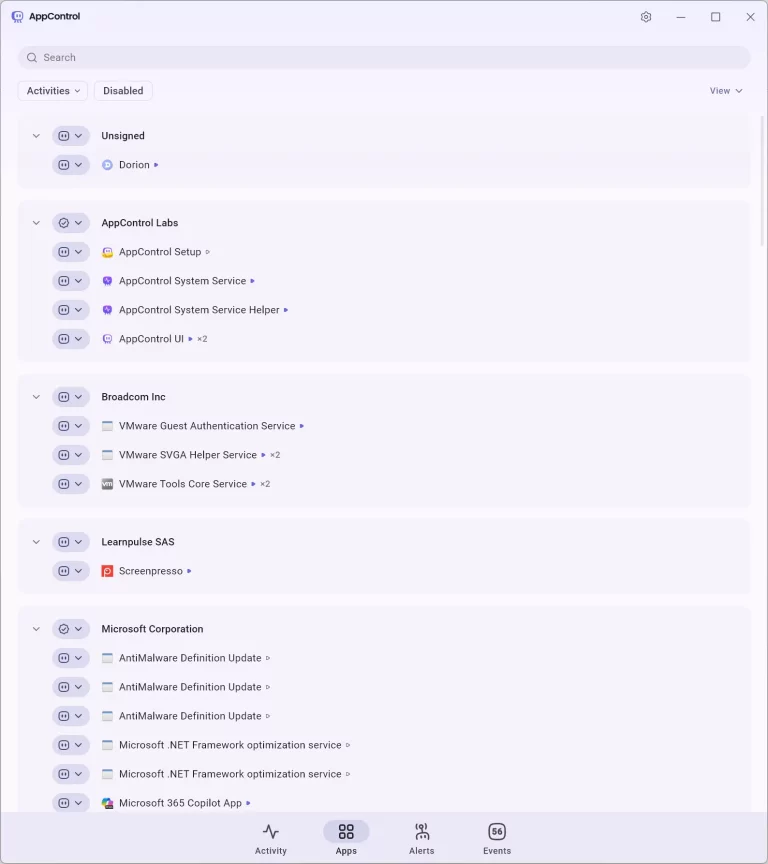
Unsigned processes are clearly marked — a helpful signal when evaluating potential security risks.
Privacy and Data Collection
AppControl was designed to run primarily locally.
By default:
- No personally identifiable information is collected
- No system data is sent externally
- All monitoring stays on your machine
There is an optional AI-powered suspicious app detection feature. If enabled, it sends only:
- The executable filename
- Its hash
- Publisher metadata
No file contents, browsing activity, or personal data are transmitted.
The feature requires explicit user consent.
For maximum privacy, AppControl offers an ultra-private installation mode using:
AppControlSetup.exe /privacy
This mode disables all communication with AppControl servers.
Trade-offs include:
- No automatic updates
- No AI-generated app descriptions
- No suspicious app detection
For privacy purists, it’s a welcome option.
Download and Installation
AppControl is completely free and available at appcontrol.com.
Standard installation is straightforward:
- Download the installer
- Double-click the file
- Follow the setup wizard
To enable ultra-private mode:
- Open Windows Terminal (right-click Start → Terminal)
- Navigate to your Downloads folder
- Run:
.\AppControlSetup.exe /privacy
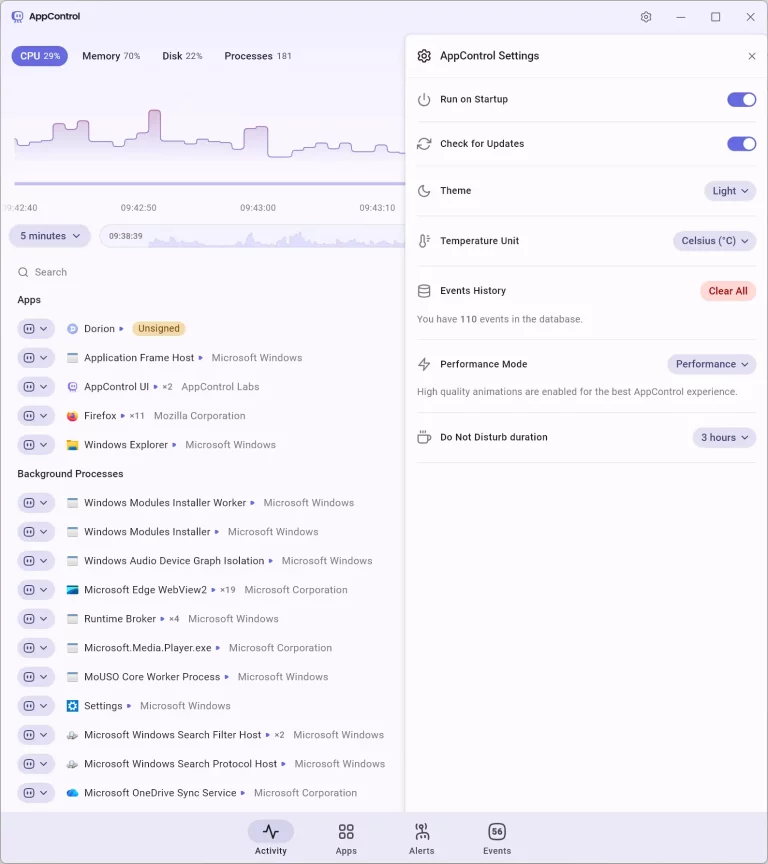
After installation, you can enable Run on Startup within the app’s settings.
Other configuration options include:
- Light/Dark theme
- Celsius or Fahrenheit
- Performance mode
- Do Not Disturb duration
- Event history settings
AppControl also provides a community forum and Discord server for user support and feedback.
Is AppControl Worth Using?
If you only need to kill frozen apps, the default Windows Task Manager is enough.
But if you want:
- Historical system monitoring
- Temperature tracking
- Suspicious behavior alerts
- Better process transparency
- Publisher grouping
- Deeper process control
AppControl fills critical gaps in Windows’ native tools.
For power users, IT enthusiasts, and privacy-focused individuals, it offers a significantly more complete view of what’s happening on your PC — not just now, but over time.
And if you'd like to go a step further in supporting us, you can treat us to a virtual coffee ☕️. Thank you for your support ❤️!

We do not support or promote any form of piracy, copyright infringement, or illegal use of software, video content, or digital resources.
Any mention of third-party sites, tools, or platforms is purely for informational purposes. It is the responsibility of each reader to comply with the laws in their country, as well as the terms of use of the services mentioned.
We strongly encourage the use of legal, open-source, or official solutions in a responsible manner.
Comments