
A crashing Chrome browser can disrupt productivity and severely impact your workflow. From frustrating freezes to unexpected closures, Chrome instability on your Mac can stem from various issues, ranging from simple software updates to more serious underlying problems. This comprehensive guide provides a step-by-step troubleshooting process to identify and resolve the root cause of your Chrome crashes, restoring your browsing experience to its former smooth efficiency.
Method 1: Restart Chrome
A simple restart often resolves temporary glitches.
Steps:
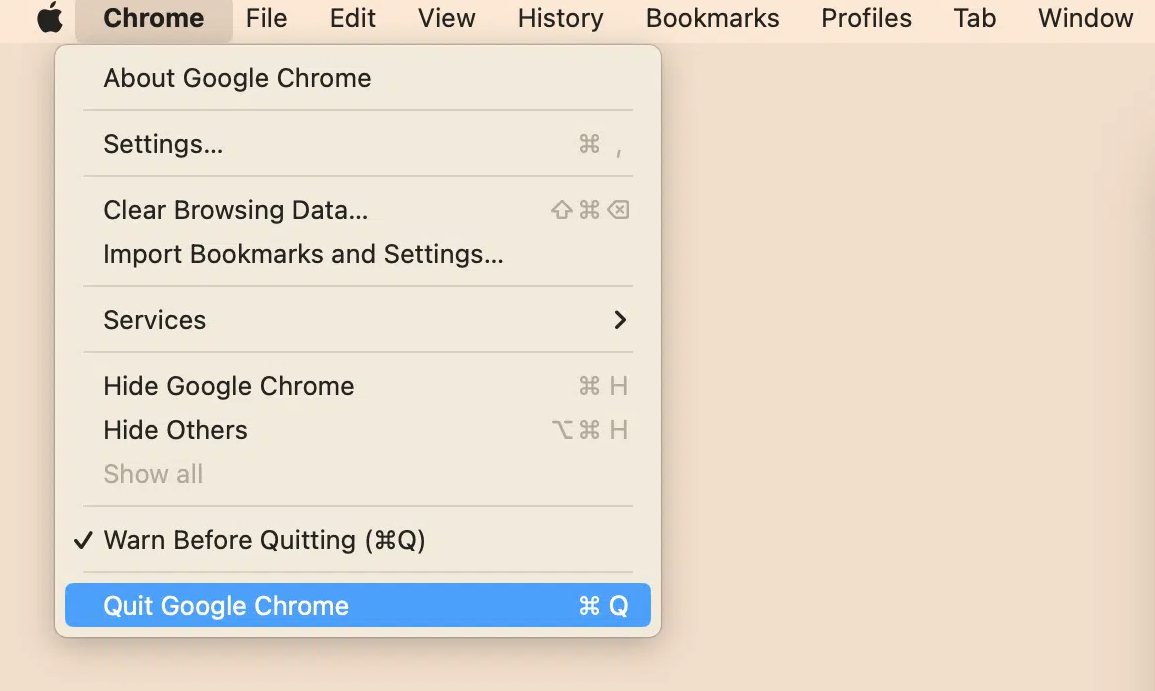
1- Quit Chrome: Go to the Chrome menu and select “Quit Google Chrome” (Cmd+Q).
2- Reopen: Relaunch Chrome from the Launchpad or Applications folder.
3- Force Quit (if unresponsive): Cmd+Opt+Esc, select Chrome, and click “Force Quit.”
4- Activity Monitor: Open Activity Monitor, select Chrome, and click the close (X) icon.
Method 2: Update Chrome
Outdated Chrome versions can lead to instability.
Steps:
1- Open Chrome Settings: Click the three vertical dots, then “Settings” or select “Preferences” from the Chrome menu.

2- Check for Updates: Click “About Chrome.” Chrome will automatically check for and install updates. An “Update” button may appear in the top right corner.
Method 3: Disable Extensions
Conflicting extensions are frequent culprits.
Steps:
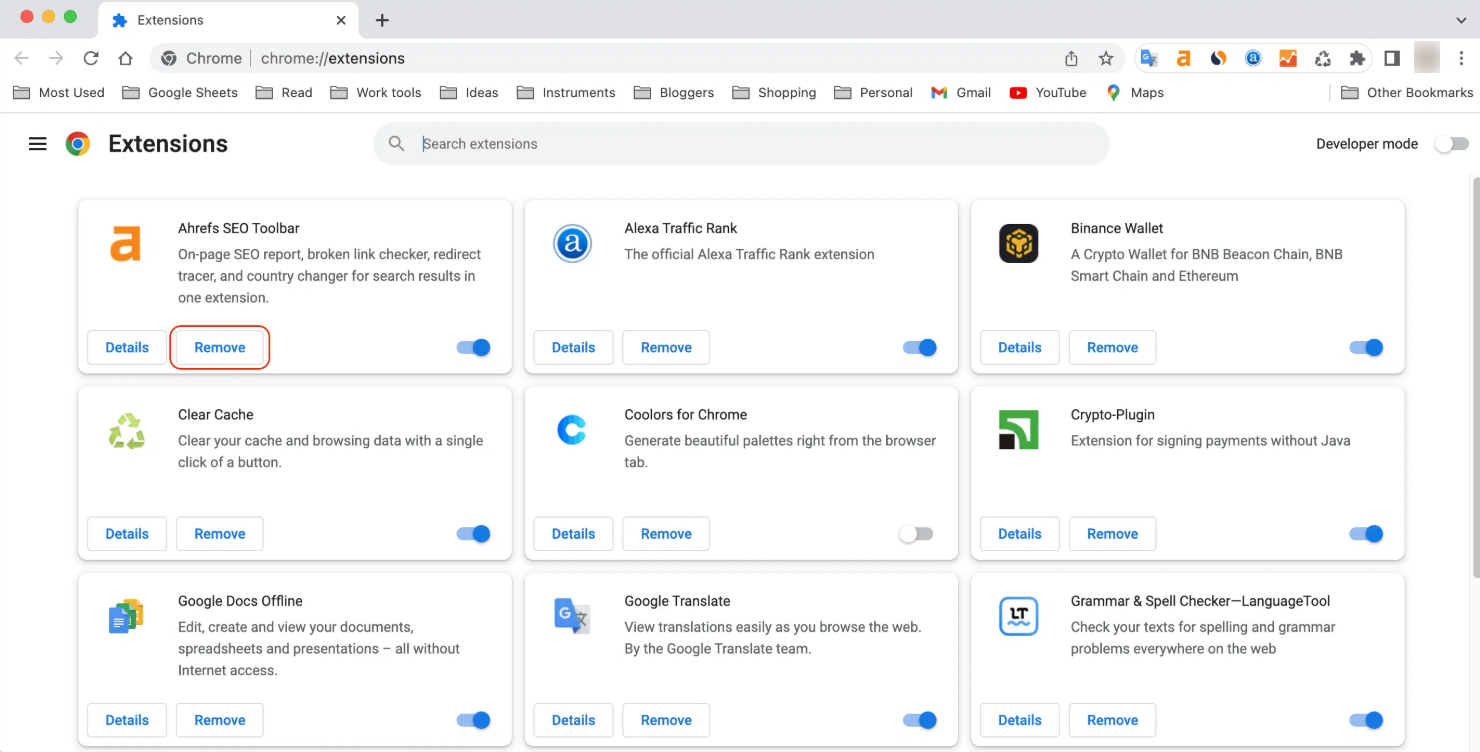
1- Access Extensions: Click the three vertical dots, then “More Tools” > “Extensions.”
2- Disable: Disable extensions one by one, testing Chrome after each, to identify the problematic extension(s). Remove the offending extensions.
Method 4: Clear Cache and Cookies
Outdated or corrupted cache data can disrupt Chrome’s functionality.
Steps (within Chrome):
- Open Settings: Click the three vertical dots, then “Settings.”
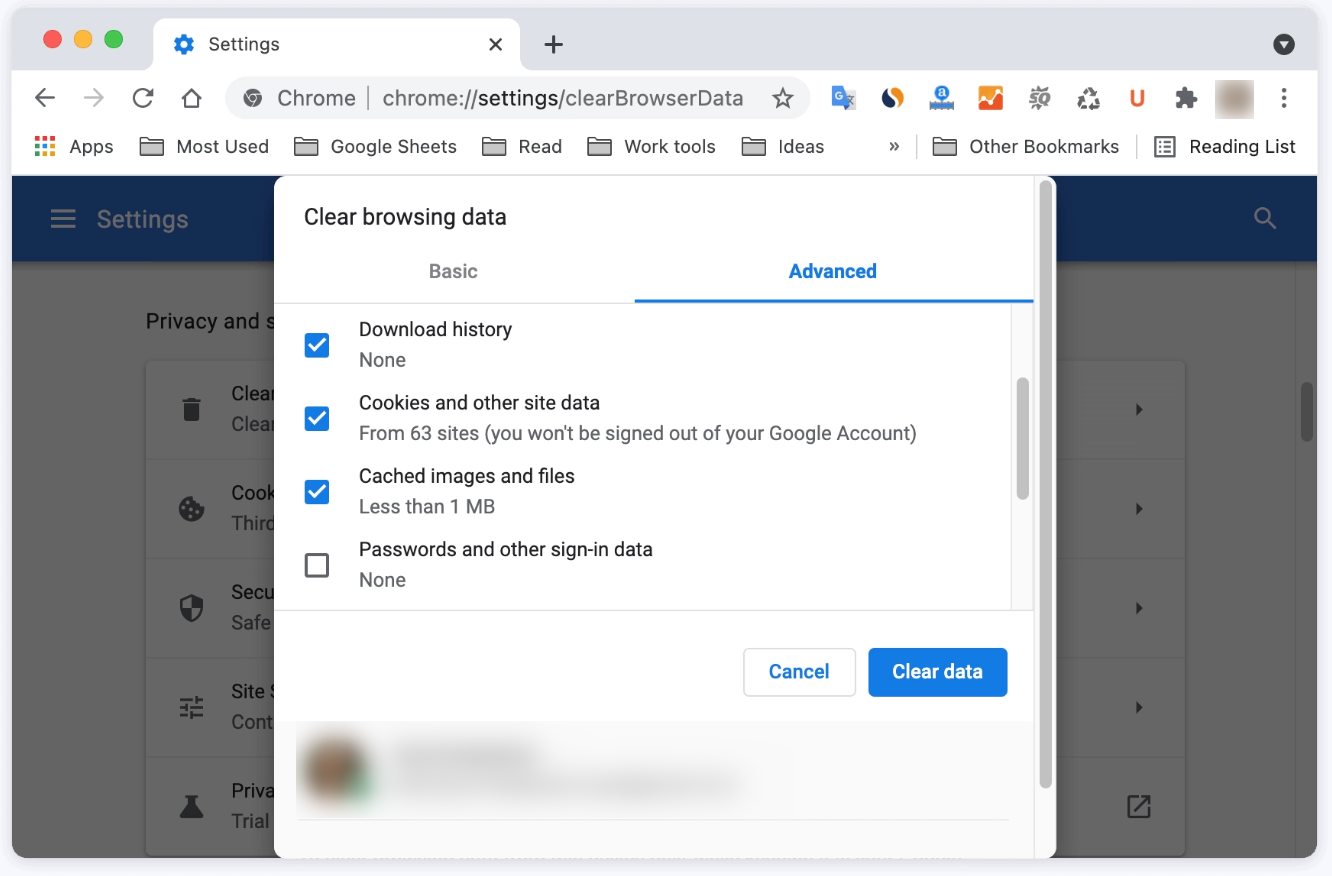
- Clear Browsing Data: Click “Privacy and security” then “Clear browsing data”.
- Select Options: Check “Cached images and files,” “Cookies and other site data,” and set “Time range” to “All time.”
- Clear Data: Click “Clear data.”
Method 5: Update macOS
Outdated macOS versions can create compatibility problems.
Steps:
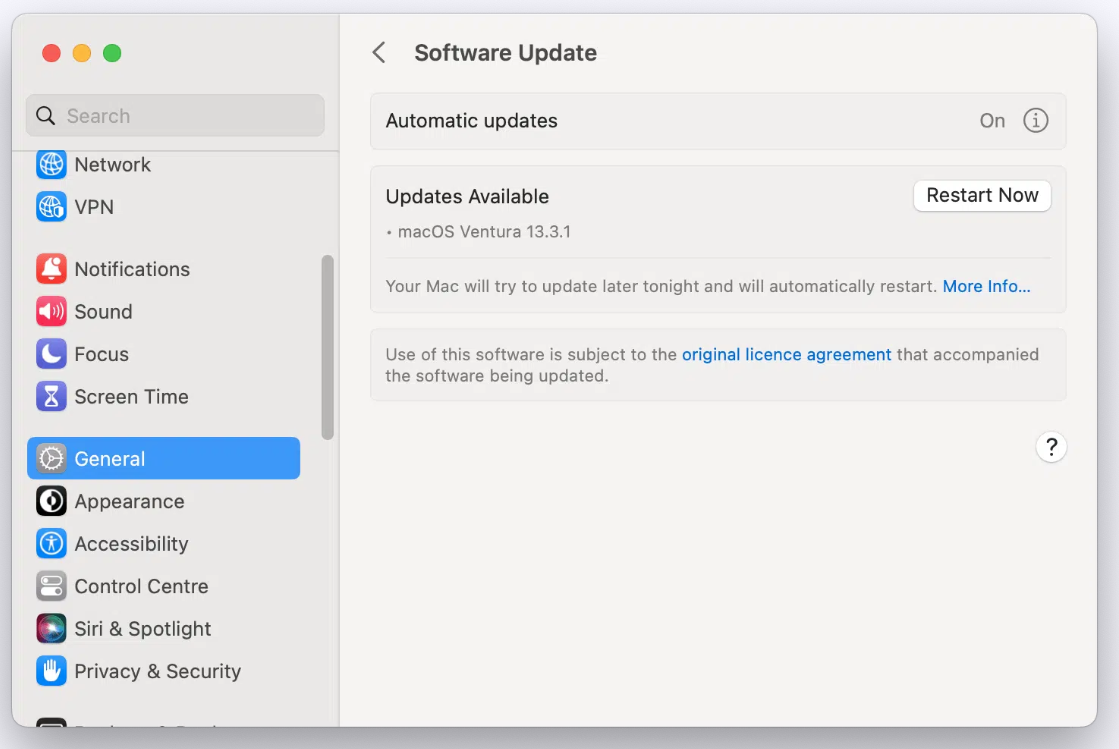
- Open System Settings: Go to System Settings (or System Preferences on older macOS).
- Check for Software Updates: Go to General and then “Software Update.” Install any available updates and restart your Mac.
Method 6: Reset Chrome Settings
Resetting Chrome to default settings resolves issues caused by incorrect configurations.
Steps:
- Open Chrome Settings: Click the three vertical dots, then “Settings.”
- Reset Settings: Click “Reset settings” in the left sidebar.
- Confirm Reset: Click “Restore settings to their original defaults” and then “Reset settings.”

Method 7: Manage System Resources
Insufficient RAM or excessive resource usage by other apps can affect Chrome’s performance.
Steps:
- Close Unnecessary Apps: Close applications you’re not actively using.
- Limit Chrome Tabs: Reduce the number of open tabs in Chrome.
Method 8: Scan for Malware
Malware can significantly impact Chrome’s stability.
Steps:
- Use Reputable Security Software: Run a scan with trusted antivirus software.
Method 9: Check for Corrupted User Profile
A corrupted Chrome user profile can cause crashes. (This is an advanced step, and creating a new profile is often the preferred solution.)
Method 10: Reinstall Chrome
As a last resort, reinstalling Chrome can resolve persistent issues.
A. Download Chrome
- Open Safari (or another browser).
- Go to: https://www.google.com/chrome
B. Install Chrome
- Click Download Chrome > choose Mac with Intel chip or Mac with Apple chip depending on your Mac model.
- If unsure: Click Apple logo () > About This Mac to see your chip type.
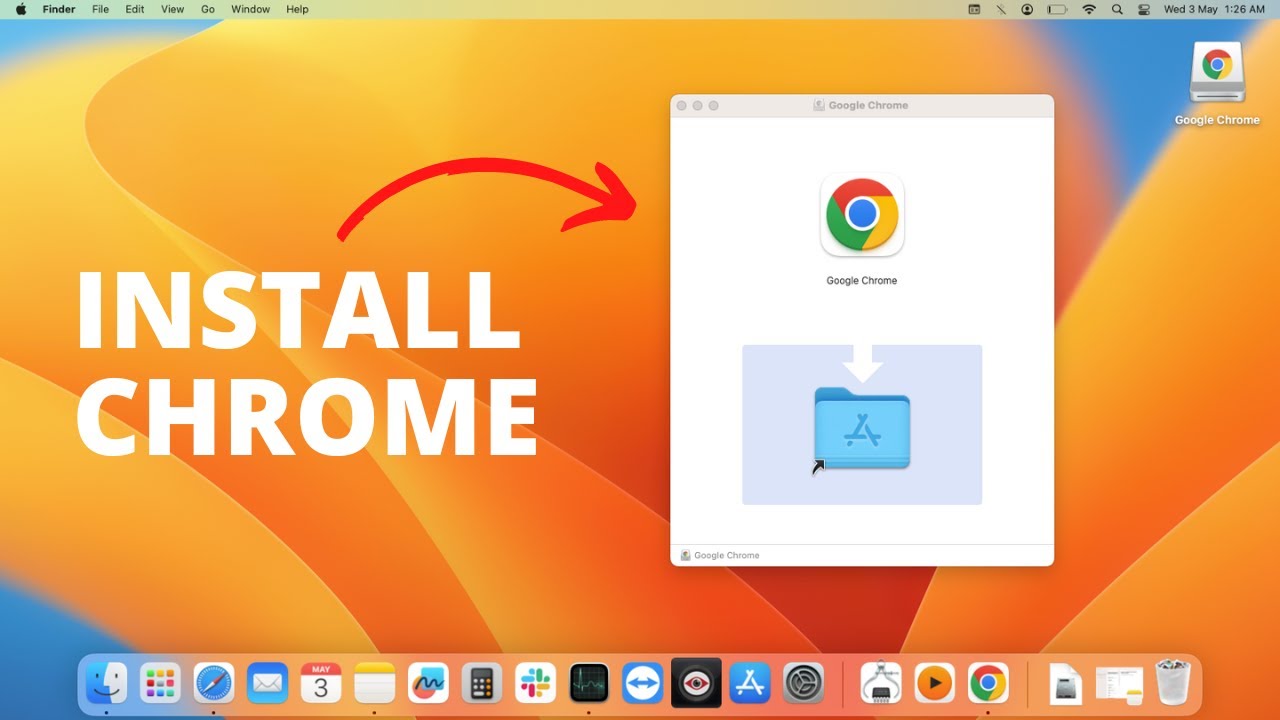
- Open the downloaded .dmg file.
- Drag Chrome into the Applications folder when prompted.
Conclusion:
Chrome crashes on a Mac can be frustrating, but by systematically working through this troubleshooting guide, you can effectively identify and resolve the underlying problem. Remember to regularly update both Chrome and your macOS to prevent future issues and maintain a smooth, stable browsing experience.
And if you'd like to go a step further in supporting us, you can treat us to a virtual coffee ☕️. Thank you for your support ❤️!

We do not support or promote any form of piracy, copyright infringement, or illegal use of software, video content, or digital resources.
Any mention of third-party sites, tools, or platforms is purely for informational purposes. It is the responsibility of each reader to comply with the laws in their country, as well as the terms of use of the services mentioned.
We strongly encourage the use of legal, open-source, or official solutions in a responsible manner.
Comments