

Have you ever been furiously typing away, only to realize your text is replacing what’s already there? That’s the dreaded overtype mode, often triggered by an accidental press of the Insert key. While a relic of older word processors, this feature remains active by default in Windows 11 and can wreak havoc on your document formatting. Fortunately, disabling the Insert key is a quick and easy way to reclaim control of your typing and prevent those frustrating overwrites.
Why Disable the Insert Key?
The Insert key’s overtype functionality can be a real productivity killer. Unless you regularly use this feature, disabling it offers several benefits:
- Prevent Accidental Overwrites: Eliminate the frustration of accidentally overwriting text.
- Improved Typing Efficiency: Focus on your writing without worrying about unintended changes.
- Consistent Formatting: Maintain your document’s original structure and formatting.
Let’s dive into several effective methods to disable the Insert key in Windows 11:
1. Disable Insert Key Using SharpKeys (Recommended)
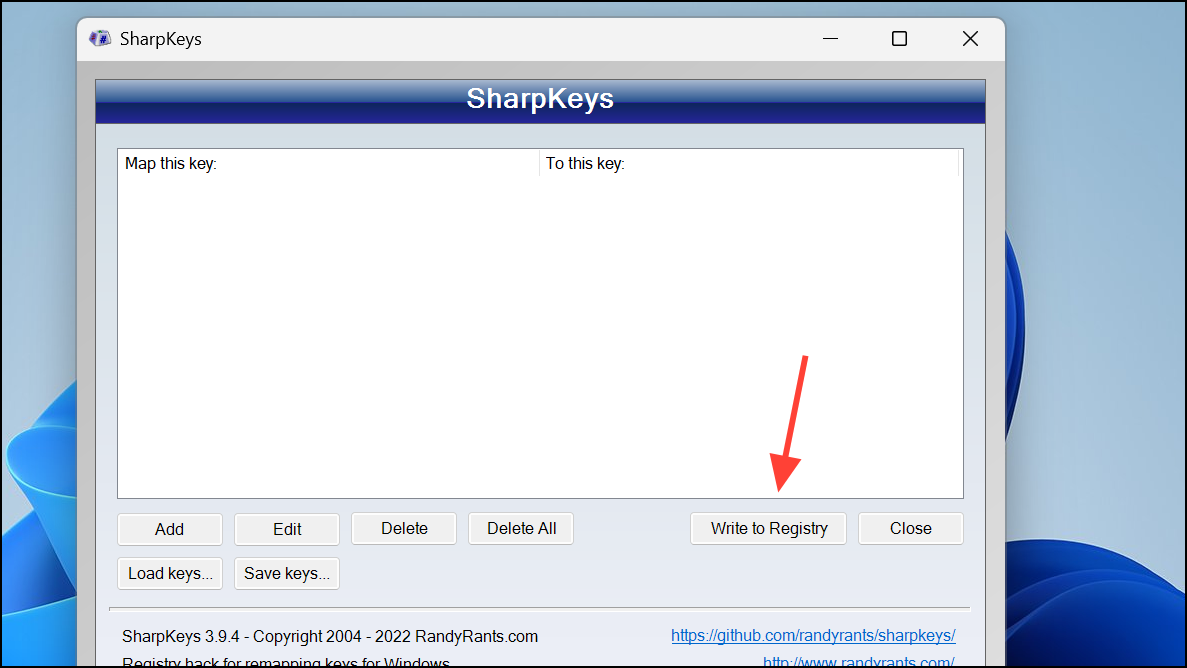
SharpKeys is a free, user-friendly utility designed for remapping or disabling keyboard keys. It’s a highly recommended method because it directly modifies the Windows registry, ensuring the change applies system-wide.
Steps:
Download and Install: Get SharpKeys from its official website or the Microsoft Store.
Open SharpKeys and Add Mapping: Click the “Add” button. Under “Map this key,” select “Insert.” Under “To this key,” choose “Turn Key Off.” This effectively tells Windows to ignore the Insert key.

Write to Registry and Restart: Click “OK,” then “Write to Registry.” You’ll need to restart your computer for the changes to take effect.
2. Remap the Insert Key with Microsoft PowerToys Keyboard Manager
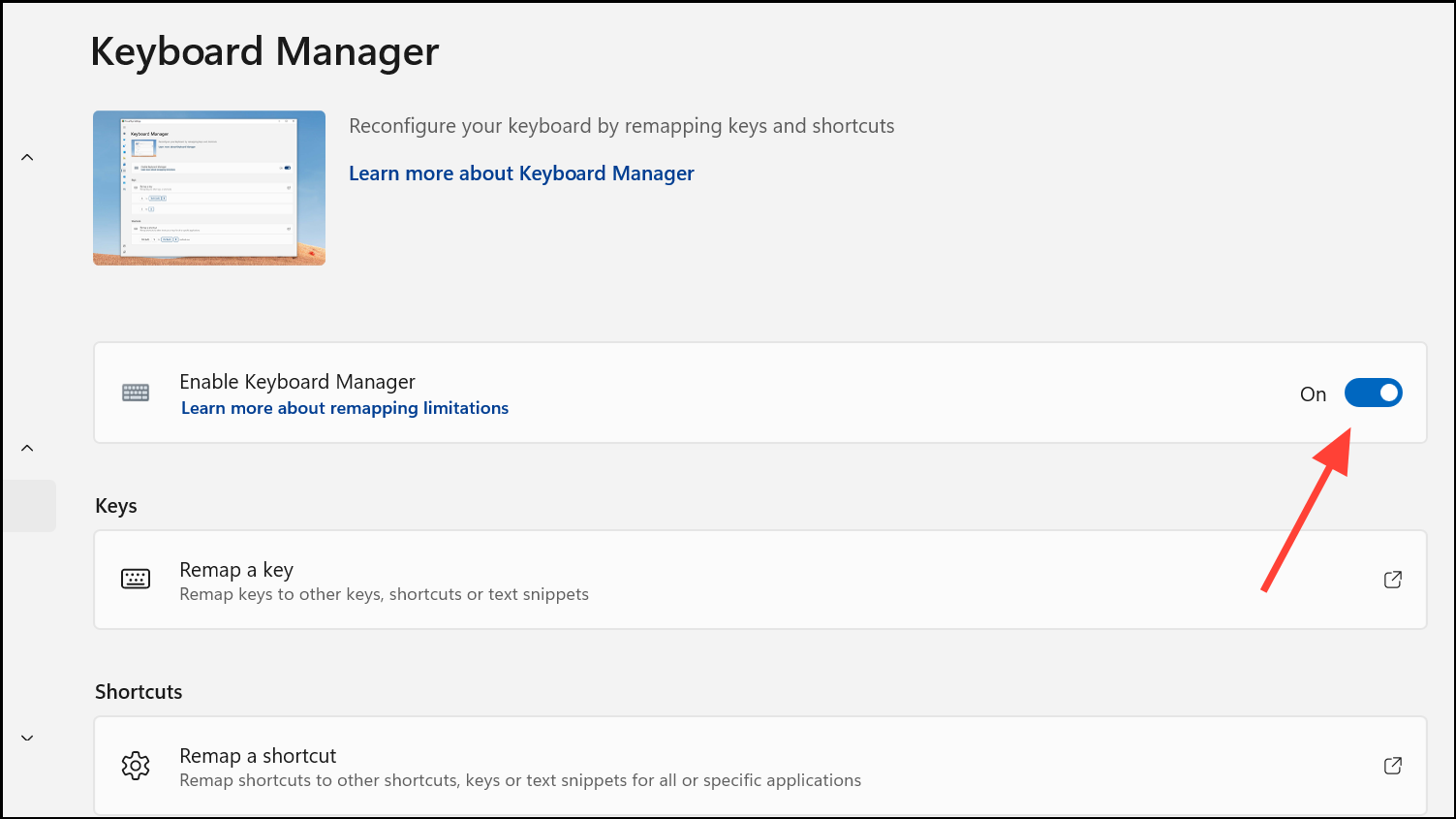
Microsoft PowerToys is a powerful suite of utilities for Windows users, including the Keyboard Manager, which allows you to remap keys. This method offers a flexible alternative, but requires PowerToys to be running in the background.
Steps:
Install PowerToys: Download and install PowerToys from the Microsoft Store or the official GitHub releases page.
Open Keyboard Manager: Launch PowerToys and select “Keyboard Manager” from the sidebar. Enable “Enable Keyboard Manager” if it’s off.
Remap a Key: Click “Remap a key.” Click the plus (+) button. Select “Insert” in the “Key” column. In the “Mapped To” column, choose “Undefined” or “None” to disable the key.
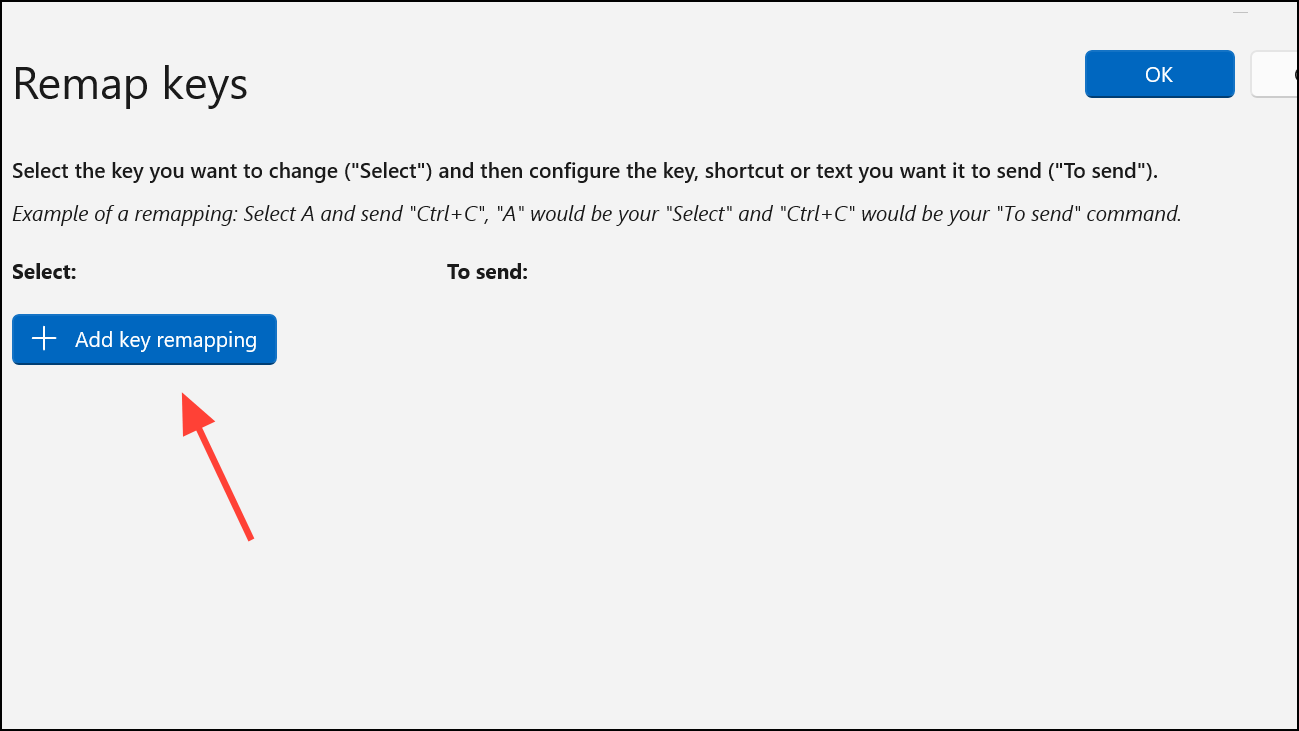
Apply Changes: Click “OK” or “Apply.” The Insert key will now be disabled while PowerToys is running.
3. Disable the Insert Key Using Registry Editor (Advanced)
This method offers a permanent solution, but it requires caution when editing the Windows registry.
Important: Back up your registry or create a system restore point before proceeding.
Steps:
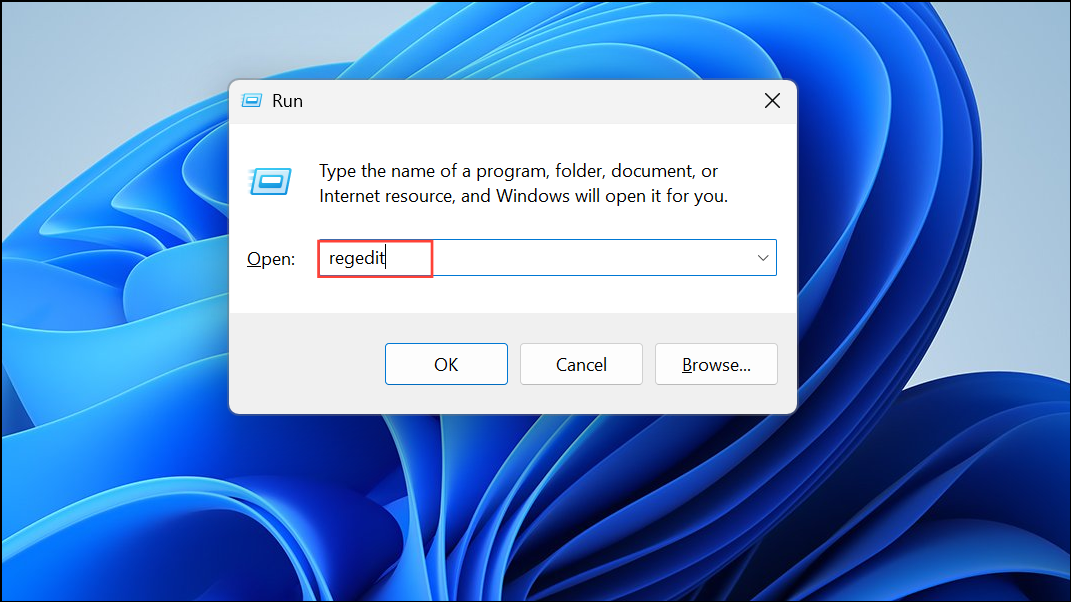
Open Registry Editor: Press Windows + R, type regedit, and press Enter. Confirm any User Account Control prompts.
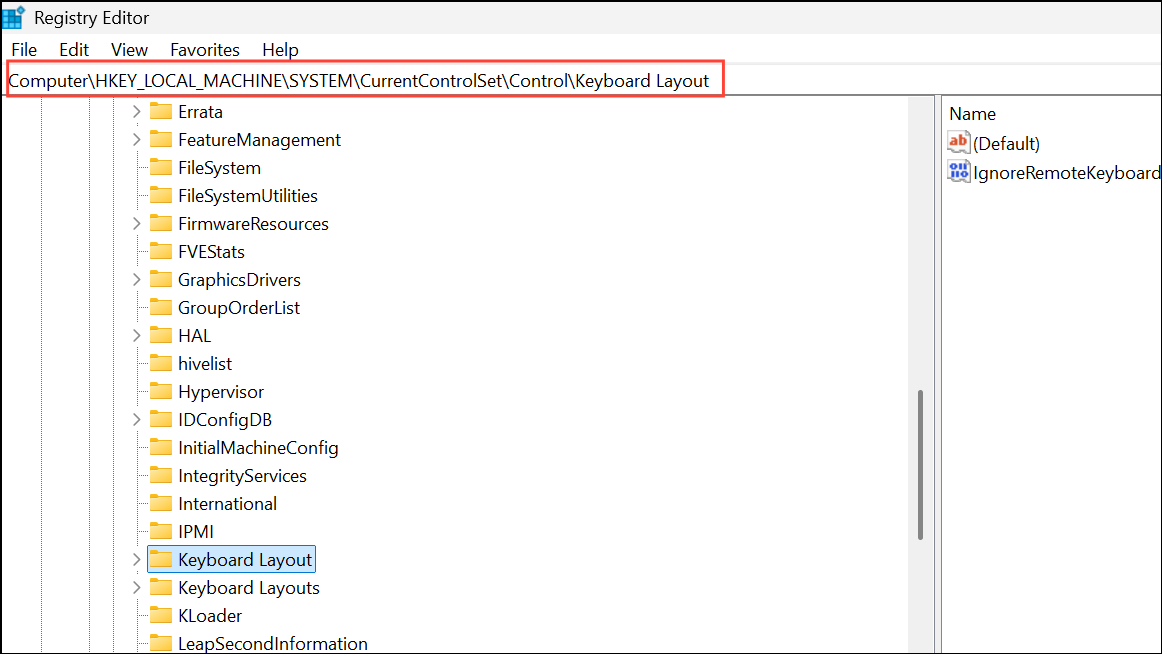
Navigate to the Key: Go to HKEY_LOCAL_MACHINE\SYSTEM\CurrentControlSet\Control\Keyboard Layout.
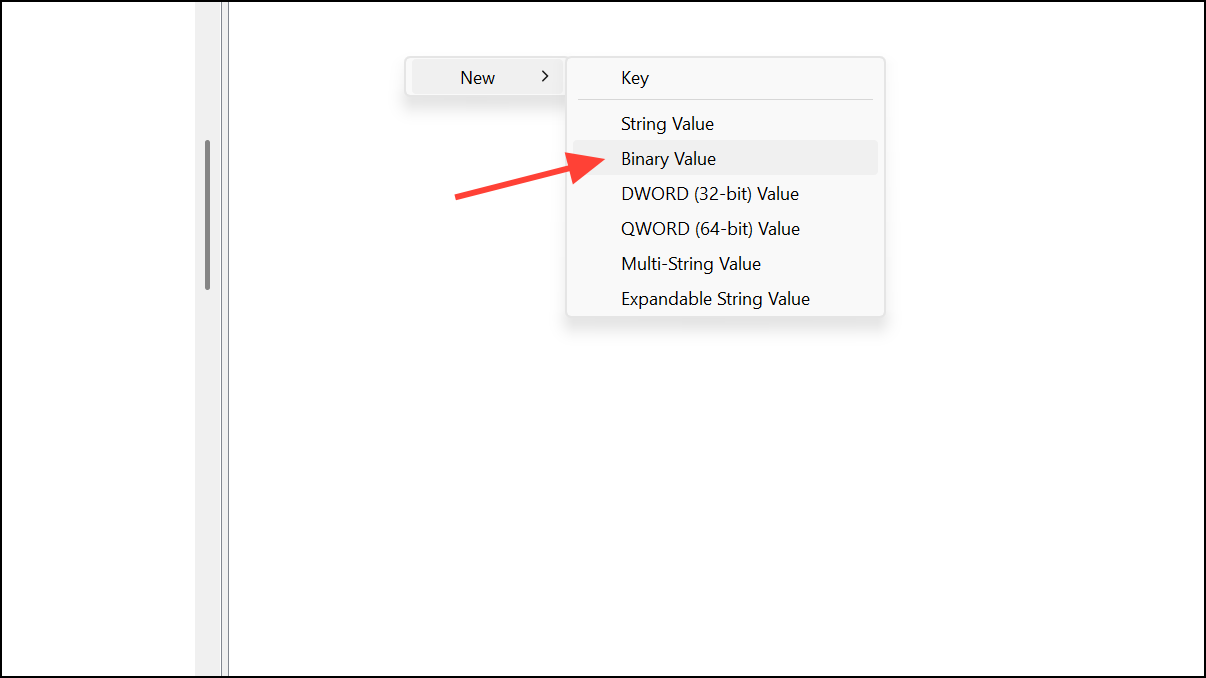
Create a Binary Value: Right-click in the right pane and select New > Binary Value. Name it something descriptive like Insert_Disable.
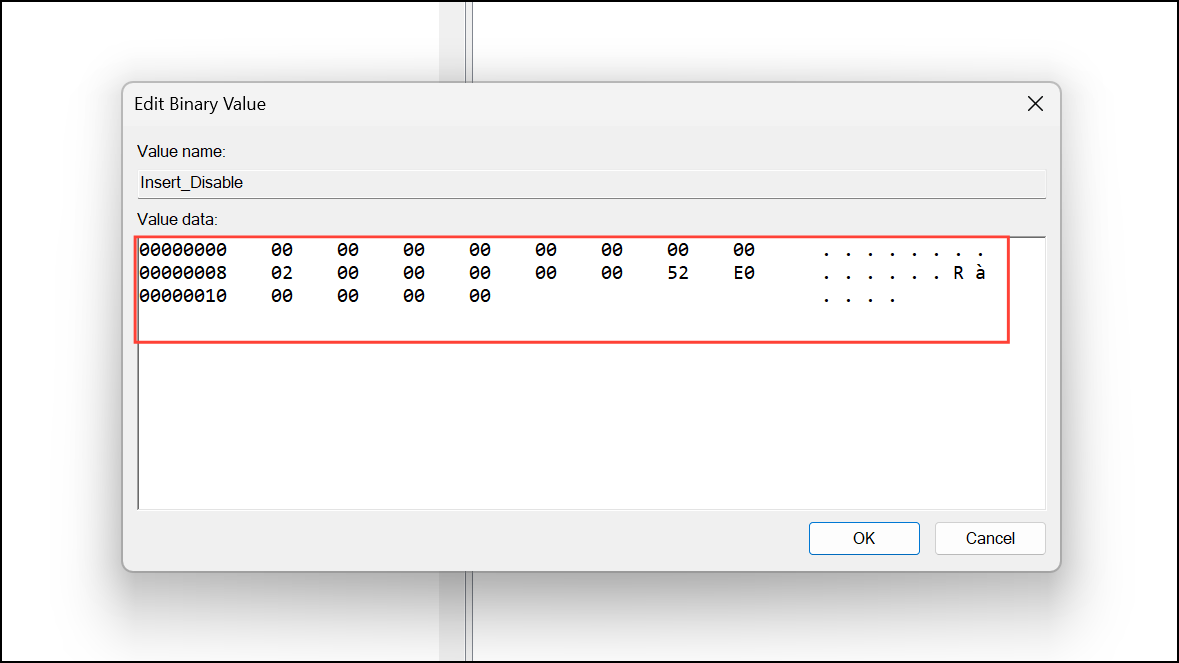
Enter the Data: Double-click the new value and enter the following binary data: 00 00 00 00 00 00 00 00 02 00 00 00 00 00 52 E0 00 00 00 00
Save and Restart: Click “OK.” Close the Registry Editor and restart your PC. The Insert key will be disabled.
Alternative Approaches:
While the methods above are the most common, here are a couple of alternative approaches:
- Hardware Solutions: For mechanical keyboards, physically removing the keycap or blocking the key with a small object can prevent accidental presses.
- Scripting Tools: Tools like AutoHotkey can be used to disable the Insert key through a script, but these require a background script to remain active.
Conclusion:
Disabling the Insert key in Windows 11 is a simple yet effective way to enhance your typing experience and prevent frustrating formatting errors. Choose the method that best suits your technical comfort level and preferences. By following these steps, you’ll be well on your way to a more efficient and error-free writing workflow. Should your needs change, these changes are easily reversible, giving you full control over your keyboard’s functionality.
And if you'd like to go a step further in supporting us, you can treat us to a virtual coffee ☕️. Thank you for your support ❤️!

We do not support or promote any form of piracy, copyright infringement, or illegal use of software, video content, or digital resources.
Any mention of third-party sites, tools, or platforms is purely for informational purposes. It is the responsibility of each reader to comply with the laws in their country, as well as the terms of use of the services mentioned.
We strongly encourage the use of legal, open-source, or official solutions in a responsible manner.
Comments