


Over the past few years, Facebook has transformed into a platform that thrives on video-based content, offering users a rich and engaging browsing experience. Imagine scrolling through your Facebook feed, excited to watch some videos, only to hit a frustrating roadblock — the videos won’t play. You’re not alone in this; “Facebook videos not playing” is a common issue that many users face.
Today, we’ll explore several effective ways to troubleshoot and fix this problem so you can get back to enjoying smooth, uninterrupted video playback on Facebook.
So, without further delay, let’s dive in.
Diagnosing the Problem: Why You Cannot Play Videos on Facebook?
There are several reasons why Facebook videos might not be playing for you. Below are some of the most common causes:
- Weak or unstable internet connection – This is the most likely culprit. Facebook videos, especially in high definition, require a stable connection and sufficient bandwidth to stream smoothly.
- Outdated Facebook app – Running an older version of the app can lead to glitches that disrupt video playback.
- Outdated web browser – Just like the app, your browser needs regular updates to ensure compatibility and smooth streaming.
- Cluttered cache – A cache overloaded with temporary files can slow down your device and interfere with video playback.
- Resource-hungry background apps – Other programs running simultaneously may consume too much processing power, leaving little for Facebook videos.
- Corrupted video file – In some cases, the video itself may be damaged and unable to play.
- Facebook server issues – Occasionally, problems on Facebook’s side can cause temporary video playback errors for some users.
Now that we’ve identified the potential causes, let’s move on to the solutions.
How to Fix Facebook Not Loading Or Playing Videos
Fix 1: Check Your Internet Connection
This might seem obvious, but it’s essential: make sure you have a strong, stable internet connection. Run a quick speed test to confirm your connection quality. If you’re on Wi-Fi and experiencing issues, try troubleshooting your network or switching to mobile data for a potentially more stable connection. Conversely, if you’re on cellular data, check your signal strength and switch to Wi-Fi if available for smoother playback.
Fix 2: Restart Your Device
Sometimes, a simple restart can work wonders. Power off your phone, tablet, or computer, wait a few seconds, and then turn it back on. This helps clear temporary glitches and free up memory, which can often resolve video playback issues on Facebook.
Fix 3: Update the Facebook App
Running an outdated version of Facebook can lead to bugs or playback problems. Check the Play Store or App Store for any available updates. If you see an Update button, tap it to install the latest version, which may include important fixes and performance improvements.
Fix 4: Temporarily Disable Data Saver Mode
While Data Saver or Low Data Mode can help reduce bandwidth usage, it can also lower video quality or disrupt playback. Try disabling it temporarily to see if your videos play smoothly. If data usage is a concern, you can always re-enable the setting afterward.
- Open the Facebook app and from the bottom right corner click on the three-horizontal line menu icon.
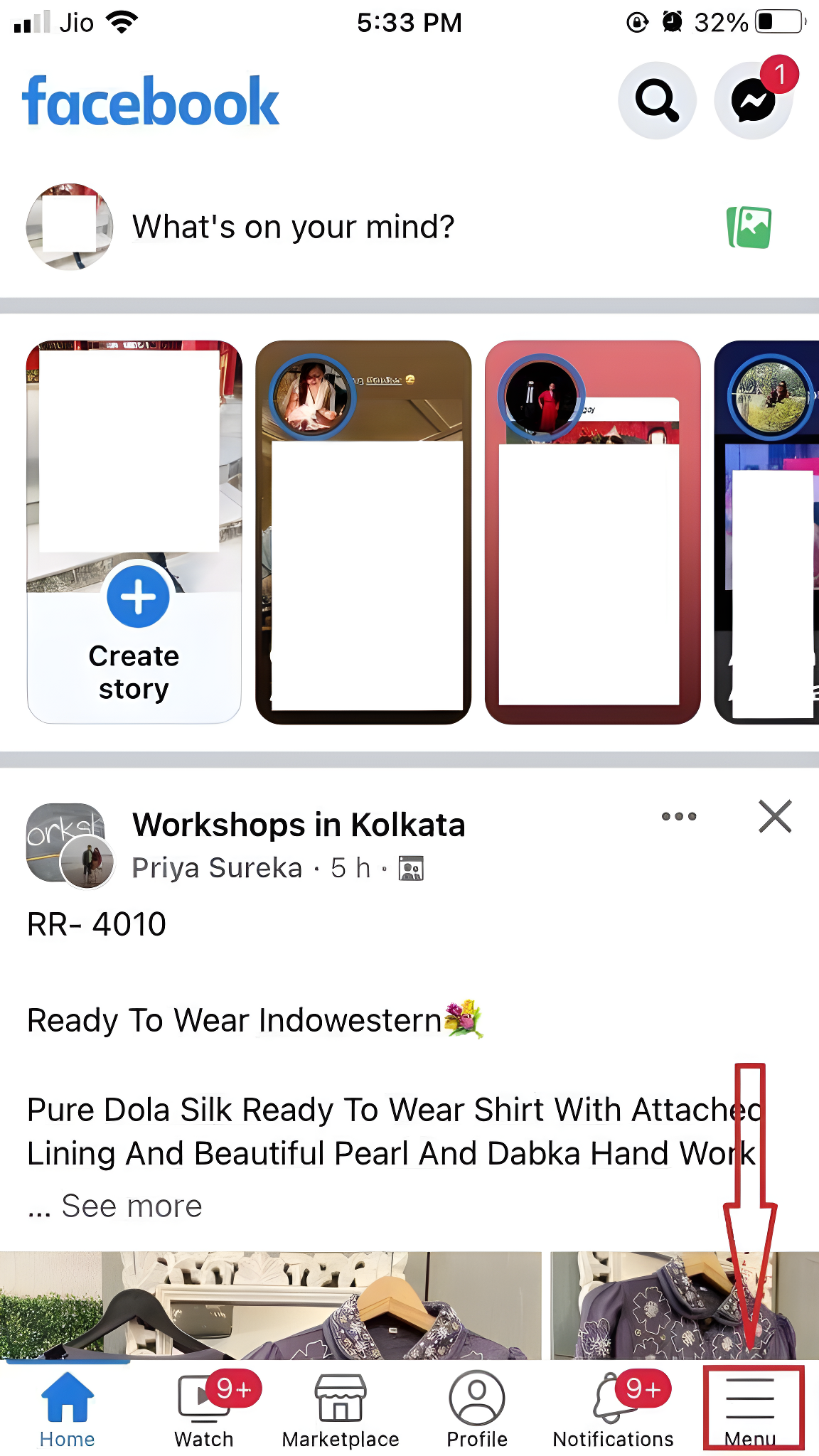
- Now scroll down a bit and then select Settings & Privacy.
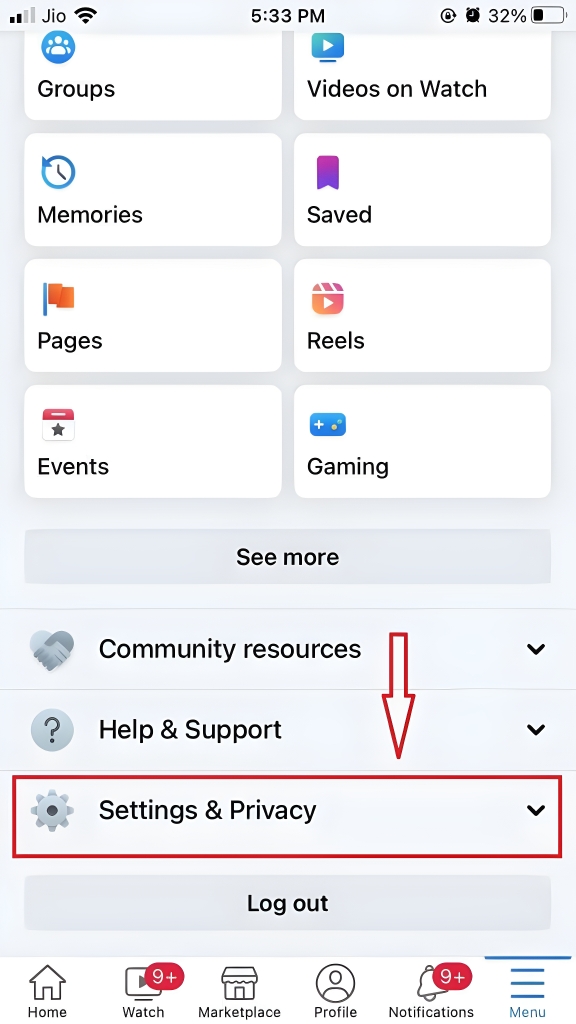
- Then click on the Settings
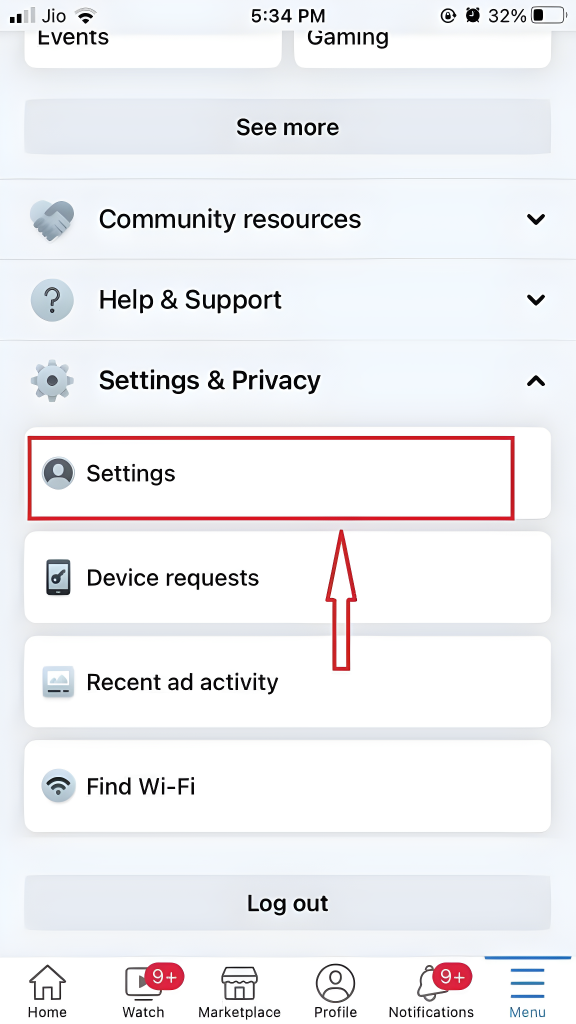
- On the next page, scroll down a bit, then click on the Media option, listed under Preferences.
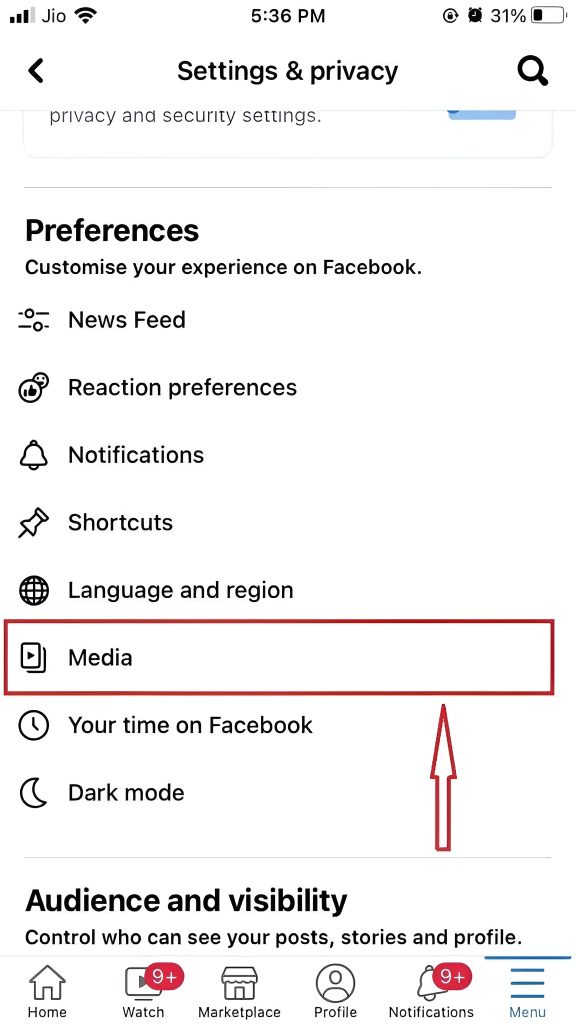
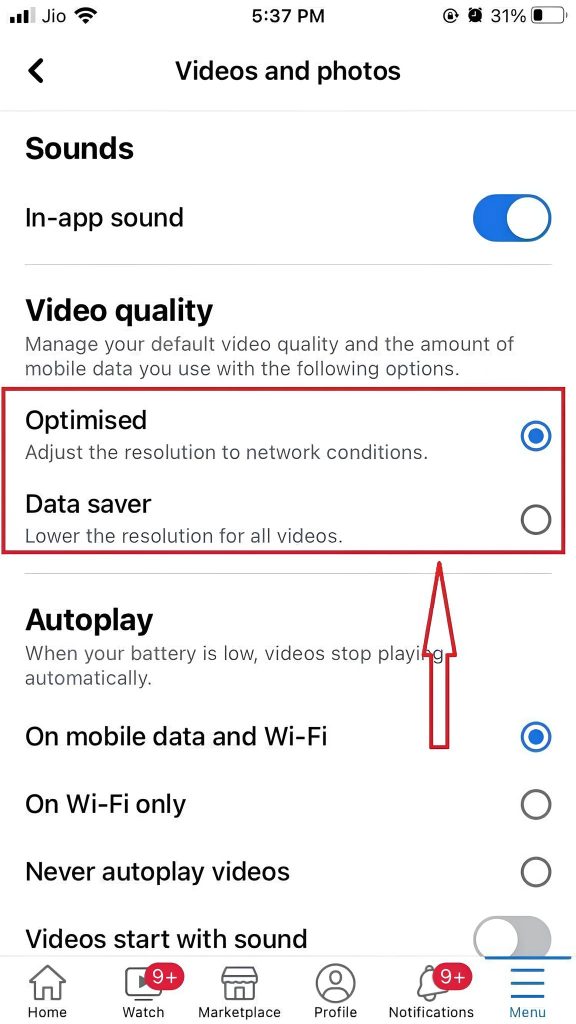
- Here, you’ll see two options for Video Quality: Data Saver and Optimized. Tap on the Optimized option to disable Data Saver Mode.
Fix 5: Disable Low Data Mode on Your Smartphone
Many mobile users enable Low Data Mode to stretch their data plans, and it’s an excellent way to reduce bandwidth usage. However, this setting can sometimes interfere with Facebook’s video playback, particularly for high-resolution videos. By disabling Low Data Mode specifically for Facebook, you can enjoy smoother playback without completely giving up your data-saving benefits.
For Android Users
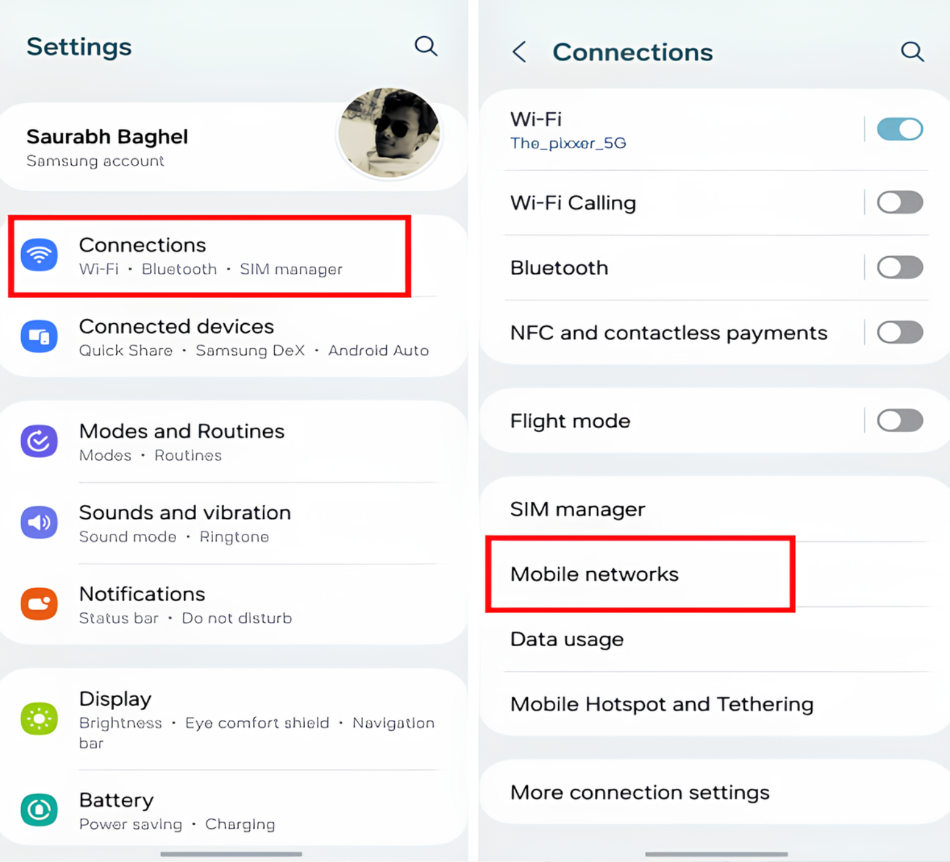
- Open Settings and then tap on Connections > Data usage.
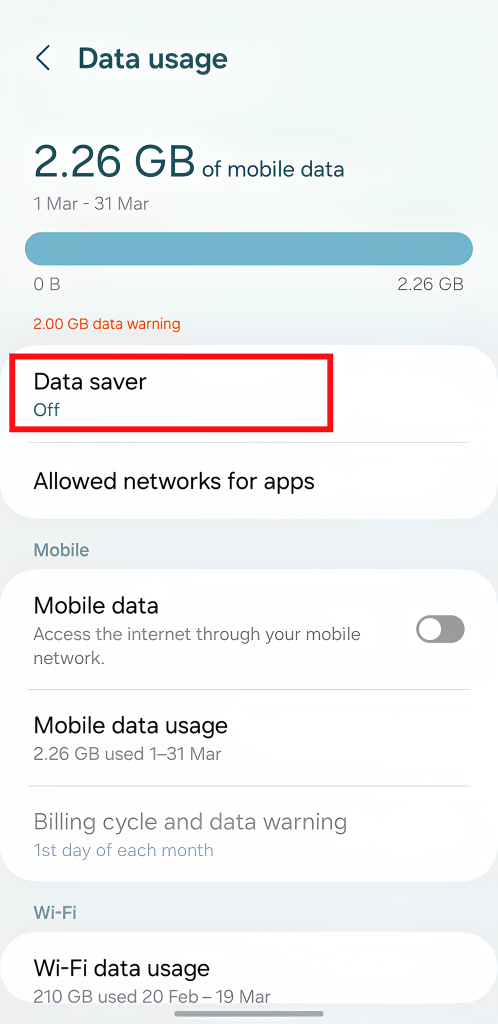
- Make sure that the Data saver option is turned off.
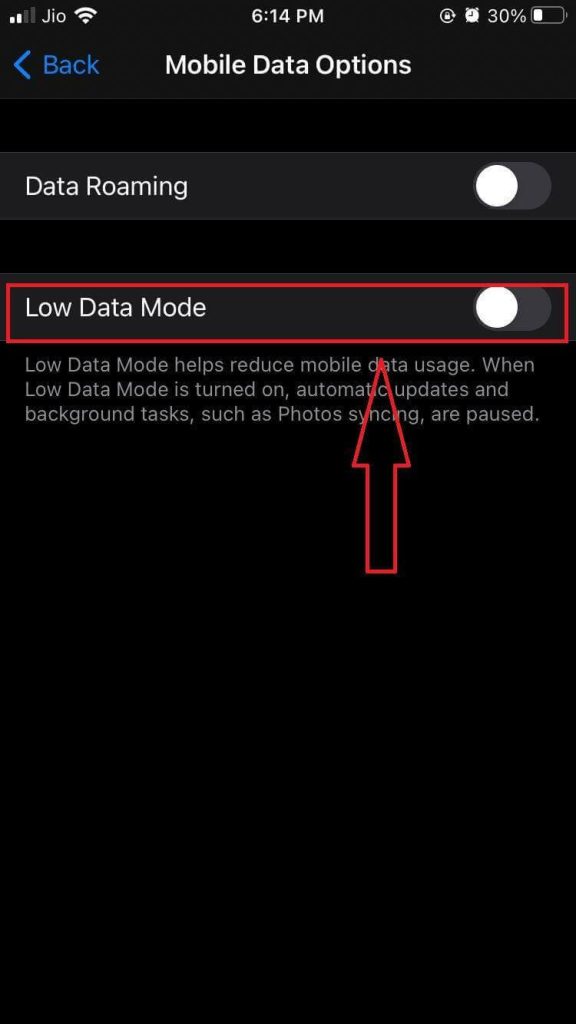
For iPhone Users
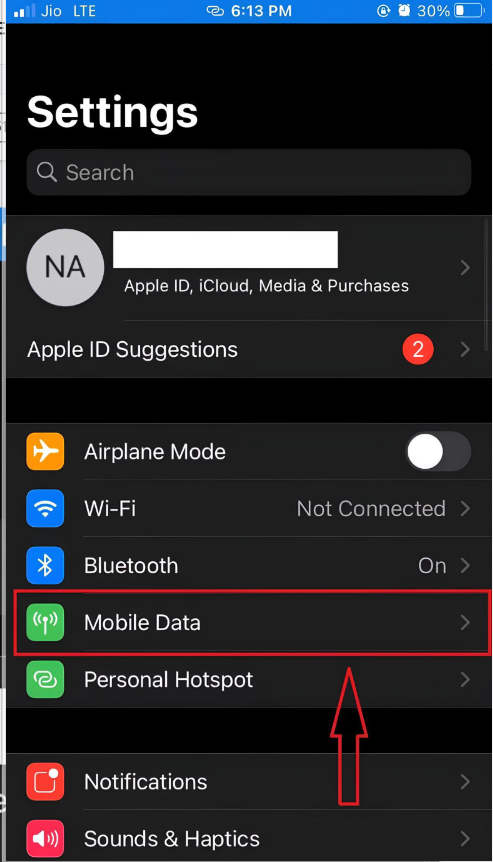
- Open Settings > Mobile Data.
- Next, click on Mobile Data Options.
- Then make sure the Low Data Mode is turned off.
Fix 6: Verify if the Facebook Video is Still Available
While Facebook hosts millions of videos, they aren’t guaranteed to remain online forever. Sometimes, a video you’re trying to watch may have been removed. Common reasons include:
- Deleted by the uploader – The person who posted the video may have decided to remove it.
- Policy violation – Videos that break Facebook’s community guidelines can be taken down.
- Copyright issues – Content infringing on copyrights is often removed by Facebook.
What you can do:
- Check the source – If it came from a friend, page, or group, reach out to them to see why it’s unavailable.
- Move on – Facebook has no shortage of videos, so enjoy the next one in your feed.
Fix 7: Log Out and Log Back In
Think of your Facebook session like a phone call — sometimes the connection drops without you noticing. This can cause odd glitches, including video playback issues. Logging out of your account and back in can refresh your session and often resolves the problem.
Fix 8: Lower the Video Quality
High-definition videos on Facebook require more bandwidth and a stable network. If your connection is slow or shared by many users, playback may stutter or freeze.
How to lower video quality:
- Open the video.
- Tap the Settings (gear) icon at the bottom right.
- Select Quality and choose a lower resolution.
Fix 9: Report the Issue to Facebook (Last Resort)
If you’ve tried every fix and the video still won’t play, the problem may be with the video itself. In that case:
- Click the three dots in the top-right corner of the video.
- Select Report Video and follow the prompts.
Conclusion
Facing issues with Facebook videos not playing can be frustrating, but with the right troubleshooting steps, you can quickly get things back on track. By following the ten methods outlined in this guide, you’ll be able to identify and fix the root causes of playback problems, whether they’re due to connectivity issues, outdated software, or device settings. Stay patient and persistent, and before long, you’ll be enjoying your favorite videos and reels on Facebook without interruptions.
And if you'd like to go a step further in supporting us, you can treat us to a virtual coffee ☕️. Thank you for your support ❤️!

We do not support or promote any form of piracy, copyright infringement, or illegal use of software, video content, or digital resources.
Any mention of third-party sites, tools, or platforms is purely for informational purposes. It is the responsibility of each reader to comply with the laws in their country, as well as the terms of use of the services mentioned.
We strongly encourage the use of legal, open-source, or official solutions in a responsible manner.
Comments