


Is Excel freezing up every time you try to copy and paste a large chunk of data? This frustrating issue can derail your data analysis, slow down your reporting, and even put your data at risk. On Windows 11, several factors can contribute to this problem, from system clipboard settings to excessive conditional formatting and conflicting add-ins. But don’t worry, there are proven solutions. This guide provides a step-by-step approach to diagnose and resolve Excel’s copy and paste freezing issues, restoring smooth, reliable performance for your large data tasks.
Disable Windows 11 Clipboard Suggested Actions
Windows 11’s “Suggested Actions” feature is designed to be helpful, but it can become a performance bottleneck when dealing with large Excel selections. This feature attempts to interpret data you copy (like dates or phone numbers) to suggest quick actions. However, with massive datasets, this analysis can overwhelm system resources, leading to Excel lag or crashes, especially over VPN connections or in remote work environments.
Step 1: Accessing Clipboard Settings
Press the Windows key and type “Clipboard settings.” Click on the matching result to open the Clipboard settings panel.
Step 2: Disabling Suggested Actions
Scroll down to find the “Suggested Actions” toggle. Switch it to the “Off” position.
Step 3: Testing the Solution
Restart Excel and attempt your copy-paste task again. You should notice a significant improvement in speed and reliability. By preventing Windows from analyzing clipboard content, you alleviate the strain on system resources during copy and paste operations.
Clear Excessive Conditional Formatting
Conditional formatting is a powerful tool for highlighting data trends, but it can also become a performance hog if overused. Conditional formatting rules accumulate rapidly, especially when you repeatedly copy and paste formatted cells. Each new rule adds to Excel’s processing workload, leading to slowdowns or freezes when copying and pasting large data blocks.
Step 1: Opening Your Workbook
Open your Excel workbook and navigate to the worksheet where you’re experiencing freezing issues.
Step 2: Clearing Rules
On the “Home” tab, click “Conditional Formatting” in the ribbon. Select “Clear Rules” and choose either “Clear Rules from Entire Sheet” or “Clear Rules from Selected Cells” depending on your needs.

Step 3: Testing the Solution
Save and close the workbook. Reopen it and attempt your copy-paste operation. Removing unnecessary formatting rules can significantly speed up copy and paste actions in large sheets.
Turn Off Live Preview in Excel
Excel’s “Live Preview” feature provides a real-time preview of formatting changes before you apply them. While this can be helpful for visual formatting, it can also cause Excel to freeze or become unresponsive when copying or pasting large datasets. The real-time preview adds processing overhead that can overwhelm system resources.
Step 1: Accessing Excel Options
In Excel, go to “File > Options.”

Step 2: Disabling Live Preview
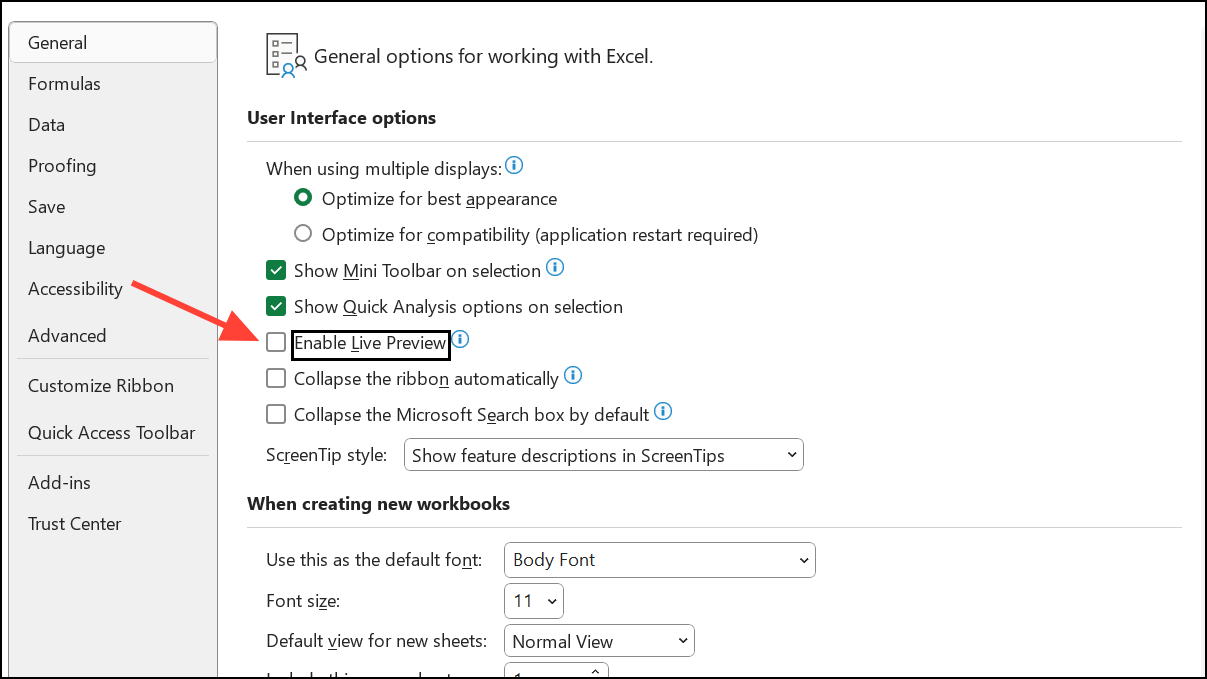
Under the “General” tab, locate the “User Interface options” section. Uncheck “Enable Live Preview.”
Step 3: Testing the Solution
Click “OK” to save your changes, then restart Excel. Disabling Live Preview reduces the processing load during formatting and paste operations.
Start Excel in Safe Mode and Disable Add-ins
Excel add-ins can enhance functionality, but some may conflict with copy and paste operations, particularly on large files, leading to freezes or crashes. Running Excel in Safe Mode disables these add-ins, allowing you to isolate the problem.
Step 1: Launching Safe Mode
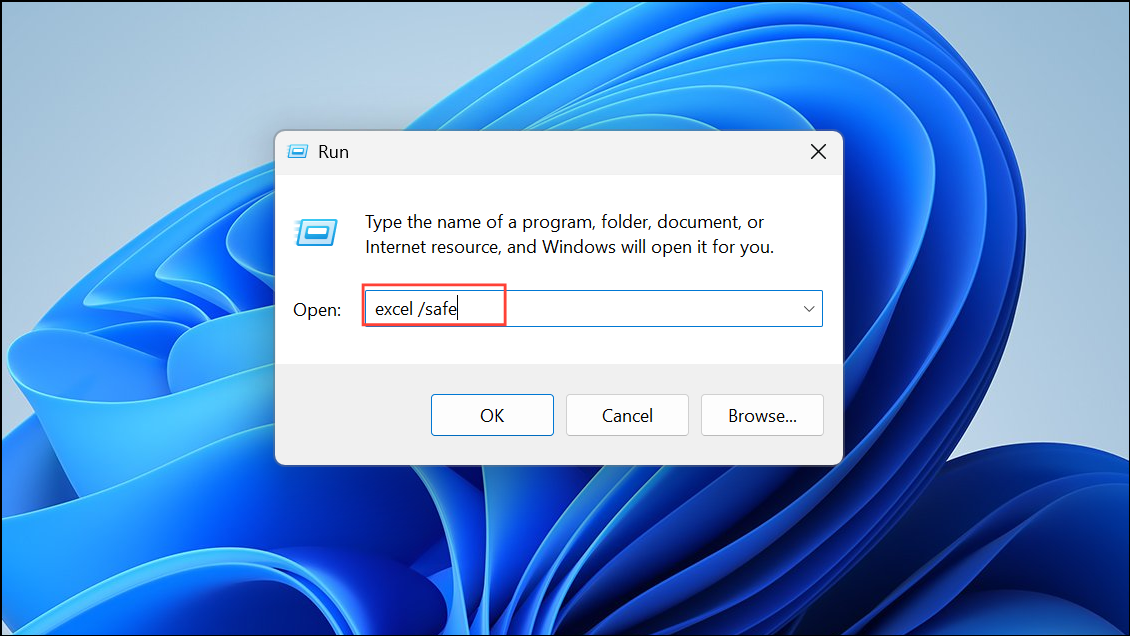
Press Windows + R to open the “Run” dialog. Type excel /safe and press Enter to launch Excel in Safe Mode.
Step 2: Accessing Add-ins Manager
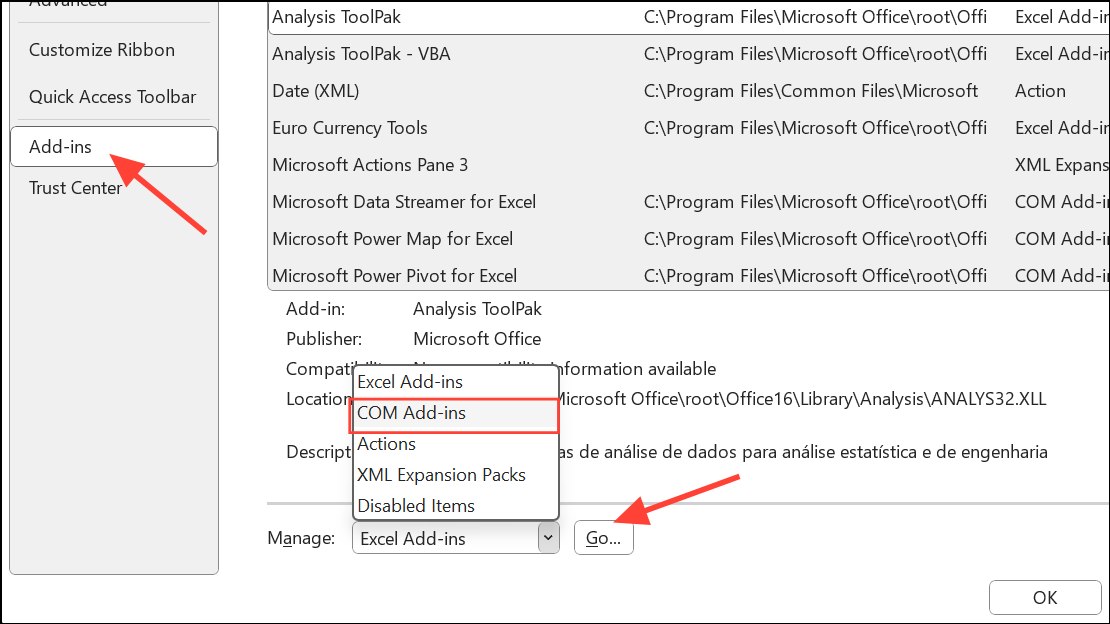
In Excel, go to “File > Options > Add-ins.” At the bottom, set the dropdown to “COM Add-ins” and click “Go.”
Step 3: Disabling Add-ins
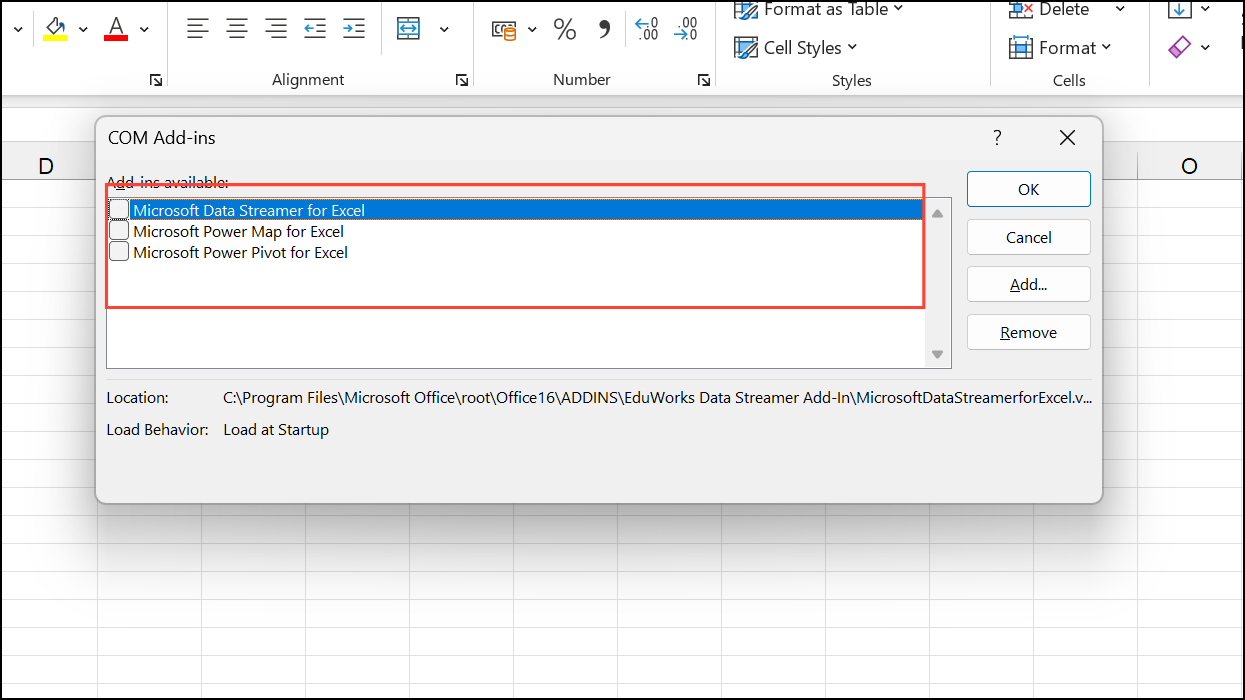
Uncheck all add-ins and restart Excel normally. Test your copy-paste operation. If the problem is solved, re-enable add-ins one at a time to identify the culprit.
Clear Excel Cache Files
Excel stores temporary files and cache data that can become corrupted or overloaded, especially after repeated large copy-paste actions. Clearing these files can resolve persistent freezing issues.
Step 1: Accessing the Cache Folder
Press Win + R to open the “Run” dialog.

Step 2: Navigating to the Cache Folder
Type %LOCALAPPDATA%\Microsoft\Office\16.0\Wef\ and press Enter to open Excel’s cache folder.

Step 3: Clearing the Cache
Select all files in this folder and delete them. This clears the cache. Restart Excel and see if performance improves during copy and paste tasks.

Additional Tips and Alternatives
- Change Your Default Printer: Set your default printer to a built-in PDF printer (like “Microsoft Print to PDF”). Excel sometimes checks the default printer during copy and paste, and if the printer is offline or causing issues, this can lead to freezes.
- Check for Hidden Objects: Use the “Selection Pane” (“Home > Find & Select > Selection Pane”) to check for hidden objects or images. Delete any unnecessary hidden objects.
- Power Query for Large Data: For very large data operations, consider using Power Query to import and transform data. Power Query is designed to handle large volumes more efficiently than manual copy and paste.
- Save as .xlsb (Binary) Format: Save workbooks as “.xlsb” (binary) format to reduce file size and speed up saving and opening. However, be aware that Power Query may read “.xlsx” files faster.
- Upgrade Hardware: Upgrade to a system with more CPU cores and higher RAM if you frequently work with massive datasets. However, always optimize workbook structure and formulas first.
Conclusion:
By implementing these targeted fixes, you can significantly improve the speed and reliability of copying and pasting large amounts of data in Excel on Windows 11. Regularly review conditional formatting, keep add-ins in check, and adjust system clipboard settings to ensure optimal performance. Taming Excel’s performance issues will unlock your productivity and empower you to tackle even the most demanding data analysis tasks.
And if you'd like to go a step further in supporting us, you can treat us to a virtual coffee ☕️. Thank you for your support ❤️!

We do not support or promote any form of piracy, copyright infringement, or illegal use of software, video content, or digital resources.
Any mention of third-party sites, tools, or platforms is purely for informational purposes. It is the responsibility of each reader to comply with the laws in their country, as well as the terms of use of the services mentioned.
We strongly encourage the use of legal, open-source, or official solutions in a responsible manner.
Comments