
Google Maps and Google Street View allow users to explore neighborhoods around the world through detailed panoramic images. While this feature is extremely useful for navigation, it also means that the exterior of your home, vehicles, or other identifiable details may be visible to anyone browsing Street View.
If that makes you uncomfortable, you’re not alone. Fortunately, Google provides an option that lets you blur your house on Google Maps, helping protect your privacy.
In this guide, you’ll learn exactly how to blur your home in Google Street View and what to expect after submitting a request.
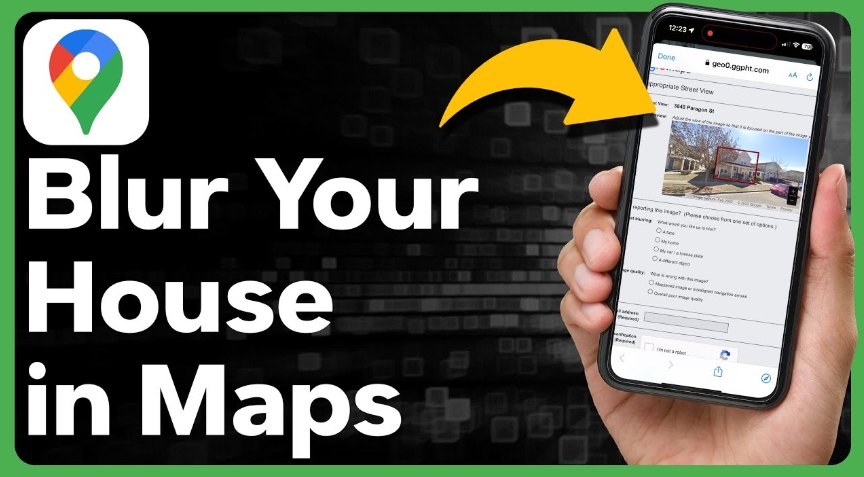
Why You Might Want to Blur Your House on Google Maps
Many homeowners choose to blur their property for privacy and security reasons. Street View images can reveal details that some people prefer to keep private.
Here are some of the most common reasons users request blurring:
Protect Personal Privacy
Blurring your home prevents strangers from identifying your property or examining details about your residence.
Reduce Security Risks
Street View images might reveal entry points, vehicles, gates, or security features, which could potentially be misused.
Hide Sensitive Details
Sometimes images capture license plates, faces, children playing outside, or other personal details that homeowners prefer not to display publicly.
Things to Know Before Blurring Your House
Before submitting a request, there are a few important details you should understand.
The Blur Is Permanent
Once Google applies a blur to an image, it cannot be reversed, even by Google itself.
Multiple Angles Require Multiple Requests
If your house appears from several angles on Street View, you may need to submit separate blur requests for each view.
Satellite Images Are Not Affected
The blur only applies to Street View imagery. The satellite map view will remain unchanged.
Adjust the Blur Carefully
When selecting the area to blur, ensure that side views or visible angles of the house are covered.
How to Blur Your House on Google Maps
Blurring a property must be done through Street View, not the standard map interface. Follow these steps to submit a request.
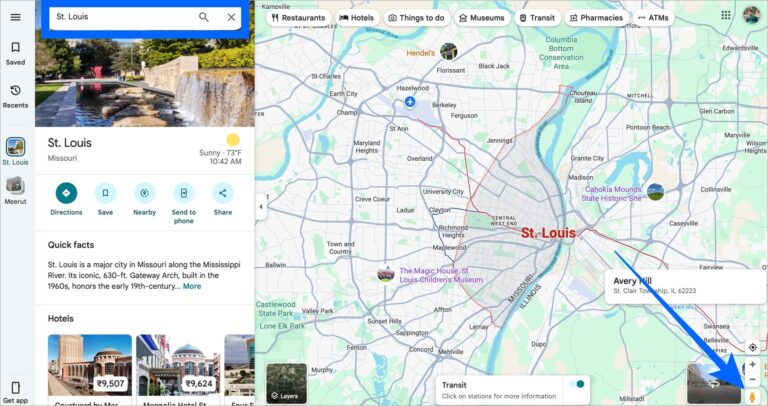
Step 1: Open Google Maps
Open your preferred browser and go to Google Maps.
In the search bar, type your home address and press Enter.
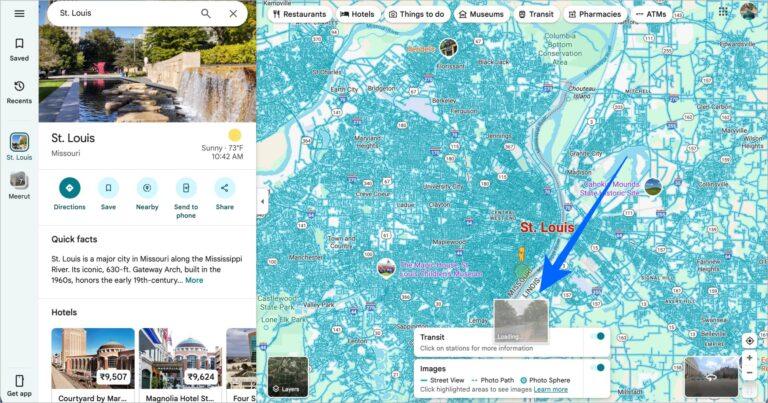
Step 2: Enter Street View
At the bottom-right corner of the screen, you’ll see the yellow Pegman icon.
Click and drag the Pegman onto the street near your home to open Google Street View.
Step 3: Find the Best View of Your House
Use the on-screen arrows and zoom controls to position the camera so that your house is clearly visible in the frame.
The clearer the view, the easier it will be for Google to process your request.
Step 4: Click “Report a Problem”
In the bottom-right corner of the screen, click Report a Problem.
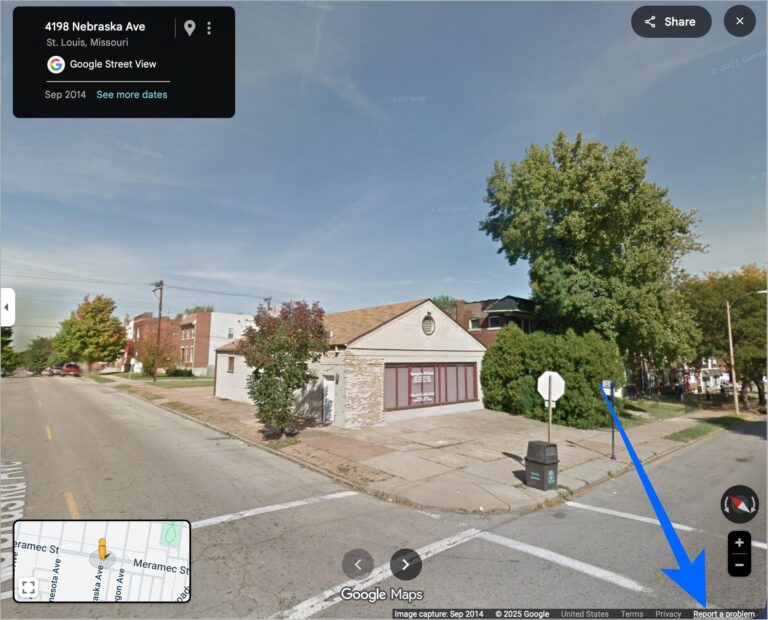
This opens the Street View reporting form.
Step 5: Select the Area to Blur
A red box will appear on the image.
Move and resize this box so it covers the part of the image you want to blur, typically your house or another identifiable object.
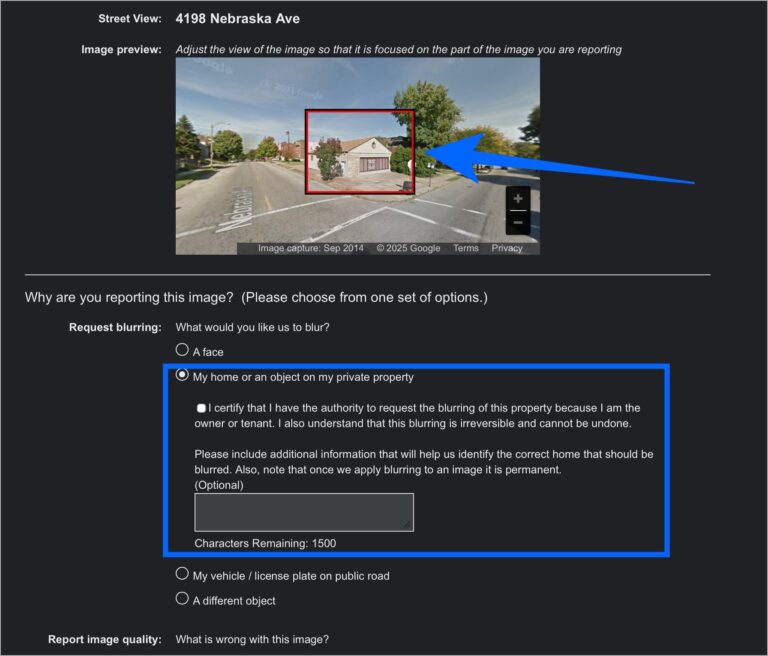
Under Request blurring, choose:
“My home or an object on my private property.”
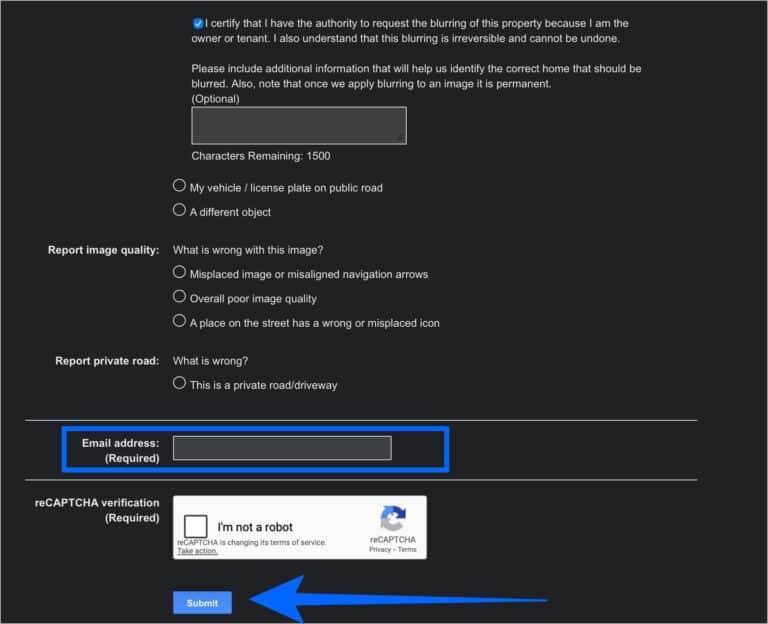
Step 6: Submit the Request
Complete the remaining fields:
- Briefly explain why you want the area blurred
- Enter your email address
- Complete the Captcha verification
Finally, click Submit to send your request to Google.
What Happens After You Submit a Blur Request?
After submitting your request, Google reviews it manually before applying the blur.
Here’s what usually happens next.
Review Process
Google verifies the request to confirm that the object qualifies for blurring.
Processing Time
The process typically takes a few days to a couple of weeks.
Email Notification
You’ll receive an email confirmation once the request has been processed.
Permanent Blur
Once applied, the blur becomes permanent and will remain visible in future Street View updates.
Final Thoughts
Blurring your property in Google Street View is a simple yet effective way to protect your privacy online. The process only takes a few minutes, and once approved, your home will remain blurred in all future Street View imagery.
If you’re concerned about personal details being visible online, submitting a blur request can give you greater control over how your property appears on the internet.
FAQs
How long does Google take to blur a house?
Google typically processes blur requests within a few days to two weeks, depending on review time.
Can I blur my car, license plate, or backyard?
Yes. When submitting the request, you can blur specific objects such as vehicles, license plates, faces, or other personal details by adjusting the red selection box.
Does blurring affect navigation on Google Maps?
No. Blurring only affects Street View images. It does not change navigation routes, directions, or map functionality.
And if you'd like to go a step further in supporting us, you can treat us to a virtual coffee ☕️. Thank you for your support ❤️!

We do not support or promote any form of piracy, copyright infringement, or illegal use of software, video content, or digital resources.
Any mention of third-party sites, tools, or platforms is purely for informational purposes. It is the responsibility of each reader to comply with the laws in their country, as well as the terms of use of the services mentioned.
We strongly encourage the use of legal, open-source, or official solutions in a responsible manner.
Comments