

Mozilla’s Firefox 157 update introduced Nova, a major redesign that refreshes the browser’s appearance with rounded tabs, updated colors, and a more prominent sidebar. While the new interface brings visual improvements and additional customization options, not everyone is happy with the changes.
If you prefer Firefox’s previous interface, there is a workaround that lets you disable Nova through the browser’s advanced configuration settings. The option is hidden, and Mozilla may remove it in a future release, but it currently offers a way to restore the classic look without downgrading Firefox.
Here’s how to bring back Firefox’s old interface after the Nova redesign.
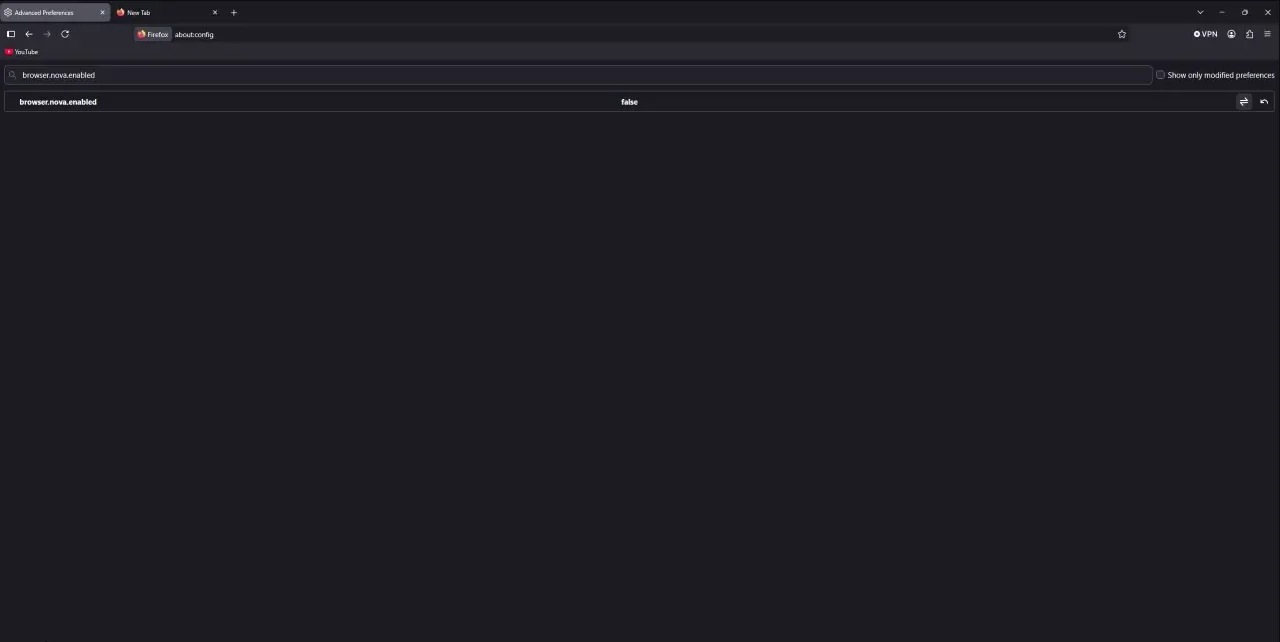
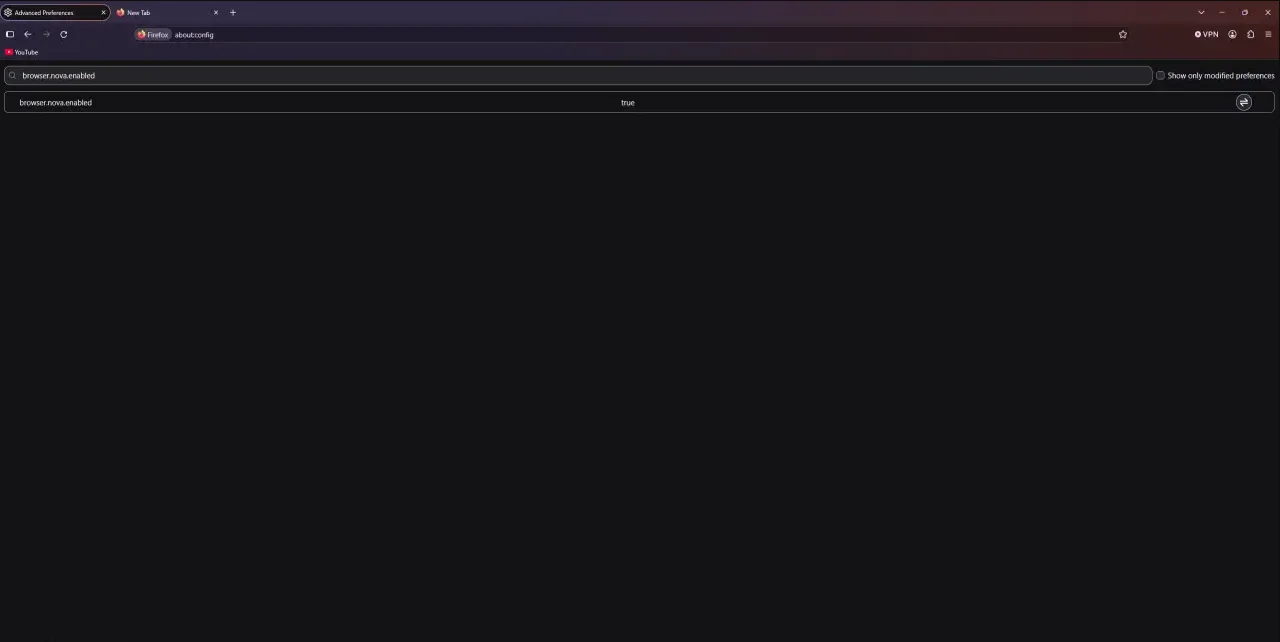
Method 1: Disable the Nova Interface Using about
The quickest way to restore Firefox’s previous interface is to change a hidden preference in the browser’s advanced configuration editor.
Follow these steps:
- Open Firefox. Launch the browser and open a new tab.
- Access the advanced settings. Type
about:configinto the address bar and press Enter. - Accept the warning. If Firefox displays a warning about changing advanced settings, click the option to continue.
- Search for the Nova preference. Enter
browser.nova.enabledin the search field. - Disable Nova. If the preference appears and is set to
true, click the toggle button or double-click the entry to change it tofalse. - Restart Firefox if necessary. Close and reopen the browser to ensure the interface change takes effect.
Firefox should then return to its previous interface, provided the installed version still supports this preference.
Important: The about:config editor contains advanced settings that can affect browser behavior. Change only the preference specified above, and avoid modifying unrelated settings.
If browser.nova.enabled does not appear in your version of Firefox, Mozilla may have changed or removed the preference. In that case, try the alternative method below.
Method 2: Install the Firefox Proton Theme
If you would rather avoid changing advanced settings, you can try Mozilla’s official Firefox Proton theme.
Proton was the name of Firefox’s previous major interface design, introduced in 2021. Mozilla has made a Proton-style theme available for users who prefer that appearance following the Nova redesign.
To try it:
- Open the official Firefox Proton theme page.
- Select Add to Firefox.
- Confirm the installation if Firefox asks for permission.
- Open the browser’s theme settings if necessary and select the Proton theme.
The theme can restore aspects of the previous color scheme and visual styling. However, a theme is not the same as disabling Nova: it may not restore every detail of the old interface, including the original tab shapes and layout.
This is the safer option if you only want to change Firefox’s appearance without experimenting with advanced preferences.
Why Did Mozilla Redesign Firefox?
Nova is Mozilla’s largest Firefox interface refresh since Proton. The redesign aims to create a cleaner, more cohesive browser experience while improving customization, accessibility, and navigation.
The changes include:
- Updated tabs and controls: A refreshed visual style with rounded elements and revised spacing.
- A more prominent sidebar: Sidebar features play a larger role in the browser layout.
- Improved customization: Themes and other appearance options help users personalize Firefox.
- A redesigned visual system: Updated colors, icons, and interface elements create a more consistent appearance across devices.
Mozilla’s goal is to make Firefox feel more modern and adaptable. However, major interface changes can disrupt established workflows, particularly for users who have spent years getting comfortable with the previous design.
That is why hidden preferences and alternative themes can be useful for people who want more control over how their browser looks.
Will the Old Firefox Interface Remain Available?
There is no guarantee that disabling Nova through about:config will continue to work in future Firefox releases.
The browser.nova.enabled preference is an undocumented workaround rather than a permanent, user-facing option guaranteed by Mozilla. A future update could remove it or change how the interface is controlled.
The Proton theme is another option, but themes cannot necessarily reproduce every detail of the previous browser interface.
For the best long-term experience, keep Firefox updated and check Mozilla’s official documentation and add-ons directory for supported customization options.
You can also explore the official Firefox Proton theme if you prefer a familiar appearance.
Final Thoughts
Firefox’s Nova redesign brings a modern appearance and a refreshed set of interface features, but users who prefer the classic layout still have options.
The quickest workaround is to open about:config, search for browser.nova.enabled, and set the preference to false if it is available. Alternatively, installing Mozilla’s Proton theme can restore some of the previous visual styling without changing advanced settings.
Keep in mind that neither approach guarantees a complete or permanent restoration of the old interface. For now, however, they provide useful alternatives for Firefox users who are not ready to embrace Nova.
Add Tech2Geek as a preferred source on Google to see more of our latest tech articles.
Support Tech2Geek ❤️
Did this guide help you? If Tech2Geek saves you time or helps you solve a problem,
consider buying me a coffee. ☕
Your support helps keep Tech2Geek independent and free.
Comments