


Is your Windows 11 PC feeling sluggish, or are you constantly battling low disk space warnings? One of the most common culprits is the accumulation of temporary files, a digital clutter that silently consumes valuable storage. These files, created by your operating system and various applications, are designed to be temporary but often linger, leading to performance slowdowns and potential update failures. This guide provides a comprehensive overview of how to reclaim your storage space by effectively clearing out these unwanted files, boosting your PC’s speed and efficiency.
How to Clear Temporary Files on Windows 11
Let’s dive into the various methods you can employ to eliminate temporary files and reclaim valuable storage space on your Windows 11 system:
1. Utilizing Windows Settings for Automated Cleanup
Windows 11 offers a straightforward, built-in tool for managing temporary files. This method allows for easy and automated cleanup:
- Access Storage Settings: Click the “Start” menu, then select “Settings”. Navigate to “System” and choose “Storage” from the menu.
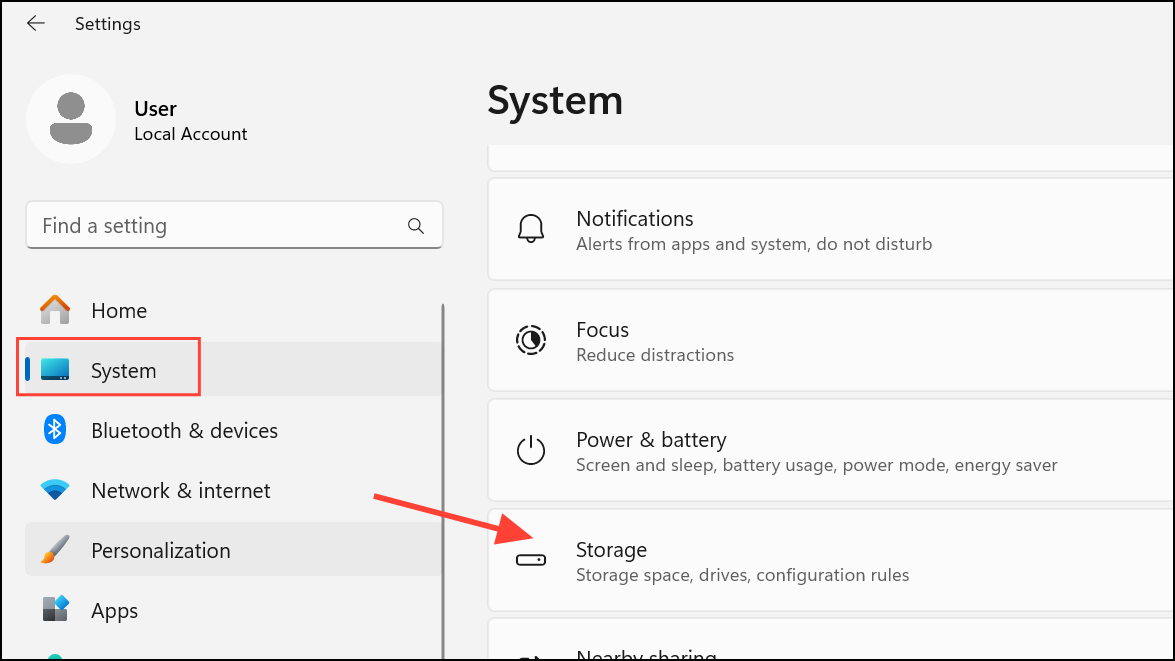
- Identify Temporary Files: Within the “Storage” section, click on “Temporary files”. Windows will scan your system and present a list of categories, including “Delivery Optimization Files,” “Thumbnails,” “Windows Update Cleanup,” and “Recycle Bin” contents.

- Select and Review: Carefully examine the listed categories. Check the boxes next to the types of temporary files you wish to remove. Be cautious about selecting the “Downloads” folder unless you’re sure you no longer need those files. Each category indicates the amount of space it occupies, aiding you in prioritizing what to delete.

- Initiate Removal: Click “Remove files” to begin the deletion process. This action will free up disk space and eliminate unnecessary clutter from your system.

For long-term maintenance, consider enabling “Storage Sense” within the Storage settings. This feature automatically clears temporary files based on your defined schedule, keeping your system cleaner over time.
2. Manual Deletion of Temp Folders via File Explorer
Certain temporary files may persist even after using automated tools. These often reside in the system and user-specific Temp folders, requiring manual intervention:
1- Access User Temp Folder: Press the “Windows + R” keys to open the “Run” dialog. Type %temp% and press “Enter.” This action opens your user-specific Temp folder in File Explorer.

2- Select and Delete: Press “Ctrl + A” to select all files and folders within the user Temp folder. Then, press the “Delete” key on your keyboard. If prompted that some files are in use, simply skip them; these files are locked by active processes and can be removed during a later cleanup.
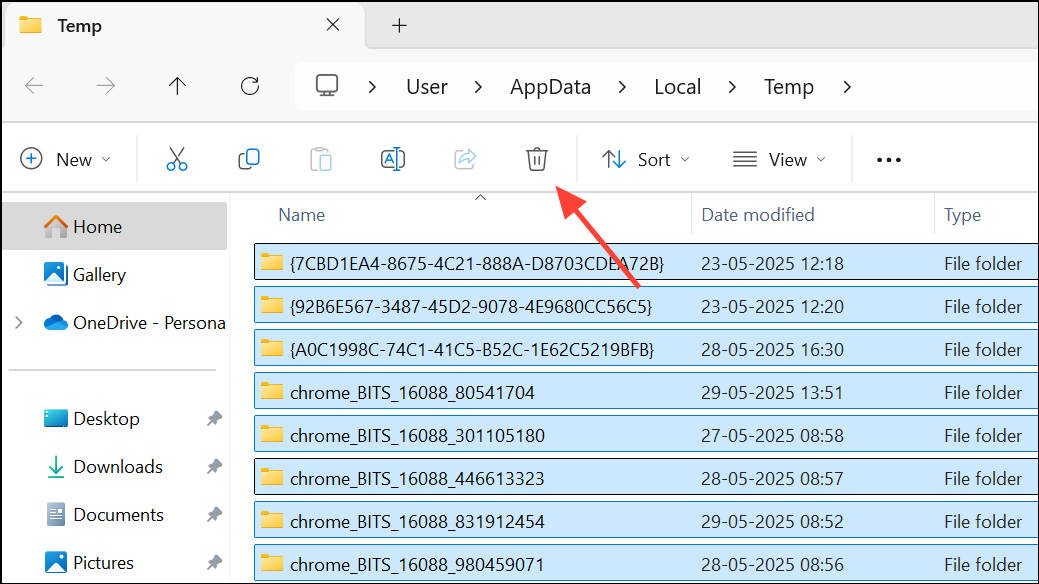
3- Access System Temp Folder: Repeat the process for the system Temp folder. Open the “Run” dialog again, type temp, and press “Enter”. You may need administrator rights to access this folder. Select and delete all files that aren’t currently in use.

Tip: Restarting your computer before performing these steps is recommended. A fresh reboot closes background processes, making more files available for deletion.
3. Removing Update and Upgrade Leftovers
Windows updates and upgrades can leave behind significant amounts of temporary data, especially in specific folders:
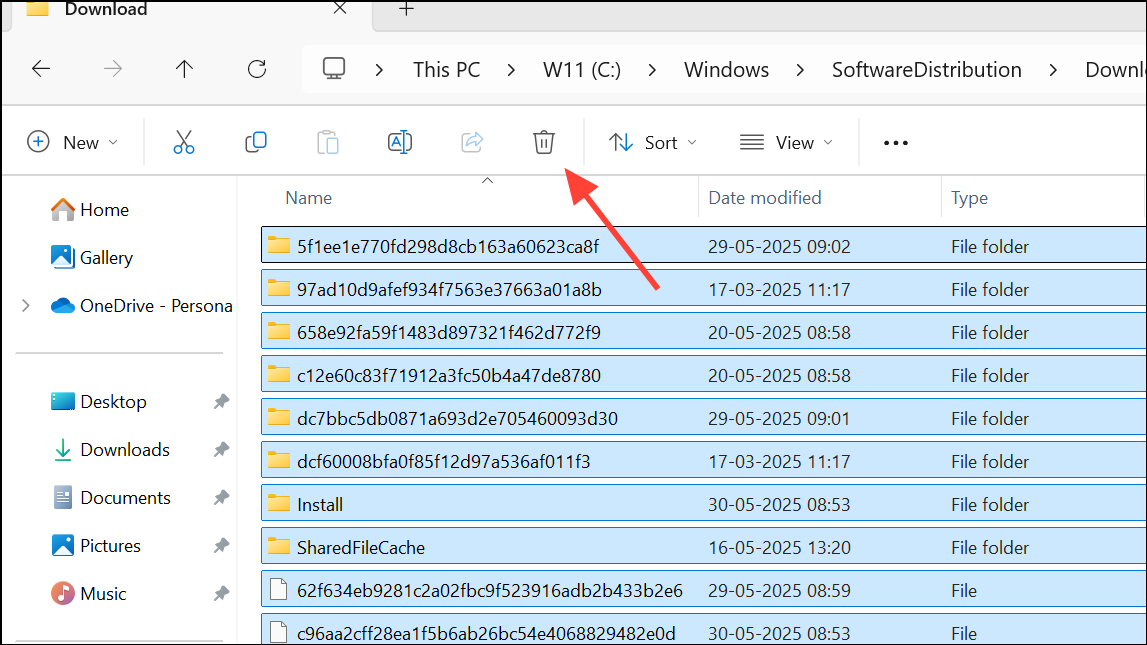
1- Clearing the SoftwareDistribution Download Folder: Open File Explorer and navigate to C:\Windows\SoftwareDistribution\Download. Select all files and delete them. Important: Only remove the contents, not the entire folder. Before deleting these files, ensure that all pending Windows updates have been installed.
2- Removing the Windows.old Folder: The Windows.old folder contains a backup of your previous Windows installation. If you are satisfied with your current version and don’t plan to revert, you can safely delete this folder to recover a considerable amount of space. The Disk Cleanup tool (explained below) is the easiest way to remove this folder. Select “Previous Windows installation(s)” during the scan.
Note: Deleting the
Windows.oldfolder removes the option to revert to the previous Windows version.
4. Disk Cleanup: An Advanced Approach
Disk Cleanup is a built-in Windows tool that scans for and deletes various unnecessary files, including temporary files, thumbnails, and system error reports.
1- Launch Disk Cleanup: Press “Windows + S” and type “disk cleanup.” Click on the “Disk Cleanup” app and select “Run as administrator” for a more thorough scan.

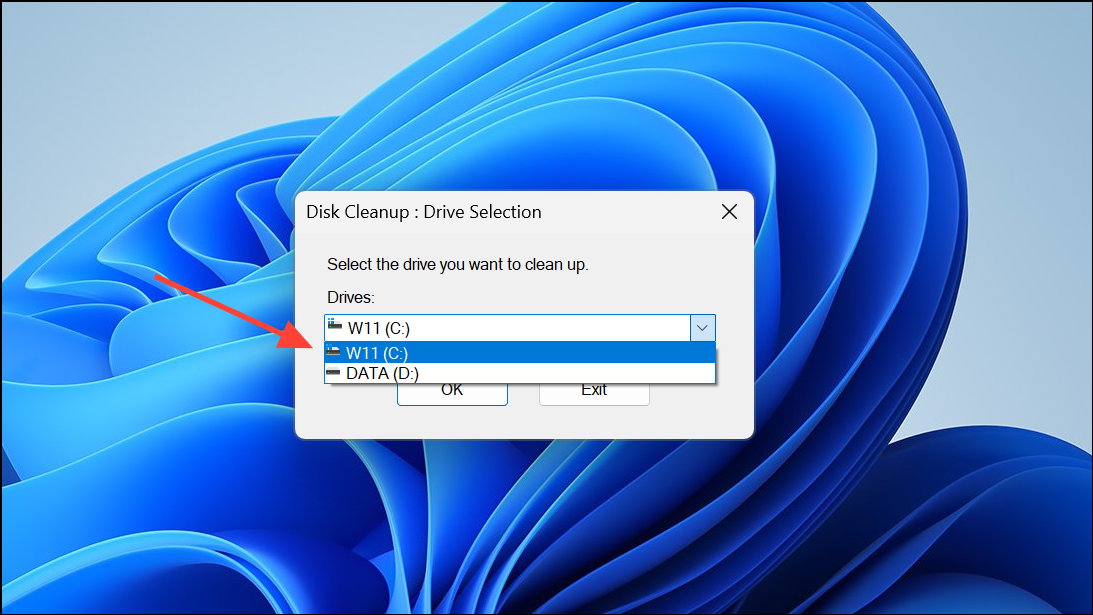
2- Select Drive: Choose the drive you want to clean (typically C:) and click “OK”. Disk Cleanup will scan for files that can be removed.
3- Review and Select Categories: Review the list of file categories. Check the boxes for “Temporary files,” “Thumbnails,” “Delivery Optimization Files,” and any other types you wish to delete. Click “OK” and confirm by clicking “Delete Files.”

4- Clean Up System Files: For more advanced options, click “Clean up system files” within Disk Cleanup. This will rescan and allow you to remove system update leftovers, old Windows installations, and more.
Disk Cleanup may not always remove every temporary file, particularly those in use by running processes. Try running Disk Cleanup after a system restart or in Safe Mode for stubborn files.
5. Automating Cleanup with Storage Sense
Storage Sense is a convenient Windows feature that automates the process of deleting temporary files, Recycle Bin contents, and other unnecessary data based on your customized preferences.
1- Enable Storage Sense: Navigate to “Settings > System > Storage.” Toggle “Storage Sense” to “On.”

2- Configure Settings: Click on “Storage Sense” to configure its settings. You can set the frequency of cleanup (daily, weekly, monthly, or when space is low), set rules for deleting files from the Recycle Bin and Downloads folder, and specify the types of temporary files to target.

Storage Sense operates in the background, reducing the need for manual intervention and maintaining a cleaner system over time. However, manual checks may still be necessary as it may leave behind some files created by third-party applications.
6. Clearing Other Temporary Locations and Cache Files
In addition to the methods above, several other locations can accumulate temporary files and caches that should be checked periodically:
- Recycle Bin: Deleted files remain here until you empty it. Right-click the Recycle Bin icon and choose “Empty Recycle Bin” to permanently remove files and free up space.
- Thumbnail Cache: Windows stores thumbnail previews for images and videos. Delete these via Disk Cleanup or the Temporary Files menu.
- Downloaded Program Files: An older folder primarily used for ActiveX controls and Java applets. Navigate to
C:\Windows\Downloaded Program Filesand delete any unused items. - Recent Items: Shortcuts to recently opened files can be deleted by pressing “Windows + R”, typing
shell:recent, and deleting the contents. - Browser Cache: Web browsers store cached website files, cookies, and browsing history. Clear browsing data in your browser’s settings or utilize built-in tools to remove cached files.
These additional steps contribute to a tidier and more responsive system, especially when storage space is limited.
Addressing Stubborn Temporary Folders and Limitations
Some users find that Windows’ built-in tools don’t always remove all temporary files, especially those in the %temp% or C:\Windows\Temp folders. Reasons for this include active files, leftovers from specific applications, or permission issues. Advanced users sometimes employ scripts, third-party cleaning tools, or relocate temp folders via environment variables for easier management.
For persistent files, restart your computer and attempt deletion again. If files remain locked, booting into Safe Mode can help. This loads only essential processes, potentially allowing more files to be removed.
Conclusion: Maintaining a Clean and Efficient Windows 11 System
By consistently implementing these strategies, you can effectively eliminate temporary files, reclaim valuable disk space, and significantly enhance your Windows 11 PC’s performance. Regularly scheduled cleanups, the proactive use of Storage Sense, and occasional manual checks ensure a clutter-free system, free from the burden of unnecessary temporary files. Embrace these practices and enjoy a faster, more responsive computing experience!
And if you'd like to go a step further in supporting us, you can treat us to a virtual coffee ☕️. Thank you for your support ❤️!

We do not support or promote any form of piracy, copyright infringement, or illegal use of software, video content, or digital resources.
Any mention of third-party sites, tools, or platforms is purely for informational purposes. It is the responsibility of each reader to comply with the laws in their country, as well as the terms of use of the services mentioned.
We strongly encourage the use of legal, open-source, or official solutions in a responsible manner.
Comments