

Snapchat. The app that once defined a generation’s digital communication. But times change, and so do our needs. Whether you’re seeking a privacy reset, a digital detox, or simply a fresh start, deleting your Snapchat account is a valid decision. While it might seem daunting, the process is surprisingly straightforward. This comprehensive guide will walk you through every step, ensuring a smooth and irreversible departure from the world of disappearing snaps. Let’s dive in and permanently close that chapter!
Before You Take the Plunge: What You Need to Know
Deleting your Snapchat account is a permanent decision. Before you proceed, it’s crucial to understand the implications:
- Irreversible Action: Once deleted, your account, along with all associated data (Snaps, Stories, chats, and friends), is gone forever.
- Backup Your Memories: If you have cherished memories saved in Snapchat, back them up before initiating the deletion process.
- Password at the Ready: You’ll need your account password to proceed. If you’ve forgotten it, use the “Forgot Password” feature to reset it.
- The 30-Day Deactivation Period: After initiating the deletion, your account enters a 30-day deactivation period. During this time, your account won’t be visible to others, but you can reactivate it by logging in. After 30 days, the account is permanently deleted, with no possibility of recovery.
Step-by-Step Guide: Deleting Your Snapchat Account on Your Phone
Whether you’re using an Android or iOS device, the process is identical:
1- Open Snapchat and Access Settings: Launch the Snapchat app. Tap your profile icon (usually a Bitmoji or profile picture) in the top left corner to go to your profile. Then, tap the settings gear icon located in the top right.

2- Navigate to Account Actions: Scroll down within the Settings menu until you find the “ACCOUNT ACTIONS” section.
3- After choosing this option, the login screen will appear. Here, provide your Snapchat account email or username and click the “Next” button.
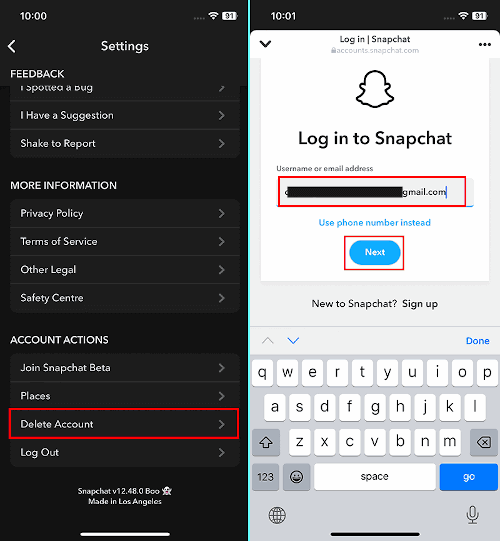
4- Tap on the “Delete Account” option. You’ll be redirected to a login screen.
5- Enter the email address or username associated with your Snapchat account and tap “Next”. Enter your password, and follow the prompts to verify your identity, which may include an OTP (One-Time Password) sent to your phone number or email.

6- You’ll be presented with a screen confirming the account deletion policy. Carefully read this information. Then, re-enter your username and password to confirm you want to proceed with the deletion.
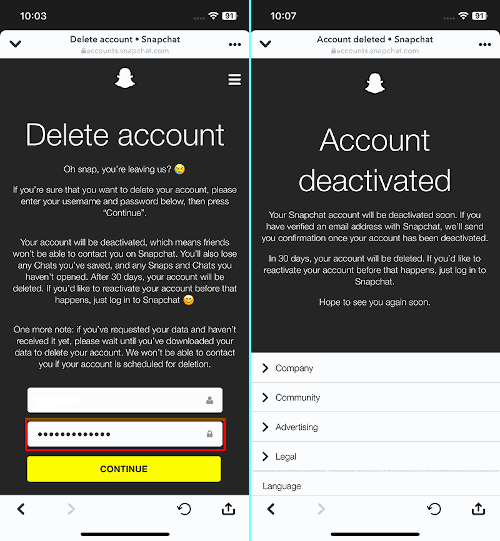
7- Once you confirm the deletion, your account is deactivated for 30 days, after which it’s permanently removed.
You can log in with your username and password at any time during the 30-day deactivation period if you change your mind. Logging in will automatically cancel the deletion request.
Deleting Your Snapchat Account Using a Desktop Computer
If you prefer using a computer, here’s how to delete your Snapchat account:
1- Log in to Snapchat’s Website: Open your preferred web browser and go to Snapchat’s official login page. Enter your username or email address and click “Next”.

2- Enter Your Password: Enter your Snapchat password and log in.

3- Select Delete My Account: Once logged in, you’ll see a menu of options. Select “Delete My Account.”

4- Confirm Deletion: You’ll be presented with the account deletion policy and required to enter your username and password to confirm the deletion request. Click “Continue.”
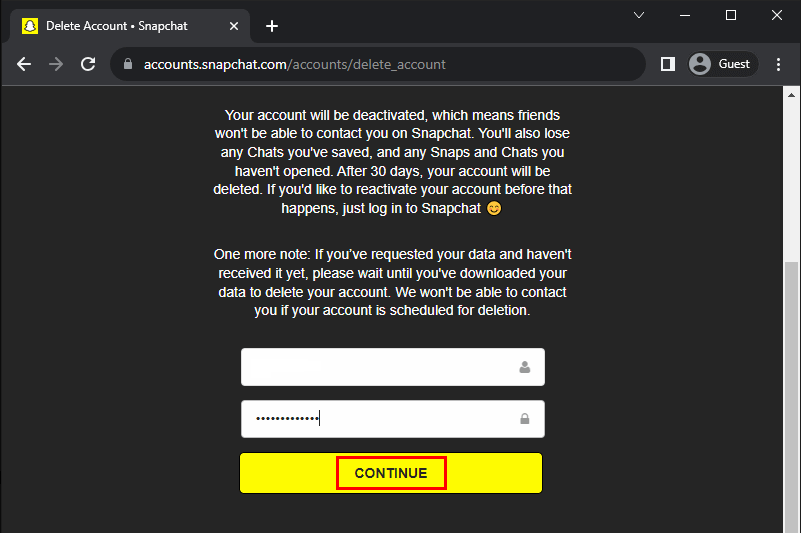
5- Account Deactivated: The deletion request is submitted, and your account will remain deactivated for 30 days before being permanently removed.

If you don’t want to permanently delete your account but only wish to deactivate it temporarily, consider choosing “Deactivation” for your Snapchat account instead of deletion.
Can You Delete Your Snapchat Account Instantly?
Unfortunately, Snapchat does not offer an instant deletion option. The 30-day deactivation period is a mandatory part of the process. During this time, your profile won’t be visible, and no one can send you snaps or messages. This offers a grace period if you change your mind.
Recovering a Deleted Snapchat Account: Is It Possible?
No. Once the 30-day deactivation period expires, your account and all associated data are permanently deleted. There is no way to recover a Snapchat account after it has been fully deleted.
What Data Does Snapchat Retain After Deletion?
Even after your account is deleted, Snapchat may retain certain information for legal, security, and business purposes. They may also retain data related to purchases you made through your account.
Conclusion:
Deleting your Snapchat account is a significant step, but with this guide, you’re well-equipped to handle the process with ease. Whether you choose to delete it via your phone or desktop, the steps are clear and simple. Remember to back up any important memories before proceeding. Embrace the fresh start and the freedom that comes with disconnecting from the platform.
And if you'd like to go a step further in supporting us, you can treat us to a virtual coffee ☕️. Thank you for your support ❤️!

We do not support or promote any form of piracy, copyright infringement, or illegal use of software, video content, or digital resources.
Any mention of third-party sites, tools, or platforms is purely for informational purposes. It is the responsibility of each reader to comply with the laws in their country, as well as the terms of use of the services mentioned.
We strongly encourage the use of legal, open-source, or official solutions in a responsible manner.
Comments