


Tired of the constant clicking from your on-screen keyboard in Windows 11? Whether you’re working late, using headphones, or simply prefer a quieter environment, muting these sounds can significantly enhance your productivity and focus. This guide provides comprehensive instructions on how to silence both the standard on-screen keyboard and the touch keyboard in Windows 11, offering you complete control over your audio experience.
Method 1: Muting the Standard On-Screen Keyboard Sound
The most direct way to silence the default on-screen keyboard involves adjusting its internal settings. Here’s how to do it:
Step 1: Accessing the On-Screen Keyboard
Launch the on-screen keyboard effortlessly using one of these methods:
- Keyboard Shortcut: Press the Win + Ctrl + O keys simultaneously.
- Start Menu Search: Click the Start button and search for “On-Screen Keyboard.” Select the application from the results.
Step 2: Opening the Options Menu
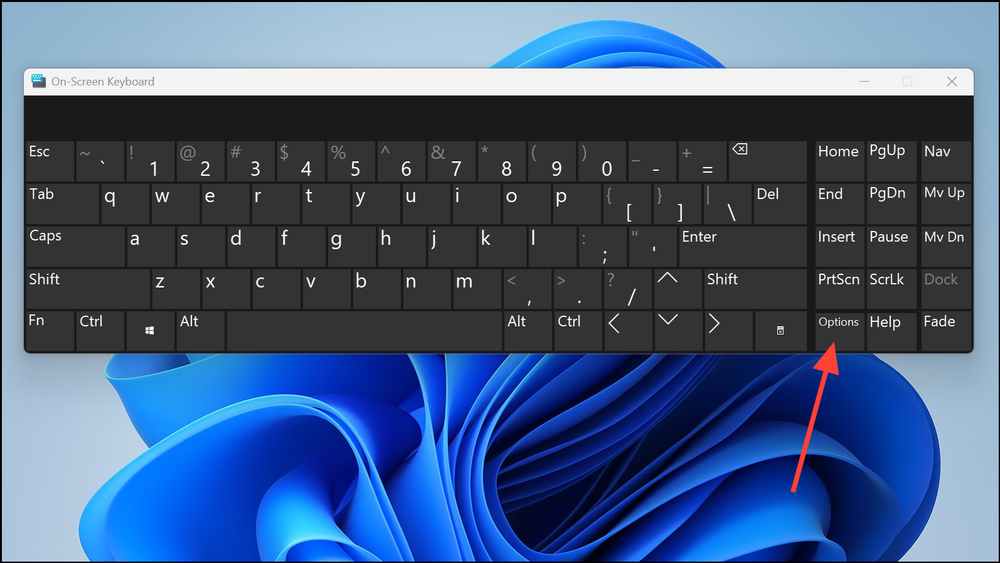
Once the on-screen keyboard appears, locate and click the Options button. This button is usually found in the lower-right corner of the keyboard window.
Step 3: Disabling the Click Sound
In the Options window, look for a checkbox labeled “Use click sound“. Uncheck this box to disable the audible feedback for each key press.

Step 4: Saving Your Changes
Click the OK button to save your settings and close the Options menu. The on-screen keyboard will now operate silently.
Method 2: Silencing the Touch Keyboard Key Sounds in Settings
Windows 11 also offers a touch keyboard optimized for tablets and touch-enabled devices. Here’s how to mute its sounds:
Step 1: Open the Settings App
Access the Settings app in one of the following ways:
- Click the Start button and select the gear icon.
- Use the keyboard shortcut Win + I.
Step 2: Navigating to Typing Settings
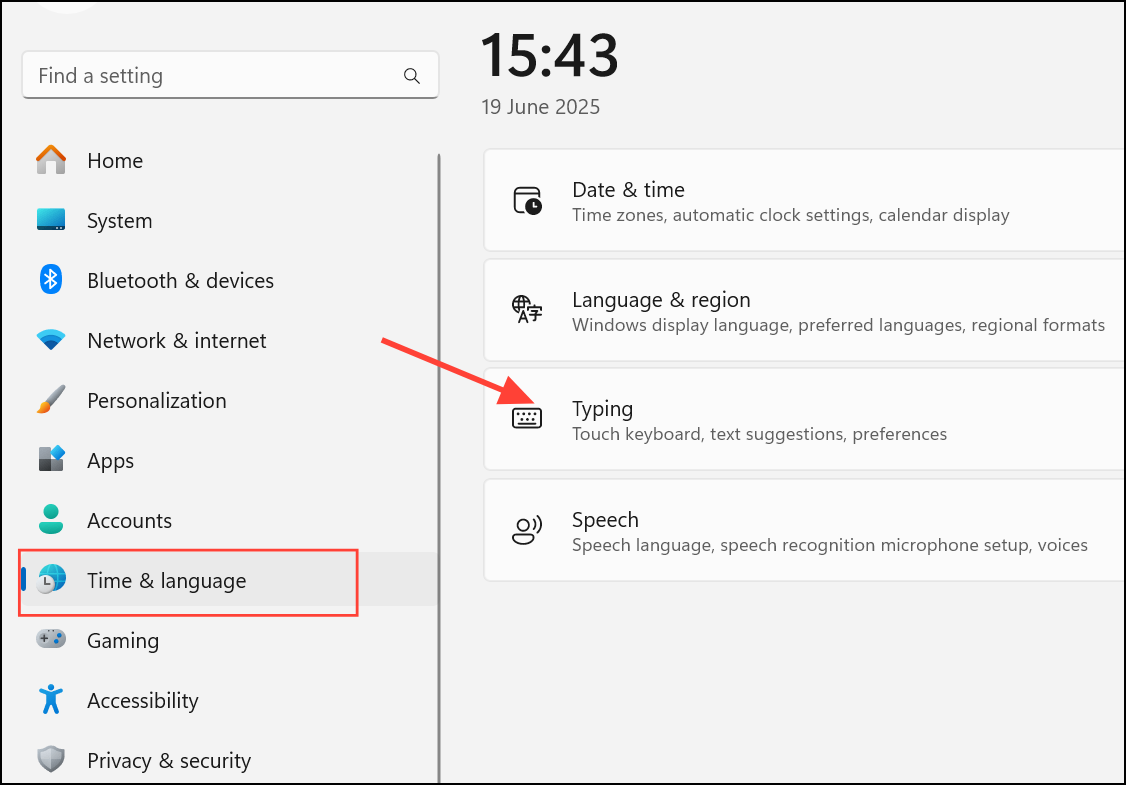
In the Settings app, click on “Time & Language” in the sidebar. Then, click on “Typing” in the right-hand panel. This section houses keyboard-related customization options.
Step 3: Locating Touch Keyboard Settings
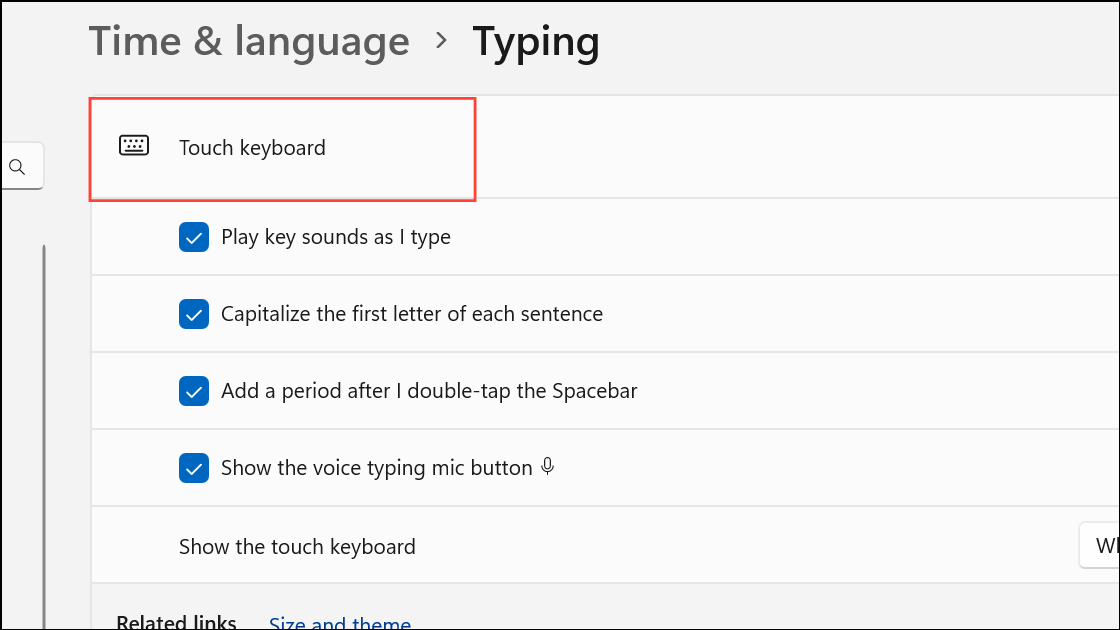
Scroll down to find the “Touch keyboard” section and expand it if necessary.
Step 4: Muting Key Sounds
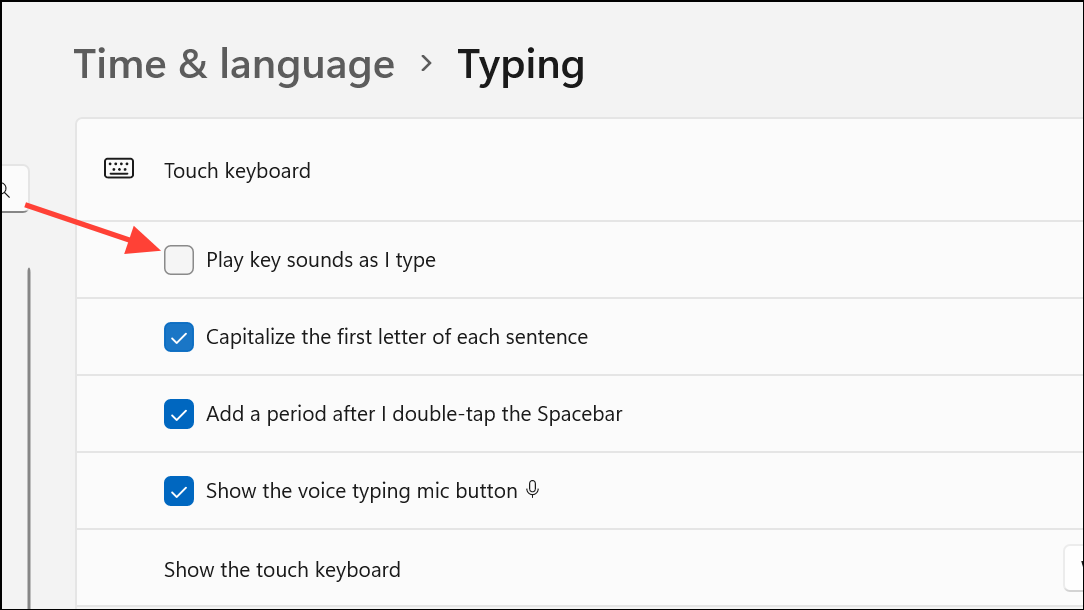
Locate the option “Play key sounds as I type” and toggle the switch to the “Off” position. This will immediately silence the touch keyboard’s key sounds.
Advanced Method: Disabling Touch Keyboard Typing Sound via Registry Editor (Use with Caution)
For advanced users, or those seeking automated solutions, the Windows Registry provides another method. Important: Modifying the registry can affect system stability. It’s highly recommended that you back up your registry before making any changes.
Step 1: Open the Registry Editor
- Press the Win + R keys to open the Run dialog.
- Type “regedit” and press Enter.
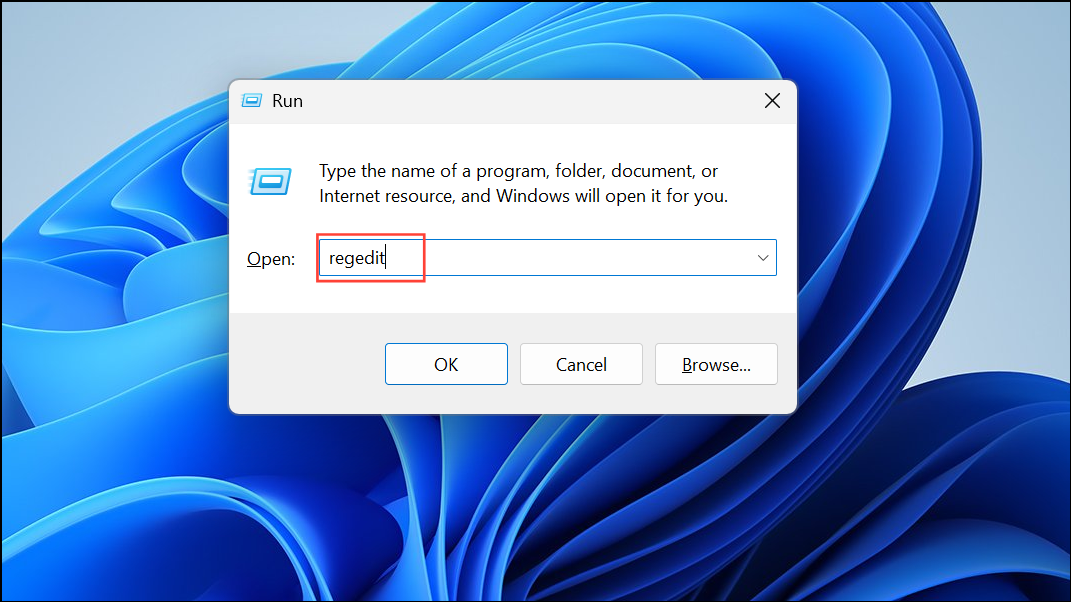
- If prompted by User Account Control, click “Yes“.
Step 2: Navigate to the Correct Registry Key
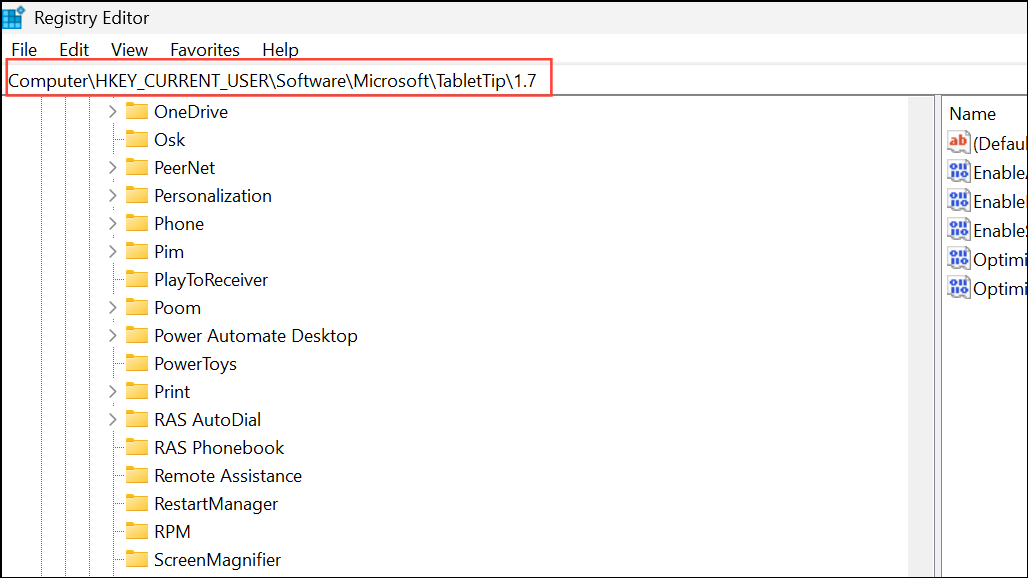
In the Registry Editor, navigate to the following key:
HKEY_CURRENT_USER\Software\Microsoft\TabletTip\1.7
Step 3: Modify the Value
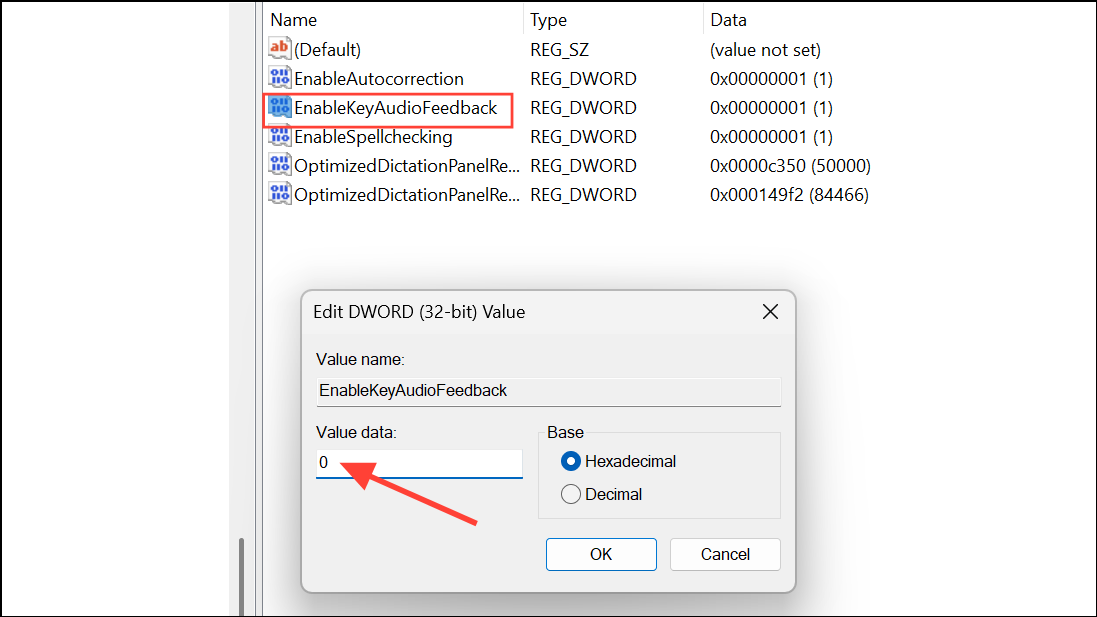
- Locate the value named “EnableKeyAudioFeedback“.
- Double-click this value.
- Set the “Value data” to “0” to disable the key sounds. Set it to “1” to re-enable them later.
Step 4: Apply the Changes
Close the Registry Editor and either restart your computer or sign out and back in for the changes to take effect.
Troubleshooting and Considerations
- Keyboard Type: Ensure you’re adjusting the settings for the correct keyboard type. The instructions above apply to the built-in Windows on-screen and touch keyboards. Third-party virtual keyboards may have different settings.
- System Updates: Confirm that your Windows 11 system is fully updated. Interface options may shift between builds.
- Auditory Feedback: Muting the keyboard also removes audible confirmation of key presses. Decide if you prefer silence or the confirmation of a sound.
Conclusion
By utilizing these simple steps, you can easily eliminate the distracting click sounds from your on-screen keyboard in Windows 11. Tailor the settings to match your preferences and computing environment. Enjoy a more peaceful and focused work experience, whether you’re working on a project, browsing the web, or simply enjoying some quiet time. Take control of your audio and customize your Windows 11 experience today!
And if you'd like to go a step further in supporting us, you can treat us to a virtual coffee ☕️. Thank you for your support ❤️!

We do not support or promote any form of piracy, copyright infringement, or illegal use of software, video content, or digital resources.
Any mention of third-party sites, tools, or platforms is purely for informational purposes. It is the responsibility of each reader to comply with the laws in their country, as well as the terms of use of the services mentioned.
We strongly encourage the use of legal, open-source, or official solutions in a responsible manner.
Comments