

Background noise during Microsoft Teams calls can quickly derail conversations, making it harder for everyone to concentrate. Whether it’s shuffling papers, barking dogs, or chatter from a nearby desk, unwanted sounds are often picked up by your microphone—especially if you’re relying on a built-in laptop mic in a noisy environment.
Fortunately, Microsoft Teams offers built-in tools like voice isolation and noise suppression, along with hardware options, to help you achieve crystal-clear audio during your meetings. Here’s a complete guide to optimizing your sound quality.

1. Use Voice Isolation for Maximum Noise Reduction
Voice Isolation is Teams’ most advanced background noise removal tool, powered by AI. It works by creating a personalized voice profile that ensures only your speech is transmitted—blocking everything else.
How to Set Up Voice Isolation in Microsoft Teams:
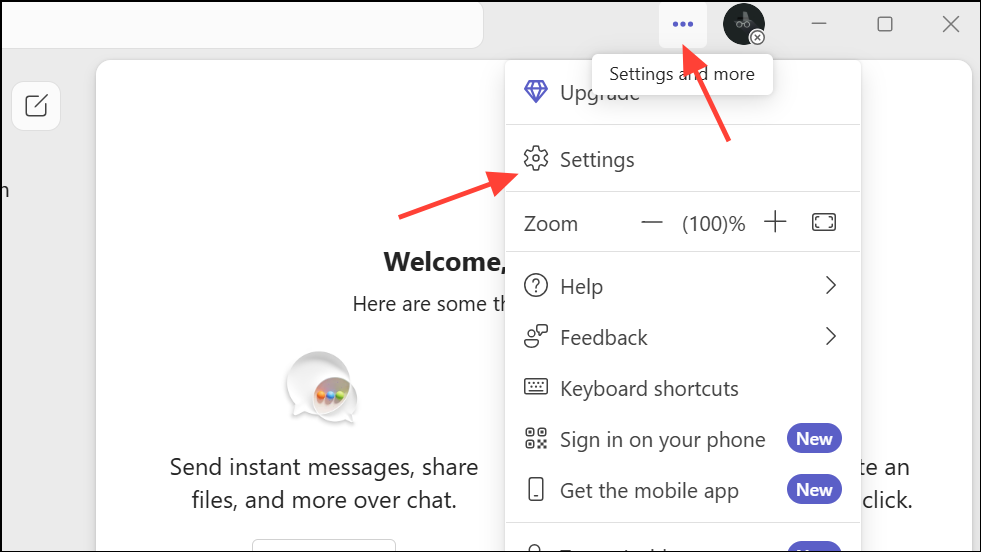
1- Open Teams and go to Settings and more > Settings.
2- Navigate to the Recognition section. If you don’t see it, check with your IT admin—it may need to be enabled for your account.
3- Click Create voice profile and select your preferred microphone from the dropdown list.
4- Press Start voice capture and read the on-screen text aloud. When finished, click Stop voice capture and close the window.
Once configured, Teams will automatically block background noise based on your unique voice.
To turn it off during a meeting, click the arrow next to your microphone icon, and under Noise suppression, ensure Voice isolation is not selected.
2. Adjust Microsoft Teams Noise Suppression Settings
Teams provides three levels of noise suppression—Auto, Low, and High—which can be adjusted either in the main settings or during a meeting.
Change Noise Suppression in the Main Teams Window
1- In Teams, click the three dots (…) next to your profile picture.
2- Select Settings.
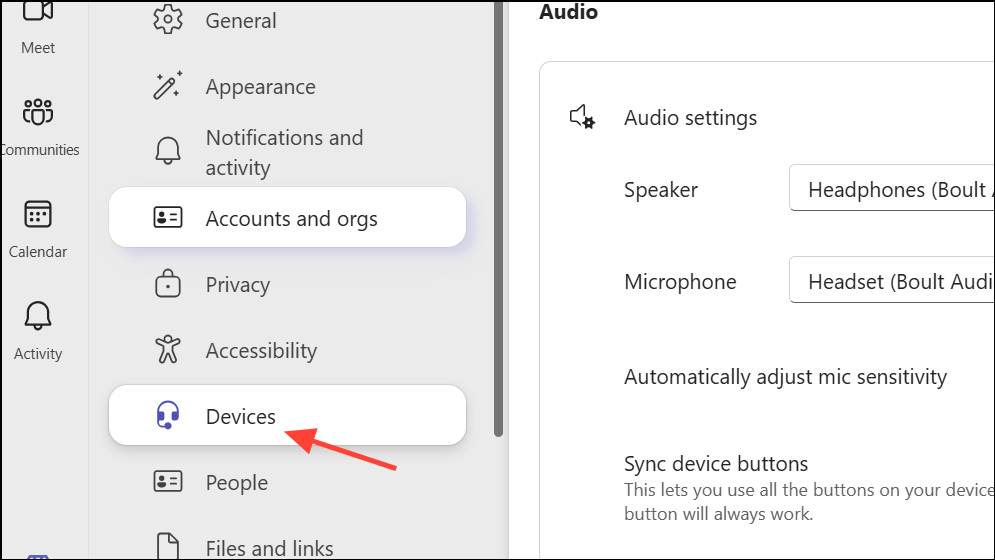
3- Go to Devices.
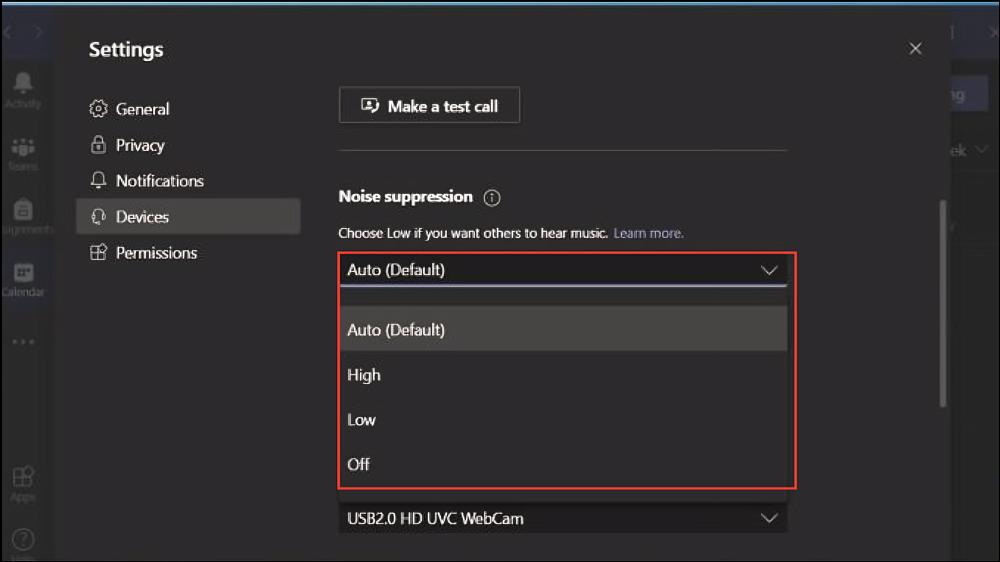
4- Under Noise suppression, choose from the following:
- Auto (default) – Teams automatically selects the optimal level based on detected noise.
- High – Aggressively removes background sounds except speech. Requires AVX2 CPU support and disables live captions.
- Low – Minimizes steady noises like fans or AC units but allows music and ambient sounds to pass through.
- Off – Best for quiet rooms with studio-quality microphones.
Note: Not all Teams accounts display every suppression option. If that’s the case, ensure the noise suppression toggle is enabled.
Change Noise Suppression During a Meeting
- In your Teams meeting, click More options in the meeting controls.
- Select Device settings.
- Under Noise suppression, choose your preferred level. Changes take effect immediately for the ongoing call.
3. Upgrade Your Audio Hardware
Even with advanced software settings, a poor-quality microphone will still capture unwanted sounds. Using a dedicated headset or external microphone ensures clearer speech and better background noise rejection.
Best Practices for Teams Audio Gear:
- Choose Teams-certified headsets from trusted brands like Jabra, Poly, or Yealink for guaranteed compatibility.
- Even basic wired earbuds with a built-in mic (like those bundled with smartphones) can outperform laptop microphones.
- Test Bluetooth headsets before important calls to ensure stable pairing and performance.
While Teams’ noise suppression is effective, some users find platforms like Zoom or WebEx deliver slightly better results in noisy environments. However, switching platforms is often restricted by company policies.
Conclusion
Clear communication is essential for productive virtual meetings, and background noise shouldn’t stand in your way. By enabling voice isolation, fine-tuning noise suppression settings, and investing in a quality microphone or headset, you can dramatically improve your Microsoft Teams audio experience.
The result? More focused discussions, fewer interruptions, and meetings that feel as natural as talking in person.
And if you'd like to go a step further in supporting us, you can treat us to a virtual coffee ☕️. Thank you for your support ❤️!

We do not support or promote any form of piracy, copyright infringement, or illegal use of software, video content, or digital resources.
Any mention of third-party sites, tools, or platforms is purely for informational purposes. It is the responsibility of each reader to comply with the laws in their country, as well as the terms of use of the services mentioned.
We strongly encourage the use of legal, open-source, or official solutions in a responsible manner.
Comments