

Creating new folders is one of the most basic tasks in Windows, but sometimes Windows 11 throws an unexpected error where the “New Folder” option doesn’t work. Whether you’re trying to organize files on your desktop or in File Explorer, this bug can be frustrating.
Fortunately, you don’t need to panic—there are several effective ways to fix the issue. In this guide, we’ll walk you through five proven methods to fix the “Can’t create a new folder in Windows 11” error so you can get back to managing your files seamlessly.
1. Restart File Explorer Using Task Manager
File Explorer glitches are often the root cause of this problem. Restarting it usually resolves temporary system errors.
Steps:
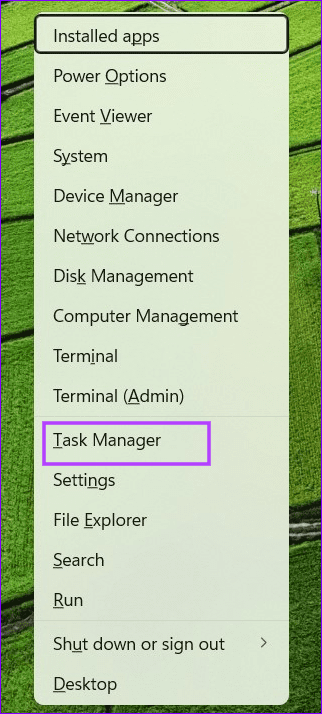
1- Press Windows + X and choose Task Manager.
2- In the Processes tab, locate Windows Explorer.
3- Right-click it and select Restart.
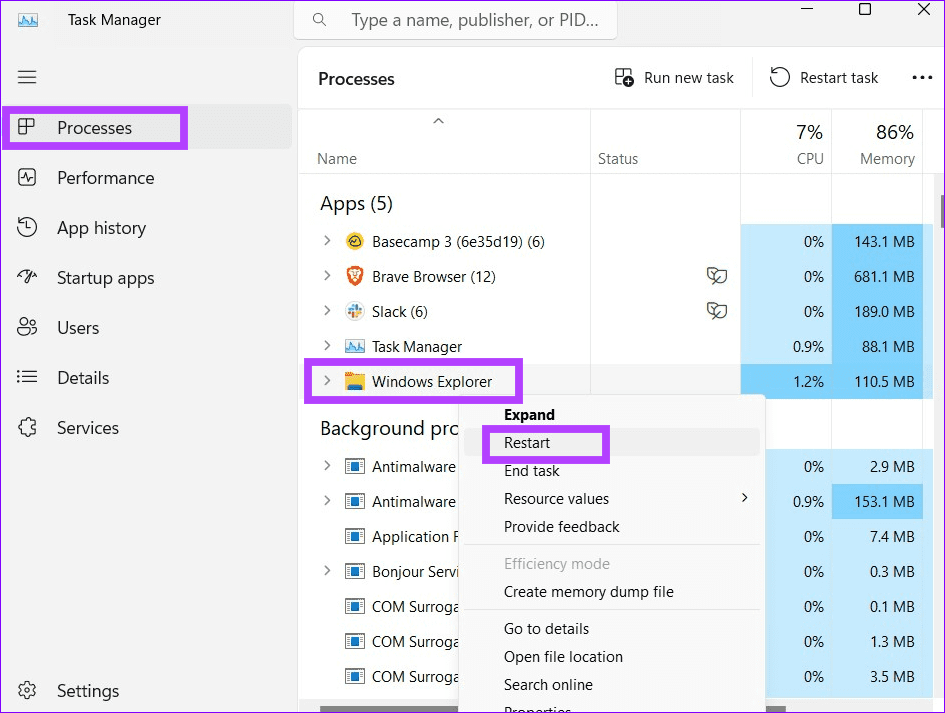
Once restarted, try creating a new folder again.
2. Create a New Folder via Command Prompt
If File Explorer still refuses to cooperate, you can manually create folders using Command Prompt.
Steps:
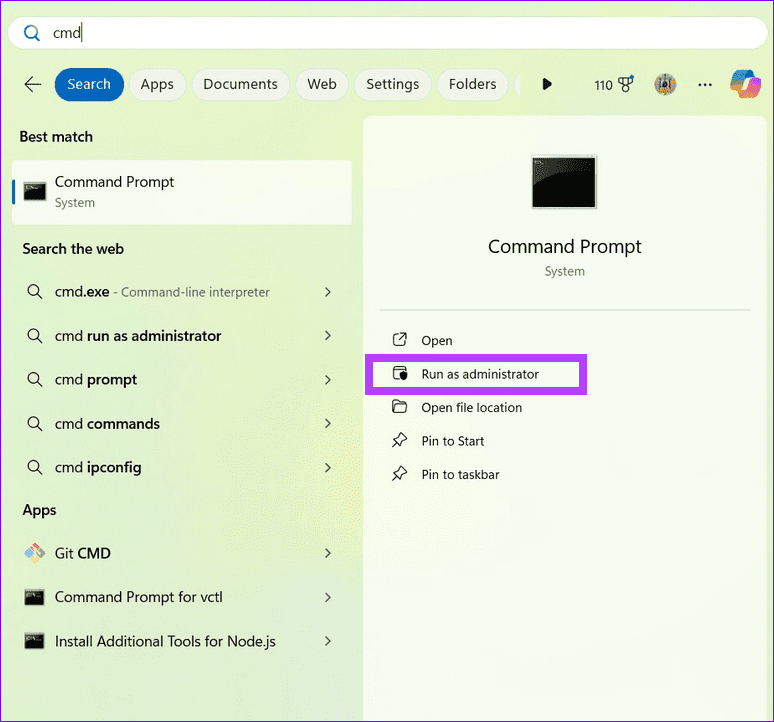
1- Press the Windows key, type Command Prompt, and select Run as administrator.
2- Enter the root directory with: cd /
3- Type the following command to create a folder: mkdir FolderName Replace FolderName with your desired folder name. For example: mkdir testing
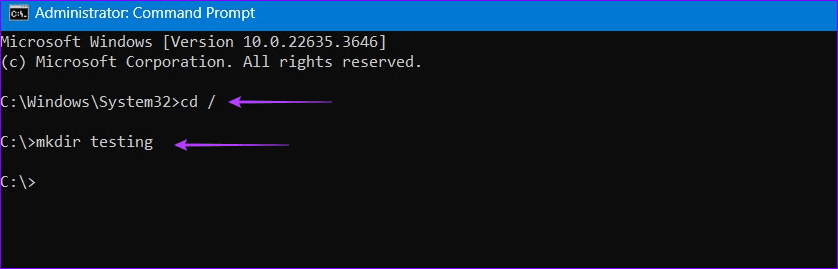
4- Open File Explorer and navigate to the directory to confirm the folder has been created.
3. Fix Folder Creation Through the Windows Registry
A missing or corrupted registry entry can also prevent folder creation. Modifying the Registry should fix the problem—but proceed carefully and back up your Registry first.
Steps:
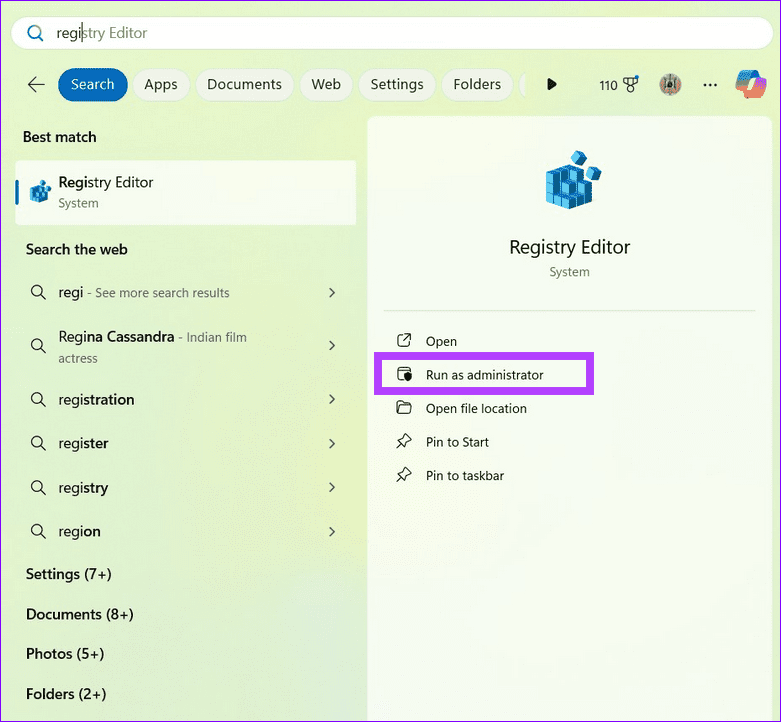
1- Press the Windows key, search for Registry Editor, and choose Run as administrator.
2- Copy and paste this path into the address bar: Computer\HKEY_CLASSES_ROOT\Directory\Background\shellex\ContextMenuHandlers
3- Right-click in the right-hand panel and select New > Key.
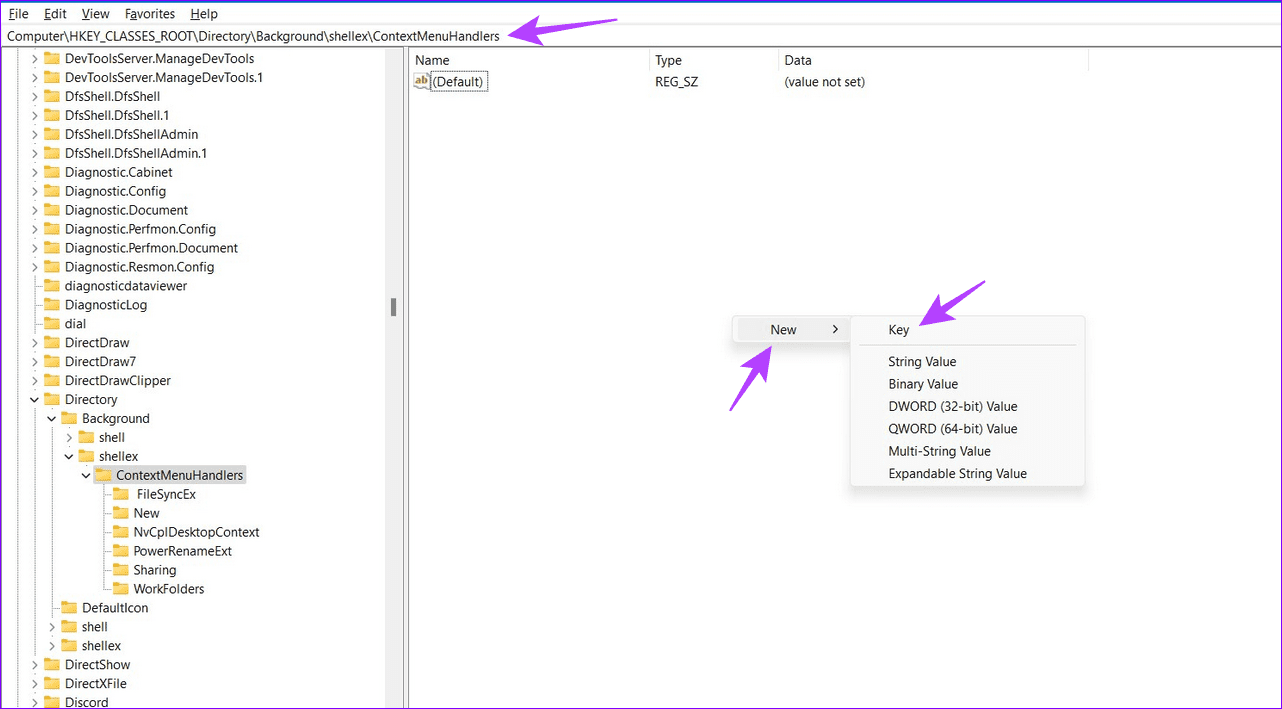
4- Name the new key New.
5- Double-click (Default) inside that key and enter the following value: {D969A300-E7FF-11d0-A93B-00A0C90F2719}
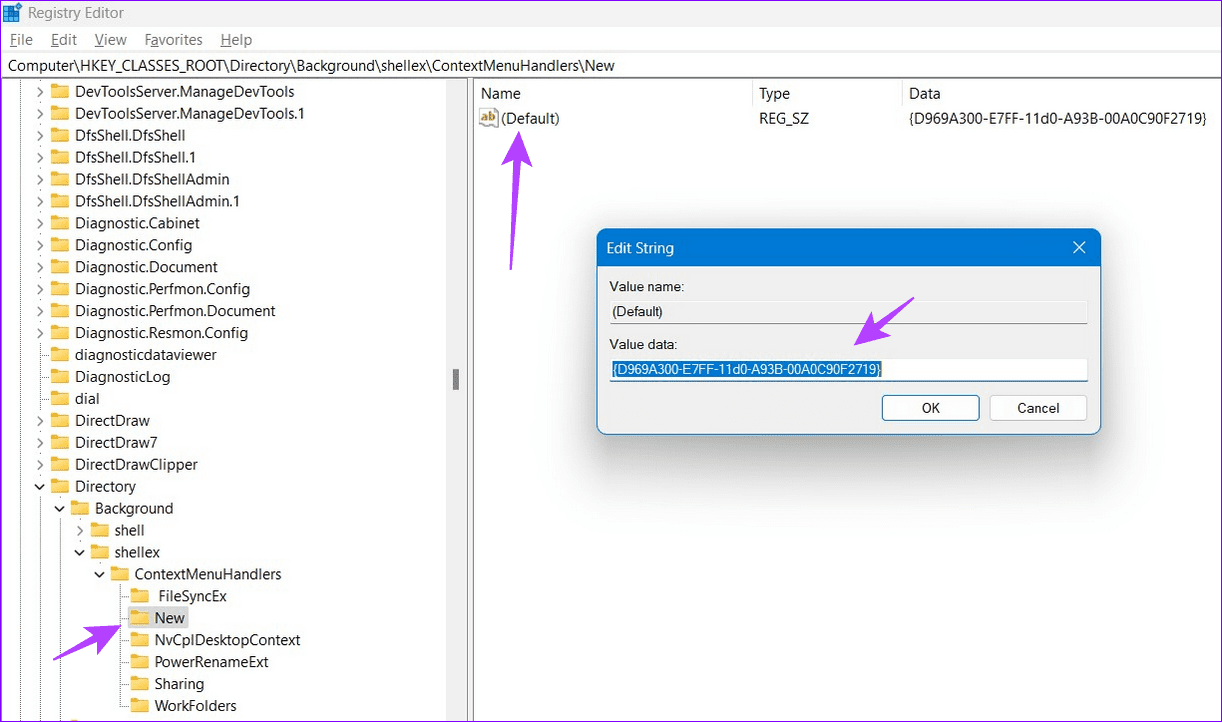
6- Close the Registry Editor and restart File Explorer (see Fix 1).
7- Now, test if the “New Folder” option has been restored.
4. Reset File Explorer Settings to Default
Custom File Explorer settings can sometimes interfere with folder creation. Resetting them to default may resolve the issue.
Steps:
1- Press Windows + E to open File Explorer.
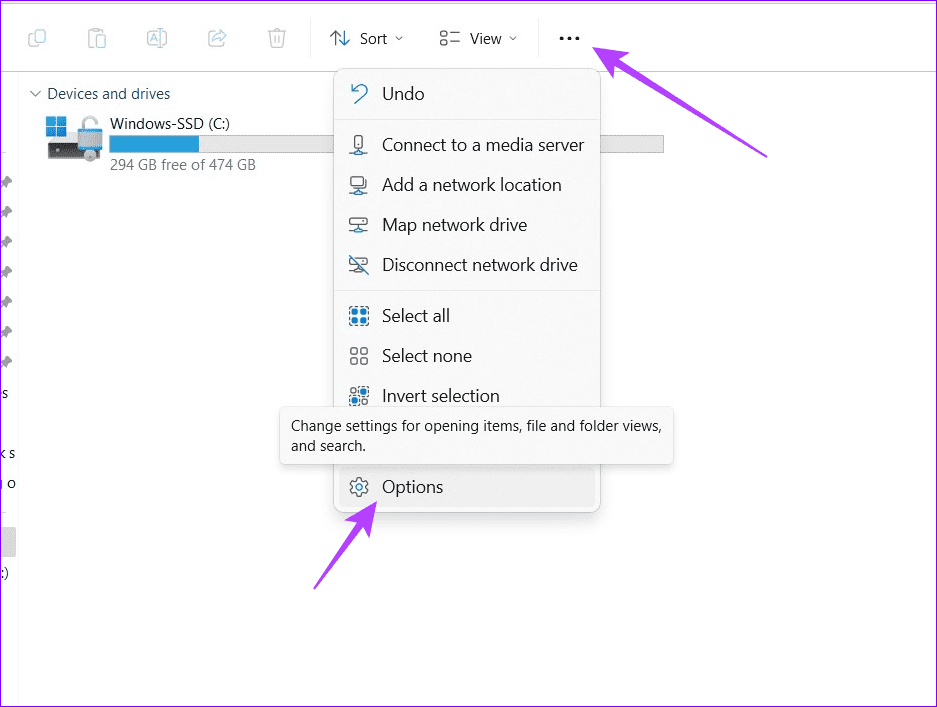
2- Click the three-dot menu in the toolbar and select Options.
3- In the General tab, click Restore Defaults, then hit Apply.
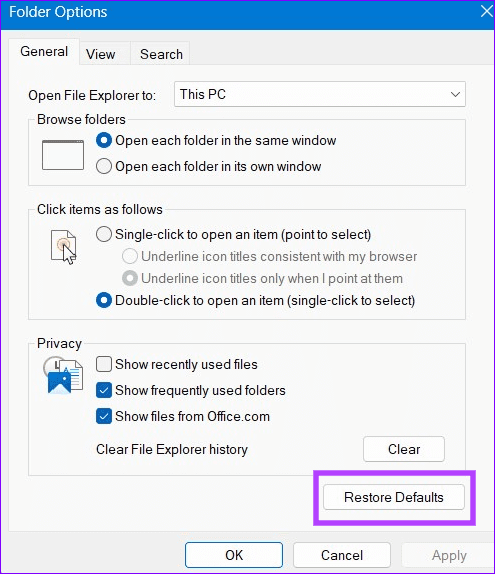
Try creating a folder again after resetting the settings.
5. Use the File and Folder Troubleshooter
If nothing else works, Microsoft provides a dedicated troubleshooter that can automatically detect and fix folder issues.
Steps:
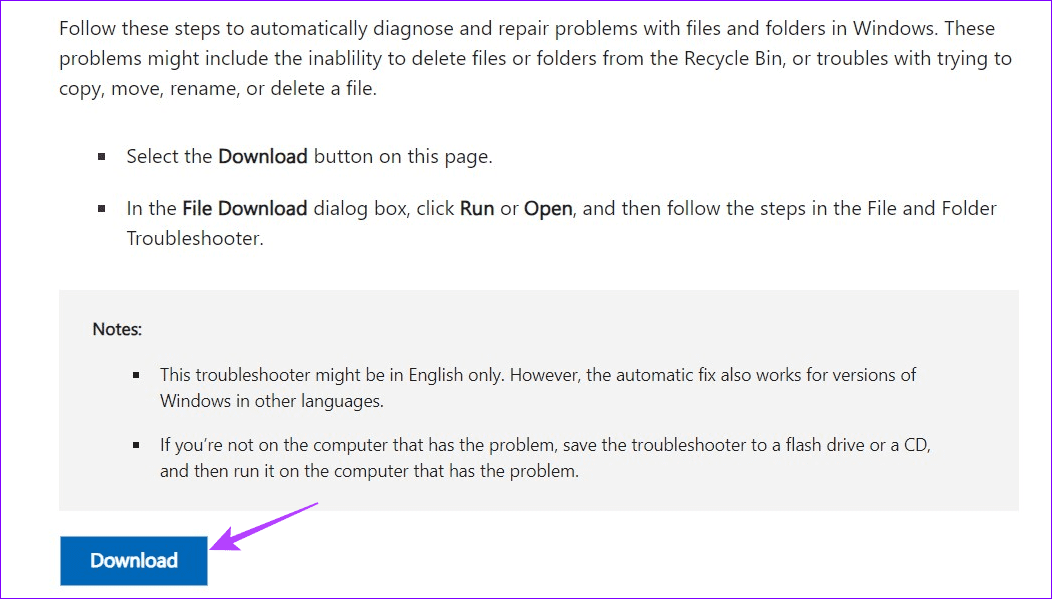
1- Download the File and Folder Troubleshooter from the Microsoft website.
2- Launch the tool and click Next.
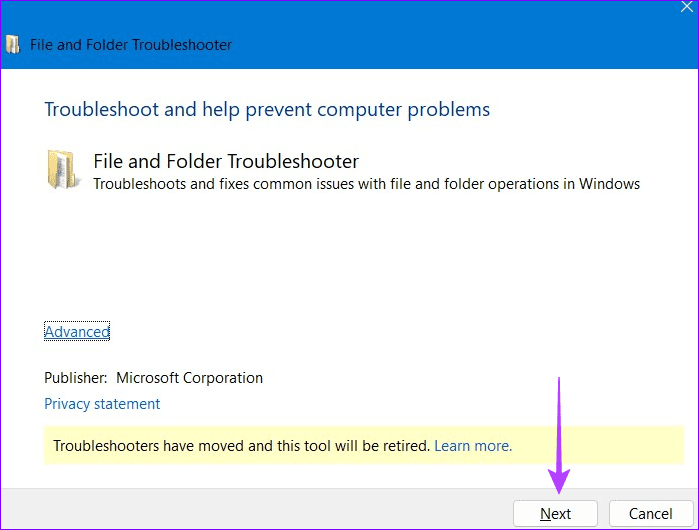
Follow the on-screen instructions to repair the error.
Final Thoughts
The inability to create a new folder in Windows 11 can be irritating, but it’s usually caused by minor glitches in File Explorer, the Registry, or system settings. By following the fixes above—starting from a simple File Explorer restart to using Microsoft’s troubleshooter—you should be able to resolve the issue quickly.
If you continue facing this problem, consider running a System File Checker (sfc /scannow) or updating Windows to patch any deeper system errors.
And if you'd like to go a step further in supporting us, you can treat us to a virtual coffee ☕️. Thank you for your support ❤️!

We do not support or promote any form of piracy, copyright infringement, or illegal use of software, video content, or digital resources.
Any mention of third-party sites, tools, or platforms is purely for informational purposes. It is the responsibility of each reader to comply with the laws in their country, as well as the terms of use of the services mentioned.
We strongly encourage the use of legal, open-source, or official solutions in a responsible manner.
Comments