

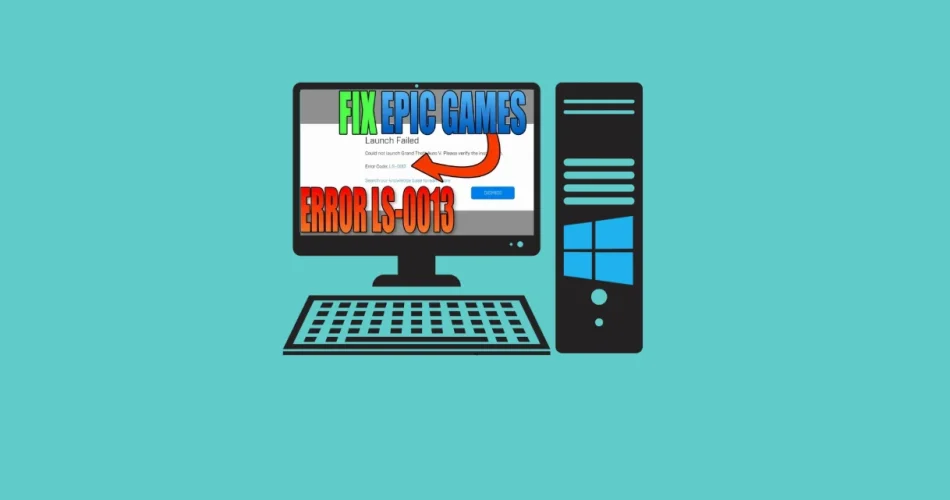
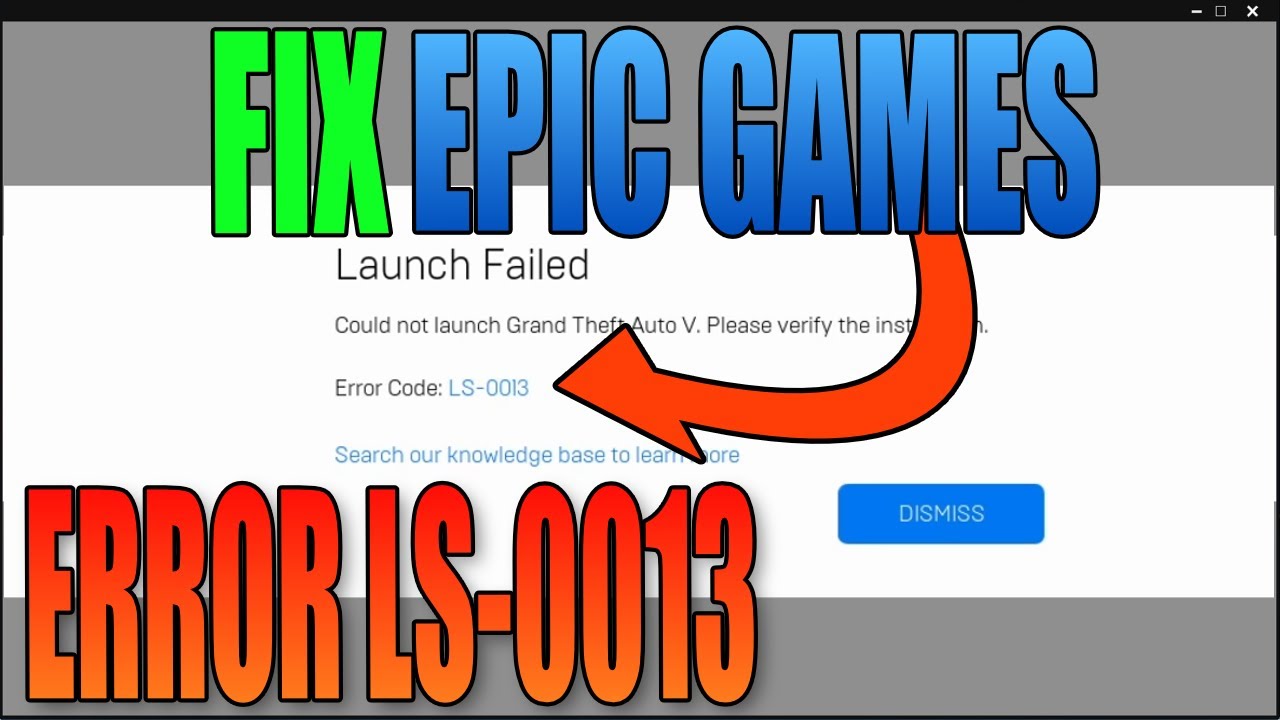
Are you locked out of your favorite games on Windows 11, staring down the dreaded LS-0013 error in the Epic Games Launcher? Don’t worry; you’re not alone! This frustrating issue can prevent you from diving into titles like Fortnite, Rocket League, and more. But with the right troubleshooting steps, you can get back in the game. This comprehensive guide will walk you through the most effective solutions to conquer LS-0013 and reclaim your gaming time.
1. Run Epic Games Launcher as Administrator
Sometimes, the Epic Games Launcher needs elevated permissions to function correctly. Granting administrator privileges can resolve permission conflicts that might be blocking your games from launching. This is often the simplest fix, so let’s start here:
- Close the Launcher: Make sure the Epic Games Launcher is completely closed. You can do this by right-clicking the icon in your system tray (down near the clock) and selecting “Exit.”
- Find the Shortcut: Locate the Epic Games Launcher shortcut on your desktop or in the Start Menu.
- Run as Administrator: Right-click the shortcut and choose “Run as administrator.” If prompted by User Account Control (UAC), click “Yes” to allow the changes.
- Test Your Game: Once the launcher opens, try launching your game from your Library. Did it work? If so, you can permanently set the launcher to always run as administrator: Right-click the shortcut, select “Properties,” go to the “Compatibility” tab, and check “Run this program as an administrator.” Click “Apply” and “OK.”
2. Verify Game File Integrity
Corrupted or missing game files are a common culprit behind LS-0013. Fortunately, the Epic Games Launcher has a built-in tool to check and repair these files:
- Open the Launcher & Go to Library: Launch the Epic Games Launcher and navigate to your “Library.”
- Find Your Game: Locate the game that’s giving you trouble (e.g., Fortnite).
- Access Manage: Click the three dots next to the game’s title and select “Manage.”
- Initiate Verification: In the “Manage” section, click the “Verify” button.
- Wait Patiently: The verification process can take several minutes, depending on the game’s size.
- Launch the Game: Once the verification is complete, try launching the game again.
3. Clear the Epic Games Launcher Webcache
The Epic Games Launcher uses a webcache to store temporary files. Sometimes, these files become corrupted, causing issues with game launches. Clearing the cache forces the launcher to rebuild it, which can fix the LS-0013 error.
Exit the Launcher Completely: Right-click the Epic Games Launcher icon in your system tray (near the clock) and select “Exit.”
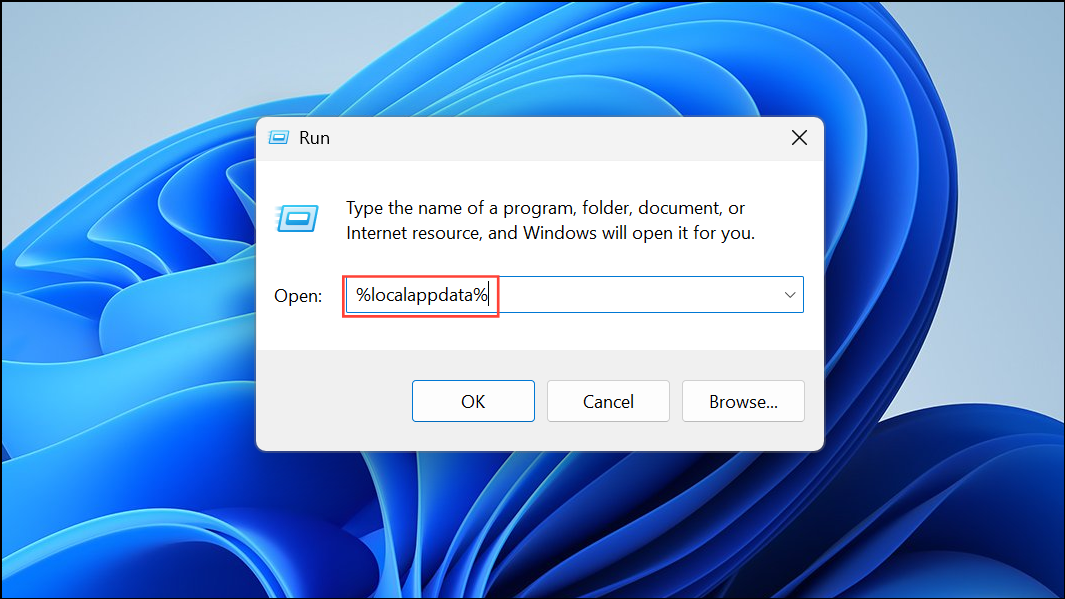
1- Open the Run Dialog: Press the Windows key + R on your keyboard.
2- Type the Command: In the Run dialog, type %localappdata% and press Enter. This opens your local AppData folder.
3- Navigate to the Cache: In the File Explorer window that opens, navigate to EpicGamesLauncher\Saved.
4- Delete the Webcache Folder: Inside the “Saved” folder, find the “webcache” folder and delete it.
5- Restart and Test: Restart your computer and then launch the Epic Games Launcher. Try launching your game to see if the issue is resolved.
4. Update Windows 11 and Graphics Drivers
Outdated system files and graphics drivers can lead to compatibility problems and prevent games from launching. Ensure your system is up-to-date:
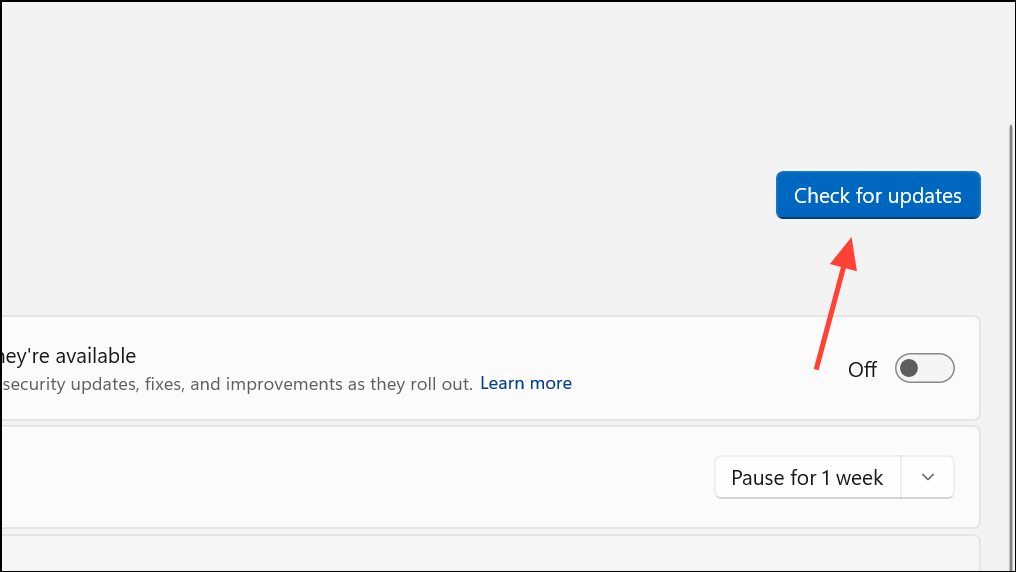
1- Update Windows 11: Click the Start button, then select “Settings” > “Windows Update.” Click “Check for updates” and install any available updates. Restart your PC if required.
2- Update Graphics Drivers: Visit your graphics card manufacturer’s website (NVIDIA or AMD) and download the latest driver for your specific model. Install the driver and restart your computer.
5. Disable Conflicting Background Applications
Certain background applications can interfere with the Epic Games Launcher and its games. Temporarily disabling these can help identify if they are causing the LS-0013 error:
1- Antivirus/Firewall: Temporarily disable your antivirus and firewall. If the game launches successfully, add the Epic Games Launcher and game executables to your security software’s exception list before re-enabling protection.
2- Close Unnecessary Apps: Close unnecessary background applications, especially those related to hardware peripherals (like RGB lighting software) or overlays. Use Task Manager (Ctrl + Shift + Esc), select the app, and click “End Task“
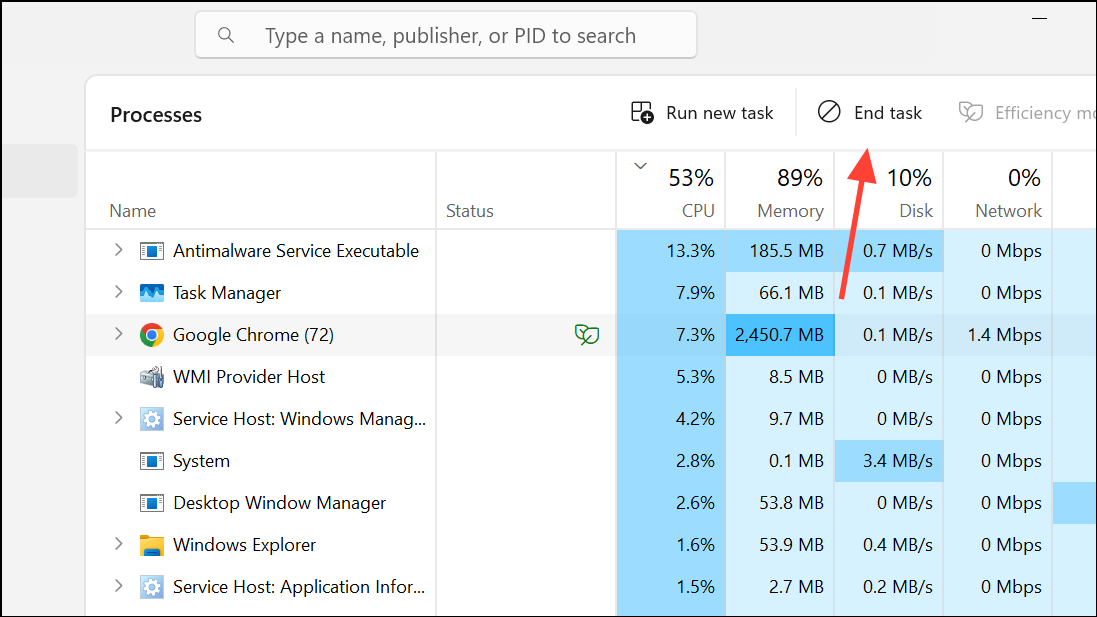
3- Test the Game: Try launching your game again to see if the error is resolved.
6. Adjust “Run as Administrator” Settings for Game Executables (If Applicable)
While running the Launcher as administrator can help, sometimes, having the “Run as administrator” setting enabled on the game’s executable files themselves can cause LS-0013, particularly in games like Fortnite.
- Find the Game Files: Navigate to the game’s installation folder. For Fortnite, the default path is usually
C:\Program Files\Epic Games\Fortnite\FortniteGame\Binaries\Win64. - Check Executable Properties: Right-click each of these files:
FortniteClient-Win64-Shipping.exe,FortniteClient-Win64-Shipping_BE.exe,FortniteClient-Win64-Shipping_EAC.exe, andFortniteLauncher.exe. Choose “Properties.” - Uncheck Administrator: Go to the “Compatibility” tab. If “Run this program as an administrator” is checked, uncheck it. Click “Apply” and “OK.”
- Repeat for Launcher: Repeat these steps for the Epic Games Launcher executable if necessary.
- Test: Launch your game through the Epic Games Launcher.
7. Reinstall Epic Games Launcher and the Game (Last Resort)
If all else fails, reinstalling both the Epic Games Launcher and the game can resolve persistent file corruption or configuration problems.
- Uninstall the Launcher: Go to “Settings” > “Apps” > “Installed apps,” find “Epic Games Launcher,” and click “Uninstall.”
- Manual Cleanup: After uninstalling, manually delete any remaining Epic Games folders from
C:\Program Files,C:\Program Files (x86),C:\ProgramData, and your user’s AppData directories. - Reinstall: Download the latest Epic Games Launcher installer from the official website and install it.
- Reinstall Your Game: Reinstall the affected game through the launcher.
Important Note: Reinstalling the launcher will remove all installed Epic Games, so you’ll need to redownload them.
8. Check Game Version and Account Issues
Ensure the game version is current. Contact the game developer’s support team to verify if needed. Clear the launcher’s webcache if you recently changed your default web browser.
Conclusion:
The LS-0013 error on Windows 11 can be a major roadblock to your gaming fun, but with the troubleshooting steps outlined above, you have a solid plan to eliminate the problem. By systematically working through these solutions, from granting administrator privileges to reinstalling the launcher, you’ll increase your chances of pinpointing and resolving the issue. Don’t give up! With a little patience and persistence, you can overcome LS-0013 and get back to enjoying your favorite games on the Epic Games Store.
And if you'd like to go a step further in supporting us, you can treat us to a virtual coffee ☕️. Thank you for your support ❤️!

We do not support or promote any form of piracy, copyright infringement, or illegal use of software, video content, or digital resources.
Any mention of third-party sites, tools, or platforms is purely for informational purposes. It is the responsibility of each reader to comply with the laws in their country, as well as the terms of use of the services mentioned.
We strongly encourage the use of legal, open-source, or official solutions in a responsible manner.
Comments