
Google Maps is one of the most widely used navigation apps in the world. Over the years, Google has invested heavily in improving its mapping data, navigation tools, and location services, making Google Maps the default choice for millions of users.
Despite its accuracy, the app is not perfect. Sometimes Google Maps may show the wrong location, placing you miles away from where you actually are. For example, it might think you’re in Kentucky when you’re actually in Florida.
Fortunately, this problem is usually easy to fix. Below are the most common reasons why Google Maps shows the wrong location and how to correct it.
Check If Location Permissions Are Enabled
The first thing you should check is whether location services are enabled on your phone. Without access to your device’s location data, Google Maps cannot accurately determine where you are.
Many apps rely on location permissions, including social media platforms, weather apps, and navigation tools. However, some users disable these permissions for privacy reasons, which can interfere with location tracking.
How to Enable Location Services on Android
1- Open Settings on your phone.
2- Scroll down and tap Location.
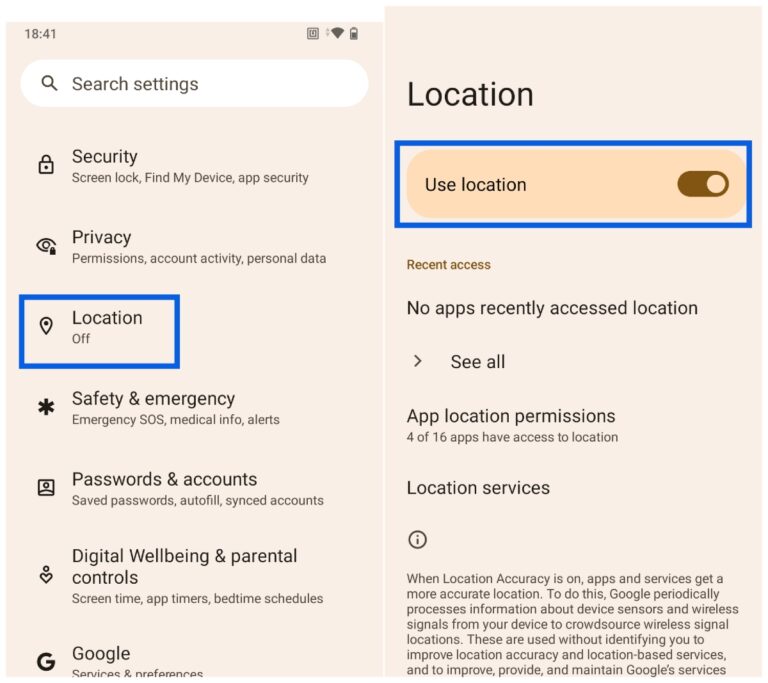
3- Turn on the Location toggle at the top of the screen.
4- Once enabled, reopen Google Maps and check whether your location is now accurate.
Improve Location Accuracy
If enabling location services doesn’t solve the issue, your phone may need additional data sources to determine your position more precisely.
Modern smartphones can improve location accuracy by combining several technologies, including:
- GPS satellites
- nearby Wi-Fi networks
- cellular towers
- device sensors such as the gyroscope
How to Improve Location Accuracy
1- Open Settings.
2- Tap Location.
3- Select Location Services or Location Accuracy (the name may vary by device).
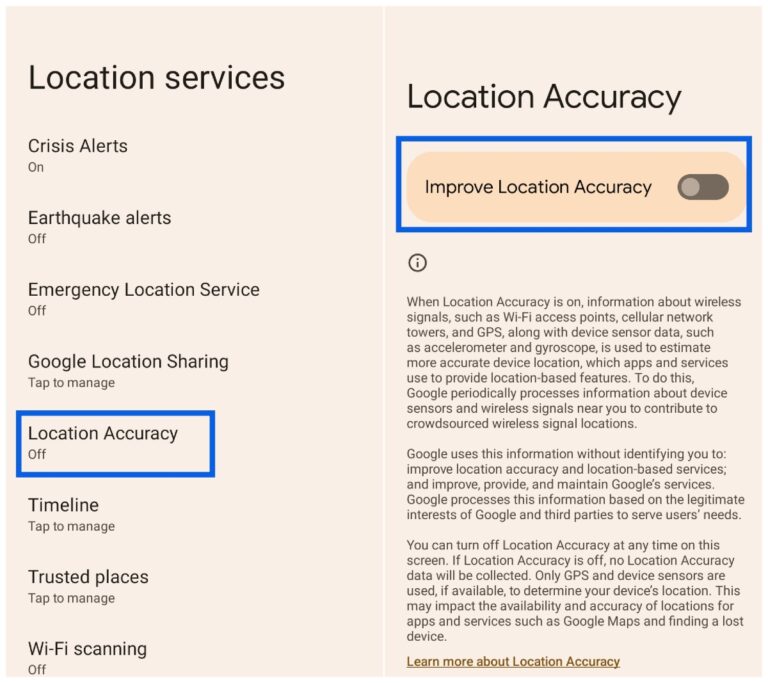
4- Enable the following options:
- Improve Location Accuracy
- Wi-Fi Scanning
- Bluetooth Scanning
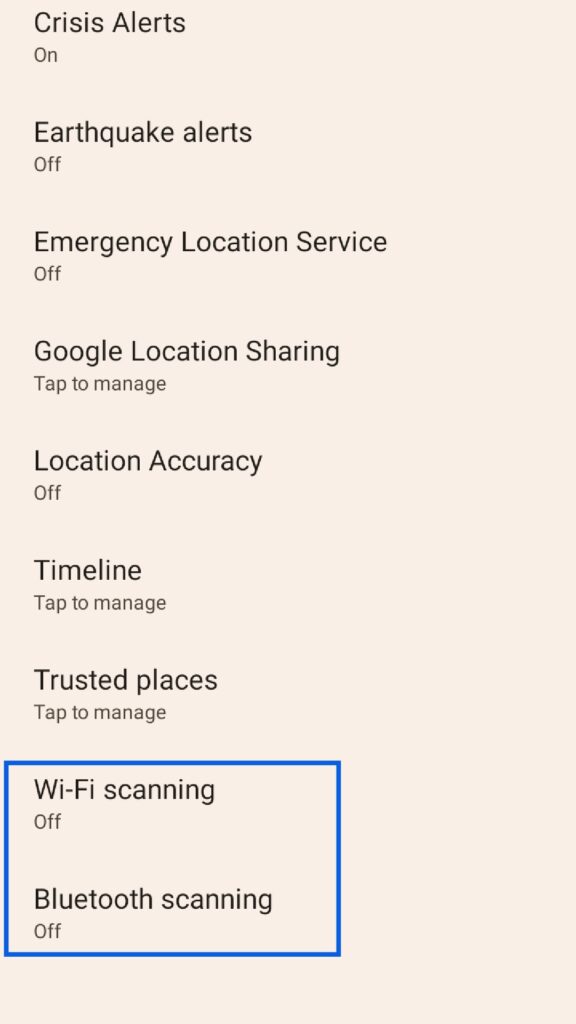
When these features are enabled, your phone can detect nearby networks and devices to determine your location more precisely.
Consider the Privacy Trade-Off
While enabling advanced location features improves navigation accuracy, it also means your device continuously collects more location data.
If your phone were compromised, that data could reveal:
- places you frequently visit
- your workplace
- your home location
This doesn’t mean you shouldn’t enable these features. If you frequently use navigation apps, the benefits often outweigh the risks. However, users who value privacy may choose to disable them when not needed.
Update the Google Maps App
Sometimes the issue isn’t related to your phone settings but to the app itself.
Like any software, Google Maps can experience bugs or glitches, and updates often fix these issues.
How to Update Google Maps on Android
1- Locate Google Maps on your home screen.
2- Press and hold the app icon.
3- Tap App Info.
4- Select App Details to open the app’s page in the Google Play Store.
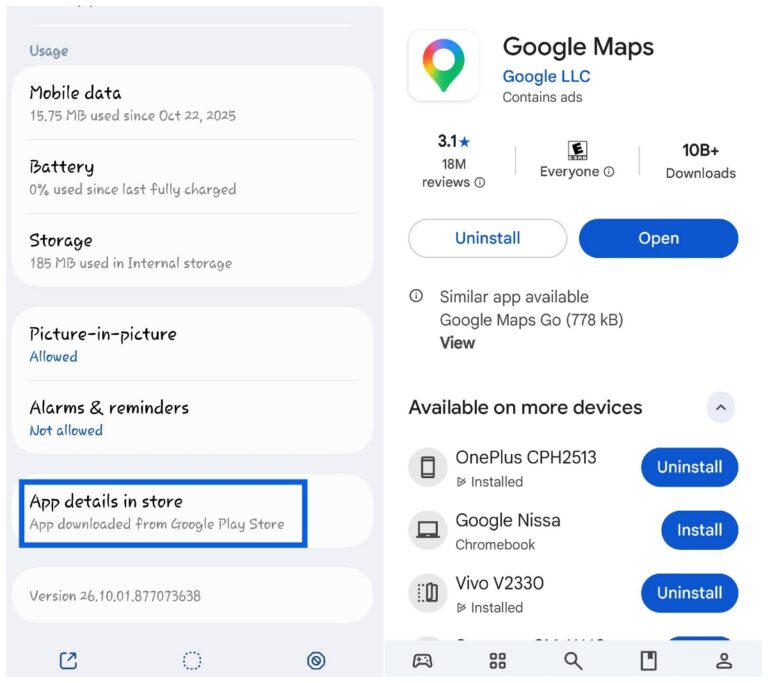
5- Tap Update if a new version is available.
6- After updating the app, restart Google Maps and check if your location is displayed correctly.
Clear the Google Maps Cache
Another potential solution is resetting the app’s stored data.
Apps store temporary files on your phone to load faster, but these files can sometimes become corrupted and cause problems.
How to Reset Google Maps
- Open Settings.
- Go to Apps and select Google Maps.
- Tap Storage & Cache.
- Select Clear Cache and Clear Storage.
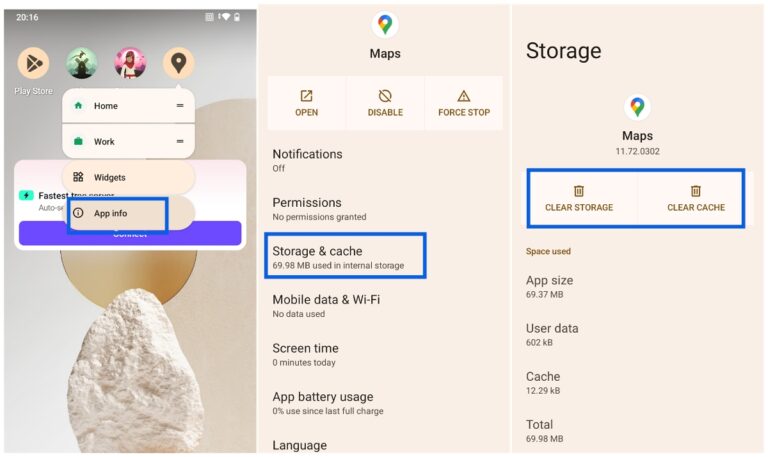
Once done, reopen the app and allow it to determine your location again.
Check for Android System Updates
In some cases, the problem may come from your phone’s operating system rather than the app itself.
A bug in Android could interfere with location services.
How to Check for System Updates
On most Android phones
- Open Settings.
- Tap System.
- Select System Update.
- Tap Check for Updates.
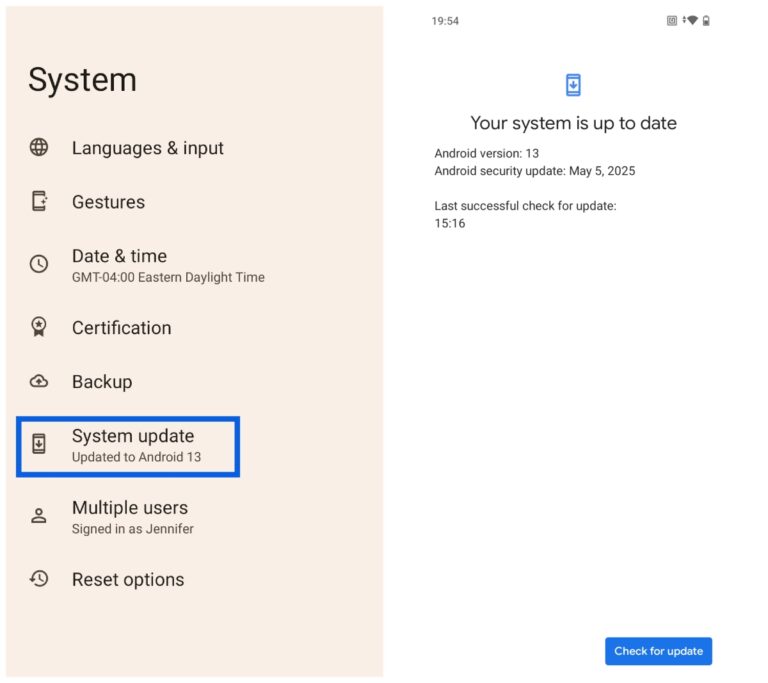
On Samsung devices
- Open Settings.
- Tap Software Update.
- Select Download and Install.
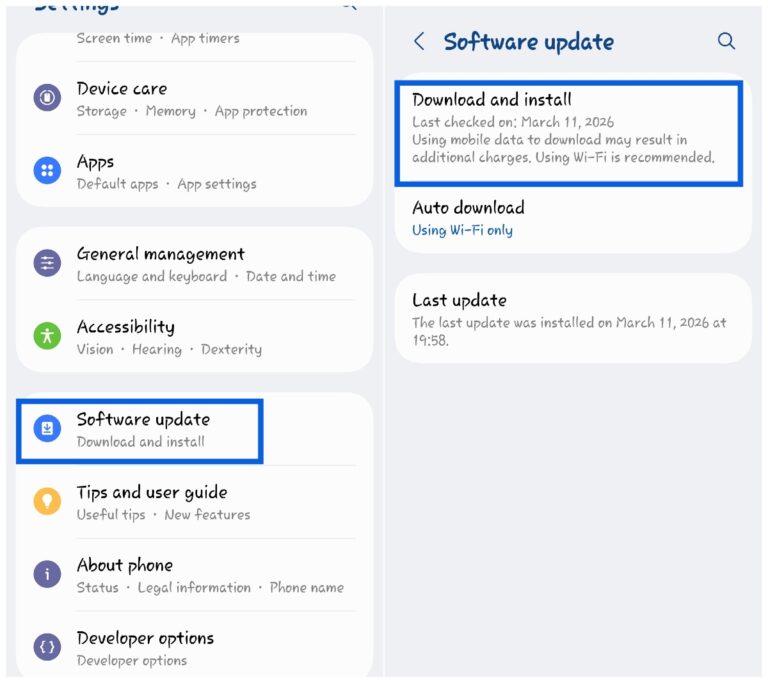
Installing the latest update may resolve location issues.
Turn Off Your VPN
Another common cause of incorrect locations is using a Virtual Private Network (VPN).
A VPN routes your internet traffic through servers located in other regions. As a result, your device may appear to be somewhere else entirely.
For example, if your VPN server is located in another state or country, Google Maps might detect that location instead of your real one.
If you’re using a VPN, try disabling it temporarily and then reopen Google Maps.
Final Thoughts
It can be frustrating when Google Maps shows the wrong location, especially when you rely on it for navigation. Fortunately, most issues can be fixed quickly.
Common solutions include:
- enabling location services
- improving location accuracy
- updating the app
- clearing the cache
- disabling a VPN
In many cases, correcting the problem is as simple as adjusting a few settings on your phone.
And if you'd like to go a step further in supporting us, you can treat us to a virtual coffee ☕️. Thank you for your support ❤️!

We do not support or promote any form of piracy, copyright infringement, or illegal use of software, video content, or digital resources.
Any mention of third-party sites, tools, or platforms is purely for informational purposes. It is the responsibility of each reader to comply with the laws in their country, as well as the terms of use of the services mentioned.
We strongly encourage the use of legal, open-source, or official solutions in a responsible manner.
Comments