
Font problems in PowerPoint presentations can be frustrating, especially when text appears as question marks or defaults to an unwanted font. These issues often arise when the required font isn’t recognized, disrupting slide layouts and undermining the message of your presentation. Common scenarios include custom or downloaded fonts that aren’t properly installed or shared. Fortunately, there are several ways to address these issues to ensure your slides look as intended—all while maintaining your content’s integrity.
1. Embed Fonts in Your PowerPoint File
Embedding fonts directly into your presentation is one of the most effective ways to prevent display issues when sharing your file. This ensures that recipients see the fonts you intended, regardless of whether they have those fonts installed on their devices.
Steps to Embed Fonts:
Step 1: Open your presentation and click on the File menu to access PowerPoint settings.

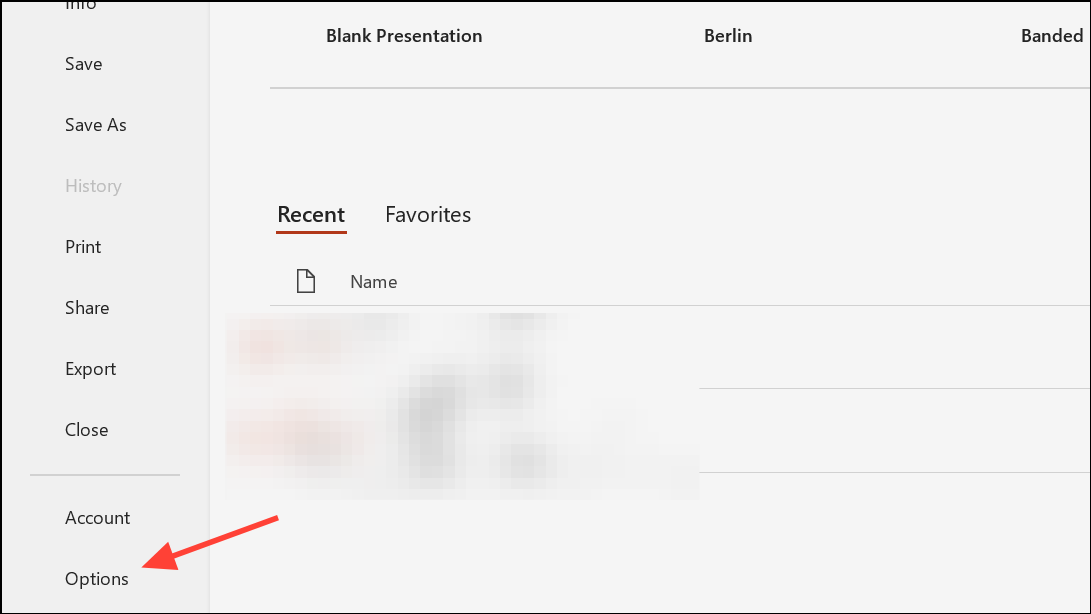
Step 2: Select Options at the bottom of the left pane to open the PowerPoint Options dialog.
Step 3: Navigate to the Save category. Here, you’ll find settings related to saving files and embedding content.

Step 4: In the section labeled Preserve fidelity when sharing this presentation, check the box for Embed fonts in the file. If the recipients won’t edit the file, select Embed only the characters used in the presentation for a smaller file size. To ensure full editing capabilities, choose Embed all characters.

Step 5: Click OK to save your changes. Now, when you send the file, the fonts should display correctly on other Windows PCs.

2. Share Fonts Alongside Your Presentation
While embedding fonts works well between Windows devices, sharing files across different platforms (like Windows and Mac) or using specific font types can lead to problems. To ensure your fonts are seen as intended, provide the font files along with your presentation.
Steps to Share Fonts:
Step 1: On Windows, navigate to C:\Windows\Fonts via File Explorer. Locate the fonts you used in your presentation.

Step 2: Copy the required font files to a USB drive or attach them in an email to the recipient. They’ll need to install these fonts on their system before opening your presentation.
Step 3: For Mac users, open Font Book (use Cmd + Space to search). Select the fonts and use File > Export Fonts to save copies for sharing. Ensure recipients install these fonts before viewing the presentation.
Once the necessary fonts are installed on the recipient’s computer, PowerPoint will display your slides as designed.
3. Convert Text to Shapes or Pictures
If you want to guarantee that text appears exactly as intended—regardless of the recipient’s fonts or platform—consider converting your text to shapes or images. This will make the text uneditable, but it will preserve its appearance.
Convert Text to Shapes:
Step 1: Create a text box and type the desired content using your chosen font.
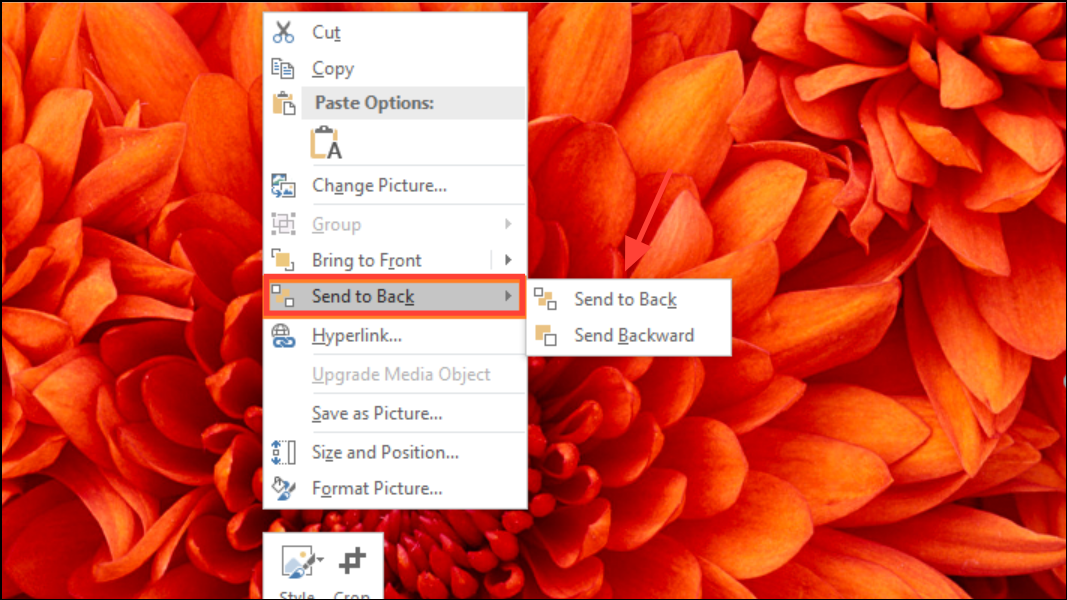
Step 2: Draw a shape (like a rectangle) over the text. Right-click the shape and select Send to Back to reveal the text.
Step 3: Select both the text box and the shape by holding Shift and clicking on each item.
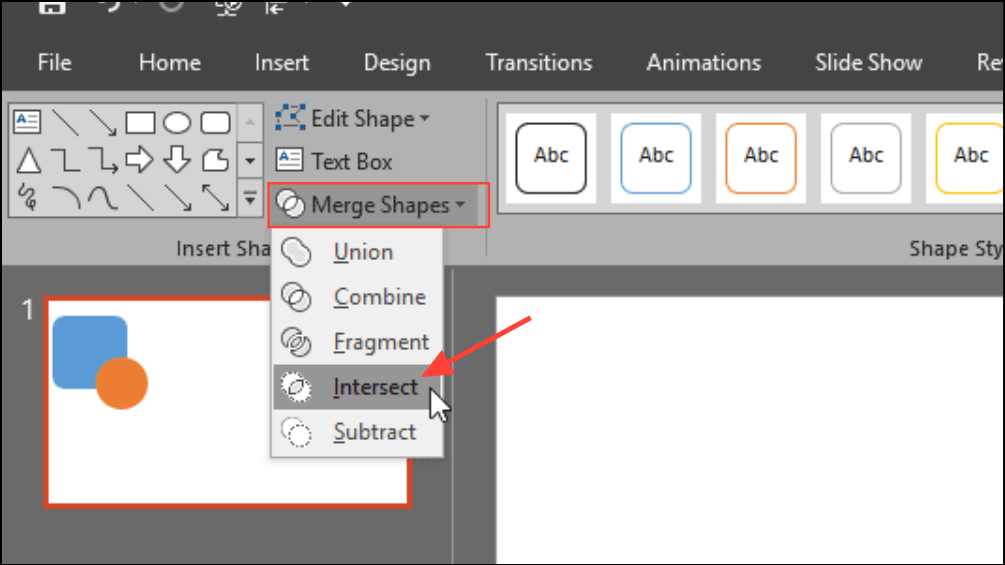
Step 4: In the Shape Format tab, choose Merge Shapes > Intersect. This converts your text into a shape, ensuring it looks the same on any device.
Convert Text to Pictures:
Step 1: Create a text box and input your content with the preferred font.
Step 2: Right-click the border of the text box and select Cut.
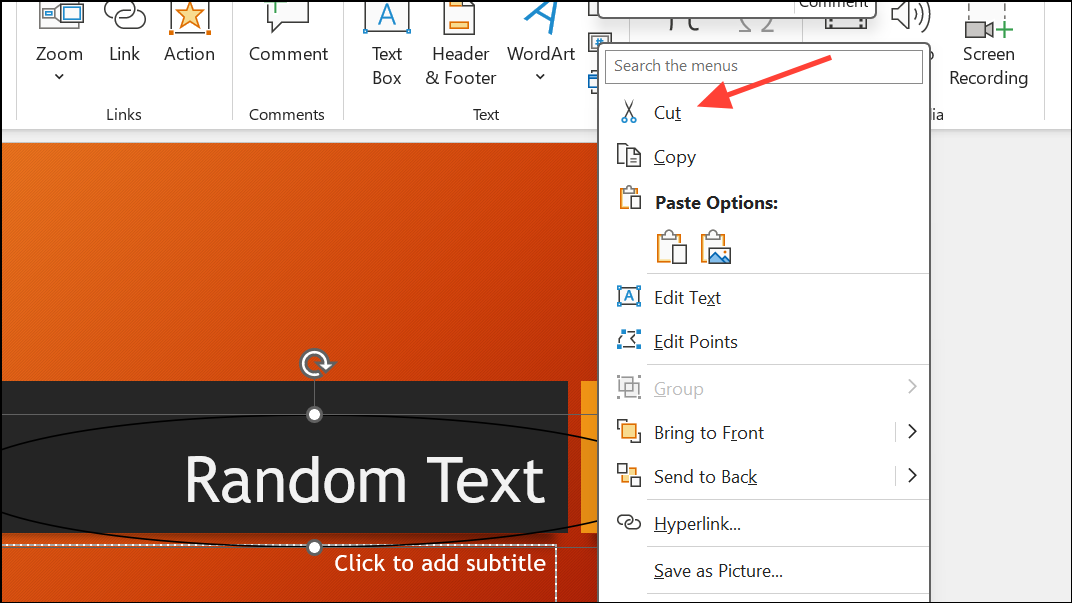
Step 3: Right-click anywhere on the slide and choose Paste as Picture. The text will now be an image and will not be affected by missing fonts.

Both methods keep your design intact while prohibiting direct text editing within PowerPoint.
4. Use PowerPoint’s Replace Font Feature
If PowerPoint substitutes your desired font or displays question marks, the Replace Font feature can help restore proper display.
Steps to Replace Fonts:
Step 1: Go to the Home tab, select Replace, and then Replace Fonts.

Step 2: In the dialog box, select the problematic font from the first dropdown and choose a different font in the second dropdown. Click Replace.

Step 3: You may want to repeat the process by switching back to your original font. This can prompt PowerPoint to recognize and properly use the font in your slides.
5. Verify Font Installation and Compatibility
Fonts must be correctly installed and compatible for PowerPoint to utilize them. While TrueType Fonts (.TTF) are widely supported, OpenType Fonts (.OTF) may face issues depending on your PowerPoint version, especially on web or free versions.
Steps to Check Font Installation:
Step 1: Open the Control Panel and navigate to Fonts to ensure your font is listed. If it’s not, reinstall the font and restart your computer.

Step 2: Be aware that PowerPoint for the web or the free version may not support custom fonts unless you have a paid Microsoft 365 subscription. Even installed fonts might not appear in PowerPoint in these scenarios.
Step 3: Consider downloading an alternative format of the font (like .TTF instead of .OTF) and install it again. Restart PowerPoint to see if the font displays properly.
Step 4: If your font still doesn’t show up, try using it in other applications, such as Word, to verify correct installation. If issues persist only in PowerPoint, repairing or reinstalling Office may resolve the problem.
Conclusion
Addressing font display issues in PowerPoint is essential for ensuring your presentations communicate effectively. From embedding fonts to sharing them properly, and converting text to shapes or images, you can maintain the integrity of your slides across different devices. Regularly verify your font installations and utilize PowerPoint’s built-in tools to mitigate potential issues, ensuring your presentation always looks professional and polished.
And if you'd like to go a step further in supporting us, you can treat us to a virtual coffee ☕️. Thank you for your support ❤️!

We do not support or promote any form of piracy, copyright infringement, or illegal use of software, video content, or digital resources.
Any mention of third-party sites, tools, or platforms is purely for informational purposes. It is the responsibility of each reader to comply with the laws in their country, as well as the terms of use of the services mentioned.
We strongly encourage the use of legal, open-source, or official solutions in a responsible manner.
Comments