


Superscript formatting in Google Docs is essential for mathematical expressions, chemical formulas, footnotes, and citations. When the Ctrl + . shortcut on Windows or Cmd + . on Mac stops working, it can slow your workflow and interrupt document editing. This issue often stems from browser extensions, particularly ad blockers, but outdated browsers, corrupted cache, or system-level conflicts can also prevent the shortcut from functioning. Here’s a step-by-step guide to restore superscript functionality in Google Docs.
1. Check for Extension Conflicts (Especially AdBlock)
Browser extensions may override keyboard shortcuts, causing Google Docs to ignore your superscript command. AdBlock and similar extensions often use Ctrl + . or Cmd + . by default, creating a conflict.
Step 1: Open Chrome, click the three-dot menu, select Extensions, then click Manage Extensions.

Step 2: Click the menu icon in the Extensions page and select Keyboard shortcuts.

Step 3: Look for AdBlock or similar extensions. If Ctrl + . or Cmd + . is assigned, click the pencil icon to clear or change the shortcut.

Step 4: Return to Google Docs and test the superscript shortcut. It should now function correctly.
2. Update Your Browser
An outdated browser can break Google Docs shortcuts or features.
Step 1: In Chrome, click the three-dot menu > Help > About Google Chrome.

Step 2: Chrome will automatically check for updates. Click Relaunch after installation.

Step 3: Open Google Docs and test the superscript shortcut again.
3. Disable or Remove Problematic Extensions
Extensions beyond AdBlock can also interfere with shortcuts.
Step 1: Go to Extensions > Manage Extensions in Chrome.
Step 2: Toggle off all extensions temporarily.

Step 3: Test the superscript shortcut. If it works, re-enable extensions one by one to identify the conflict.
Step 4: Leave the problematic extension disabled or replace it with a non-conflicting alternative.
4. Clear Browser Cache and Cookies
Corrupted cache or cookies can prevent shortcuts from working.
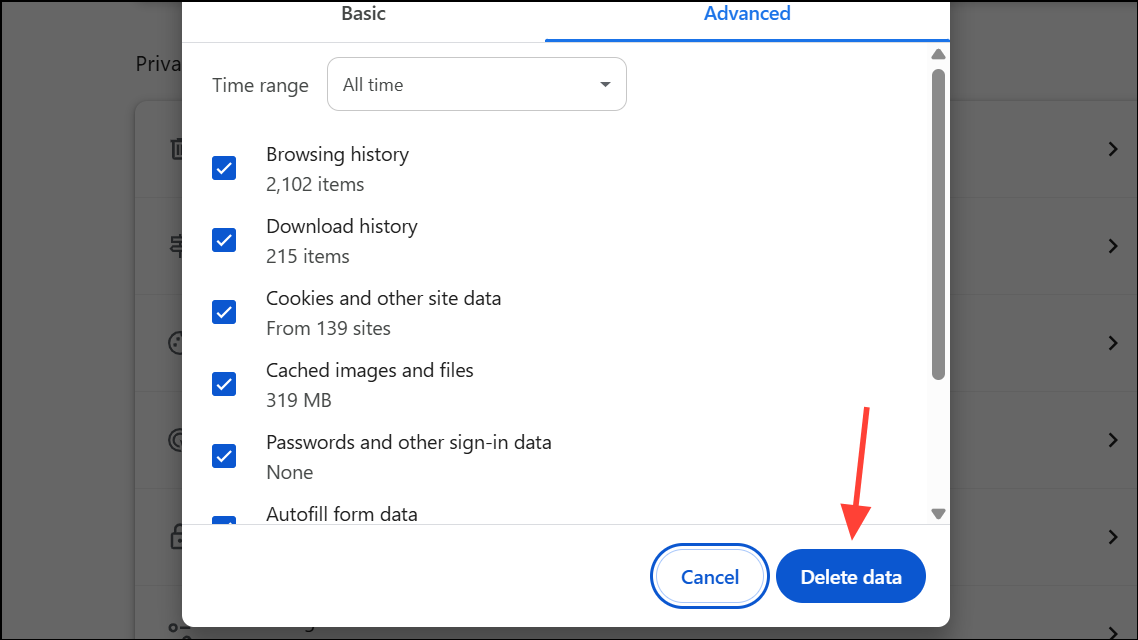
Step 1: In Chrome, go to Settings > Privacy and Security > Delete browsing data.

Step 2: Choose All time for the time range and select Cookies and other site data and Cached images and files.

Step 3: Click Delete data, then restart Chrome. Test the superscript shortcut in Google Docs.
5. Reset Browser Settings to Default
If issues persist, restoring Chrome to default settings can fix deep-seated conflicts.
Step 1: Open Settings > Reset Settings > Restore settings to their original defaults.

Step 2: Confirm the reset and restart Chrome. Your bookmarks and saved passwords remain intact.

Step 3: Test the superscript shortcut and re-enable only essential extensions, checking the shortcut after each.
6. Try a Different Browser or Update Your Operating System
Some shortcuts work in Firefox or Edge when Chrome fails. Outdated operating systems can also interfere.
Step 1: Open Google Docs in a different browser and test the shortcut.
Step 2: If it works, the problem is likely browser-specific. If not, update your OS: on Mac, go to System Settings > General > Software Update, install updates, and restart.
7. Check Keyboard Layout and System Shortcuts (Mac Only)
Custom shortcuts or alternative keyboard layouts can conflict with Google Docs shortcuts.
Step 1: Go to System Settings > Keyboard > Keyboard Shortcuts.
Step 2: Ensure Cmd + . is not assigned elsewhere.
Step 3: Restore your keyboard layout to default if necessary and remove conflicting shortcuts.
Conclusion
Restoring the superscript shortcut in Google Docs usually involves resolving browser extension conflicts, updating your browser, or adjusting system settings. Following these steps ensures smooth document editing, allowing you to format formulas, citations, and notes efficiently without menu interruptions.
And if you'd like to go a step further in supporting us, you can treat us to a virtual coffee ☕️. Thank you for your support ❤️!

We do not support or promote any form of piracy, copyright infringement, or illegal use of software, video content, or digital resources.
Any mention of third-party sites, tools, or platforms is purely for informational purposes. It is the responsibility of each reader to comply with the laws in their country, as well as the terms of use of the services mentioned.
We strongly encourage the use of legal, open-source, or official solutions in a responsible manner.
Comments