

Are you entering the correct password or PIN in Windows 11, only to be logged in briefly and then immediately returned to the sign-in screen? This problem can occur after a Windows upgrade, particularly when Windows cannot correctly load the user profile.
A damaged user profile, corrupted system files, problems with the NTUSER.DAT file, or incorrect Windows logon settings can all potentially cause this behavior.
Fortunately, you can troubleshoot the problem without immediately resetting or reinstalling Windows. Here are several methods to try on Windows 11 26H2, starting with the easiest options.
Why Does Windows 11 Log Me Out Immediately After Sign-In?
Windows needs to load several components when you sign in, including your user profile and its configuration data.
The problem can occur when:
- The user profile is damaged or incomplete.
- The
NTUSER.DATfile is corrupted. - Windows system files became damaged during an upgrade.
- The Windows logon configuration is incorrect.
- A recent update or software installation interferes with the sign-in process.
- A temporary Windows profile is being loaded instead of the normal profile.
Before making registry changes, make sure you have a backup of important files if possible.
1. Try Windows Startup Repair First
If Windows repeatedly returns you to the sign-in screen, use the built-in recovery environment before changing the Registry.
- At the Windows sign-in screen, hold down Shift and click Power > Restart.
- When the recovery menu appears, select Troubleshoot.
- Select Advanced options.
- Choose Startup Repair.
- Select your Windows installation if prompted and allow Windows to diagnose and repair startup-related problems.
- Restart the computer and try signing in again.
Startup Repair is primarily designed for boot and startup problems, so it may not fix every user-profile problem. However, it’s a useful first recovery step because it doesn’t require manually modifying the Registry.
2. Boot Windows 11 Into Safe Mode
Safe Mode loads Windows with a limited set of drivers and services. This can help determine whether a third-party program or service is causing the immediate logoff.
- From the sign-in screen, hold Shift and select Power > Restart.
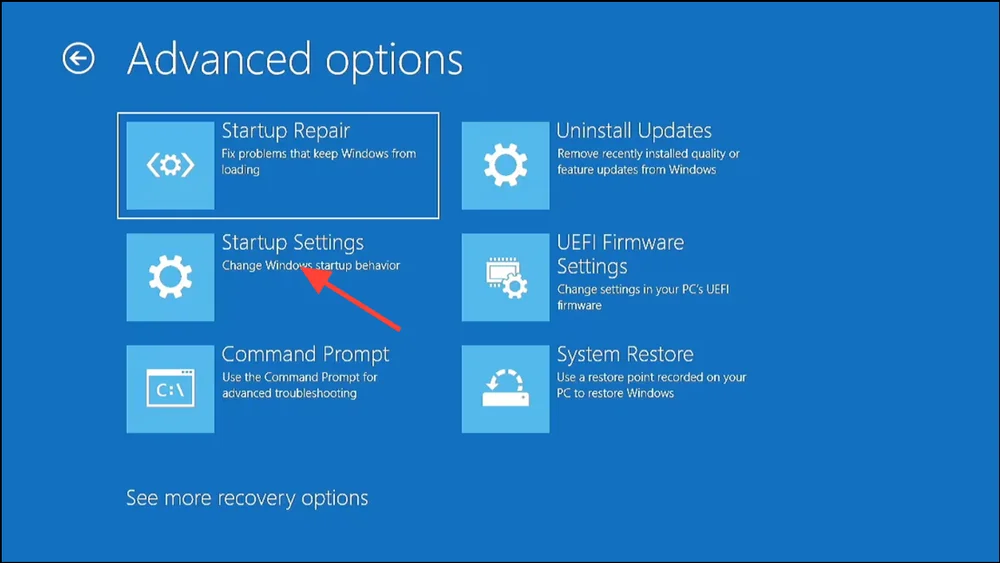
- Select Troubleshoot > Advanced options > Startup Settings.
- Click Restart.
- When the Startup Settings menu appears, press 4 or F4 for Safe Mode.
- Try signing in.
If you can successfully sign in while in Safe Mode, a recently installed application, driver, service, or startup component may be responsible.
If Safe Mode also immediately logs you out, continue with the recovery methods below.
3. Check the Winlogon Registry Values
Incorrect Winlogon values can interfere with the Windows logon process. This is an advanced troubleshooting step, so don’t modify other Registry entries unless you know what they do.
If you can access Safe Mode:
- Press Windows + R.
- Type:
regedit
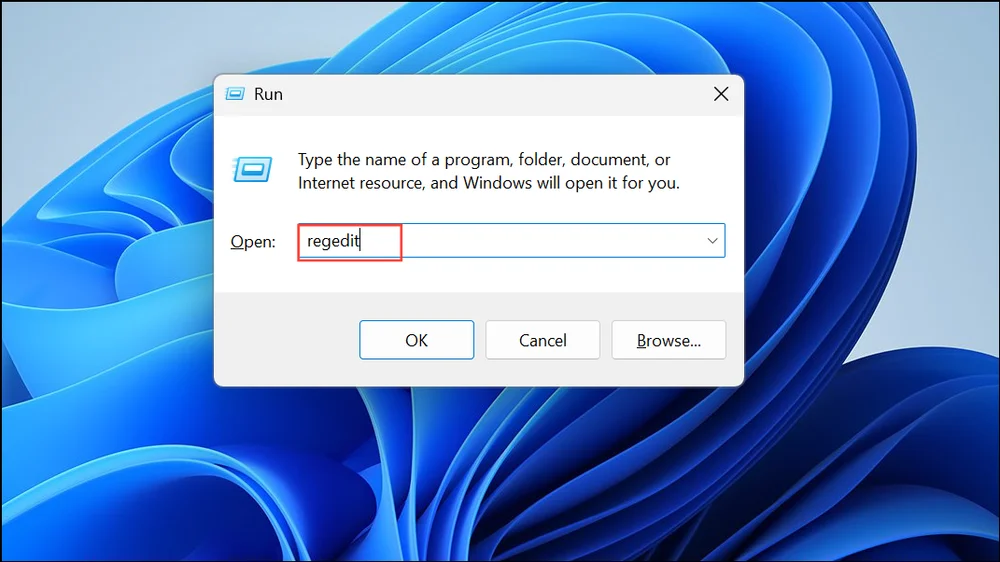
- Press Enter.
- Navigate to:
Computer\HKEY_LOCAL_MACHINE\SOFTWARE\Microsoft\Windows NT\CurrentVersion\Winlogon
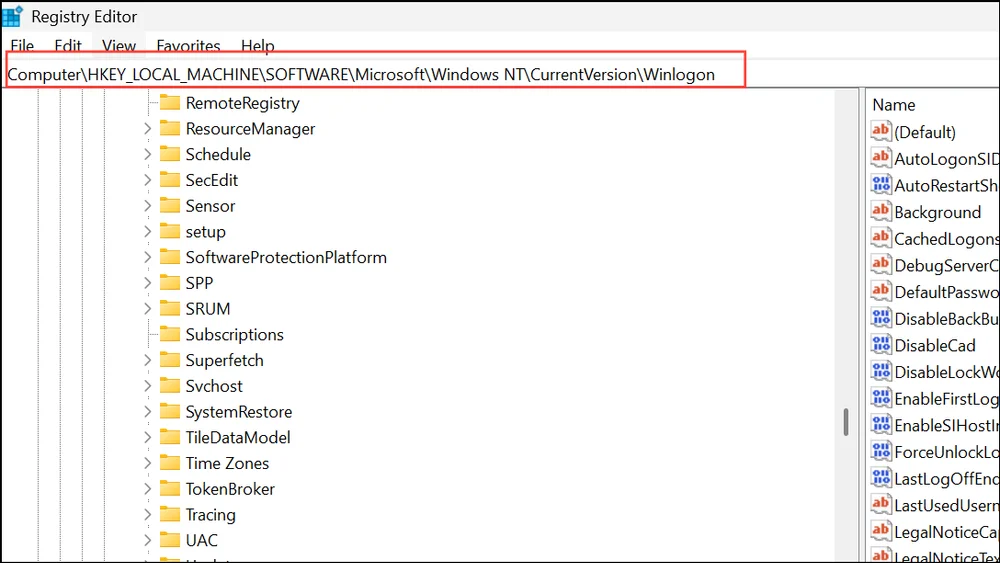
- Find the following values:
Shell
Userinit
- Double-click Shell and check that its value is:
explorer.exe
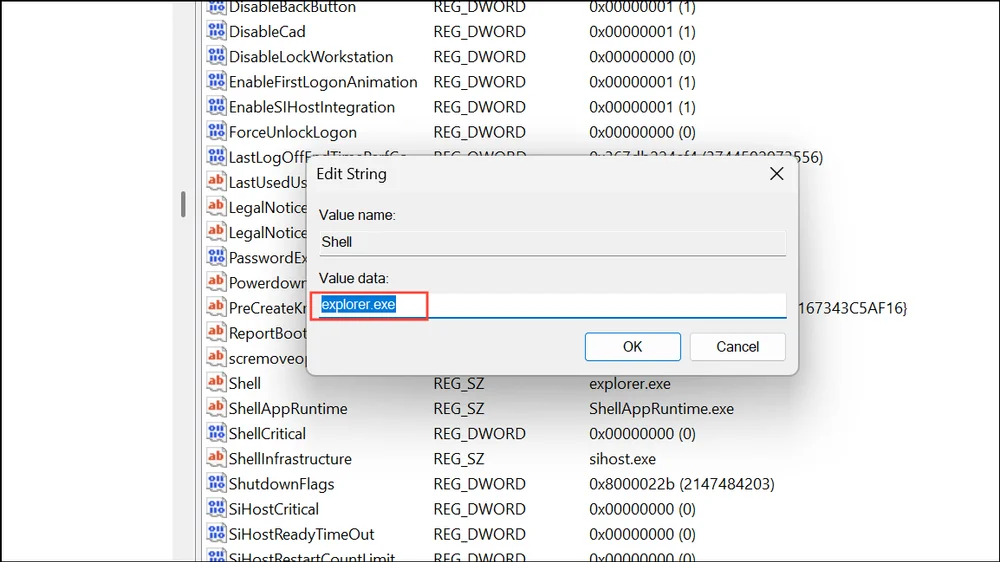
- Check Userinit. On a standard Windows installation, it should normally point to:
C:\Windows\System32\userinit.exe
If these values have been changed unexpectedly, correct them and restart Windows.
Warning: The Windows Registry contains critical operating-system settings. Changing unrelated values can make Windows unstable or prevent it from starting correctly. Consider exporting the relevant Registry key before making changes.
4. Run SFC and DISM
Damaged Windows system files can also cause problems during sign-in.
If you can access Safe Mode or another administrator account, open Windows Terminal (Admin) or Command Prompt (Admin).
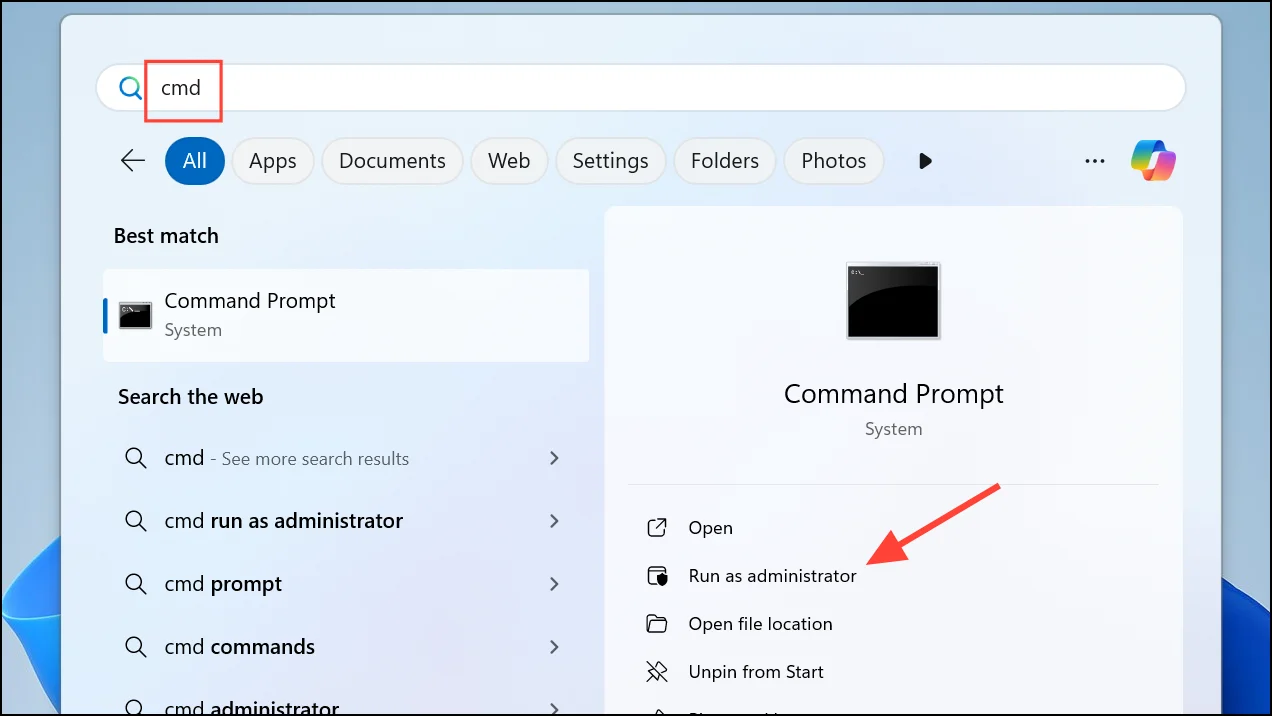
First run:
sfc /scannow
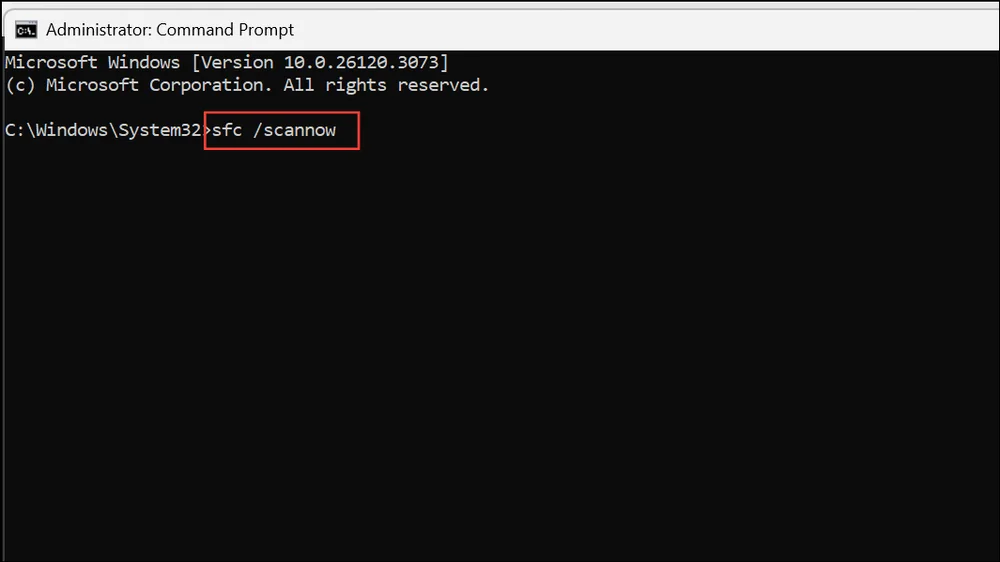
Wait until the scan reaches 100%.
Then run:
DISM /Online /Cleanup-Image /RestoreHealth
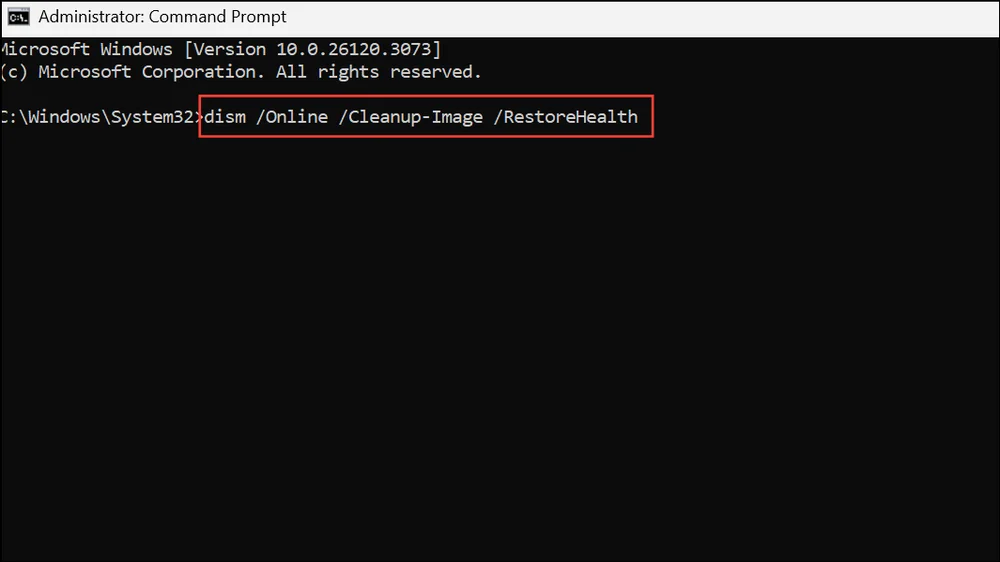
After DISM finishes, run SFC once more:
sfc /scannow
Restart Windows and try signing in normally.
If you cannot sign in even in Safe Mode
You can run system-file repairs from the Windows Recovery Environment, but the Windows drive may not be assigned the usual C: letter there.
For advanced users, open:
Troubleshoot > Advanced options > Command Prompt
You can use:
diskpart
then:
list volume
to identify the Windows installation drive.
Exit DiskPart with:
exit
Offline SFC can then be run against the correct Windows installation. However, because the drive letter can differ in recovery mode, don’t blindly use C: without checking first.
5. Check Whether Windows Is Loading a Temporary Profile
Windows may sometimes sign you into a temporary profile when it cannot load your normal user profile correctly.
If you manage to access Windows with another administrator account, check:
C:\Users
Look for your normal user-profile folder and any unexpected temporary profile folders.
If Windows displays a message indicating that you’re signed in with a temporary profile, avoid immediately deleting or renaming your existing profile. Important files may still be stored there.
Instead, back up your data first and investigate the profile configuration.
6. Create a New Local Administrator Account
If the original user profile is damaged, creating a new Windows account can be an effective workaround.
If you can access another administrator account, open Terminal (Admin) and run:
net user NewUser /add
Then give the account administrator privileges:
net localgroup administrators NewUser /add
Replace NewUser with the username you want.
Restart Windows and sign in with the new account.
If the new account works normally, the problem is likely isolated to the original user profile rather than the entire Windows installation.
You can then copy your personal files from the old profile to the new one.
Don’t copy the entire old profile folder wholesale. In particular, avoid replacing the new profile’s hidden configuration files with files from the damaged profile.
7. Uninstall a Recent Windows Update
If the problem started immediately after a Windows update, removing the most recent update may help determine whether the update is involved.
From the Windows Recovery Environment:
- Hold Shift and select Restart from the sign-in screen.
- Select Troubleshoot.
- Choose Advanced options.
- Select Uninstall Updates.
- Depending on what Windows offers, choose to uninstall the latest quality update or feature update.
- Restart Windows and try signing in again.
Keep in mind that removing an update should be treated as a troubleshooting step rather than a permanent solution. Reinstalling the update may eventually be necessary once the underlying issue is resolved.
8. Use System Restore
If System Restore was enabled before the problem appeared, you may be able to return Windows to an earlier working state.
From the recovery environment, go to:
Troubleshoot > Advanced options > System Restore
Choose a restore point created before the sign-in problem started.
System Restore doesn’t normally remove personal documents, but it can undo recently installed applications, drivers, updates, and system configuration changes.
9. Repair or Reset Windows as a Last Resort
If none of the above methods work and the problem affects the entire Windows installation, you can use Windows recovery options to repair or reset the operating system.
Before choosing a reset, back up important files if you can.
Windows 11 provides reset options that can either preserve personal files or remove them. Carefully review the options presented before confirming the operation.
A full reset should generally be considered only after less destructive troubleshooting methods have failed.
What About the NTUSER.DAT File?
NTUSER.DAT is an important file inside a Windows user profile. It contains user-specific Registry information and configuration settings.
A damaged NTUSER.DAT file can contribute to profile-loading problems, but you should not simply delete or replace it as a first troubleshooting step.
Doing so can cause additional problems with the user profile and may result in lost configuration settings.
If you suspect that the user profile is corrupted, creating a new administrator account and migrating your personal files is generally safer than manually modifying profile Registry files.
Frequently Asked Questions
Why does Windows 11 log me out immediately after signing in?
This can happen when Windows cannot correctly load the user profile, when system files are damaged, or when a logon component or recent software change interferes with the sign-in process.
Can Safe Mode fix the Windows 11 sign-in loop?
Safe Mode doesn’t necessarily fix the underlying problem, but it can help determine whether a third-party application, driver, or service is responsible. It also gives you access to additional troubleshooting tools.
Should I delete NTUSER.DAT?
No. NTUSER.DAT is an important component of a Windows user profile. Deleting it without understanding the consequences can make the profile situation worse.
What if Windows won’t let me sign in even in Safe Mode?
Use the Windows Recovery Environment from the sign-in screen. From there, you can access Startup Repair, System Restore, update removal, Command Prompt, and other recovery tools without successfully signing in to the affected account.
Conclusion
If Windows 11 26H2 immediately logs you out after you enter your password or PIN, the problem is often related to the user profile, Windows system files, or a recent system change.
Start with Startup Repair and Safe Mode. If those don’t help, check the Winlogon settings and run SFC and DISM. If the original profile appears to be corrupted, creating a new administrator account can help confirm the cause and provide a way to regain access to your files.
If the problem began after an update, System Restore or uninstalling the latest update are additional recovery options. Only consider resetting Windows after the less destructive solutions have failed.
Add Tech2Geek as a preferred source on Google to see more of our latest tech articles.
Support Tech2Geek ❤️
Did this guide help you? If Tech2Geek saves you time or helps you solve a problem,
consider buying me a coffee. ☕
Your support helps keep Tech2Geek independent and free.
Comments