

Unresponsive apps are one of the most common frustrations Windows users face. You click the X button… and nothing happens. The app freezes, refuses to close, or keeps relaunching itself.
Thankfully, Microsoft Windows 11 includes several powerful and convenient ways to force close stubborn applications. Below is a complete guide covering every reliable method in Windows 11 version 25H2.
1. Use the Alt + F4 Keyboard Shortcut (Fastest Method)
This is the quickest solution and often works instantly.
Steps:
- Click the app window to bring it to the foreground.
- Press Alt + F4 on your keyboard.

If the app is responsive enough, it will close immediately.
⚠️ Important: Make sure the correct window is selected. Otherwise, Windows will close whichever app is currently in focus.
2. Use the New “End Task” Option from the Taskbar (25H2 Feature)
In Windows 11 23H2 and newer — including 25H2 — you can enable a built-in End Task option directly from the taskbar. This is one of the most convenient additions in recent versions.
Enable End Task in Taskbar:
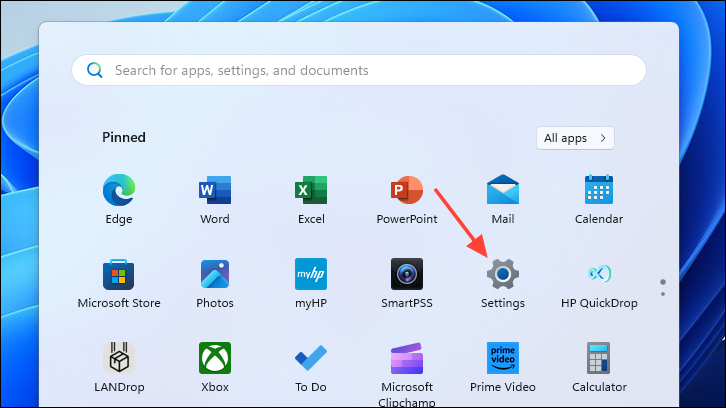
1- Open Start → Settings (or press Windows + I).
2- Go to System.

3- Click For Developers.

4- Turn ON the toggle for End Task.

5- Once enabled:
- Right-click the app icon in the Taskbar.
- Select End Task.
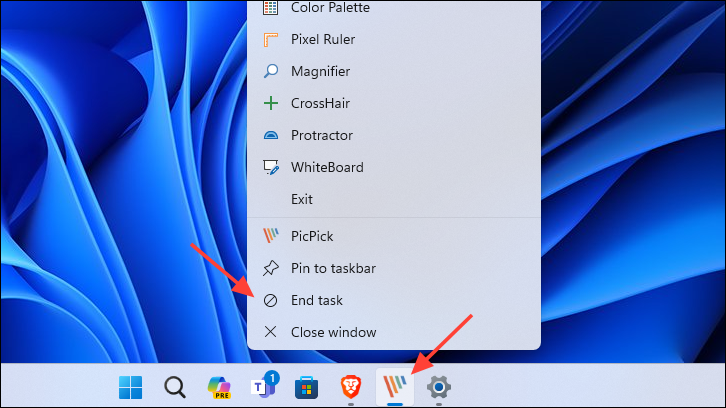
6- The app will immediately terminate — even if frozen.
This method is faster than opening Task Manager.
3. Force Quit Using Task Manager
Task Manager remains the most reliable method.
Steps:
1- Press Ctrl + Shift + Esc
or
2- Right-click the Taskbar → Task Manager

3- Select the Processes tab.
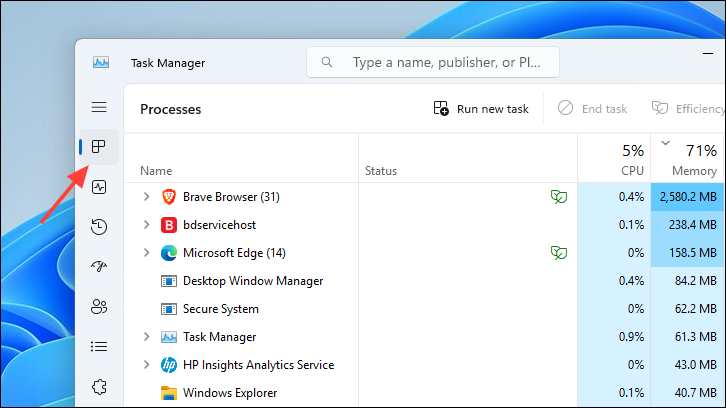
4- Find the unresponsive app.
5- Click it → Select End Task (top-right corner).

Windows will terminate the application instantly.
In Windows 11 25H2, Task Manager also shows:
- CPU usage
- Memory usage
- Disk activity
- Network usage
- Power impact
This helps you identify resource-heavy apps quickly.
4. End the Entire Process Tree (For Stubborn Apps)
Some apps relaunch themselves automatically or run multiple background processes.
In that case:
1- Open Task Manager
2- Go to Processes
3- Right-click the stubborn app
4- Select Go to details

In the Details tab, right-click the highlighted process
5- Select End Process Tree

This kills:
- The main app
- All child processes
- Background services tied to it
This is extremely effective against misbehaving software.
5. Force Close Using Windows Terminal (Command Line Method)
If Task Manager fails, use command-line tools.
Step 1: Open Terminal as Administrator
- Open Start
- Search Terminal
- Right-click → Run as administrator

4. By default, it opens PowerShell.
5. Click the dropdown arrow and select Command Prompt.

Step 2: List Running Tasks
Type:
tasklist
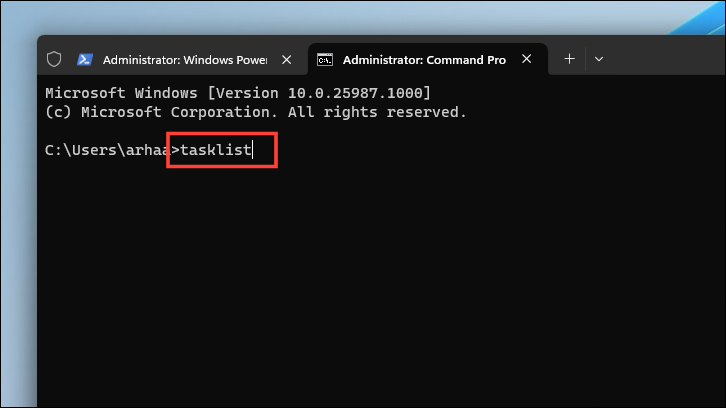
This displays all active processes.
Step 3: Kill a Program by Name
Use:
taskkill /im programname.exe /t /f
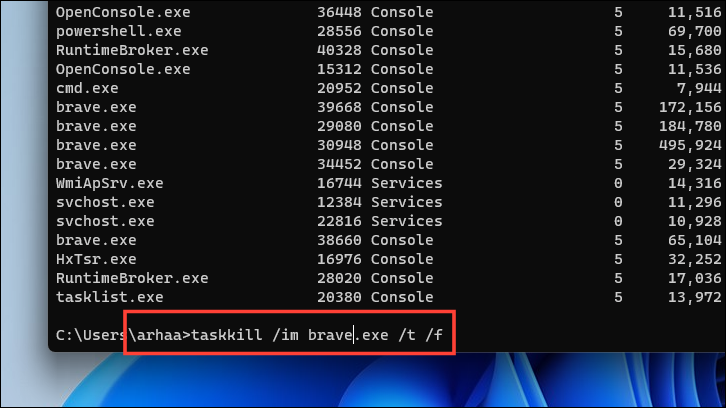
Replace programname.exe with the actual name from tasklist.
Example:
taskkill /im chrome.exe /t /f
Options explained:
/f= Force/t= Terminate child processes
Step 4: Kill by Process ID (PID)
Find the PID from tasklist, then run:
taskkill /pid 1234 /t /f
Replace 1234 with the actual Process ID.

This method works even when the graphical interface is frozen.
6. Create a Desktop Shortcut to Close All “Not Responding” Apps
If you frequently deal with frozen programs, you can automate the process.
Create Shortcut:
1- Right-click Desktop → New → Shortcut

2- Paste:
taskkill /f /fi "status eq not responding"

- Click Next
- Name it something like:
- “Force Close Apps”
- “Kill Frozen Apps”
- Click Finish

Now, whenever apps freeze:
- Double-click the shortcut
- All “Not Responding” apps will instantly close

⚠️ Warning: This will close ALL frozen apps without saving work.
7. Restart Your Computer (Last Resort)
If nothing works:
- Save your work in other apps.
- Open Start
- Click Power
- Select Restart
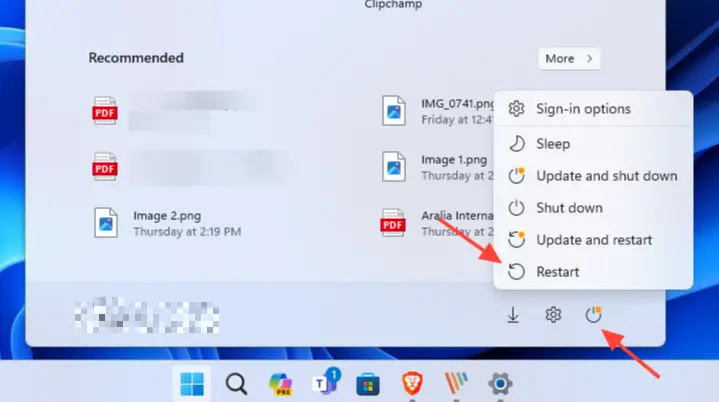
Restarting:
- Clears RAM
- Resets background services
- Fixes process deadlocks
- Stops hidden stuck tasks
In Windows 11 25H2, Fast Startup is optimized, so restarts are usually quick.
Why Apps Freeze in Windows 11 25H2
Common causes include:
- Low RAM
- High CPU usage
- Software bugs
- Outdated drivers
- Corrupted system files
- Background conflicts
- Storage issues
If the same app repeatedly freezes:
- Update it
- Reinstall it
- Update Windows
- Update GPU drivers
If problems persist, report the issue to the app developer.
Pro Tip: Prevent Apps From Freezing
To reduce crashes:
✔ Keep Windows updated
✔ Install latest drivers
✔ Avoid pirated software
✔ Monitor CPU and RAM usage
✔ Keep at least 20% storage free
✔ Use SSD instead of HDD (if possible)
✔ Scan for malware regularly
Final Thoughts
Windows 11 25H2 provides multiple built-in tools to deal with unresponsive programs — from simple keyboard shortcuts to advanced command-line controls.
In most cases:
- Alt + F4 works instantly
- Taskbar End Task is the fastest modern solution
- Task Manager is the most reliable
- taskkill command is the most powerful
Knowing these methods ensures you stay in control — even when apps refuse to cooperate.
And if you'd like to go a step further in supporting us, you can treat us to a virtual coffee ☕️. Thank you for your support ❤️!

We do not support or promote any form of piracy, copyright infringement, or illegal use of software, video content, or digital resources.
Any mention of third-party sites, tools, or platforms is purely for informational purposes. It is the responsibility of each reader to comply with the laws in their country, as well as the terms of use of the services mentioned.
We strongly encourage the use of legal, open-source, or official solutions in a responsible manner.
Comments