

When you connect to a Wi-Fi network on a Windows 11 25H2 PC, the system automatically saves its credentials so it can reconnect in the future. This is convenient most of the time—but not always.
You may want to forget a Wi-Fi network if:
- Windows keeps connecting to the wrong network
- You changed the router or password
- A network causes repeated connection errors
- You no longer want automatic reconnections
Fortunately, Windows 11 25H2 offers several ways to remove saved Wi-Fi networks, whether they’re currently in range or not. This guide covers all available methods, from the Settings app to advanced tools like Command Prompt and the Registry Editor.
Method 1: Forget a Wi-Fi Network Using the Settings App (Recommended)
This is the cleanest and safest method and works even if the network is not currently available.
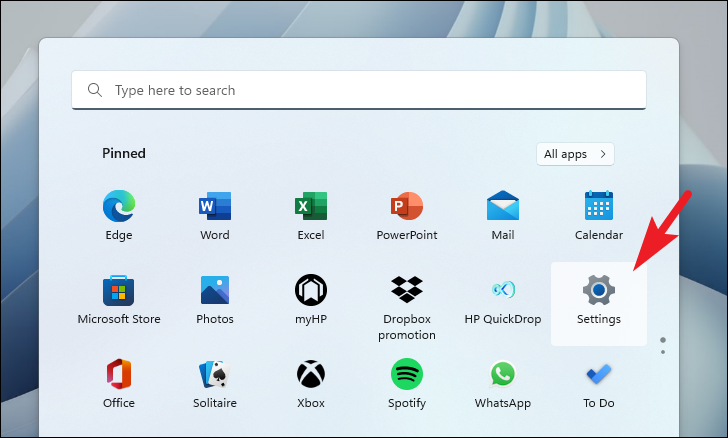
Step 1: Open Settings
Click the Start menu and select Settings, or press Windows + I on your keyboard.
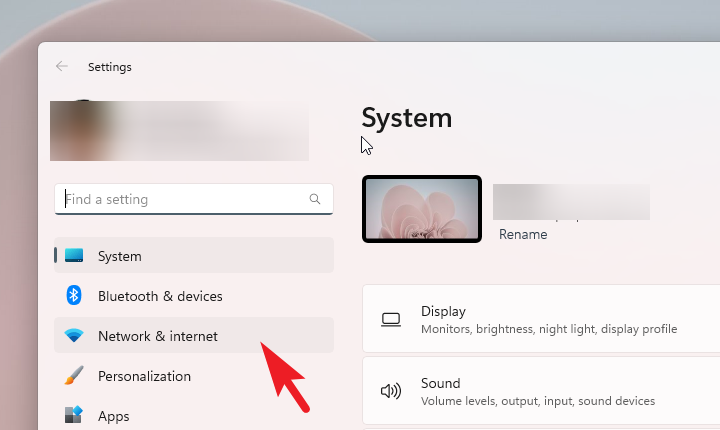
Step 2: Go to Network & internet
In the left sidebar, click Network & internet.
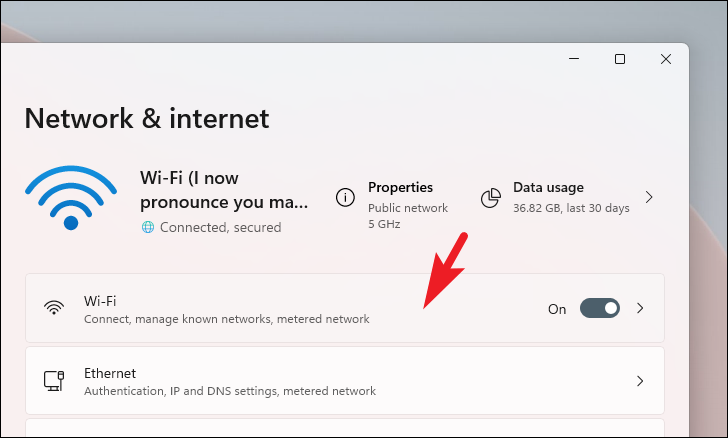
Step 3: Open Wi-Fi Settings
On the right, select Wi-Fi.
Step 4: Manage Known Networks
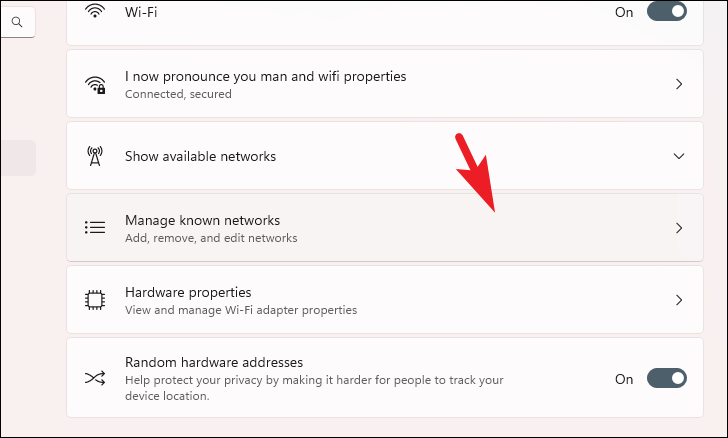
Click Manage known networks to view all Wi-Fi networks your PC has ever connected to.
Step 5: Find the Network
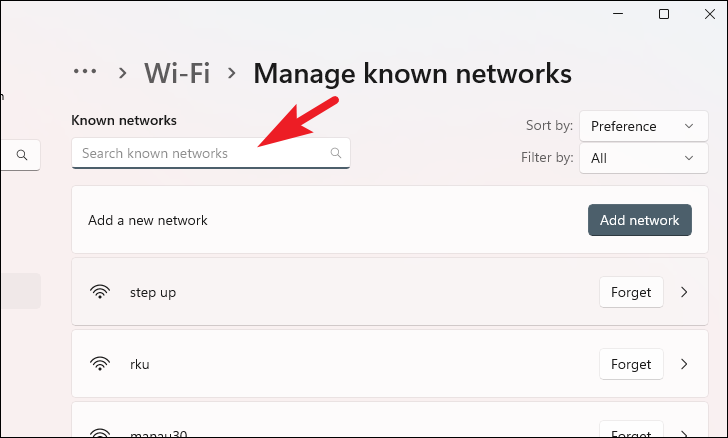
Scroll through the list or use the search box to quickly locate the network you want to remove.
Step 6: Forget the Network
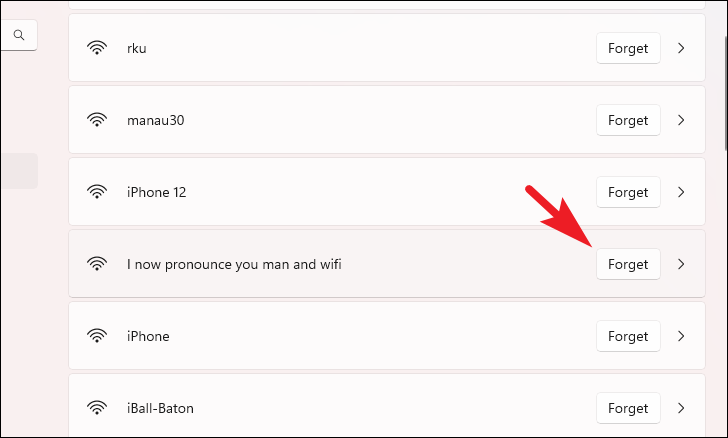
Click Forget next to the network name.
Windows immediately deletes the saved credentials and connection history.
Method 2: Forget a Wi-Fi Network from Quick Settings
If the network is currently connected or in range, this is the fastest option.
Step 1: Open Quick Settings
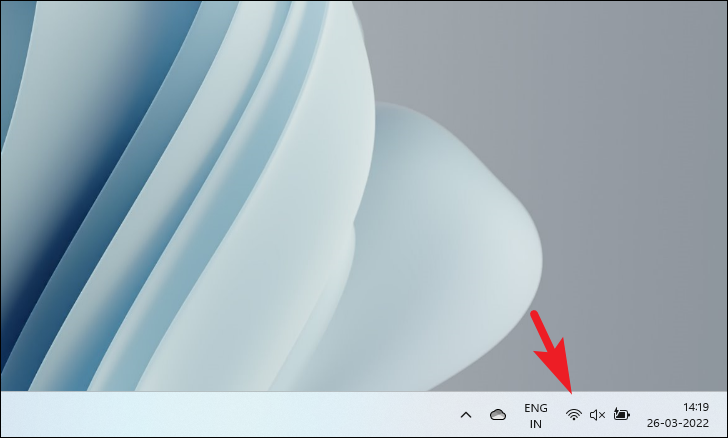
Click the Wi-Fi / volume / battery area on the right side of the taskbar.
Step 2: Show Available Networks
Click the arrow (>) next to the Wi-Fi icon to expand the network list.
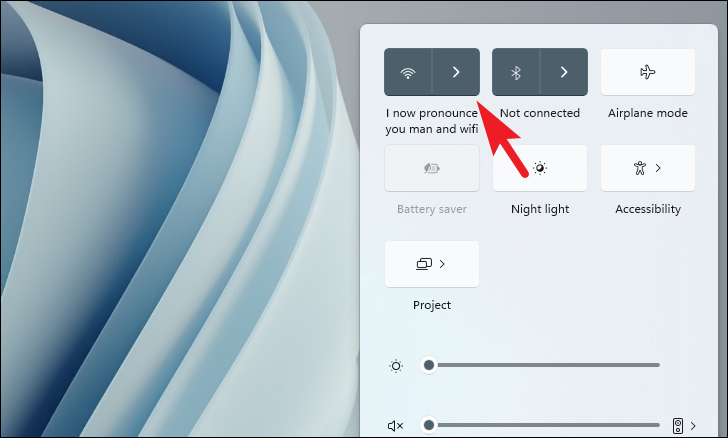
Step 3: Forget the Network
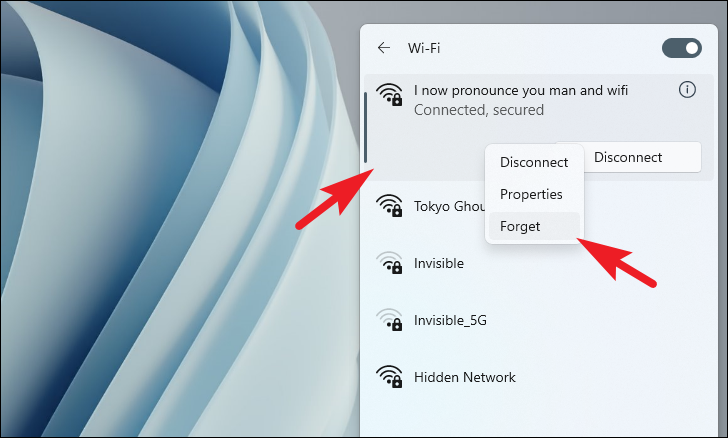
Right-click the Wi-Fi network and select Forget.
Note:
Only networks that are currently visible will appear here. For out-of-range networks, use the Settings app.
Method 3: Forget All Saved Wi-Fi Networks Using Command Prompt
If you’re facing persistent Wi-Fi issues, removing all saved networks can help reset things completely.
Step 1: Open Command Prompt as Administrator
- Open Start
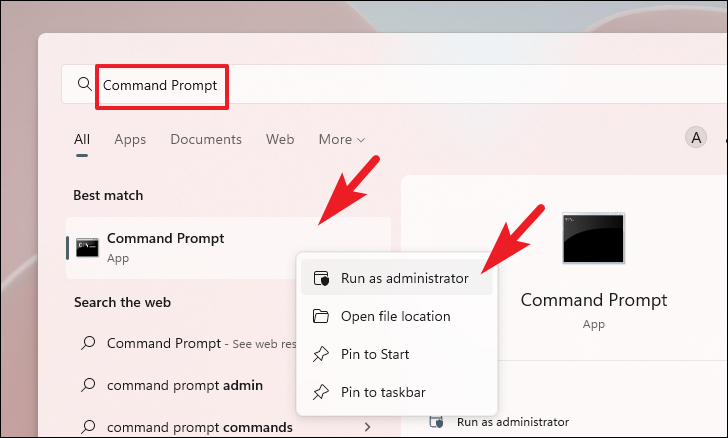
- Search for Command Prompt
- Right-click it and select Run as administrator
Step 2: Confirm UAC
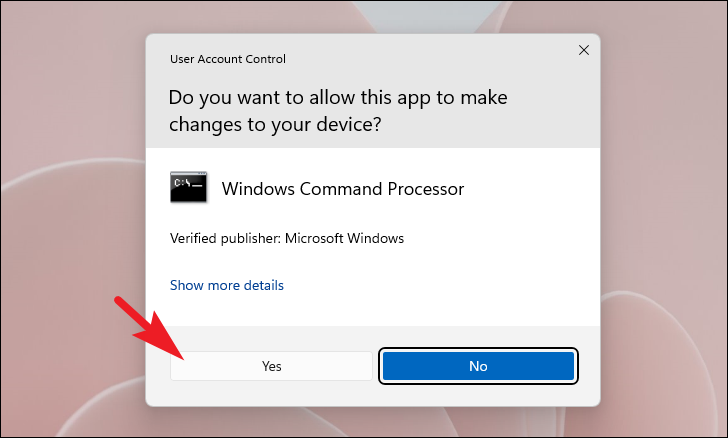
Click Yes if prompted.
Step 3: Delete All Wi-Fi Profiles
Enter the following command and press Enter:
netsh wlan delete profile name=* i=*
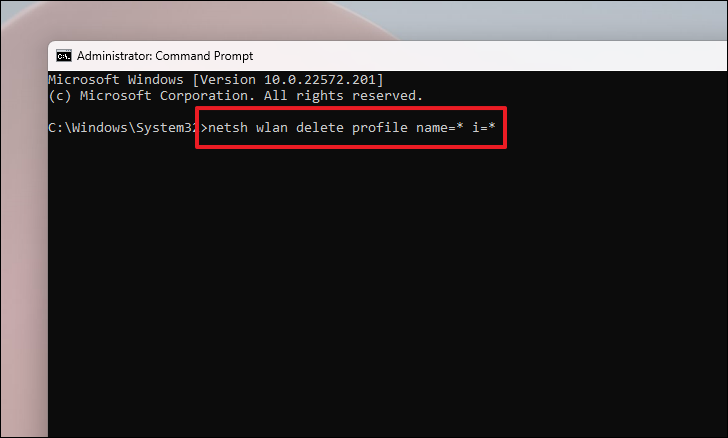
This command removes every saved Wi-Fi network from your system.
Method 4: Remove Wi-Fi Networks Using the Registry Editor (Advanced)
⚠️ Warning: This method is for advanced users only. Editing the registry incorrectly can cause system issues.
Use this method only if other options fail.
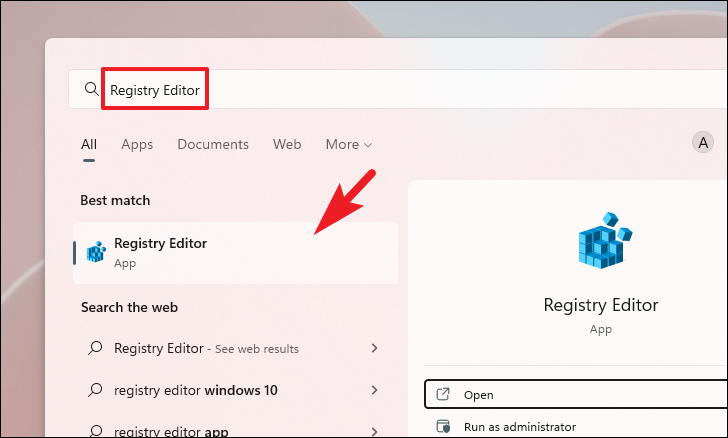
Step 1: Open Registry Editor
Press Windows + R, type regedit, and press Enter.
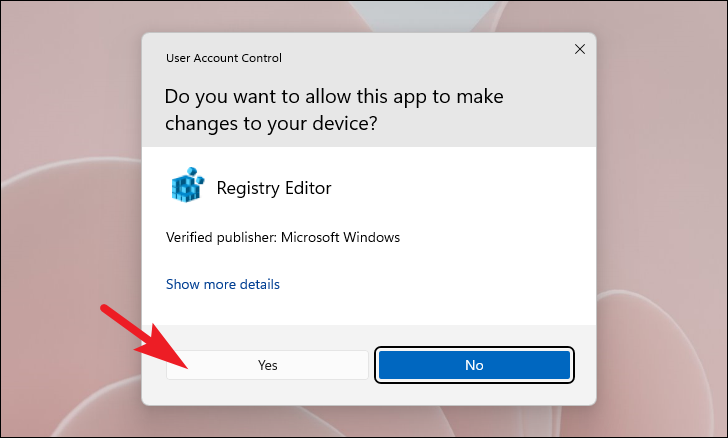
Step 2: Approve UAC
Click Yes when prompted.
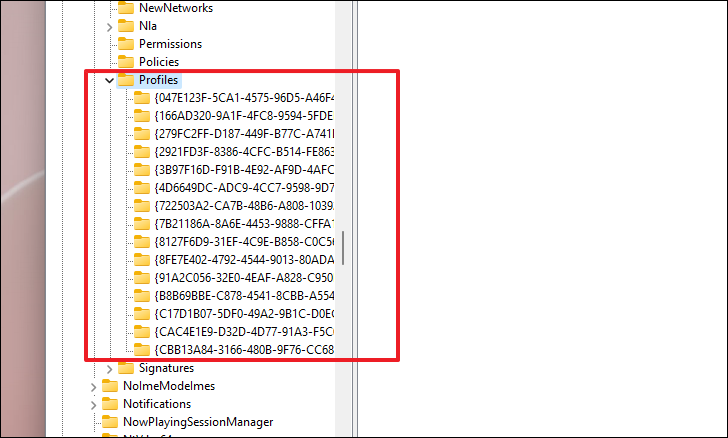
Step 3: Navigate to Wi-Fi Profiles
Paste the following path into the address bar:
Computer\HKEY_LOCAL_MACHINE\SOFTWARE\Microsoft\Windows NT\CurrentVersion\NetworkList\Profiles

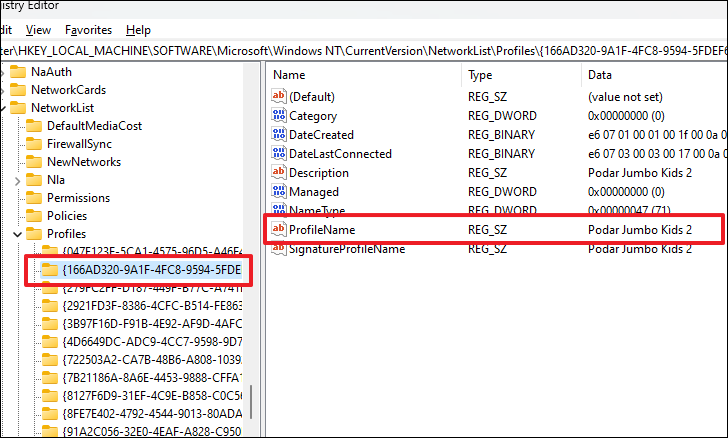
Step 4: Identify the Network
Each subkey represents a saved network.
Click a subkey and check ProfileName in the right pane to identify the Wi-Fi name.
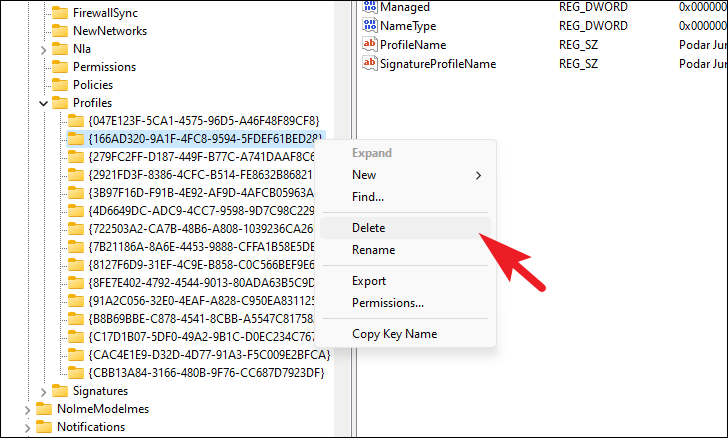
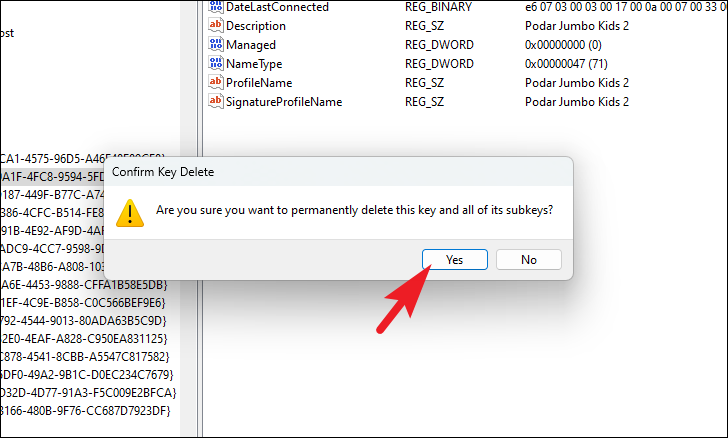
Step 5: Delete the Profile
Once you find the correct network:
- Right-click the subkey
- Select Delete
- Confirm the action
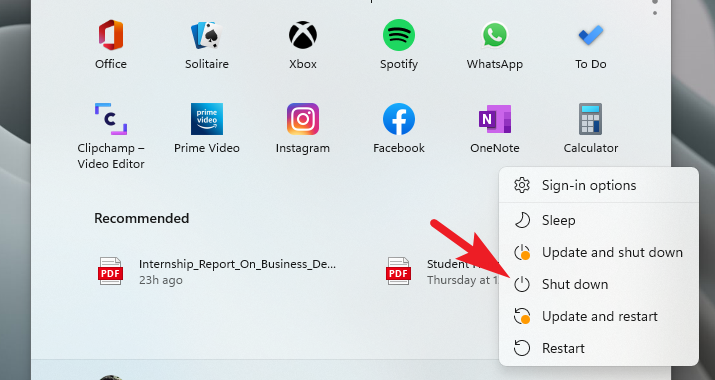
Step 6: Restart Your PC
Reboot to apply changes. The network will be permanently removed.
How to Reconnect to a Wi-Fi Network on Windows 11
If you later need to reconnect to a forgotten network:
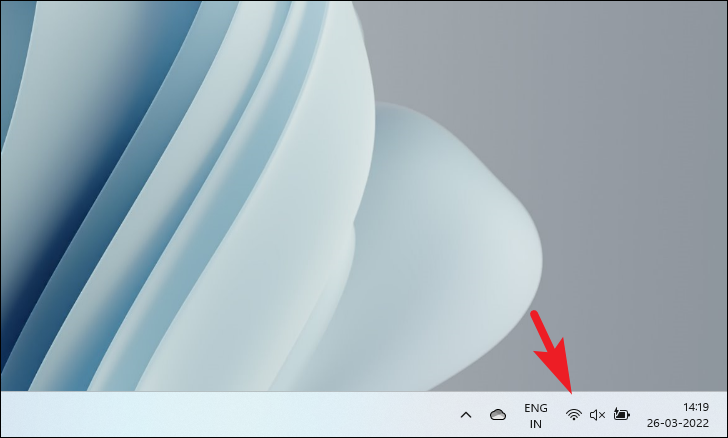
1- Open Quick Settings from the taskbar
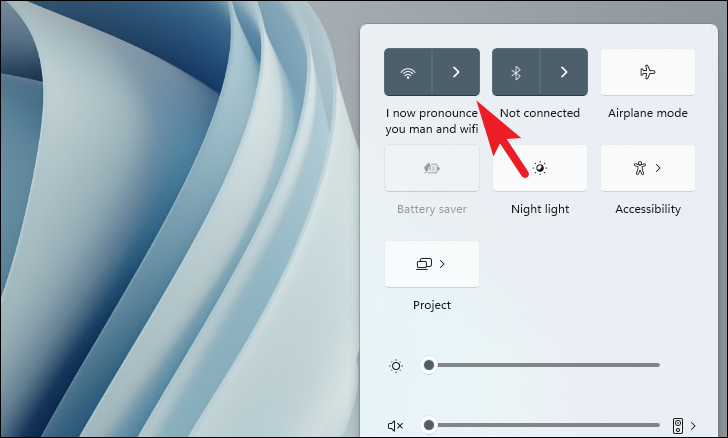
2- Click the Wi-Fi arrow (>)
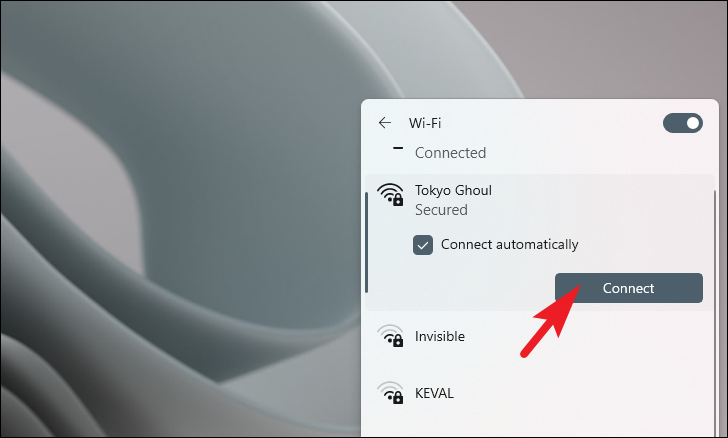
3- Select the network
4- Click Connect
5- Enter the password (if required)
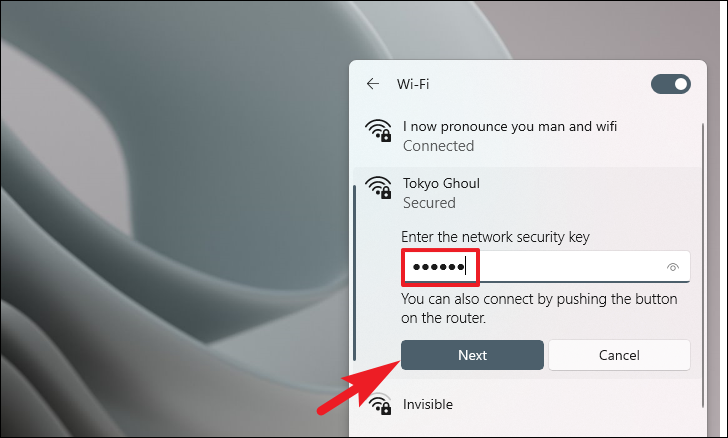
Windows will save the network again automatically.
Final Thoughts
Managing saved Wi-Fi networks in Windows 11 25H2 is easy once you know where to look. Whether you want to remove a single problematic network or completely reset your wireless connections, Windows provides multiple tools to get the job done.
For most users, the Settings app is all you’ll ever need. Advanced methods like Command Prompt or the Registry should only be used when troubleshooting stubborn connectivity issues.
And if you'd like to go a step further in supporting us, you can treat us to a virtual coffee ☕️. Thank you for your support ❤️!

We do not support or promote any form of piracy, copyright infringement, or illegal use of software, video content, or digital resources.
Any mention of third-party sites, tools, or platforms is purely for informational purposes. It is the responsibility of each reader to comply with the laws in their country, as well as the terms of use of the services mentioned.
We strongly encourage the use of legal, open-source, or official solutions in a responsible manner.
Comments