

As macOS 15 Sequoia brings enhanced performance and features, it also demands more storage. High-resolution media, system data, application caches, and software updates can quickly eat into available disk space. If your Mac is running low on storage, you’ll experience slower performance, update failures, and warnings about a nearly full startup disk. Fortunately, with the right mix of system tools, manual techniques, and third-party apps, you can reclaim space efficiently.
1. Identify Storage Usage and Hidden Files
Steps:
1- Open System Settings > General > Storage.

2- Wait for the storage graph to load. Hover over each section to see which categories (like Applications, Photos, System Data) consume the most space.

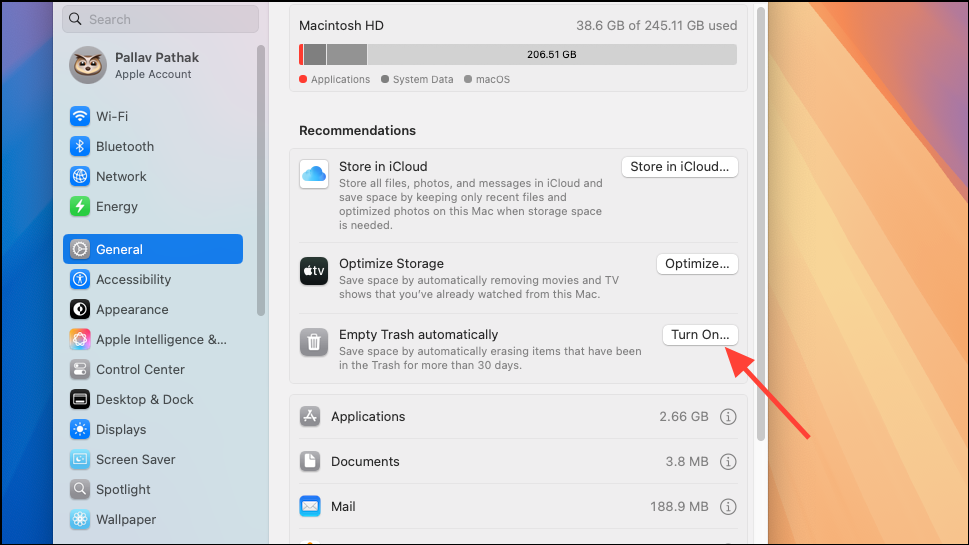
3- Check Apple’s recommendations below the graph: use options like Store in iCloud, Optimize Storage, and Empty Trash Automatically to quickly reclaim space.
Note: The “System Data” section often hides caches, logs, and Time Machine snapshots that aren’t visible in Finder.
2. Delete Large and Unnecessary Files
Steps:
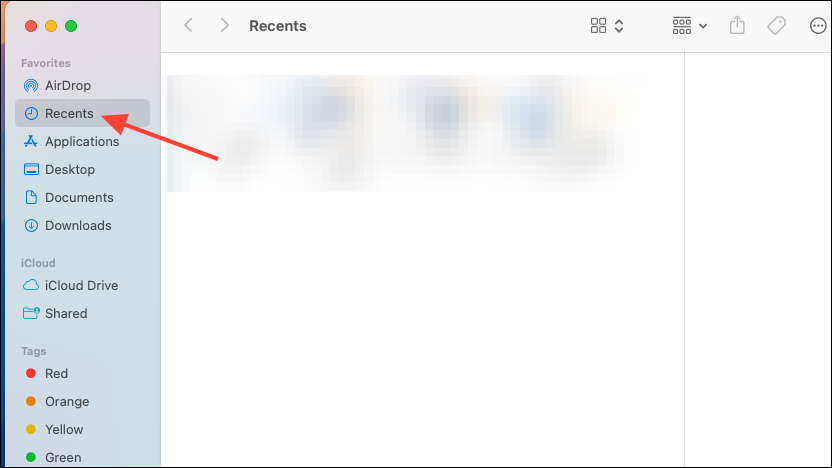
1- Open Finder > Recents. Sort by Size using the six-square icon.
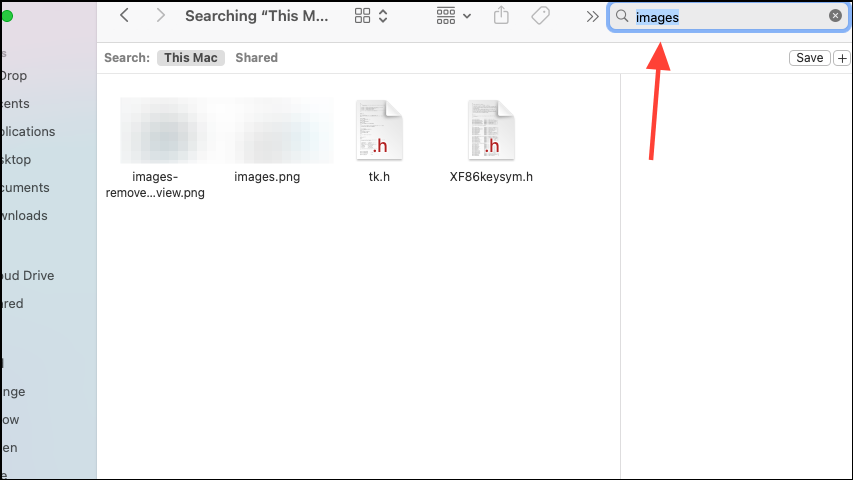
2- Use Shift + Command + F to search system-wide. Set filters: File Size is greater than 100 MB.
3- Manually delete unwanted files, especially in Documents, Downloads, Movies, and Desktop.
4- Right-click Trash in the Dock and select Empty Trash to finalize.

3. Clear Caches and Application Leftovers
Steps:
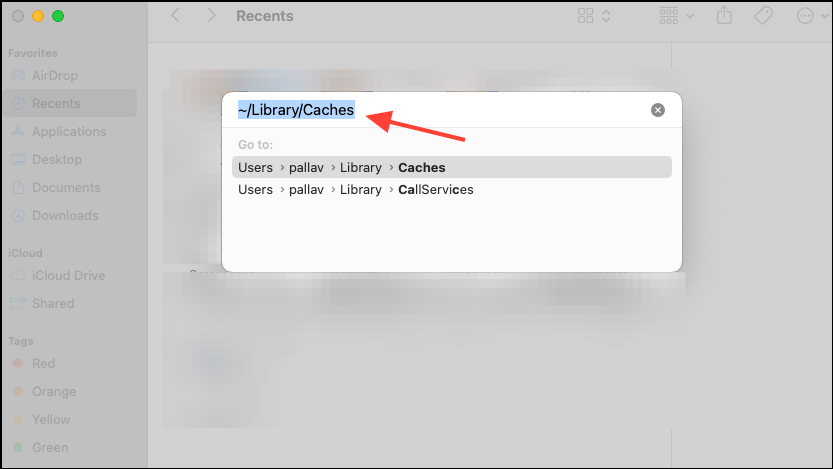
1- In Finder, press Shift + Command + G, then enter: ~/Library/Caches Delete contents inside folders (not the folders themselves).
2- Repeat for:
~/Library/Logs
~/Library/Application Support
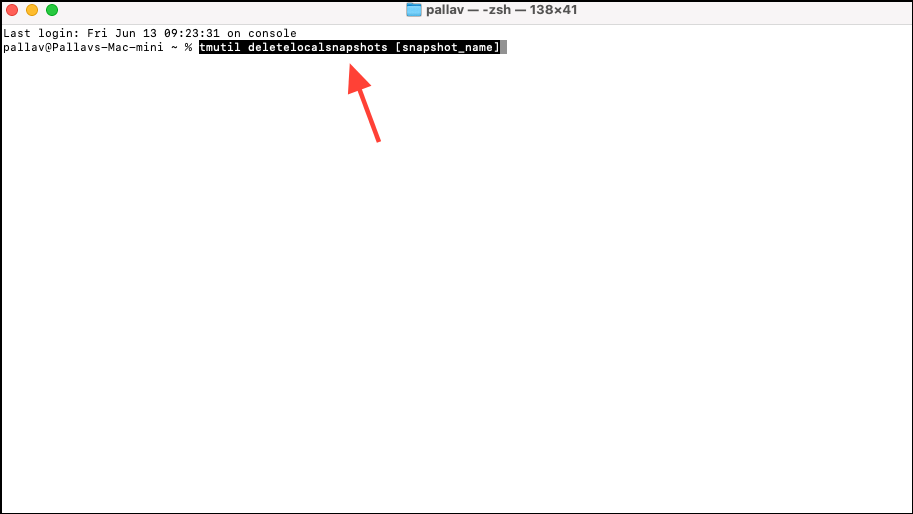
3- Remove Time Machine local snapshots:
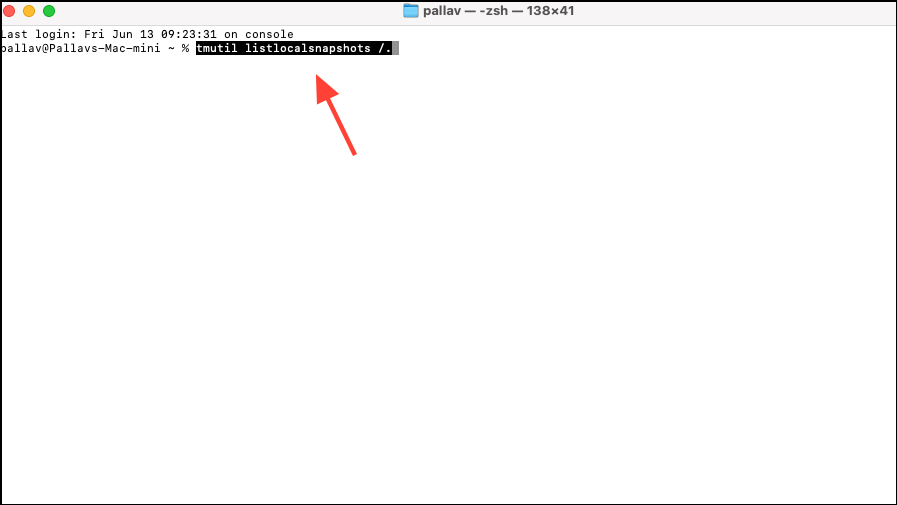
- Open Terminal and run:
tmutil listlocalsnapshots /
- Then delete with:
sudo tmutil deletelocalsnapshots [snapshot_name]
Warning: Avoid modifying
/Systemor other protected folders unless you’re an advanced user.
4. Use macOS Storage Optimization Features
Steps:
1- Turn on Optimize Storage in System Settings > General > Storage.
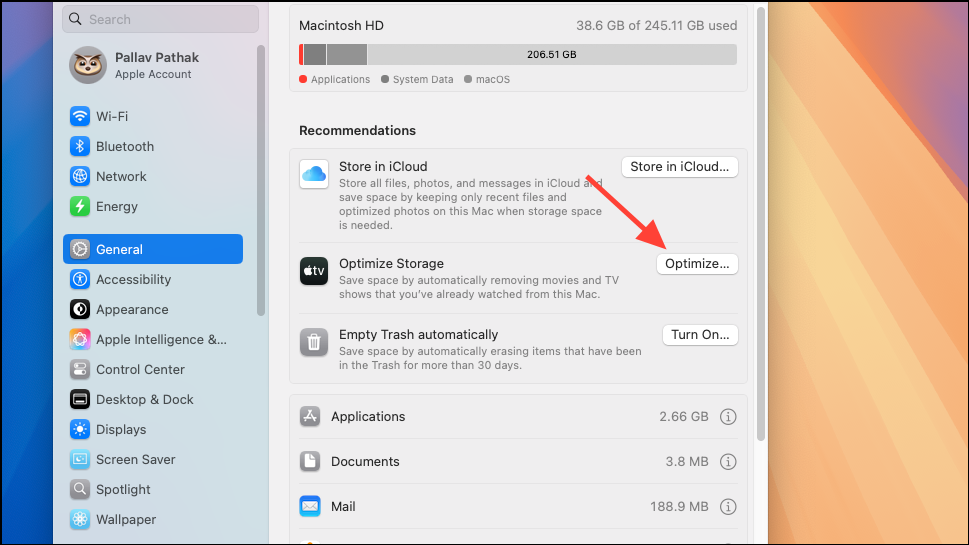
2- Enable Store in iCloud for Documents, Desktop, and Photos. Make sure Optimize Mac Storage is enabled.

3- Activate Empty Trash Automatically to remove items 30+ days old.
5. Scan for Hidden or Duplicate Files with Third-Party Tools
Recommended Apps:
- DaisyDisk or GrandPerspective: Visualize disk usage with interactive maps.
- CleanMyMac X or Sensei: Remove junk files, uninstall apps, and clear logs and language files.
- Gemini: Find and delete duplicate files across Photos, Music, and more.
Always review what these tools recommend deleting before confirming.
6. Move Libraries and Media to External or Cloud Storage
Steps:
- Move large library files (like
Photos Library.photoslibrary) to an external drive.- Open the app while holding Option, then choose the new location.
- Ensure it’s working before deleting the original.
- Use cloud services (Google Drive, Dropbox, iCloud Drive) with selective sync to reduce local file storage.
7. Perform Regular Maintenance
Tips:
- Clean out the Downloads folder periodically.
- Compress infrequently used files: Right-click > Compress.
- Keep at least 15-20% of your drive free to avoid slowdowns.
- Restart your Mac regularly to clear cached system files.
- Backup important data before major cleanups.
Final Thoughts
macOS 15 Sequoia delivers top-tier performance, but that performance depends on having adequate storage. With a combination of Finder techniques, built-in macOS tools, and safe third-party apps, you can free up valuable space and keep your Mac running smoothly. Make storage cleanup a regular habit to ensure your Mac is always ready for updates, projects, and peak performance.
And if you'd like to go a step further in supporting us, you can treat us to a virtual coffee ☕️. Thank you for your support ❤️!

We do not support or promote any form of piracy, copyright infringement, or illegal use of software, video content, or digital resources.
Any mention of third-party sites, tools, or platforms is purely for informational purposes. It is the responsibility of each reader to comply with the laws in their country, as well as the terms of use of the services mentioned.
We strongly encourage the use of legal, open-source, or official solutions in a responsible manner.
Comments