

With Windows 11 25H2, Microsoft continues refining the desktop experience—but some default elements, like the Recycle Bin icon, still won’t appeal to everyone. Whether you’re aiming for a minimalist desktop or want to add an extra layer of privacy, removing or hiding the Recycle Bin is still possible using several built-in methods.
This updated guide walks you through all working options in Windows 11 25H2—from simple Settings tweaks to advanced system-level changes.
Hide the Recycle Bin via Settings (Recommended)
The easiest and safest way to remove the Recycle Bin icon is through system settings.
Steps:
1- Press Windows + I to open Settings
2- Go to Personalization → Themes

3- Scroll down and click Desktop icon settings
(Quick shortcut: press Windows + R, type desk.cpl ,,5, and hit Enter)

4- Uncheck Recycle Bin under Desktop Icons

5- Click Apply, then OK
✅ The Recycle Bin icon will instantly disappear from your desktop.
Hide All Desktop Icons (Clean Desktop Mode)
If you want a completely clutter-free desktop:
Steps:
1- Right-click on an empty area of the desktop
2- Hover over View

3- Uncheck Show desktop icons

⚠️ This hides everything, including files and shortcuts—not just the Recycle Bin.
Remove Recycle Bin Using Group Policy (Pro Editions)
For users on Pro, Enterprise, or Education editions, Group Policy offers more control.
Steps:
1- Press Windows + R, type gpedit.msc, and press Enter

2- Navigate to:User Configuration → Administrative Templates → Desktop

3- Double-click Remove Recycle Bin icon from desktop

4- Set it to Enabled

5- Click Apply → OK
6- Restart your PC
✅ After reboot, the icon will be permanently removed.
Remove Recycle Bin via Registry (All Editions)
If you’re using Home edition, the Registry method is your alternative.
⚠️ Important: Always back up your registry before making changes.
Steps:
1- Press Windows + R, type regedit, and press Enter

2- Backup: File → Export → Select All


3- Navigate to:
HKEY_LOCAL_MACHINE\Software\Microsoft\Windows\CurrentVersion\Explorer\HideDesktopIcons\

- Under both:
NewStartPanelClassicStartMenu


Create a new DWORD (32-bit) Value:
{645FF040-5081-101B-9F08-00AA002F954E}
- Set its value to 1
- Restart your PC

✅ The Recycle Bin icon will be removed.
💡 To restore it later, simply change the value back to 0.
How to Access the Recycle Bin After Hiding It
Even if the icon is gone, the Recycle Bin still works normally.
Access methods:
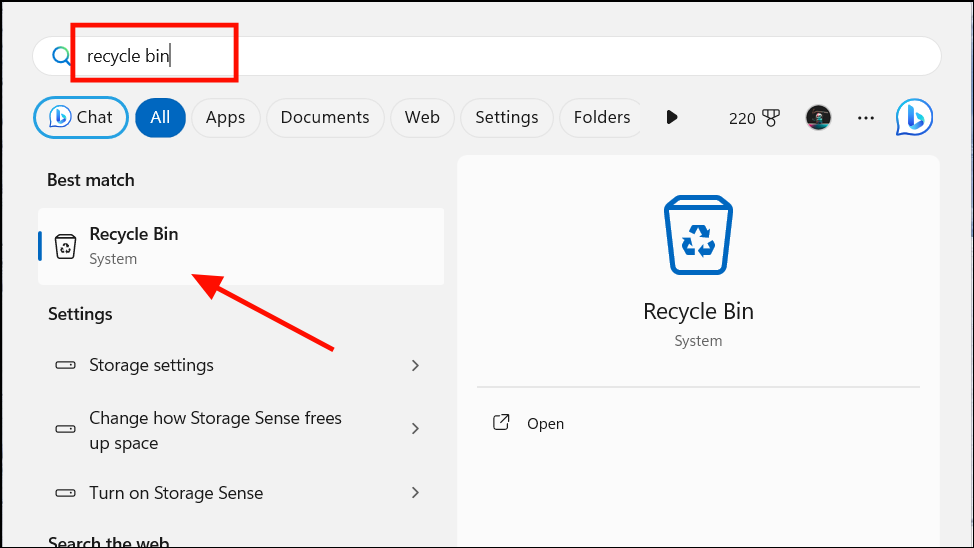
- Search: Press Start and type Recycle Bin
- File Explorer: Press Windows + E, type Recycle Bin in the address bar
- Run command: Press Windows + R and enter: shell:RecycleBinFolder
Permanently Delete Files (Skip Recycle Bin)
If your goal is privacy, you can bypass the Recycle Bin entirely.
Steps:
1- Right-click the Recycle Bin → Properties
2- Select a drive
3- Choose:
Don’t move files to the Recycle Bin. Remove files immediately when deleted

4- Click Apply → OK

⚠️ Files deleted this way cannot be easily recovered, so use with caution.
What’s New in Windows 11 25H2?
While the process remains mostly unchanged, Windows 11 25H2 introduces:
- Slight UI refinements in Settings navigation
- Better integration of personalization options
- Continued push toward a cleaner, simplified desktop experience
However, advanced options like Group Policy and Registry edits remain essential for deeper customization.
Conclusion
Customizing your desktop in Windows 11 25H2 is still flexible—you just need to know where to look. Whether you want a minimalist workspace or better privacy control, removing the Recycle Bin icon is quick and fully reversible.
From simple Settings tweaks to advanced system configurations, you now have complete control over how your desktop looks and behaves.
And if you'd like to go a step further in supporting us, you can treat us to a virtual coffee ☕️. Thank you for your support ❤️!

We do not support or promote any form of piracy, copyright infringement, or illegal use of software, video content, or digital resources.
Any mention of third-party sites, tools, or platforms is purely for informational purposes. It is the responsibility of each reader to comply with the laws in their country, as well as the terms of use of the services mentioned.
We strongly encourage the use of legal, open-source, or official solutions in a responsible manner.
Comments