

You’ve just downloaded a file ending in .deb and now you’re wondering how to install it on your Linux system. If you’re new to Linux, this can feel confusing at first—but don’t worry. Installing a .deb package is straightforward once you understand your options.
In this complete guide, you’ll learn three reliable ways to install a .deb file on Linux, depending on your experience level. We’ll also cover how to fix broken dependencies, uninstall .deb packages cleanly, stay safe when installing third-party software, and decide when .deb is the right format compared to Snap, Flatpak, or AppImage.
What Is a .deb File?
A .deb file is a software package format originally created for Debian Linux. The name comes from Debian Package, and today it’s the standard format used by all Debian-based distributions, including:
- Ubuntu
- Linux Mint
- Pop!_OS
- Zorin OS
- elementary OS
- and many others
Technically, a .deb file is an archive that contains:
- Precompiled program files (for architectures like amd64, arm64, i386)
- Metadata (package name, version, description, dependencies)
- Installation scripts that configure the software on your system
You can think of a .deb file as the Linux equivalent of a .exe on Windows or a .dmg on macOS, with one major advantage: dependency management. The system knows exactly which libraries the software needs and can install them automatically.
You’ll usually find .deb files on official software websites when the app isn’t included in your distribution’s repositories (examples: Google Chrome, Discord, Visual Studio Code).
How to Install a .deb File on Linux: 3 Methods
There are three main ways to install a .deb package. Let’s go from the simplest to the most recommended.
Method 1: Install a .deb Using a Graphical Package Manager
This is the easiest method and ideal for beginners.
- Double-click the
.debfile - If it opens in an archive manager, right-click the file and select Open With → Software Installer
Depending on your distribution:
- Ubuntu uses App Center
- Linux Mint uses Software Manager
You’ll see details such as:
- Software name and version
- Description
- Required dependencies
Click Install, enter your administrator password, and let the system handle everything.
If no graphical installer appears—or you want more control—use the terminal methods below.
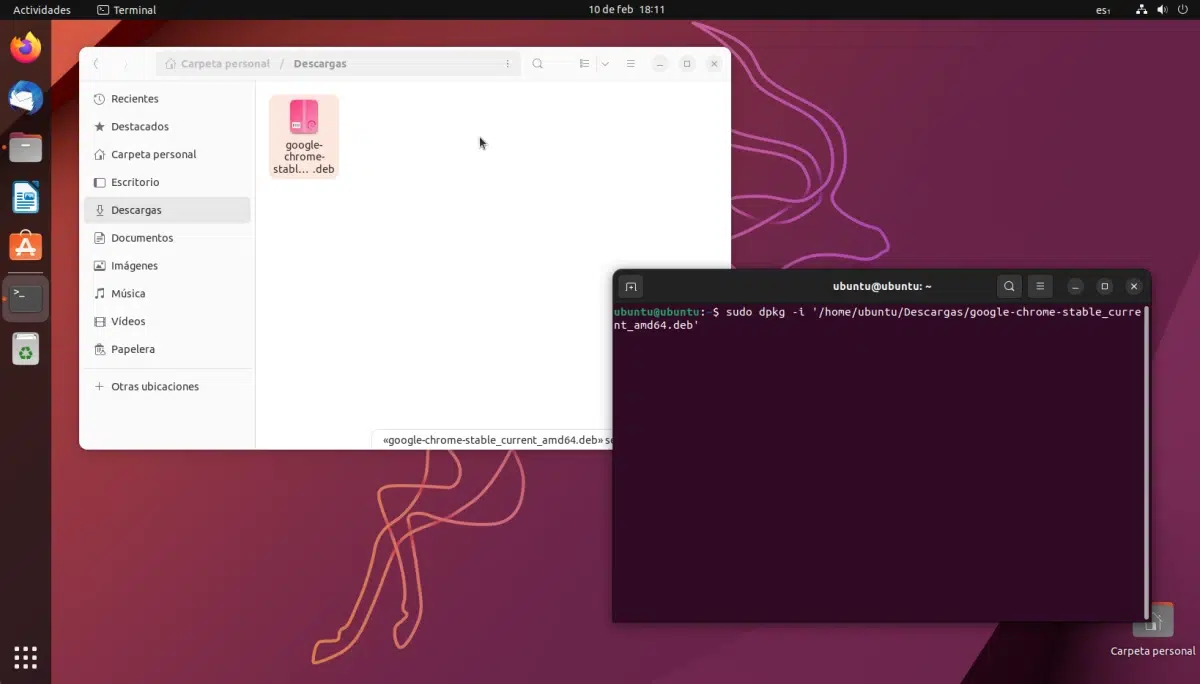
Method 2: Install a .deb Using dpkg (Advanced)
dpkg is the low-level tool that actually installs .deb packages behind the scenes.
How to use dpkg
- Open a terminal
- Navigate to the folder containing the
.debfile (usually Downloads) - Run:
sudo dpkg -i package-name.deb

Replace package-name.deb with the exact filename.
If everything goes well, the program installs and appears in your application menu.
Important limitation of dpkg
dpkg does not resolve dependencies automatically.
If required libraries are missing, installation will fail with dependency errors. This is common—and not dangerous—but it means you’ll need the next method to fix it.
Method 3: Install a .deb Using apt (Recommended)
This is the best and safest method for installing .deb files.
Why apt is better
- Automatically installs missing dependencies
- Prevents system breakage
- Integrates cleanly with your package manager
Command to use
sudo apt install ./package-name.deb
⚠️ The ./ is critical. It tells apt you’re installing a local file, not a repository package.
apt will:
- Analyze the
.deb - List all required dependencies
- Ask for confirmation
- Download and install everything safely
If conflicts exist, apt will stop instead of damaging your system.
How to Fix Broken Dependencies After Installing a .deb
If you used dpkg and now see dependency errors, your system may be in a “broken” state.
Fix it with this command:
sudo apt --fix-broken install
Or the short version:
sudo apt -f install
This tells apt to:
- Detect missing dependencies
- Download and install them automatically
In most cases, this resolves the issue instantly.
If you want to remove the problematic package instead:
sudo apt remove package-name
How to Uninstall a .deb Package Cleanly
Step 1: Find the exact package name
dpkg -l | grep keyword
Example:
dpkg -l | grep discord
Step 2: Remove the package
Keep configuration files:
sudo apt remove package-name
Remove everything (recommended for clean uninstall):
sudo apt purge package-name
Step 3: Remove unused dependencies
sudo apt autoremove
This clears orphaned libraries and frees disk space.
Security Precautions Before Installing a .deb
Installing a .deb gives software full system access, so caution matters.
Best practices:
- Download only from official websites
- Verify CPU architecture (amd64 vs arm64)
- Prefer official repositories when available
- Be cautious of unusual permission requests
You can check your system architecture with:
uname -m
Malware on Linux is rare—but malicious .deb files do exist.
Should You Use .deb or Other Formats?
.deb
✔ Best system integration
✔ Smaller disk usage
✘ Manual updates if not from repos
Snap / Flatpak
✔ Latest versions
✔ Better isolation and security
✘ Larger size
✘ Slight performance overhead
AppImage
✔ No installation needed
✔ Perfect for testing
✘ No automatic updates
✘ Limited system integration
Best rule of thumb:
- Use official repositories first
- Use .deb for stable, trusted software
- Use Flatpak/Snap for newer versions
- Use AppImage for testing or portable apps
Final Thoughts
Installing a .deb file on Linux is far from complicated once you understand the tools available. Whether you prefer a graphical installer or the terminal, Linux gives you flexibility, control, and safety—especially when using apt.
Mastering .deb packages is a key step toward becoming comfortable with Debian-based systems. With the right habits, you’ll keep your system clean, secure, and stable.
And if you'd like to go a step further in supporting us, you can treat us to a virtual coffee ☕️. Thank you for your support ❤️!

We do not support or promote any form of piracy, copyright infringement, or illegal use of software, video content, or digital resources.
Any mention of third-party sites, tools, or platforms is purely for informational purposes. It is the responsibility of each reader to comply with the laws in their country, as well as the terms of use of the services mentioned.
We strongly encourage the use of legal, open-source, or official solutions in a responsible manner.
Comments