

Installing the PL2303 USB-to-Serial driver on Windows 11 25H2 is required to communicate with devices that rely on Prolific USB-to-Serial chipsets. These devices are commonly used in industrial controllers, embedded systems, GPS receivers, telescopes, sensors, and legacy hardware.
While Windows 11 sometimes installs the driver automatically, this doesn’t always work—especially with older PL2303-based adapters or when Windows Update pulls an incompatible version. In those cases, manual installation is the fastest and most reliable fix.
This guide walks you through downloading and installing the official PL2303 driver safely on Windows 11 25H2.
Download and Install the PL2303 Driver (Official Method)
To avoid compatibility issues and counterfeit drivers, always download the PL2303 driver directly from Prolific, the chipset manufacturer.
Step 1: Download the PL2303 Driver
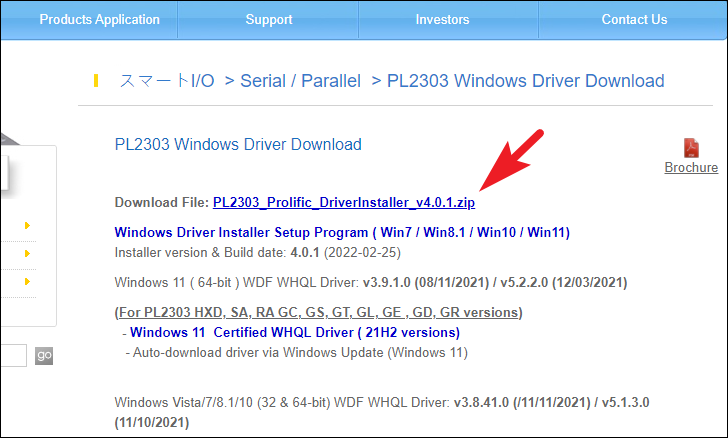
Open your web browser and go to prolific.com.tw.
Navigate to the Support / Download section and locate the PL2303 Windows Driver package.
Choose the version listed as compatible with Windows 11 / Windows 10 (x64) and download the ZIP file.
Step 2: Extract the ZIP File
Once the download finishes:
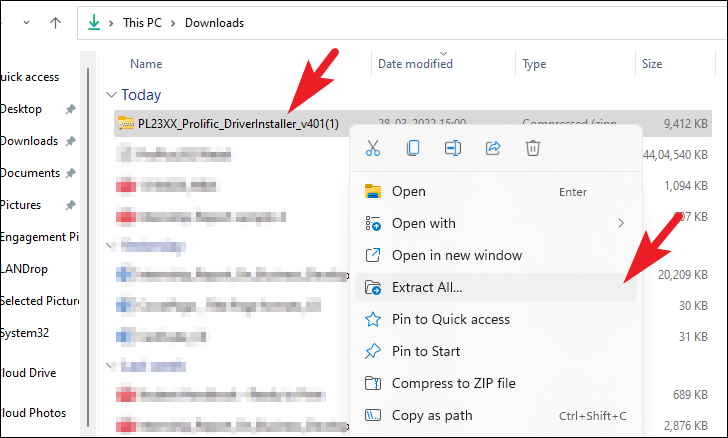
- Open your Downloads folder
- Right-click the downloaded .zip file
- Select Extract All
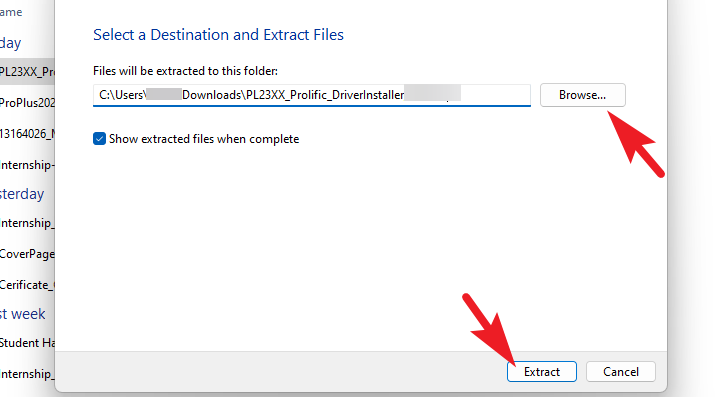
- Click Extract to unpack the files
Windows will create a new folder containing the driver installer.
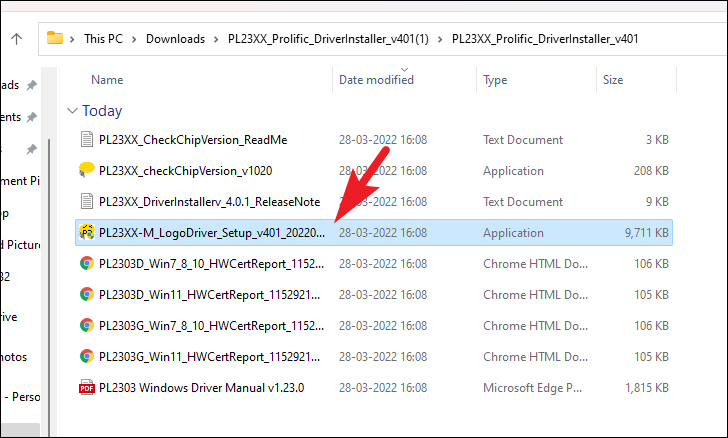
Step 3: Launch the Installer
- Open the extracted folder and locate the .exe installer file.
- Double-click it to begin installation.
Step 4: Bypass SmartScreen (If Prompted)
On Windows 11 25H2, Microsoft Defender SmartScreen may block unsigned or lesser-known installers.
If you see a warning:
- Click More info
- Select Run anyway
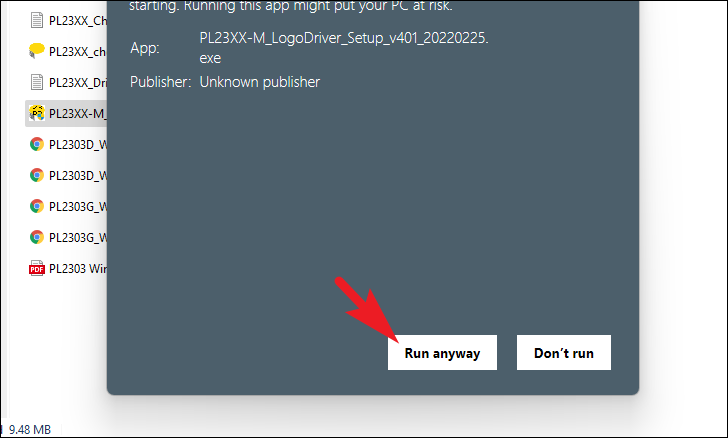
This is normal when installing hardware drivers from manufacturers.
Step 5: Approve User Account Control (UAC)
When the User Account Control prompt appears:
- Click Yes
- Or enter administrator credentials if required
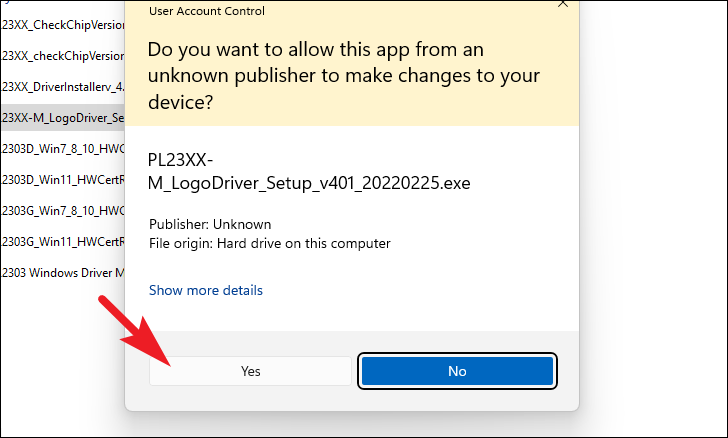
Administrator access is necessary to install system drivers.
Step 6: Follow the Setup Wizard
In the PL2303 Setup Wizard:
- Click Next to begin installation
- Wait while Windows copies and registers the driver
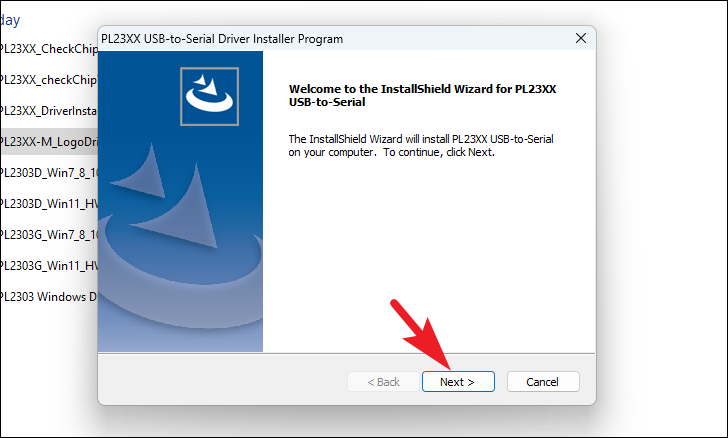
The process usually takes less than a minute.
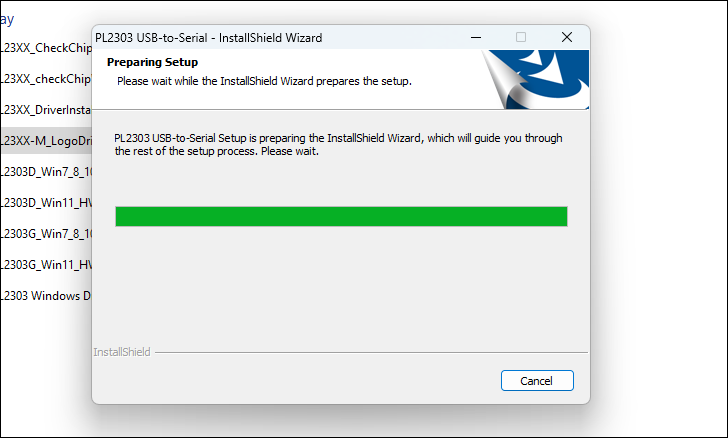
Step 7: Complete Installation
Once installation finishes, click Finish to exit the wizard.
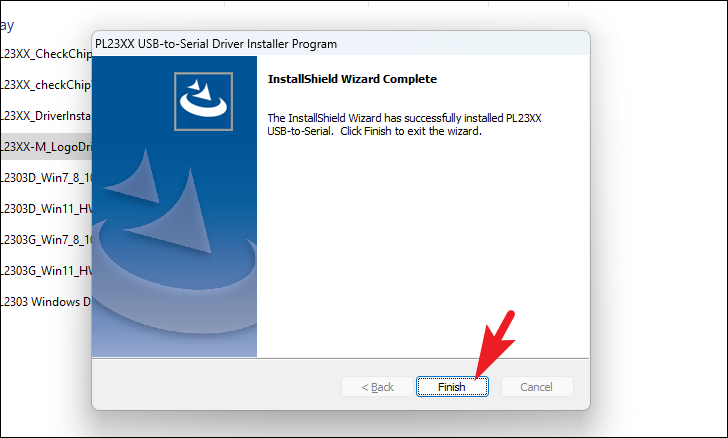
At this point, the PL2303 driver is fully installed on your system.
Verify That the PL2303 Driver Is Working
To confirm everything installed correctly:
- Connect your USB-to-Serial adapter
- Right-click Start → Device Manager
- Expand Ports (COM & LPT)
If the driver is working, you should see something like:
Prolific USB-to-Serial Comm Port (COMx)
If the device appears with a warning icon, restart your PC and reconnect the adapter.
Common Issues on Windows 11 25H2
“PL2303 device not supported”
This usually happens with counterfeit or very old PL2303 chips.
Prolific blocks unsupported chip revisions in newer drivers.
Solution:
Install an older driver version listed on Prolific’s site or use a certified adapter.
Device Not Showing in Device Manager
- Try a different USB port
- Avoid USB hubs during testing
- Use a known-good USB cable
Driver Installs but COM Port Doesn’t Appear
- Restart Windows
- Replug the adapter
- Check View → Show hidden devices in Device Manager
Final Thoughts
Installing the PL2303 driver on Windows 11 25H2 is usually straightforward when using the official Prolific driver. Manual installation is often the best solution if Windows Update fails or installs the wrong version.
Once installed correctly, your USB-to-Serial devices should work reliably across development tools, terminal software, and industrial applications.
And if you'd like to go a step further in supporting us, you can treat us to a virtual coffee ☕️. Thank you for your support ❤️!

We do not support or promote any form of piracy, copyright infringement, or illegal use of software, video content, or digital resources.
Any mention of third-party sites, tools, or platforms is purely for informational purposes. It is the responsibility of each reader to comply with the laws in their country, as well as the terms of use of the services mentioned.
We strongly encourage the use of legal, open-source, or official solutions in a responsible manner.
Comments