


Maintaining control and ensuring privacy during Microsoft Teams meetings is crucial, especially for confidential discussions or situations requiring focused collaboration. The ability to lock a Teams meeting, preventing further participants from joining once the meeting has begun, offers a simple yet effective security measure. This guide details how to lock and unlock Teams meetings, and explores additional security features to enhance meeting privacy and control.
Locking a Microsoft Teams Meeting:
Locking a meeting prevents anyone from joining after it has started.
Steps:
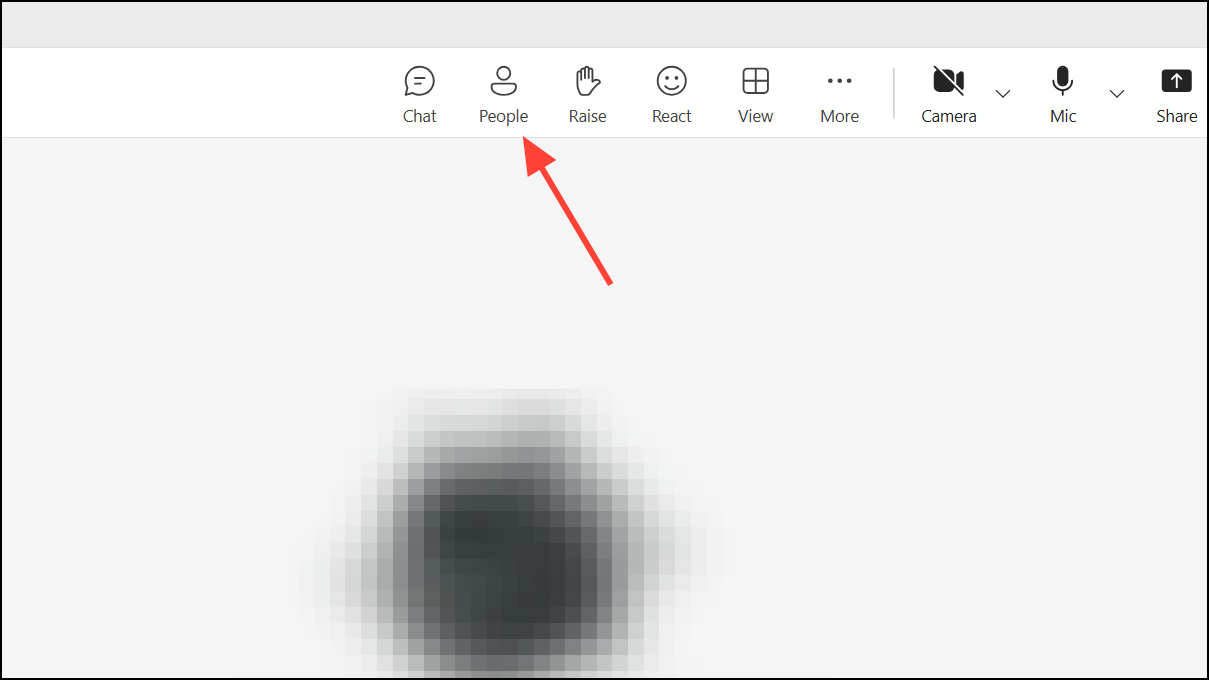
1- Access Participants Pane: Join the meeting as an organizer or co-organizer. Click the “Participants” button in the meeting controls.
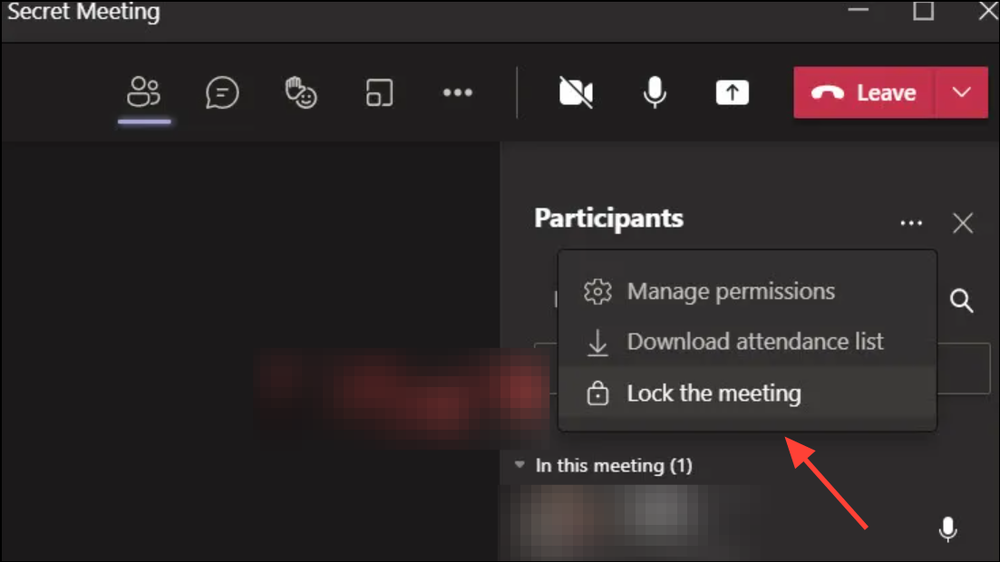
2- Lock the Meeting: Click “More actions” (three vertical dots) in the Participants pane and select “Lock the meeting.” Confirm the action.
Once locked, latecomers receive a notification indicating the meeting is locked and they cannot join. They can still access the meeting chat (if enabled), view shared files, and see recordings. Participants who leave a locked meeting cannot rejoin unless the meeting is unlocked.
Unlocking a Microsoft Teams Meeting:
To allow additional participants to join, unlock the meeting.
Steps:
- Access Participants Pane: Click the “Participants” button.
- Unlock the Meeting: Click “More actions” and select “Unlock the meeting.” Confirm the action.
Enhancing Meeting Security with Additional Features:
Locking a meeting is just one aspect of meeting security. Consider these additional measures:
- Lobby Settings: Use the lobby to screen participants before admission. Restrict lobby bypass to organizers and co-organizers for enhanced security.
- Chat Access Control: Control chat access (before, during, and after the meeting) or disable chat entirely.
- Presenter Control: Limit presenting rights to organizers or specific individuals.
- Audio/Video Controls: Mute or disable cameras for attendees to reduce distractions.
- Remove Participants: Remove disruptive or unauthorized participants from the meeting.
These settings can be adjusted before or during a meeting, offering flexibility to adapt to specific needs. For recurring meetings, regularly review and update these security settings.
Conclusion:
Locking Microsoft Teams meetings provides a simple yet effective way to control access and enhance privacy. Combined with other security features, this functionality ensures a more secure and focused meeting environment. Remember to unlock the meeting if you expect late arrivals and to regularly review your meeting settings to maintain optimal security.
And if you'd like to go a step further in supporting us, you can treat us to a virtual coffee ☕️. Thank you for your support ❤️!

We do not support or promote any form of piracy, copyright infringement, or illegal use of software, video content, or digital resources.
Any mention of third-party sites, tools, or platforms is purely for informational purposes. It is the responsibility of each reader to comply with the laws in their country, as well as the terms of use of the services mentioned.
We strongly encourage the use of legal, open-source, or official solutions in a responsible manner.
Comments