
Windows 11 is already well optimized for modern gaming, but a few settings can still make a noticeable difference. Whether you are trying to increase FPS, reduce input latency, eliminate stuttering, or simply make your PC more consistent during demanding gaming sessions, there are several things worth checking.
The key is knowing which Windows 11 gaming settings actually help and which old optimization tricks should be left alone.
This guide walks you through the most useful Windows 11 26H2 settings for gaming, including Game Mode, GPU preferences, windowed-game optimizations, graphics drivers, background apps, storage, power settings, and temperature monitoring.
Important: Not every tweak improves FPS on every PC. Some settings depend on your hardware, game engine, GPU driver, and whether you are using a desktop or laptop.
1. Enable Windows 11 Game Mode
Game Mode is one of the first Windows settings you should check.
When enabled, Windows prioritizes gaming-related processes and helps reduce the impact of background system activity while you play.
How to enable Game Mode
1- Press Windows + I to open Settings.
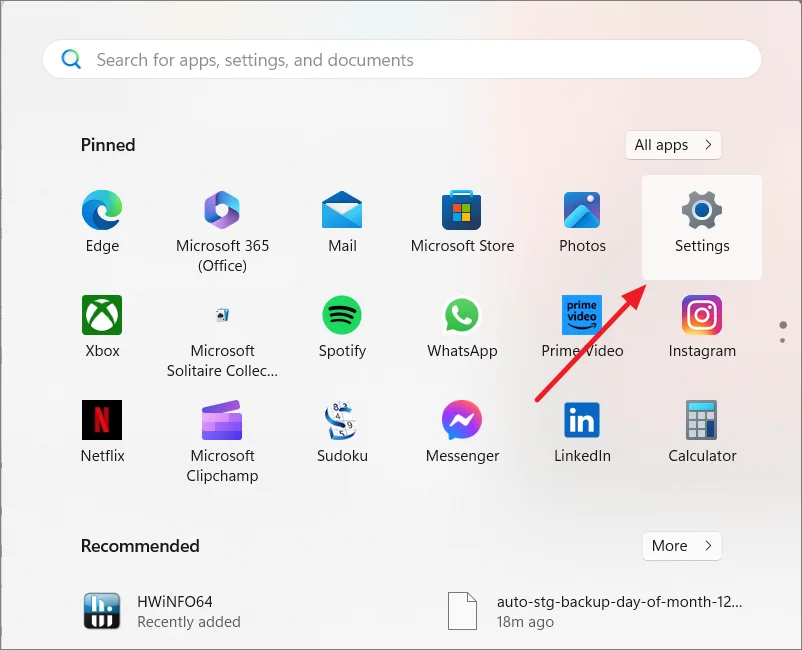
2- Select Gaming.
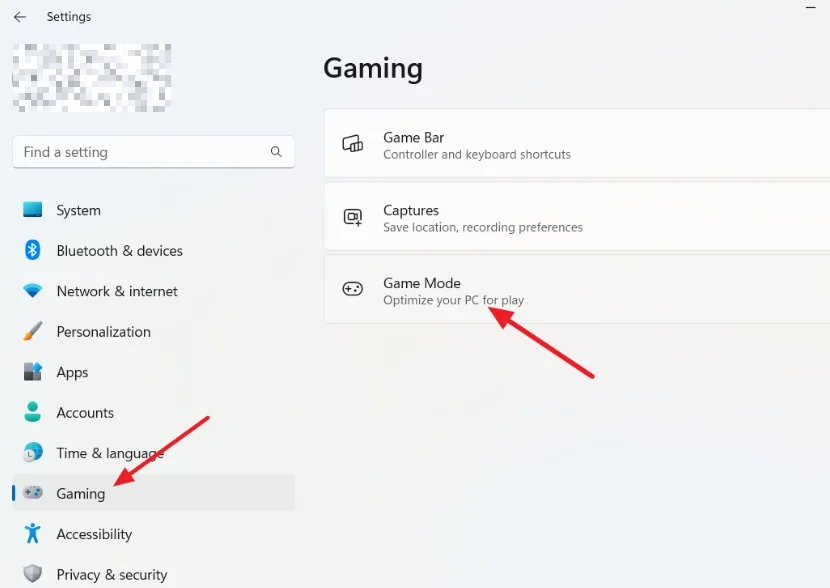
3- Click Game Mode.
4- Turn Game Mode on.
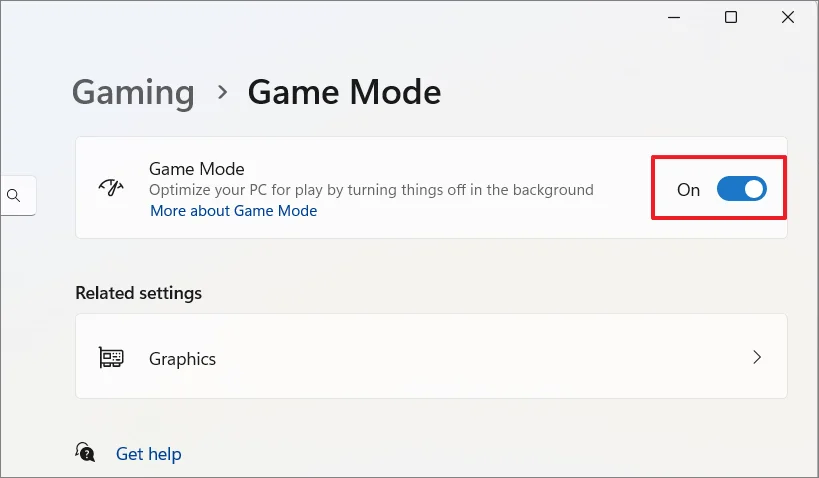
You do not normally need to use third-party “gaming mode” utilities to replace this Windows feature.
2. Set Your Games to the High-Performance GPU
If your computer has more than one GPU, Windows 11 lets you choose which graphics processor each game should use.
This is particularly useful on laptops with integrated and dedicated graphics.
How to configure GPU preference
1- Open Settings.
2- Go to System > Display > Graphics.
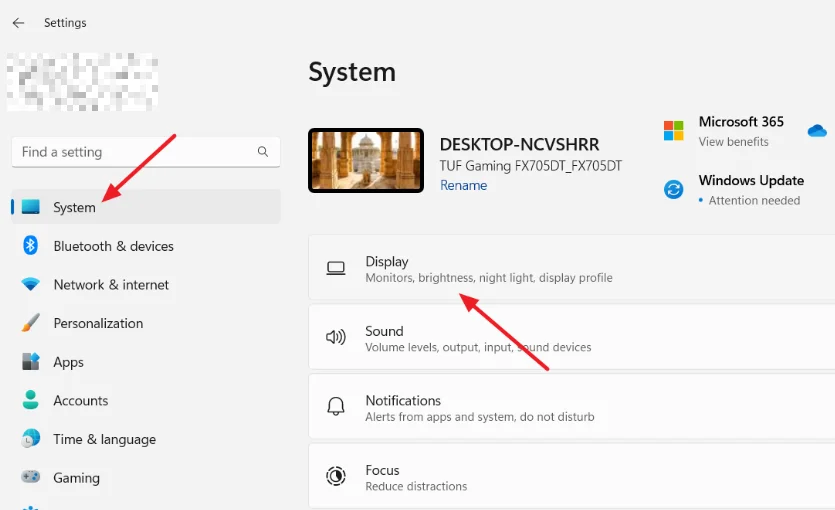
3- Under Custom options for apps, locate your game.

4- If it isn’t listed, click Browse and select the game’s .exe file.
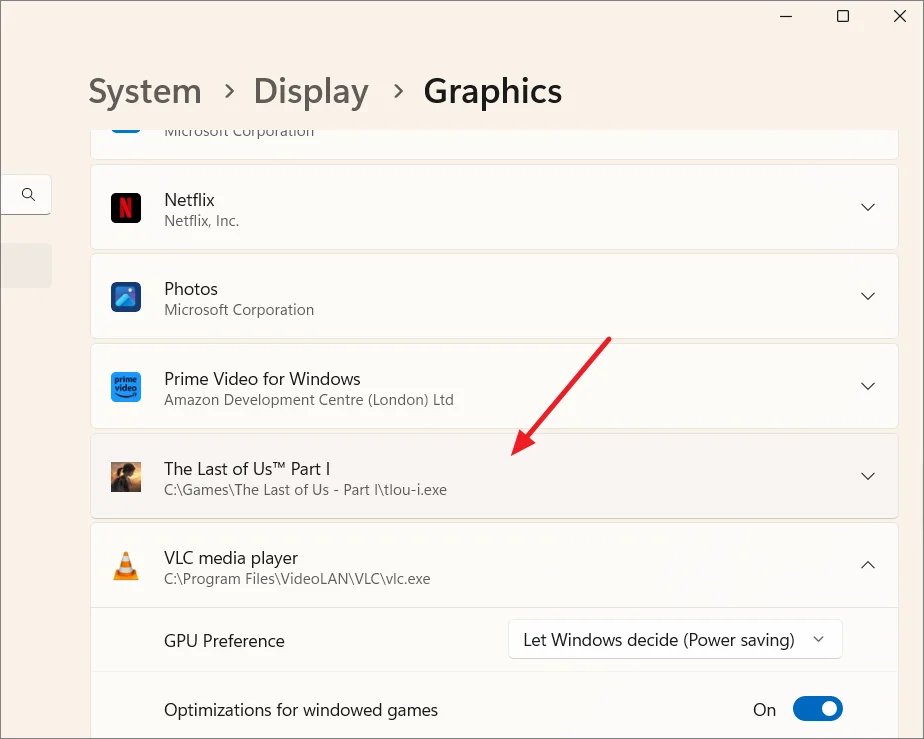
5- Select the game and click Options.
6- Choose High performance.
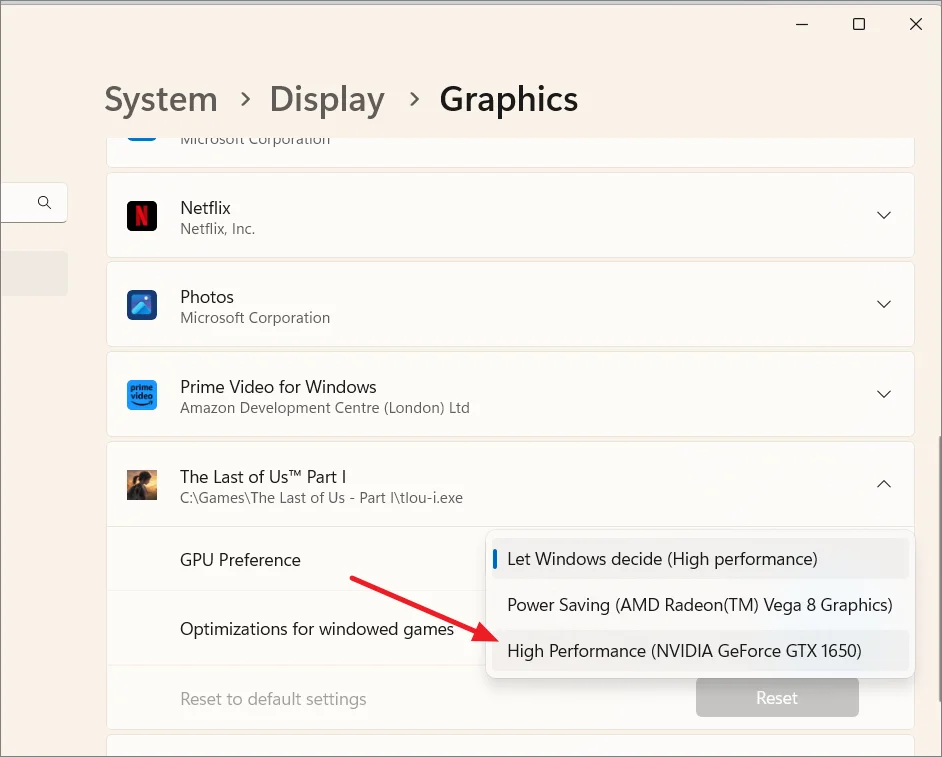
7- Click Save.
Windows 11 provides per-application GPU preferences, including Power saving, Let Windows decide, and High performance.
On a desktop PC with only one discrete GPU, this setting usually isn’t necessary.
3. Enable Optimizations for Windowed Games
This is one of the more useful modern Windows 11 gaming settings, especially if you play games in borderless windowed mode.
Microsoft says Windows 11’s Optimizations for windowed games improves performance for compatible DirectX 10 and DirectX 11 games running in windowed or borderless modes. It can reduce frame latency and also works with features such as Auto HDR and variable refresh rate on supported displays.
How to enable it
- Open Settings.
- Go to System > Display > Graphics.
- Find Optimizations for windowed games.
- Turn the option On.
- Restart your game.
You can also configure the feature on a per-game basis.
Should you enable it?
For most modern gaming PCs, leaving it enabled is a sensible starting point. If a particular game develops graphical glitches, stuttering, or compatibility problems, you can disable the optimization specifically for that game.
4. Enable Hardware-Accelerated GPU Scheduling
Windows 11 includes Hardware-Accelerated GPU Scheduling (HAGS), which changes how GPU scheduling is handled by moving some scheduling responsibilities from the CPU to the GPU’s dedicated scheduling hardware.
The effect varies considerably between systems and games, so don’t expect a universal FPS boost.
How to find HAGS
1- Open Settings.
2- Select System > Display.

3- Click Graphics.

4- Open the available Default graphics settings.
5- Look for Hardware-accelerated GPU scheduling.
6- Enable it if the option is available.
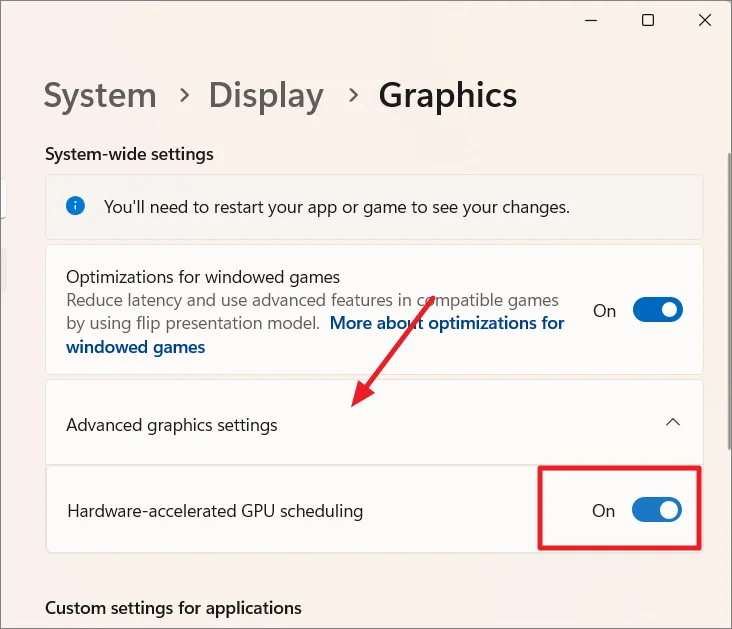
7- Restart Windows.
If you experience instability or worse performance after enabling it, test the setting in the opposite state.
Tip: Don’t assume that every Windows gaming toggle should be enabled simply because it sounds like an optimization. Benchmark your favorite games before and after changing important graphics settings.
5. Use the Right Windows Power Mode
Windows 11 provides power-mode controls that are more relevant on modern systems than blindly switching to the old Control Panel “High performance” plan.
On a desktop PC
Open:
Settings > System > Power & battery > Power mode
If available, choose Best performance when gaming.

On a laptop
You can use Best performance while plugged into AC power if you want to prioritize gaming performance over battery life.
Keep in mind that higher performance can also mean:
- Higher power consumption
- More heat
- More fan noise
- Shorter battery life
For a gaming laptop, connect the charger before playing demanding games.
6. Update Your Graphics Driver
A current GPU driver can be important for new game releases, bug fixes, compatibility, and performance optimizations.
Before changing advanced Windows settings, make sure your graphics driver isn’t several months out of date.
NVIDIA
Download the latest drivers from the official:
NVIDIA provides dedicated Game Ready Drivers for gaming systems.
AMD
Use the official:
AMD provides Windows 10/11 driver packages and automatic detection tools for supported Radeon GPUs and Ryzen processors.
Intel
For Intel graphics, use:
How to identify your GPU
Press:
Windows + R
Enter:
dxdiag
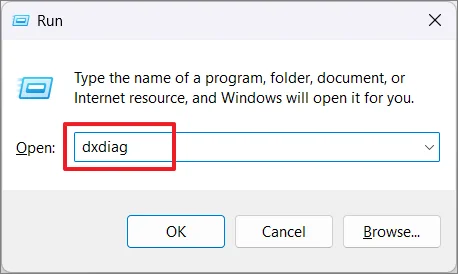
Press Enter, then open the Display tabs to see your graphics hardware.

7. Keep Windows 11 Updated
Microsoft regularly delivers Windows updates containing security fixes, compatibility improvements, and bug fixes.
For gaming PCs, keeping Windows reasonably current is preferable to running an outdated installation indefinitely.
Check for updates
- Open Settings.
- Select Windows Update.
- Click Check for updates.
- Install available updates.
- Restart your PC if required.

One important exception
If a major Windows update has just been released and a particular game suddenly develops problems, check the game’s support page and recent driver notes before assuming your hardware is at fault.
8. Clean Up Your Storage
You don’t need to constantly delete files to gain FPS, but keeping your system drive from becoming critically full is good maintenance.
Windows 11 includes Storage Sense, which can automatically remove unnecessary temporary files and help manage available storage.
Enable Storage Sense
1- Open Settings.
2- Go to System > Storage.

3- Select Storage Sense.

4- Turn it on.
You can also open Temporary files and manually remove unnecessary data.


What about game performance?
Freeing storage space won’t magically increase your GPU’s FPS.
However, a nearly full system drive can create other problems, including reduced working space for Windows, updates, temporary files, and applications.
For gaming PCs, it is generally a good idea to avoid filling an SSD completely.
9. Disable Unnecessary Startup Apps
Programs that launch automatically with Windows can consume RAM, CPU time, and disk resources.
This is particularly noticeable on systems with many applications installed.
Manage startup applications
1- Open Settings.
2- Go to Apps > Startup.

3- Review the applications listed.
4- Disable programs you don’t need running immediately after Windows starts.
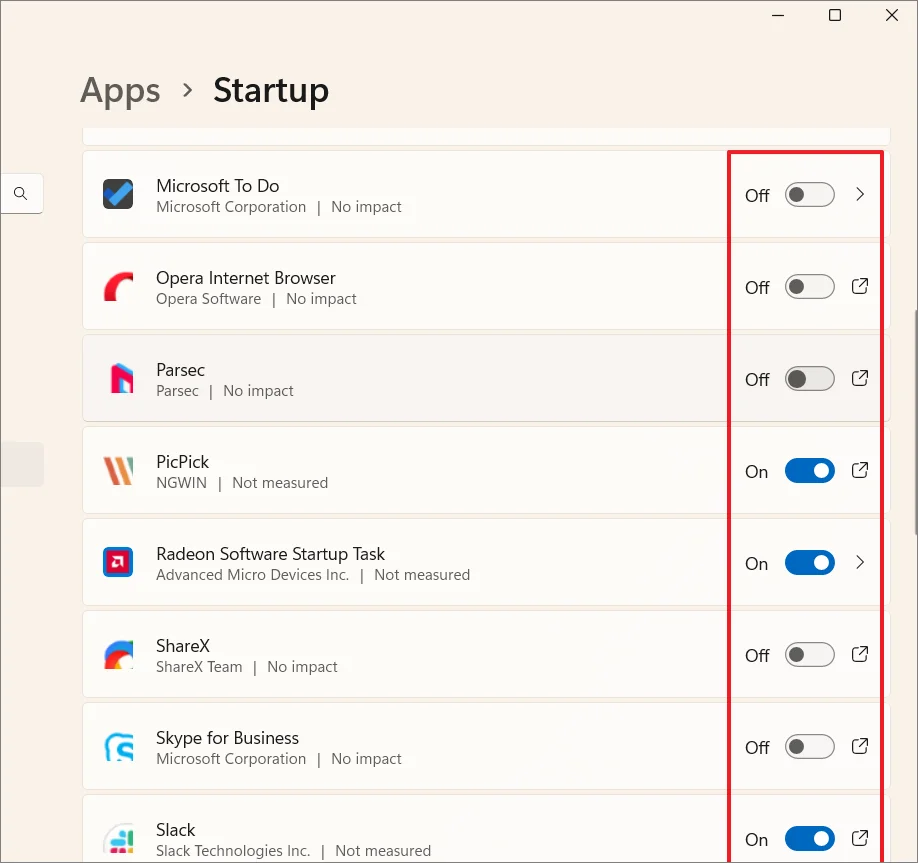
Examples can include:
- Teams or chat applications you rarely use
- Cloud synchronization software you don’t need while gaming
- Updaters
- Launchers that don’t need to run continuously
- Manufacturer utilities you don’t use
Don’t disable security software or essential hardware utilities without knowing what they do.
10. Close Resource-Heavy Background Applications
Before launching a demanding game, check what is consuming your CPU and RAM.
Press:
Ctrl + Shift + Esc
to open Task Manager.
Then check the Processes tab.
Sort processes by:
- CPU
- Memory
- GPU
- Disk
If a browser has dozens of tabs open, a video editor is rendering in the background, or another application is consuming significant resources, closing it can give your game more room to work.
Don’t randomly kill Windows processes
Avoid ending system processes simply because their names look unfamiliar.
If you don’t know what a process does, leave it alone and investigate it first.
11. Configure Windows Graphics Settings Per Game
Windows 11 lets you customize graphics behavior for individual games.
Go to:
Settings > System > Display > Graphics
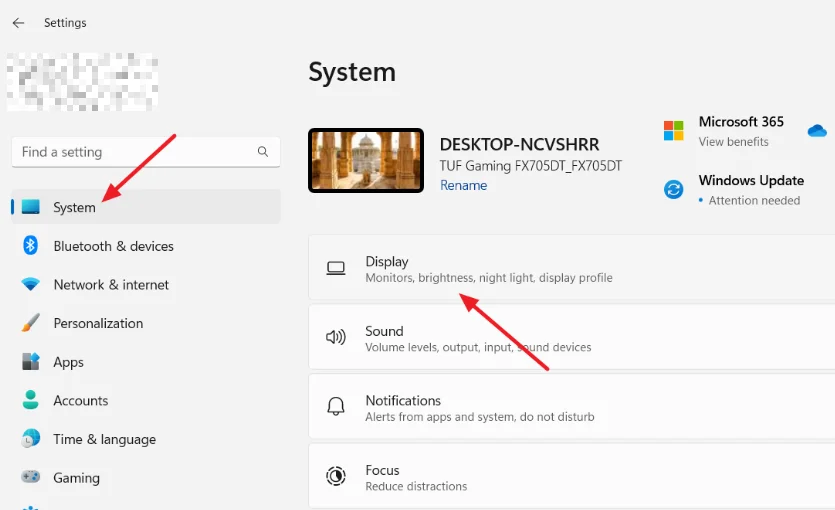

Select a game and click Options.
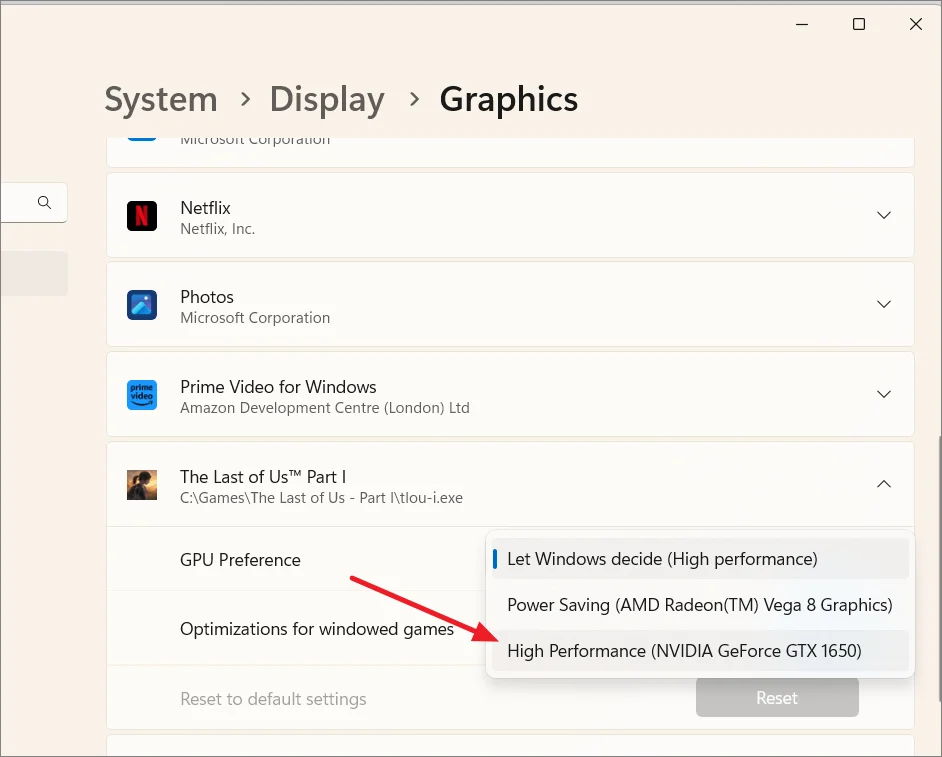
Depending on your hardware and Windows configuration, you may see settings related to:
- GPU preference
- High performance
- Auto HDR
- Windowed-game optimizations
This is useful when one particular game behaves differently from the rest of your library.
For example, you can leave global settings alone while applying a different configuration to a problematic title.
12. Consider Disabling Background Recording
If you don’t use Windows’ background game recording features, disabling them can eliminate unnecessary recording activity.
Windows Xbox Game Bar can record game clips using:
Windows + Alt + R

and stores recordings in the Videos > Captures folder.

If you never use this feature, check your Windows gaming and capture settings and disable background recording options you don’t need.
Don’t confuse recording with Game Mode
Game Mode and game recording are separate features.
You can keep Game Mode enabled while disabling background capture.
13. Choose the Correct Refresh Rate
Your monitor may support a refresh rate higher than the default Windows setting.
For example, a 144 Hz monitor running at 60 Hz won’t provide the same display experience as running at 144 Hz.
Check your refresh rate
- Open Settings.
- Go to System > Display.
- Select Advanced display.
- Find Choose a refresh rate.
- Select the highest supported refresh rate you want to use.
If your monitor supports variable refresh rate technology such as FreeSync or G-SYNC, configure it through the appropriate monitor and GPU settings as well.
14. Enable Variable Refresh Rate When Supported
Variable refresh rate (VRR) synchronizes the monitor’s refresh behavior with the GPU’s frame output within the supported range.
This can make games feel smoother when FPS fluctuates.
Windows 11 includes VRR-related graphics settings on supported hardware.
Open:
Settings > System > Display > Graphics
and check the available options under the graphics settings.
Your monitor’s own menu may also need VRR, Adaptive-Sync, FreeSync, or a similar option enabled.
15. Keep Your CPU and GPU Temperatures Under Control
Thermal throttling can reduce performance when a CPU or GPU becomes too hot.
Instead of blindly changing Windows settings, check your temperatures while gaming.
Useful monitoring applications include:
Monitor temperatures while playing a demanding game rather than relying on idle temperatures.
If temperatures are unusually high, investigate:
- Dust buildup
- Poor airflow
- Blocked laptop vents
- Old thermal paste
- Aggressive overclocking
- Insufficient case airflow
- Fan curves
Don’t chase a specific temperature number
Different CPUs and GPUs have different thermal limits.
The important thing is whether your hardware is operating within its manufacturer’s specifications and maintaining expected clock speeds under sustained load.
16. Use the Windows Performance Visual Effects Setting Carefully
Windows allows you to reduce certain desktop visual effects.
Search the Start menu for:
Adjust the appearance and performance of Windows
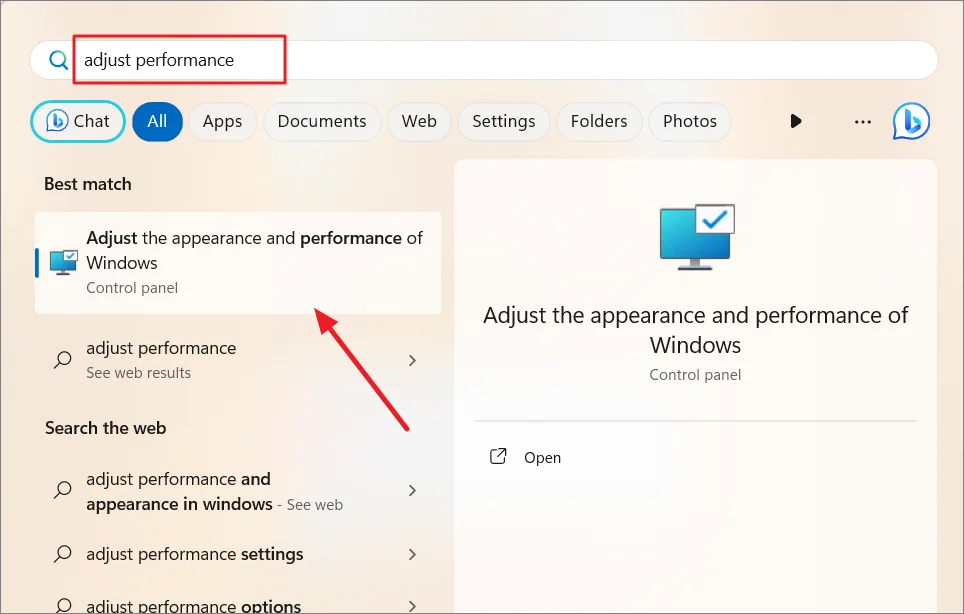
Then open the Visual Effects tab.
You can choose Adjust for best performance if you want to minimize Windows desktop effects.

However, on a modern gaming PC with sufficient RAM and a reasonably powerful CPU/GPU, this usually won’t produce a meaningful increase in in-game FPS.
My recommendation
Don’t disable every Windows visual effect simply because you’re gaming.
If your PC is older or RAM-constrained, reducing visual effects can make Windows feel more responsive. Otherwise, leave the settings at their normal values.
17. Don’t Manually Defragment Your SSD
This is an important correction to many older Windows gaming guides.
Do not manually defragment an SSD like you would an old mechanical hard drive.
Windows handles drive optimization automatically.
For an HDD
If your game library is stored on a traditional mechanical hard drive, Windows can optimize the drive appropriately.
Search for:
Defragment and Optimize Drives
Select the drive and check its current optimization status.
For an SSD
Let Windows manage optimization automatically.
If you are using an NVMe SSD, manually running old-style defragmentation commands is not a gaming performance tweak you should be doing regularly.
18. Install Games on an SSD When Possible
If you still have games installed on a mechanical HDD, moving frequently played titles to an SSD can significantly improve loading behavior.
This won’t necessarily increase your average FPS, because FPS is primarily determined by the CPU, GPU, game engine, and graphics settings.
However, an SSD can improve:
- Game loading times
- Level loading
- Fast travel/loading transitions
- Asset streaming
- Overall responsiveness
Modern NVMe SSDs are particularly well suited to large modern game installations.
19. Reduce In-Game Settings That Actually Affect FPS
Windows optimization can only go so far.
If your GPU is the performance bottleneck, changing the game’s own graphics settings will usually have a much larger impact.
Start with settings such as:
GPU-heavy settings
- Resolution
- Ray tracing
- Shadows
- Global illumination
- Reflections
- Volumetric effects
- Ambient occlusion
- Texture quality
CPU-heavy settings
- View distance
- Crowd density
- NPC density
- Physics quality
- Simulation distance
For better FPS
Instead of immediately lowering everything to Low, change one setting at a time and monitor the result.
This lets you find the settings that are actually limiting performance while keeping the game looking good.
20. Use DLSS, FSR, or XeSS When Available
Modern games increasingly support upscaling technologies from NVIDIA, AMD, and Intel.
Depending on the game and GPU, you may find:
- NVIDIA DLSS
- AMD FSR
- Intel XeSS
These technologies render the game internally at a lower resolution and reconstruct the image to your target resolution.
For GPU-limited games, enabling a quality-oriented upscaling mode can provide a substantial FPS improvement compared with native rendering.
Start with Quality mode
If available, try:
Quality
before moving to:
Balanced
or:
Performance
The exact visual quality varies from one game to another.
21. Don’t Use Random “FPS Booster” Apps
Be careful with applications that promise massive FPS improvements through one-click optimization.
Many simply change Windows settings that you could modify yourself, while others disable services or security features without explaining the consequences.
Avoid blindly using tools that:
- Disable Windows Update
- Disable Microsoft Defender
- Turn off random Windows services
- Modify dozens of registry entries
- Disable security protections
- Permanently change system policies
A gaming optimization should have a clear reason and an easy way to reverse it.
22. Restart Windows After Major Changes
Some graphics, driver, and system changes don’t take effect completely until Windows or the affected game is restarted.
After:
- Installing a GPU driver
- Changing HAGS
- Changing graphics settings
- Installing major Windows updates
- Changing power settings
restart the computer or at least restart the affected game when Windows requests it.
Windows 11 Gaming Optimization Checklist
Before launching a demanding game, quickly check the following:
- Game Mode: On
- Power mode: Best performance when appropriate
- GPU preference: High performance for the game if necessary
- Windowed-game optimizations: On
- GPU driver: Up to date
- Windows Update: Current
- Startup apps: Unnecessary apps disabled
- Background applications: Closed
- Monitor refresh rate: Correct
- VRR: Enabled if supported
- Storage: Enough free space available
- Game recording: Disabled if unused
- Temperatures: Within expected limits
- Game graphics: Tuned for your GPU
- DLSS/FSR/XeSS: Consider enabling when available
Windows 11 Gaming Tweaks You Should Avoid
Not every popular “Windows gaming tweak” is worth doing.
Avoid these outdated recommendations:
❌ Manually defragmenting an SSD
Windows already handles SSD optimization.
❌ Disabling Windows services at random
This can break Windows features and applications without providing a meaningful gaming benefit.
❌ Disabling Windows Defender for FPS
The potential security risk is not justified by an uncertain performance gain.
❌ Editing dozens of registry values from random guides
Registry tweaks frequently become outdated as Windows changes.
❌ Using registry cleaners
They are unnecessary for modern Windows installations and can create additional problems.
❌ Setting every game to “Realtime” priority
This is not a universal performance solution and can actually make the system less responsive.
❌ Disabling Windows Update permanently
Keep Windows maintained instead of trying to freeze the operating system indefinitely.
How Much FPS Can These Windows 11 Tweaks Actually Add?
There is no universal number.
The result depends on your:
- CPU
- GPU
- RAM
- Storage
- Monitor
- Drivers
- Game
- Resolution
- Graphics settings
- Background workload
- Thermal conditions
For a modern gaming PC that is already configured correctly, Windows tweaks may produce little or no change in average FPS.
The biggest improvements usually come from identifying the actual bottleneck and adjusting the game’s graphics settings accordingly.
For example, lowering ray tracing can have a dramatically larger effect than disabling Windows animations.
Final Thoughts
Optimizing Windows 11 for gaming in 2026 is less about applying dozens of mysterious “FPS tweaks” and more about keeping your system properly configured.
Start with the basics: enable Game Mode, use the correct GPU, keep your graphics driver and Windows installation updated, enable Optimizations for windowed games, use the correct monitor refresh rate, control background applications, and keep temperatures under control.
Then optimize the game itself.
Most importantly, test changes one at a time. If a tweak doesn’t improve performance, there is no reason to keep it enabled. A clean Windows installation with current drivers, sensible power settings, good cooling, and properly configured game graphics will usually outperform a system overloaded with questionable optimization tweaks.
FAQ
Does Windows 11 26H2 improve gaming performance?
Windows updates can include compatibility and performance improvements, but the impact varies by hardware and game. Keeping Windows 11 updated is recommended rather than relying on a particular version as a guaranteed FPS upgrade.
Should I use the High Performance power plan for gaming?
Modern Windows 11 systems generally expose Power mode settings such as Best performance. On laptops, higher performance can increase power consumption and heat, so it is particularly useful when connected to AC power.
Should I enable Hardware-Accelerated GPU Scheduling?
It is worth testing if your hardware supports it, but HAGS does not provide the same performance improvement on every system. If a particular game performs worse after enabling it, test with the feature disabled.
Should I enable Optimizations for windowed games?
For compatible DirectX 10 and DirectX 11 games running in windowed or borderless modes, Microsoft says the feature can improve performance and reduce frame latency.
Does freeing disk space increase FPS?
Not directly. Freeing space helps Windows maintain adequate working room and can prevent storage-related problems, but it doesn’t automatically increase GPU or CPU performance.
Should I defragment my SSD for better gaming performance?
No. Don’t manually defragment an SSD as an FPS optimization. Let Windows handle drive optimization automatically.
What’s the fastest way to increase FPS?
First identify whether your CPU or GPU is limiting performance. Then adjust the game’s resolution, ray tracing, shadows, upscaling, view distance, and other graphics settings accordingly.
Is Windows 11 good for gaming?
Yes. Windows 11 includes several gaming-focused features, including Game Mode, per-game GPU preferences, windowed-game optimizations, Auto HDR, Xbox Game Bar, and support for modern graphics technologies.
Add Tech2Geek as a preferred source on Google to see more of our latest tech articles.
Support Tech2Geek ❤️
Did this guide help you? If Tech2Geek saves you time or helps you solve a problem,
consider buying me a coffee. ☕
Your support helps keep Tech2Geek independent and free.
Comments