
Millions of people use Discord every day to chat, collaborate, and build online communities. Originally designed for gamers, the platform has evolved into a powerful communication hub where users can connect through text channels, voice chat, and community servers.
While Discord is incredibly popular, some users eventually decide they want to step away from the platform. Whether it’s due to privacy concerns, excessive screen time, or simply moving on from certain online communities, many people start looking for ways to permanently delete their Discord account.
The good news is that deleting a Discord account is straightforward once you know where to look in the settings. In this guide, you’ll learn why users delete their accounts, how to remove a Discord account on desktop or mobile, and what happens to your data afterward.
Why Some Users Delete Their Discord Accounts
Although Discord remains one of the most widely used communication platforms, there are several reasons people choose to leave.
1. Privacy Concerns
Like many online platforms, Discord collects certain types of user information, including:
- IP addresses
- messages sent in direct messages or servers
- activity logs such as timestamps and event data
Users who are uncomfortable sharing this level of information sometimes prefer to remove their accounts entirely.
2. Digital Distractions
Discord servers can be engaging communities—but they can also become major distractions. Constant notifications, discussions, and gaming chats may interfere with work, study, or personal life.
Deleting the account can help reduce digital distractions and improve productivity.
3. Message Retention
Another factor often mentioned by users is how message data works on Discord. Even if you delete your account, many of the messages you previously posted in servers remain visible, typically under a “Deleted User” label.
While your personal profile disappears, some of the content you created can still remain within server histories.
4. Reducing Your Online Footprint
Some people simply want fewer accounts across the internet. Removing unused services is a common step toward better digital privacy and security.
How to Permanently Delete Your Discord Account
Deleting a Discord account is relatively simple. However, there is one important requirement:
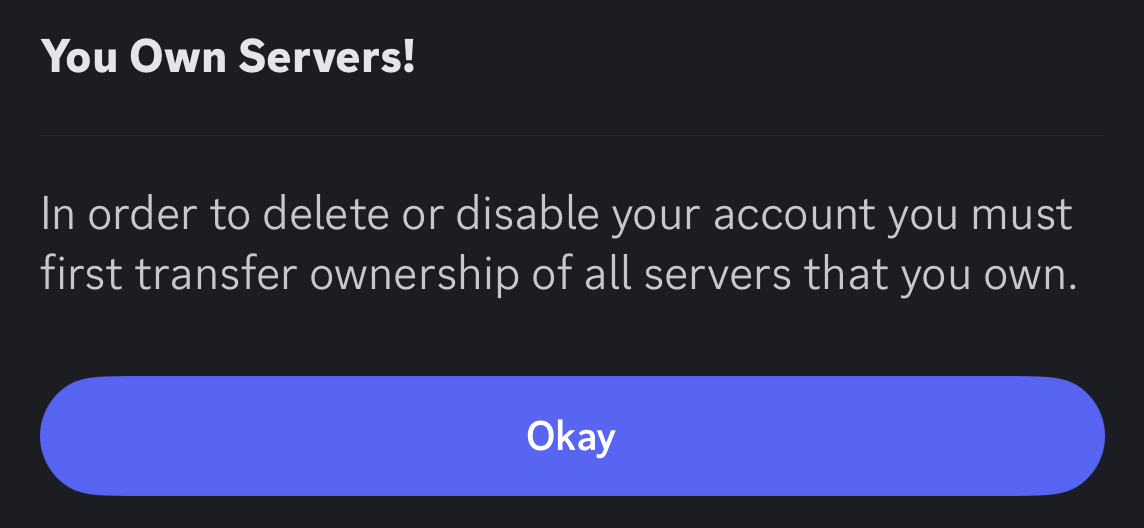
If you own any Discord servers, you must transfer ownership or delete them before your account can be removed.
Once that is handled, you can proceed with deleting the account.
How to Delete a Discord Account on PC, Mac, or Web
If you use Discord on a desktop device, follow these steps.
Step 1: Open Discord Settings
Launch the Discord desktop app or open Discord in your browser.
Click the Settings (gear icon) located in the lower-left corner of the screen next to your username.

Step 2: Go to “My Account”
In the settings menu, select My Account from the sidebar.
This page displays your username, email address, and other account details.

Step 3: Scroll to Account Removal
Scroll down until you see the Account Removal section.
Click the Delete Account button.

Step 4: Confirm the Deletion
Discord will ask you to:
- Enter your account password
- Enter your 2FA code if two-factor authentication is enabled
After entering the required information, click Delete Account to confirm.

Your Discord account will then be scheduled for deletion.
What If You Own a Discord Server?
If you created or manage a server, Discord will prevent account deletion until ownership is transferred or the server is removed.
Option 1: Transfer Server Ownership
If the server is still active, transferring ownership to another user is usually the best option.
Steps:
- Open the server.
- Click the server name at the top.
- Select Server Settings.
- Choose Members.
- Assign ownership to another trusted member.
Option 2: Delete the Server
If the server is inactive, you can delete it completely.
Steps:
1- Click the server icon from the sidebar.

2- Click the server name at the top.

3- Open Server Settings.
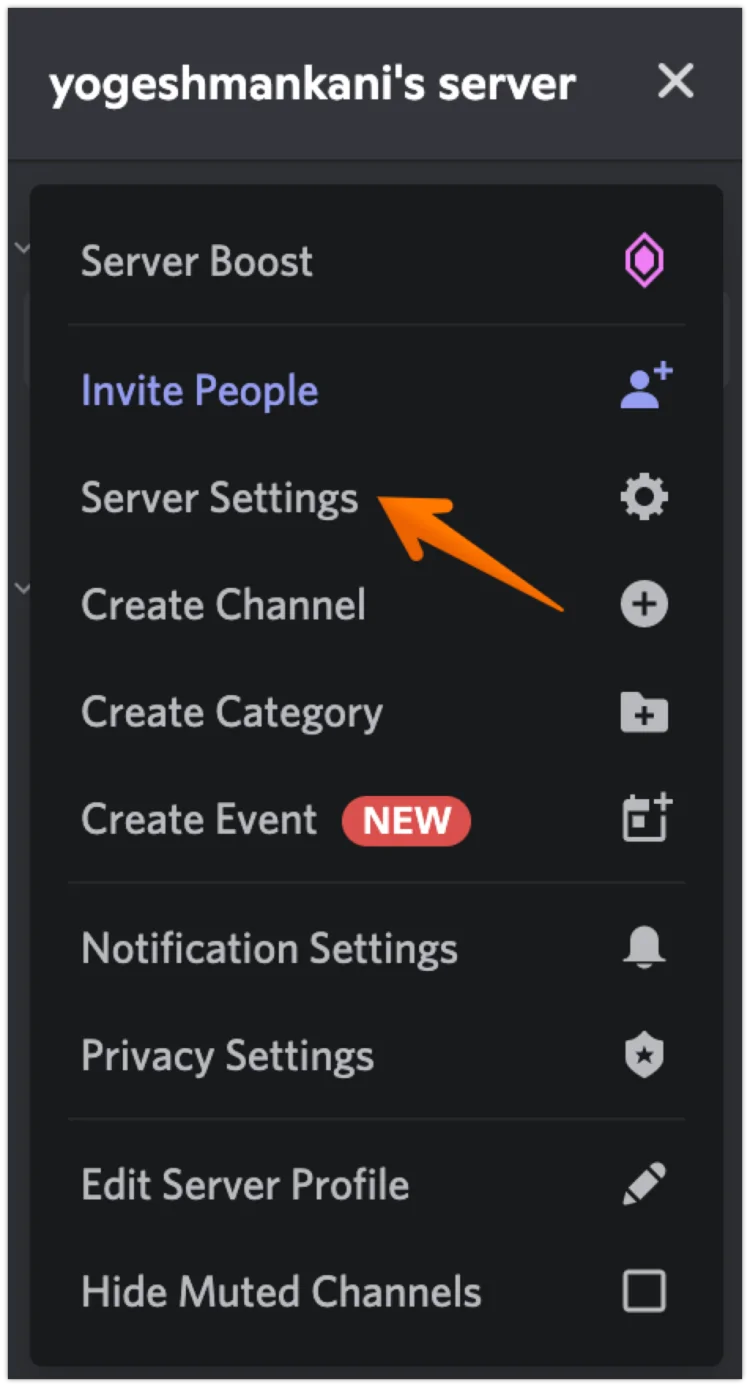
4- Scroll down and click Delete Server.

5- Enter the server name to confirm.

Once the server is removed or transferred, you can return to the account deletion process.
How to Delete Your Discord Account on iPhone or Android
Deleting a Discord account from the mobile app is also easy.
Step 1: Open the App
Launch the Discord app on your phone.
Tap your profile picture in the bottom navigation bar.

Step 2: Open Account Settings
Tap My Account to view your account information.

Step 3: Start the Deletion Process
Scroll down until you see Delete Account.
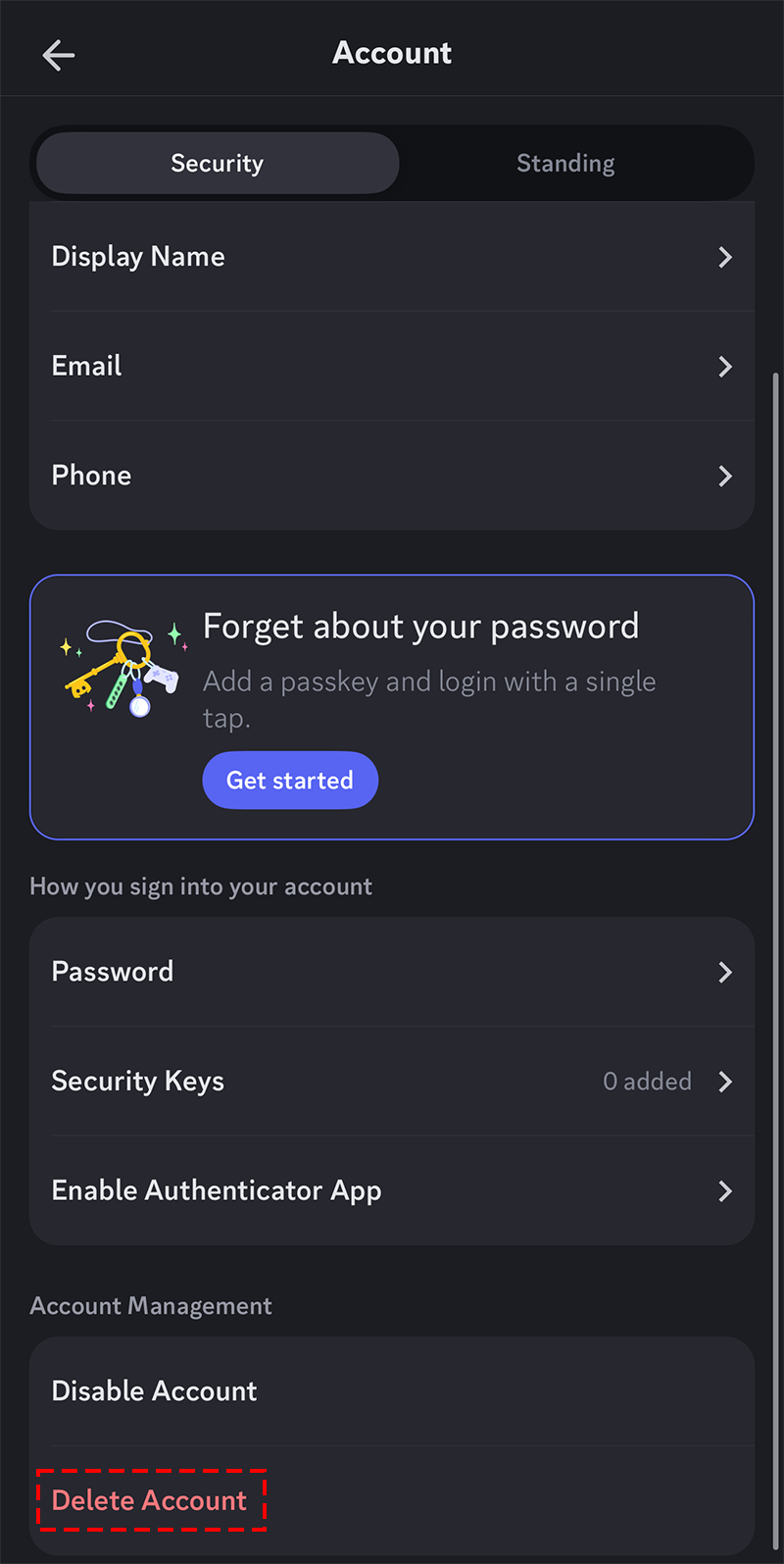
Tap the option to begin the process.
Step 4: Confirm Your Identity
You will need to enter:
- Your account password
- Your two-factor authentication code (if enabled)
After confirming, tap Delete to permanently remove the account.
How Long Does Discord Take to Delete an Account?
Once you submit the deletion request, Discord does not remove the account immediately.
Instead, the platform places the account in a pending deletion state.
Typical timeline:
- Account becomes deactivated immediately
- Permanent deletion occurs after 14 days
During this period, you can still cancel the deletion request.
If you log back into the account before the deadline, the deletion process will stop automatically.
What Happens After Your Account Is Deleted?
After the 14-day waiting period:
- Your profile name becomes Deleted User
- Your profile picture is removed
- You can no longer access the account
However, messages you previously posted in servers usually remain visible under the deleted user label.
If you want to remove messages entirely, you must delete them manually before deleting the account.
Final Thoughts
For many people, Discord is a fantastic platform for connecting with friends, gaming communities, and online groups. However, there are valid reasons why some users eventually decide to move on.
Whether you want to reduce screen time, protect your privacy, or simplify your digital life, permanently deleting your Discord account is a straightforward process once you know where the option is located.
By following the steps outlined in this guide—removing or transferring any servers you own and confirming the deletion—you can safely close your account and step away from the platform.
If you still have questions about deleting your account, Discord’s support team can provide additional help through their official support page.
And if you'd like to go a step further in supporting us, you can treat us to a virtual coffee ☕️. Thank you for your support ❤️!

We do not support or promote any form of piracy, copyright infringement, or illegal use of software, video content, or digital resources.
Any mention of third-party sites, tools, or platforms is purely for informational purposes. It is the responsibility of each reader to comply with the laws in their country, as well as the terms of use of the services mentioned.
We strongly encourage the use of legal, open-source, or official solutions in a responsible manner.
Comments